Build a real-time analytics pipeline with ClickHouse on Google Cloud Axion
Introduction
Get started with ClickHouse on Google Cloud C4A Arm virtual machines
Create a Firewall Rule on GCP
Create a Google Axion C4A Arm virtual machine on GCP
Set up GCP Pub/Sub and IAM for ClickHouse real-time analytics on Axion
Install ClickHouse
Establish a ClickHouse baseline on Arm
Build a Dataflow streaming ETL pipeline to ClickHouse
Benchmark ClickHouse on Google Axion processors
Next Steps
Build a real-time analytics pipeline with ClickHouse on Google Cloud Axion
Introduction
Get started with ClickHouse on Google Cloud C4A Arm virtual machines
Create a Firewall Rule on GCP
Create a Google Axion C4A Arm virtual machine on GCP
Set up GCP Pub/Sub and IAM for ClickHouse real-time analytics on Axion
Install ClickHouse
Establish a ClickHouse baseline on Arm
Build a Dataflow streaming ETL pipeline to ClickHouse
Benchmark ClickHouse on Google Axion processors
Next Steps
Pub/Sub and IAM Setup on GCP (UI-first)
This section prepares the Google Cloud messaging and access foundation required for the real-time analytics pipeline.
It focuses on Pub/Sub resource creation and IAM roles, ensuring Dataflow and the Axion VM can securely communicate.
Create Pub/Sub Topic
The Pub/Sub topic acts as the ingestion entry point for streaming log events.
- Open Google Cloud Console
- Navigate to Pub/Sub → Topics
- Click Create Topic
- Enter:
- Topic ID:
logs-topic
- Topic ID:
- Leave encryption and retention as the default
- Click Create
This topic will receive streaming log messages from producers.
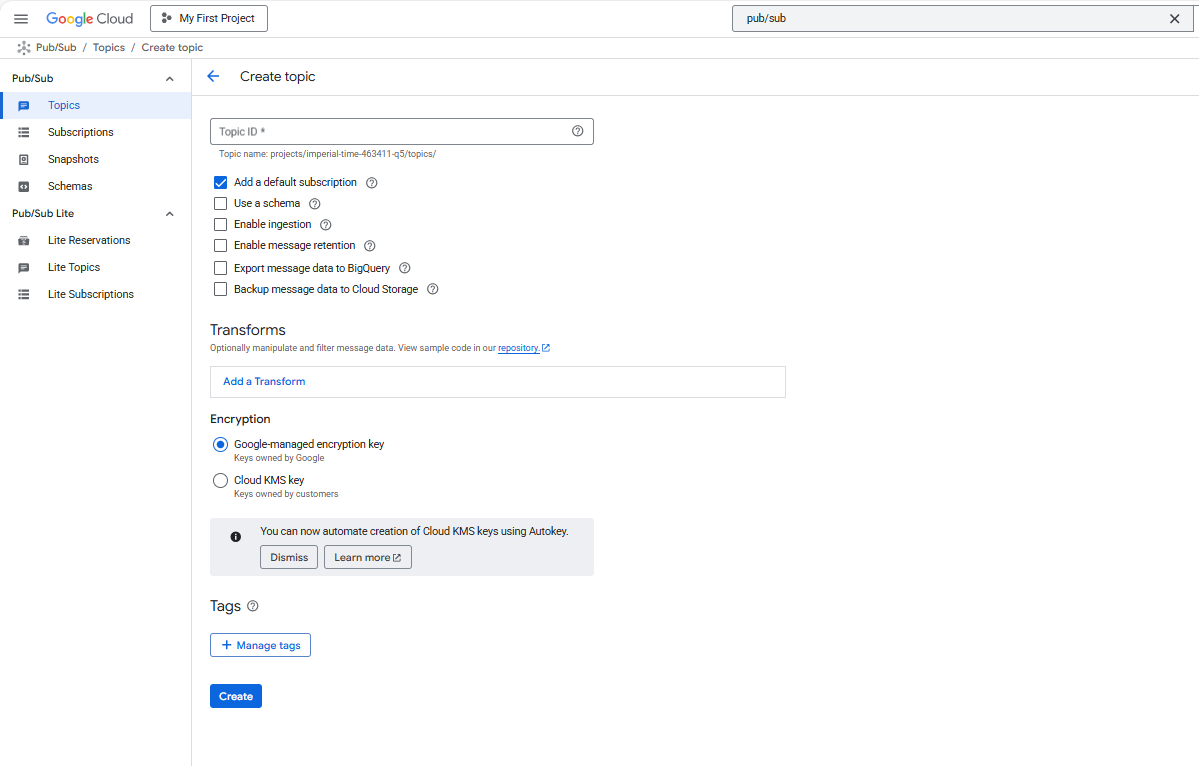 Pub/Sub Topic
Create Pub/Sub Subscription
The subscription allows Dataflow to pull messages from the topic.
- Open the newly created
logs-topic - Click Create Subscription
- Configure:
- Subscription ID:
logs-sub - Delivery type: Pull
- Ack deadline: Default (10 seconds)
- Subscription ID:
- Click Create
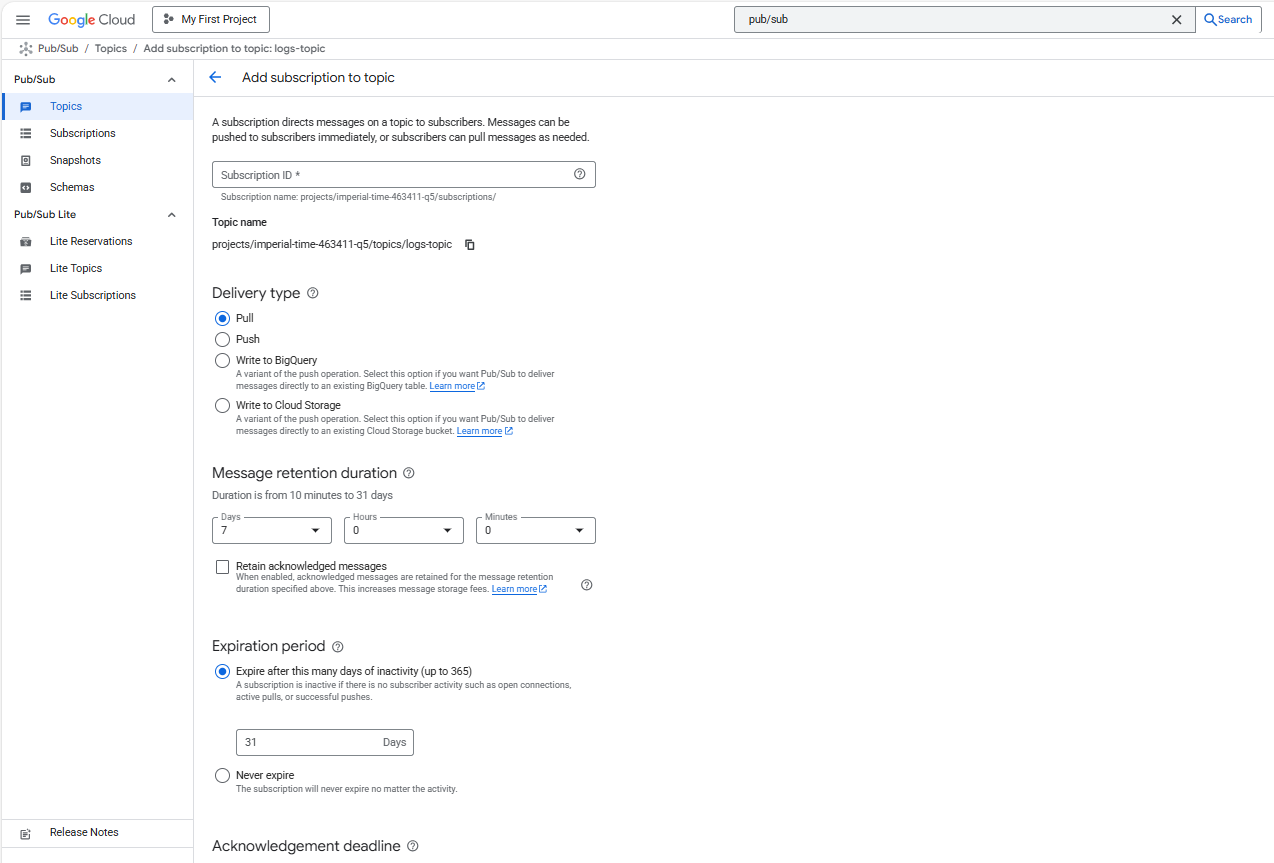 Pub/Sub Subscription
This subscription will later be referenced by the Dataflow pipeline.
Verify Pub/Sub Resources
Navigate to Pub/Sub → Topics and confirm:
- Topic:
logs-topic - Subscription:
logs-sub
This confirms the messaging layer is ready.
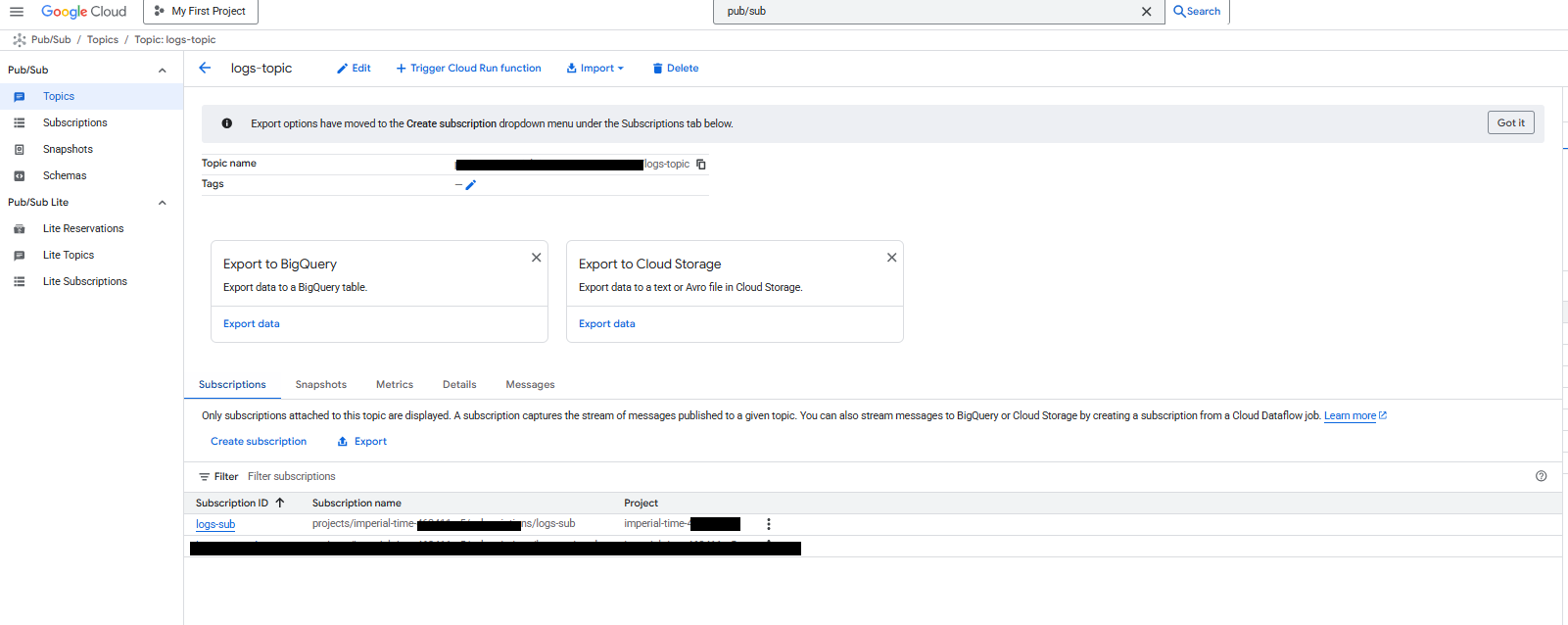 Pub/Sub Resources
Identify Compute Engine Service Account
Dataflow and the Axion VM both rely on the Compute Engine default service account.
Navigate to:
IAM & Admin → IAM
Locate the service account in the format:
<PROJECT_NUMBER>-compute@developer.gserviceaccount.com
This account will be granted the required permissions.
Assign Required IAM Roles
Grant the following roles to the Compute Engine default service account:
| Role | Purpose |
|---|---|
| Dataflow Admin | Create and manage Dataflow jobs |
| Dataflow Worker | Execute Dataflow workers |
| Pub/Sub Subscriber | Read messages from Pub/Sub |
| Pub/Sub Publisher | Publish test messages |
| Storage Object Admin | Read/write Dataflow temp files |
| Service Account User | Allow service account usage |
Steps (UI):
- Go to IAM & Admin → IAM
- Click Grant Access
- Add the service account
- Assign the roles listed above
- Save
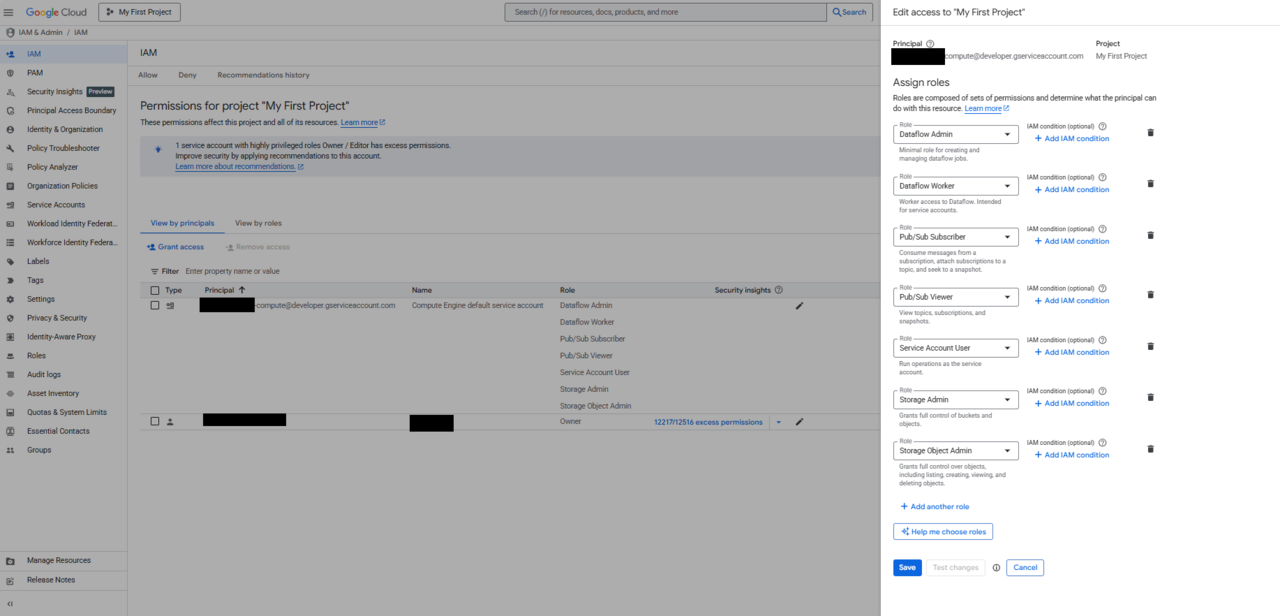 Required IAM Roles
VM OAuth scopes are limited by default. IAM roles are authoritative.
Create GCS Bucket for Dataflow (UI)
Dataflow requires a Cloud Storage bucket for staging and temp files.
- Go to Cloud Storage → Buckets
- Click Create
- Configure:
- Bucket name:
imperial-time-463411-q5-dataflow-temp - Location type: Region
- Region:
us-central1
- Bucket name:
- Leave defaults for storage class and access control
- Click Create
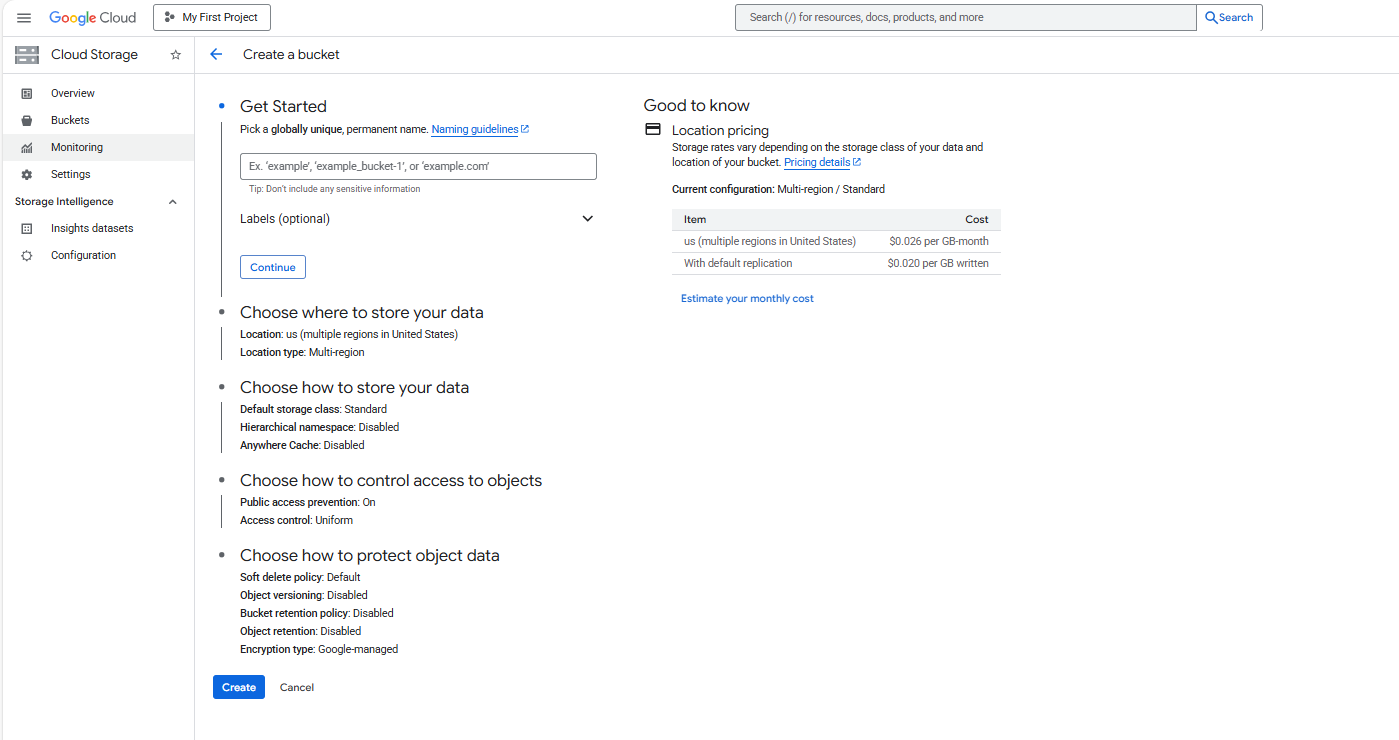 GCS Bucket
Grant Bucket Access
Ensure the Compute Engine service account has access to the bucket:
- Role: Storage Object Admin
This allows Dataflow workers to upload and read job artifacts.
Validation Checklist
Before proceeding, confirm:
- Pub/Sub topic exists (
logs-topic) - Pub/Sub subscription exists (
logs-sub) - IAM roles are assigned correctly
- GCS temp bucket is created and accessible
With Pub/Sub and IAM configured, the environment is now ready for Axion VM setup and ClickHouse installation in the next phase.