Deploy CircleCI Arm Native Workflows on AWS EC2 Graviton
Introduction
Get Started with CircleCI on AWS Graviton
Create an AWS EC2 Arm64 Graviton Instance
Install CircleCI CLI
Create a resource class in CircleCI
Install CircleCI machine runner on AWS Graviton
Verify CircleCI Arm64 Self-Hosted runner
Next Steps
Deploy CircleCI Arm Native Workflows on AWS EC2 Graviton
Overview
This section describes creating a resource class in the CircleCI Web Dashboard for a self-hosted runner. A resource class uniquely identifies the runner and links it to your CircleCI namespace, enabling jobs to run on your custom machine environment.
A Resource Class uniquely identifies the runner and links it to your CircleCI namespace, enabling jobs to run on your custom machine environment.
Register a resource class for your CircleCI self-hosted runner
If you don’t have an organization set up already, start by creating one to access the CircleCI dashboard.
To register a resource class for your CircleCI self-hosted runner, start by navigating to Self-Hosted Runners in the left sidebar of the CircleCI dashboard. You’ll be prompted to accept the terms of use; check the box labeled “Yes, I agree to the terms” to enable runners. Once you’ve agreed, select Self-Hosted Runners to continue with the setup process.
To create a new resource class, select Create Resource Class.
Fill in the details for your new resource class by entering your CircleCI username or organization in the Namespace field (for example, circleci). In the Resource Class Name field, provide a descriptive name for your runner, such as arm64, to clearly identify its purpose or architecture.
After creation, CircleCI generates a Resource Class Token. Copy this token and store it securely - you need it to register your runner on the AWS Arm VM.
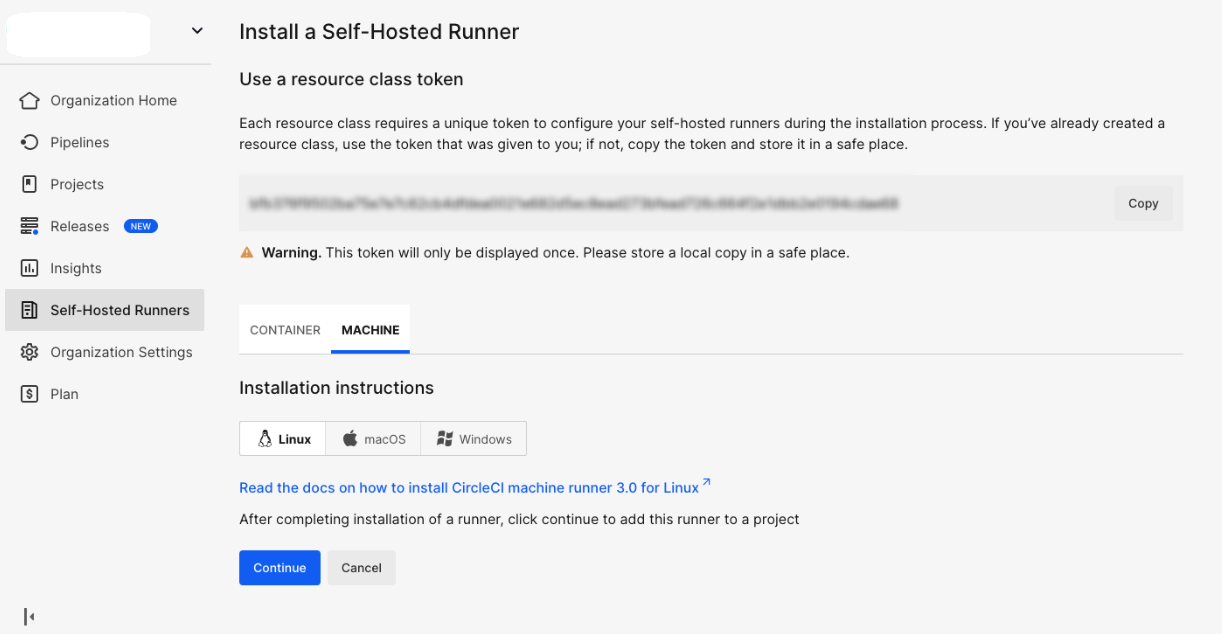 Resource Class Token field and copy button
With your resource class and token ready, proceed to the next section to set up the CircleCI self-hosted runner.