Deploy CircleCI Arm Native Workflows on AWS EC2 Graviton
Introduction
Get Started with CircleCI on AWS Graviton
Create an AWS EC2 Arm64 Graviton Instance
Install CircleCI CLI
Create a resource class in CircleCI
Install CircleCI machine runner on AWS Graviton
Verify CircleCI Arm64 Self-Hosted runner
Next Steps
Deploy CircleCI Arm Native Workflows on AWS EC2 Graviton
Overview
In this section, you will learn how to set up an AWS Graviton Arm64 EC2 instance on Amazon Web Services (AWS) using the m6g.large instance type in the AWS Management Console.
For support on AWS setup, see the Learning Path Getting started with AWS .
Set up an instance in the AWS Management Console
To create your virtual machine:
Navigate to the AWS Management Console .
Go to EC2 > Instances and select Launch Instance.
Under Instance configuration:
Enter an appropriate Instance name.
Choose an Amazon Machine Image (AMI) such as Ubuntu 24.04 ARM64.
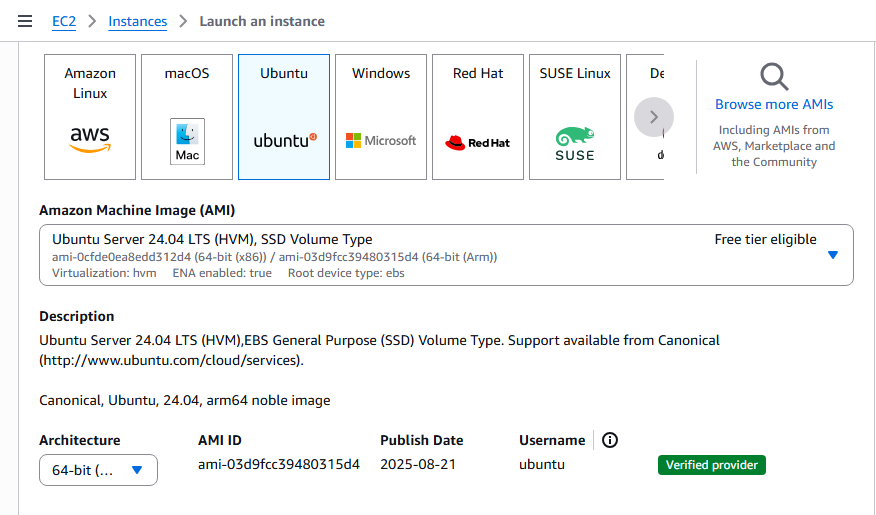 Figure 1: Amazon Machine Image (AMI)
Under Instance type, select a Graviton-based type
m6g.large.
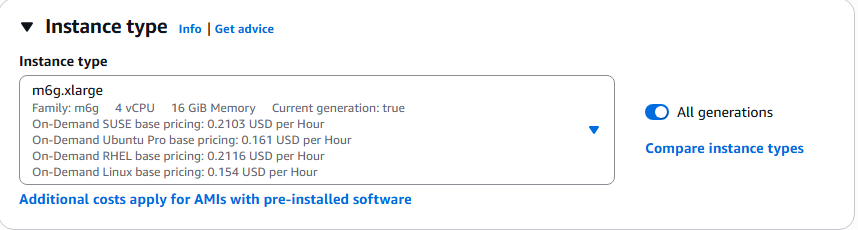 Instance type
Configure your Key pair (login) by either creating a new key pair or selecting an existing one to securely access your instance.
In Network settings, ensure that Allow HTTP traffic from the internet and Allow HTTPS traffic from the internet are checked.
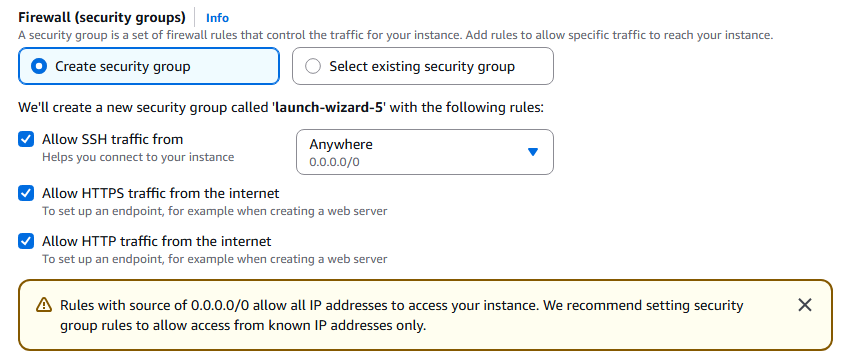 Figure 3: Network settings
Network security Be careful with permissive network inbound rules, as they pose a security risk. Good practice is to configure the machine to only allow traffic from your IP.
- Adjust Storage settings as needed — for this setup, 30 GB of gp3 (SSD) storage is sufficient.
- Click Launch Instance to create your virtual machine.