Run CircleCI Arm Native Workflows on a SUSE Arm GCP VM
Introduction
Get started with CircleCI on Google Axion C4A
Create a Google Axion C4A Arm virtual machine on GCP
Install CircleCI
Create a resource class
Install CircleCI Machine Runner on SUSE Arm
Build and test an Arm64 Node.js app using CircleCI
Next Steps
Run CircleCI Arm Native Workflows on a SUSE Arm GCP VM
Overview
This final section demonstrates how to build and test a simple Node.js web application using a self-hosted CircleCI runner running on a Google Cloud C4A (Axion Arm64) SUSE Linux virtual machine. You’ll configure Docker on the VM so that CircleCI jobs can build, test, and run containerized applications directly in your Arm64 environment, ideal for cloud-native development and CI/CD workflows targeting Arm architecture.
Install and configure Docker
Ensure Docker is installed, enabled, and accessible by both your local user and the CircleCI runner service.
Start by refreshing your package manager and then install Docker on your system:
sudo zypper refresh
sudo zypper install docker
To enable and start the Docker service, set Docker to start automatically at boot and verify it is running:
sudo systemctl enable docker
sudo systemctl start docker
sudo systemctl status docker
Now grant Docker access to users by adding both your current user and the circleci system user to the Docker group so they can run Docker commands without sudo:
sudo usermod -aG docker $USER
sudo usermod -aG docker circleci
After installing Docker and adding the circleci user to the Docker group, verify that the CircleCI runner user can access Docker without requiring elevated privileges.
Run the following commands:
sudo -u circleci -i
docker ps
exit
Verify Docker permissions
Now, confirm that Docker’s socket permissions and the CircleCI runner service are both configured correctly:
ls -l /var/run/docker.sock
ps -aux | grep circleci-runner
These commands ensure that the Docker socket is accessible and the CircleCI runner service is active and running.
Once both checks pass, your environment is ready to build and run container-based pipelines with CircleCI on SUSE Arm64.
Install Node.js and npm
Before setting up the sample application, ensure that Node.js and its package manager npm are installed on your SUSE Arm64 VM. Both are required to run, build, and test the Node.js web application within your CircleCI pipeline.
- Install Node.js: Install the official Node.js package built for the Arm64 architecture.
- Install npm: npm (Node Package Manager) is bundled with Node.js but can also be explicitly installed or upgraded if needed.
sudo zypper install nodejs
sudo zypper install npm
Next, you’ll create the demo project and prepare its CircleCI configuration to run jobs using your self-hosted Arm64 runner.
Create a repository for your example code
To store and manage your Node.js demo application, you’ll create a new GitHub repository using the GitHub CLI. This approach lets you quickly initialize a remote repository, push your project files, and collaborate with others directly from your terminal. Using the GitHub CLI is especially helpful on Arm64 systems, as it streamlines repository creation and management without needing to use a web browser. You’ll also be able to authenticate securely and automate common GitHub tasks, making your workflow more efficient for cloud-native development on Arm platforms.
Install the GitHub CLI
The GitHub CLI (gh) lets you manage repositories, issues, and pull requests directly from your terminal.
sudo zypper install -y gh
Authenticate with GitHub
Run the following command to connect the CLI to your GitHub account:
gh auth login
Create a new repository
Create a new public repository for your demo project and clone it locally:
gh repo create arm64-node-demo --public --clone
cd arm64-node-demo
Create a Dockerfile
In the root of your project, create a file named Dockerfile to define how your Node.js application container will be built and executed:
# Dockerfile
FROM arm64v8/node:20-alpine
WORKDIR /app
COPY package*.json ./
RUN npm install
COPY . .
EXPOSE 3000
CMD ["npm", "start"]
Breakdown of the Dockerfile:
- Uses Arm64 Node.js Image: The
arm64v8/nodeimage is specifically designed for Arm64 architecture. - Install Dependencies:
RUN npm installinstalls the project dependencies listed inpackage.json. - Expose Port: The app will run on port 3000.
- Start the App: The container will execute
npm startto launch the Node.js server.
Next, you’ll add the application code and a .circleci/config.yml file to automate the build and test pipeline using your self-hosted Arm64 runner.
Add a CircleCI configuration
Create a configuration file that defines your CircleCI pipeline for building, running, and testing your Node.js app on Arm64 architecture.
In the root of your project, create a folder named .circleci and inside it, add a file called config.yml with the contents below:
version: 2.1

jobs:
  arm64-demo:
    machine: true
    resource_class: <Your_resource_class>
    steps:
      - checkout
      - run:
          name: Show Architecture
          command: |
            ARCH=$(uname -m)
            echo "Detected architecture: $ARCH"
            if [ "$ARCH" = "aarch64" ]; then
              echo "✅ Running on ARM64 architecture!"
            else
              echo "Not running on ARM64!"
              exit 1
            fi
      - run:
          name: Build Docker Image
          command: docker build -t arm64-node-demo .
      - run:
          name: Run Docker Container
          command: docker run -d -p 3000:3000 arm64-node-demo
      - run:
          name: Test Endpoint
          command: |
            sleep 5
            curl http://localhost:3000

workflows:
  version: 2
  arm64-workflow:
    jobs:
      - arm64-demo
Explanation of the yaml file:
- arm64-demo Job: This job checks if the architecture is Arm64, builds the Docker image, runs it in a container, and tests the app endpoint.
- resource_class: Specify the resource class for the CircleCI runner (e.g., a custom Arm64 runner if using self-hosted).
- Test Endpoint: The job sends a request to the app to verify it’s working.
Node.js application
Create the application files in your repository root directory for the Node.js app.
Use a file editor of your choice and copy the contents shown below into a file named index.js:
const express = require('express');
const app = express();
const PORT = process.env.PORT || 3000;

app.get('/', (req, res) => {
  res.send('Hello from ARM64 Node.js app! 🚀');
});

app.listen(PORT, () => {
  console.log(`Server running on port ${PORT}`);
});
Now copy the content below into a file named package.json:
{
  "name": "arm64-node-demo",
  "version": "1.0.0",
  "main": "index.js",
  "scripts": {
    "start": "node index.js",
    "test": "echo \"No tests yet\""
  },
  "dependencies": {
    "express": "^4.18.2"
  }
}
- Express Server: The application uses Express.js to handle HTTP requests and respond with a simple message.
- Package Dependencies: The app requires the
expresspackage for handling HTTP requests.
Push code to GitHub
Now that all project files (Dockerfile, index.js, package.json, and .circleci/config.yml) are ready, you can push the code to GitHub. This allows CircleCI to automatically detect the repository and trigger your Arm64 build pipeline using the self-hosted runner.
Configure Git username and add and commit project files:
git config --global user.name "your-user-name"
git add .
git commit -m "Add ARM64 CircleCI Node.js demo project"
git push -u origin main
You have pushed your code to the GitHub repository so that CircleCI can trigger the build.
Start CircleCI runner and execute the job
Before triggering your first workflow, ensure that the CircleCI runner service is enabled and running on your SUSE Arm64 VM. This will allow your self-hosted runner to pick up jobs from CircleCI.
sudo systemctl enable circleci-runner
sudo systemctl start circleci-runner
sudo systemctl status circleci-runner
- Enable CircleCI Runner: Ensures the runner service starts automatically on system boot.
- Start and Check Status: Starts the CircleCI runner and verifies it is running.
Verify Job Execution in CircleCI
After pushing your code to GitHub, open your CircleCI Dashboard → Projects, and confirm that your Arm64 workflow starts running using your self-hosted runner.
If the setup is correct, you’ll see your job running under the resource class you created.
Output
When the CircleCI workflow starts running on your self-hosted Arm64 runner, you’ll see the following stages executed in your CircleCI Dashboard:
- Detect the ARM64 Architecture CircleCI confirms the job is executing on your Arm64 self-hosted runner. This validates that the pipeline is correctly targeting your Google Cloud C4A (Axion) VM.
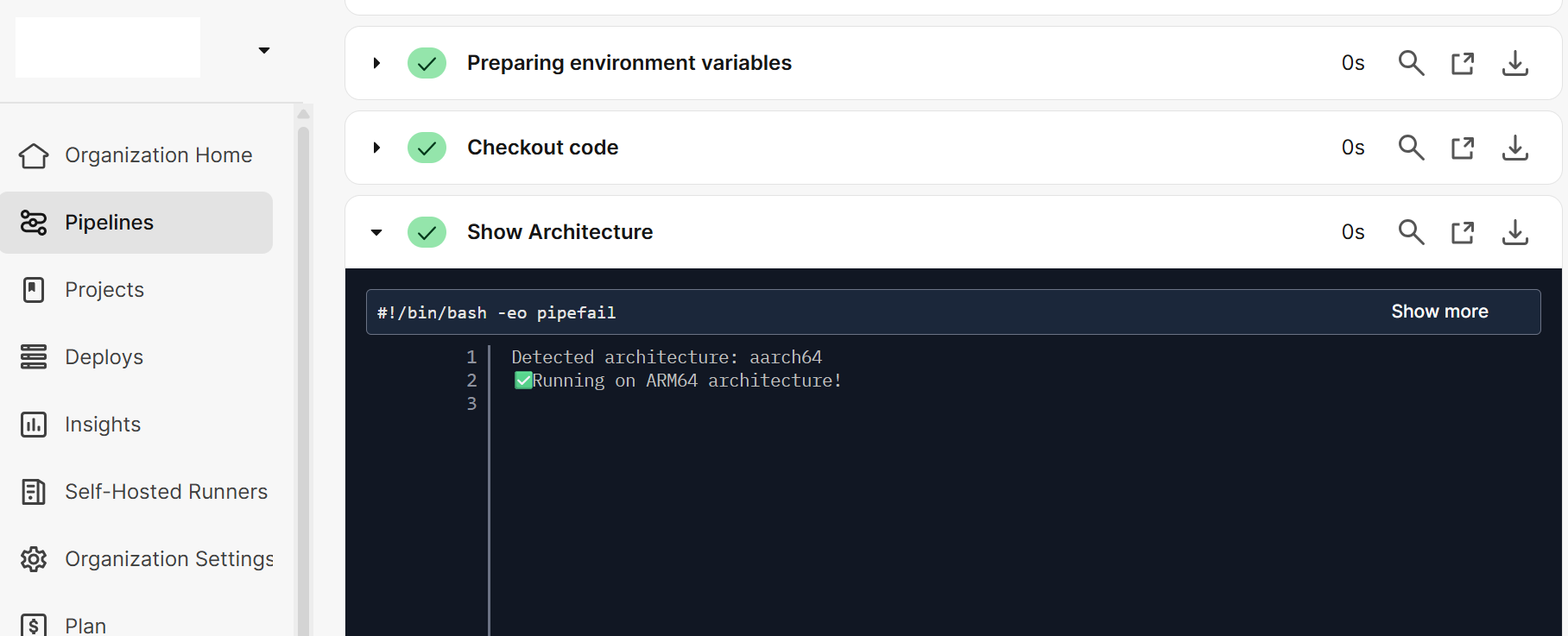 Show architecture
Build the Docker image
The runner builds the arm64-node-demo Docker image using the Dockerfile you defined.
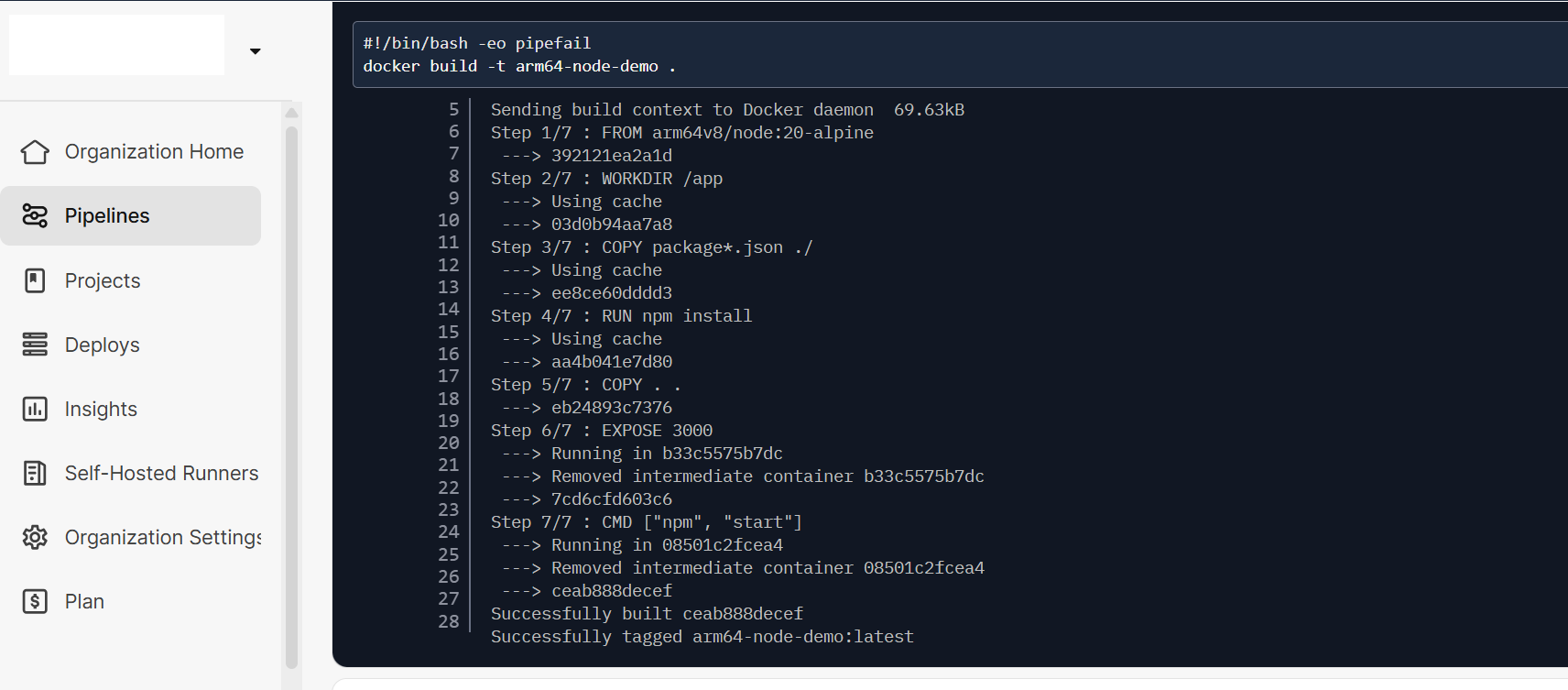 Docker Image
Run a container from the image
Once the image is built, the job launches a container to host your Node.js web app.
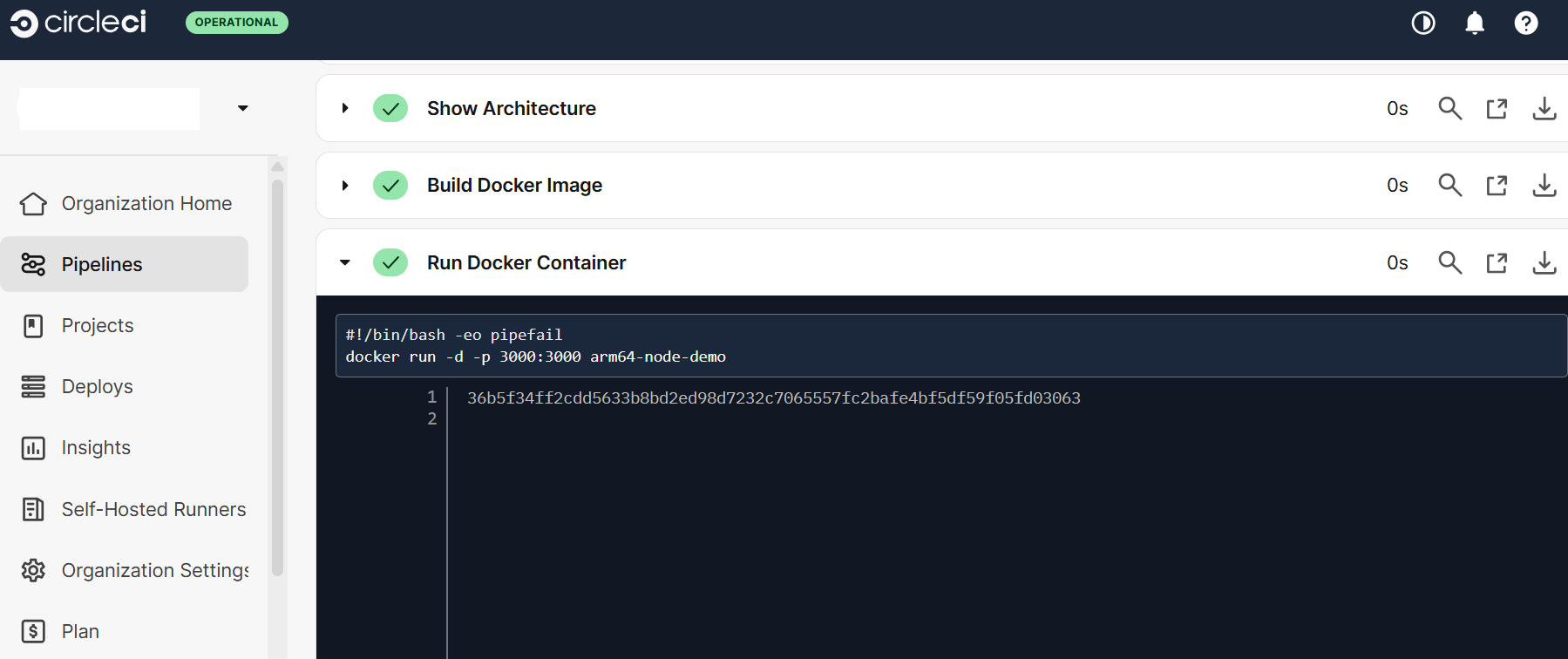 Container Run
Test the application by hitting the end point
The workflow tests the running app by sending an HTTP request to http://localhost:3000.
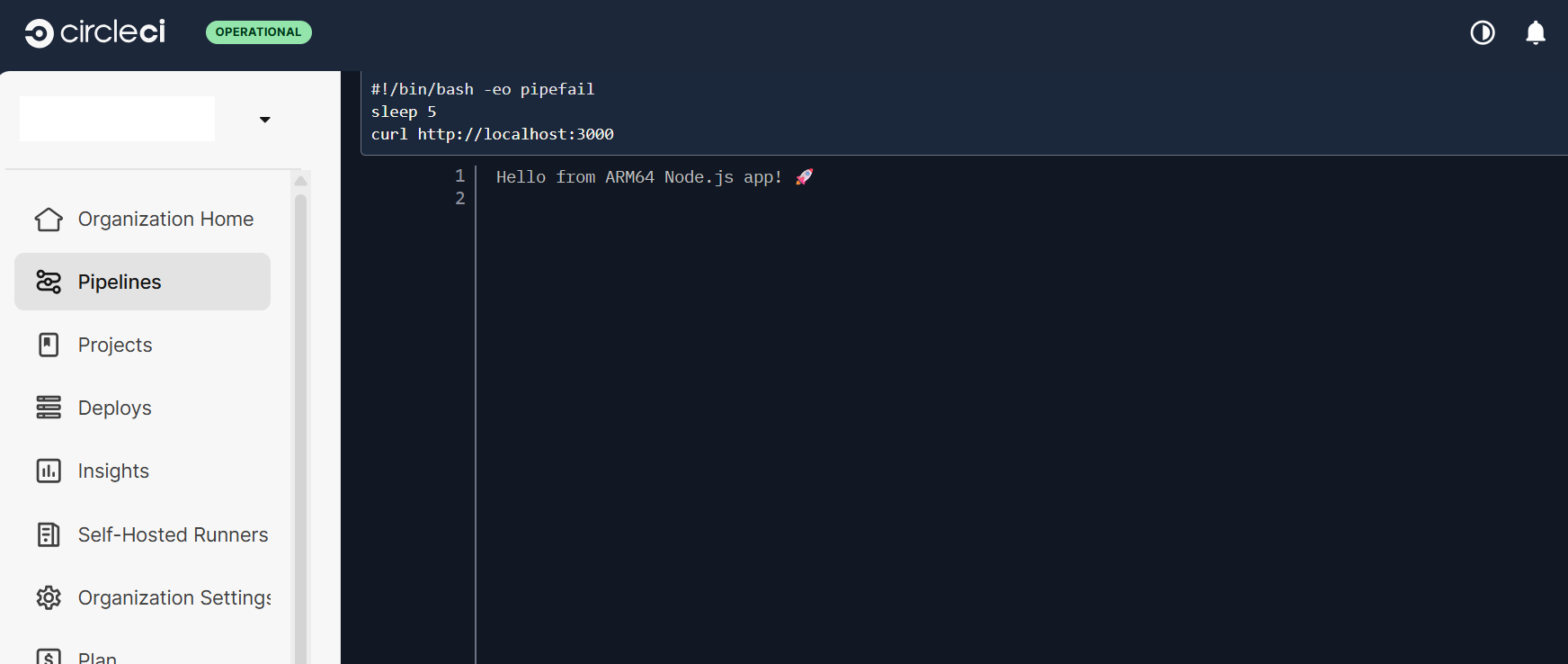 Verify App
If the app responds with the expected message, you know your Node.js web server is running correctly inside the container.
You should now see your CircleCI job running and the app deployed in the CircleCI Dashboard. This confirms your end-to-end CI/CD pipeline is working on SUSE Arm64 using a Google Cloud C4A (Axion) VM as a self-hosted runner.
What you’ve accomplished and what’s next
You have built, tested, and deployed a Node.js app using CircleCI on Arm64 in the cloud. This demonstrates a complete CI/CD workflow for cloud-native development on Arm platforms.
To investigate this area further, you can now:
- Explore more advanced CircleCI features, such as parallel jobs, caching, and deployment workflows, to optimize your pipelines for Arm64
- Integrate automated testing frameworks to expand your test coverage and improve code quality
- Try deploying your containerized application to a managed Kubernetes service on Arm, such as Google Kubernetes Engine (GKE) with Arm nodes
- Review additional Learning Paths on Arm cloud development, containerization, and CI/CD best practices
You are ready to build scalable, cloud-native applications targeting Arm platforms using modern CI/CD workflows.