Create multi-architecture Docker images with Buildkite on Google Axion
Introduction
Discover Buildkite on Google Axion C4A instances
Create a Google Axion C4A Arm virtual machine on GCP
Install Buildkite on a Google Axion C4A Arm VM
Set up and connect Buildkite agent on a Google Axion C4A Arm VM
Create a Flask app and set up the Buildkite pipeline
Run the Buildkite pipeline
Next Steps
Create multi-architecture Docker images with Buildkite on Google Axion
Introduction
Discover Buildkite on Google Axion C4A instances
Create a Google Axion C4A Arm virtual machine on GCP
Install Buildkite on a Google Axion C4A Arm VM
Set up and connect Buildkite agent on a Google Axion C4A Arm VM
Create a Flask app and set up the Buildkite pipeline
Run the Buildkite pipeline
Next Steps
Get started
You’re about to launch a Google Axion C4A Arm virtual machine on Google Cloud Platform (GCP). This section guides you through each step, from selecting the optimal instance type to configuring your operating system and networking.
By the end, you’ll have a ready-to-use Arm-based VM, perfect for high-performance workloads and cloud-native development. Specifically, you’ll learn how to provision a Google Axion C4A Arm virtual machine on Google Cloud Platform (GCP) using the c4a-standard-4 instance type with 4 vCPUs and 16 GB memory in the Google Cloud Console.
Provision a virtual machine
To create a virtual machine based on the C4A instance type, follow these steps:
- Open the Google Cloud Console .
- In the left navigation pane, select Compute Engine > VM instances.
- Select Create instance.
- In the Machine configuration section:
- Enter a value for Instance name.
- Select a Region and Zone.
- For Series, select C4A.
- For Machine type, select c4a-standard-4.
The following image shows the Machine configuration section with the C4A series and c4a-standard-4 machine type selected:
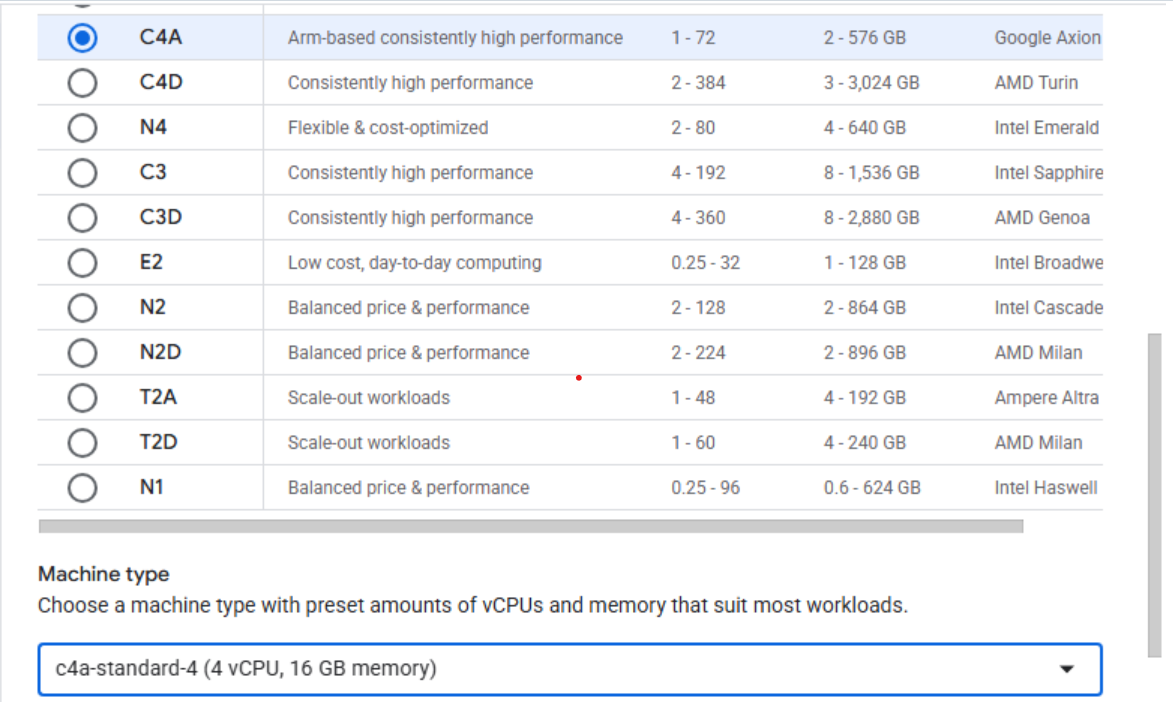 Creating a Google Axion C4A Arm virtual machine in Google Cloud Console
- In the OS and storage section, select Change.
- In the Operating system dialog, choose an Arm64-based image such as SUSE Linux Enterprise Server or Ubuntu.
- Select your preferred version, making sure you select the Arm architecture.
- Select Select to confirm your choice.
- In the Networking section, enable the Allow HTTP traffic option.
- Select Create to launch your instance.
Once the instance is running, you can connect to it using SSH from the Google Cloud Console or your local terminal. This allows you to configure your environment and begin deploying workloads on your new Arm-based VM.