Deploy High-Performance Analytics with Apache Arrow and Arrow Flight on Google Cloud C4A Axion processors
Introduction
Get started with Apache Arrow and Arrow Flight on Google Axion C4A
Create firewall rules on GCP for Apache Arrow, MinIO, and Arrow Flight
Create a Google Axion C4A arm64 virtual machine on GCP
Set up Apache Arrow and MinIO on arm64
Analyze columnar data with Apache Arrow on arm64
Run high-speed analytics with Apache Arrow Flight on arm64
Next Steps
Deploy High-Performance Analytics with Apache Arrow and Arrow Flight on Google Cloud C4A Axion processors
Introduction
Get started with Apache Arrow and Arrow Flight on Google Axion C4A
Create firewall rules on GCP for Apache Arrow, MinIO, and Arrow Flight
Create a Google Axion C4A arm64 virtual machine on GCP
Set up Apache Arrow and MinIO on arm64
Analyze columnar data with Apache Arrow on arm64
Run high-speed analytics with Apache Arrow Flight on arm64
Next Steps
Configure GCP firewall for Apache Arrow analytics stack
To allow inbound traffic for Apache Arrow-based analytics components, create a firewall rule in the Google Cloud Console. This firewall rule enables access to MinIO object storage and Arrow Flight for high-performance data transfer on Axion (arm64) virtual machines.
For more information about GCP setup, see Getting started with Google Cloud Platform .
Required ports
| Service | Port | Purpose |
|---|---|---|
| MinIO S3 API | 9000 | S3-compatible object storage access |
| MinIO Web UI | 9001 | Bucket management and object browsing |
| Arrow Flight (gRPC) | 8815 | High-speed in-memory data transfer |
Create a firewall rule in GCP
To expose the TCP ports listed above, create a firewall rule.
Navigate to the Google Cloud Console , go to VPC Network > Firewall, and select Create firewall rule.
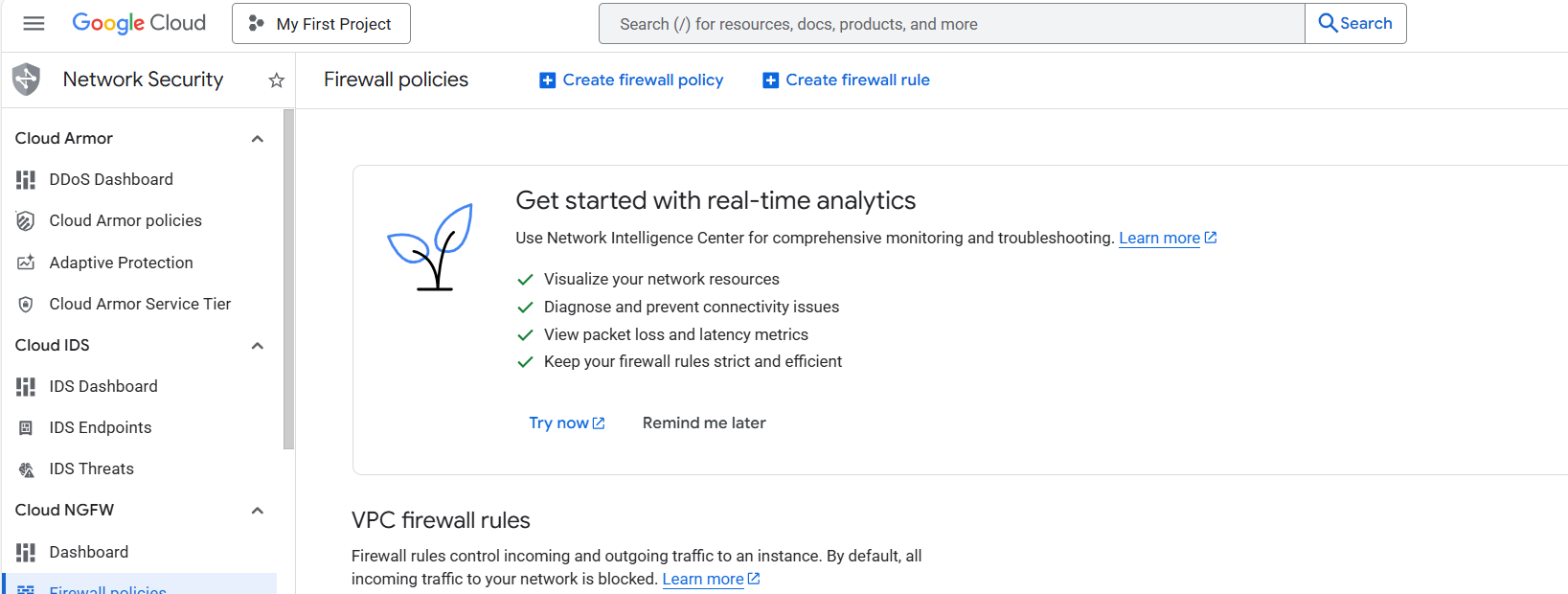 Create a firewall rule
Next, create the firewall rule that exposes the required TCP ports.
Set the Name of the new rule to allow-arrow-minio-flight. Select the network you intend to bind to your VM (the default is default, but your organization may use a different one).
Set Direction of traffic to “Ingress”. Set Allow on match to “Allow” and Targets to “Specified target tags”.
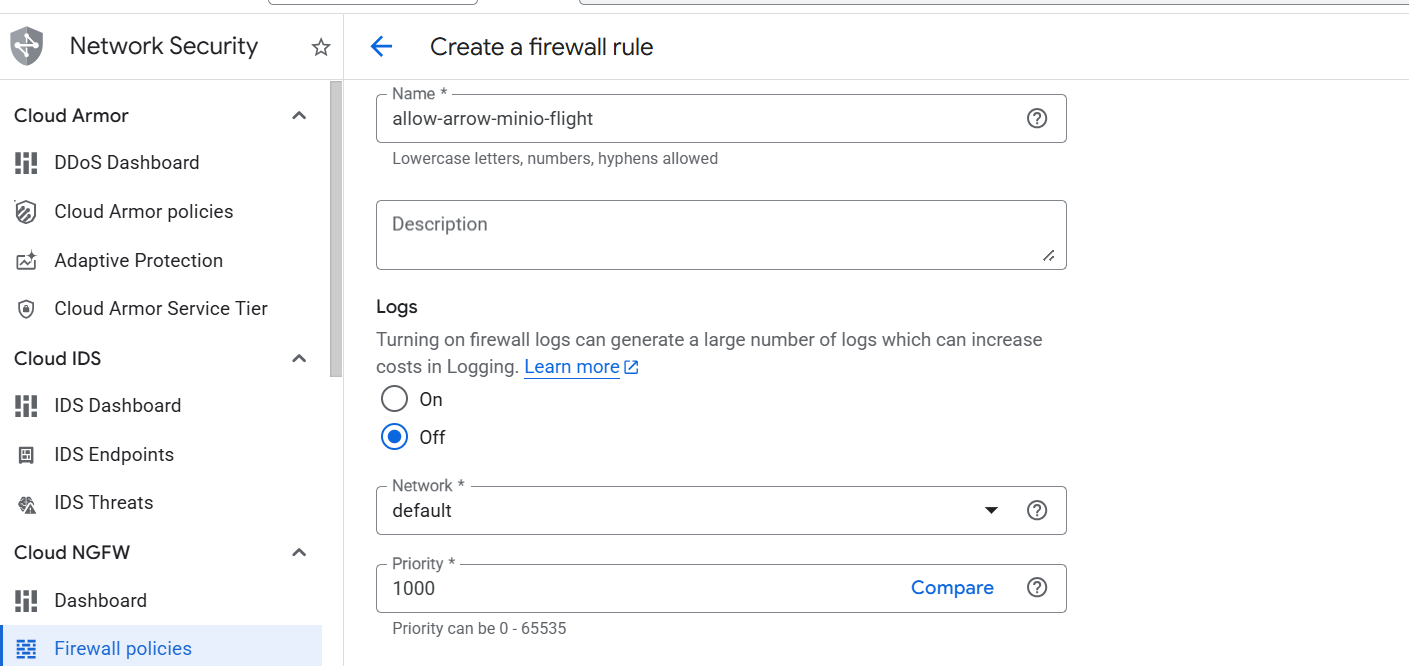 Creating Arrow firewall rule
Next, enter allow-arrow-minio-flight in the Target tags field. Set Source IPv4 ranges to 0.0.0.0/0.
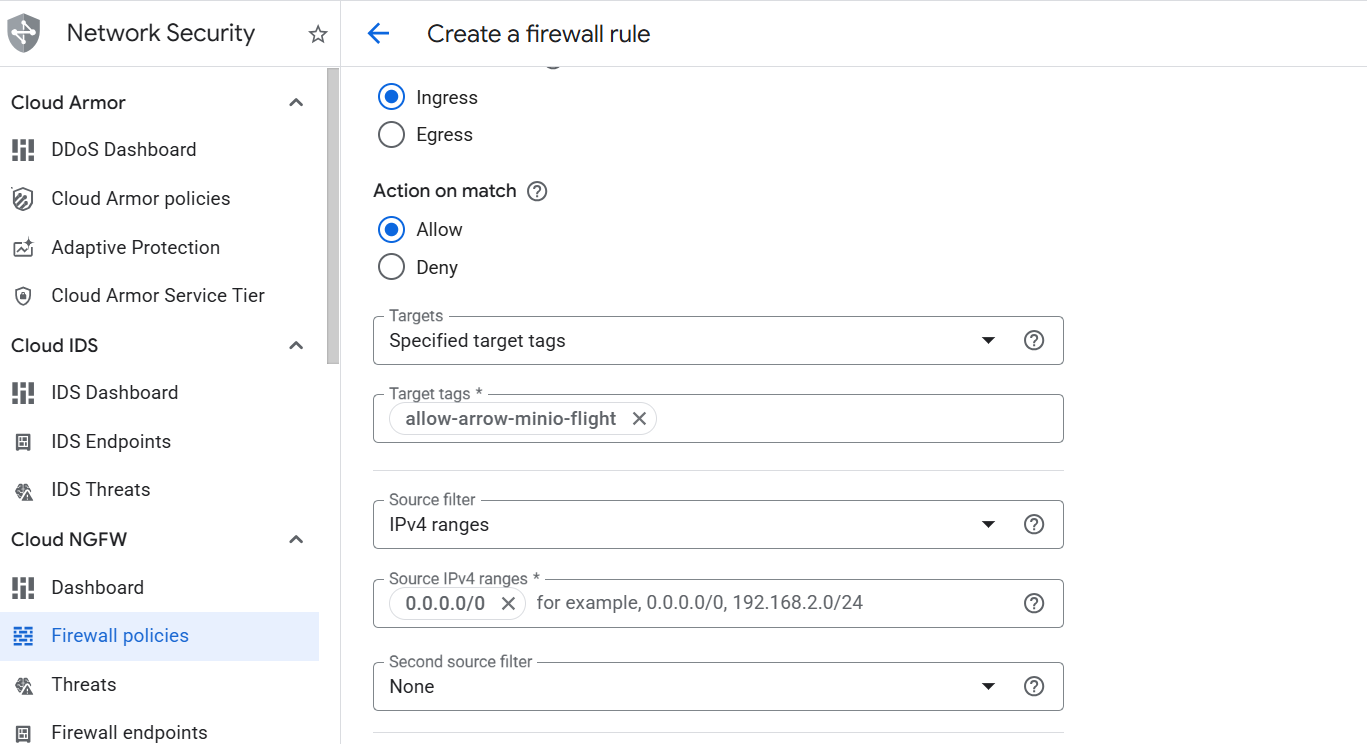 Creating the Arrow and MinIO firewall rule
Finally, select Specified protocols and ports under the Protocols and ports section. Select the TCP checkbox, enter 9000,9001,8815 in the Ports field, and select Create.
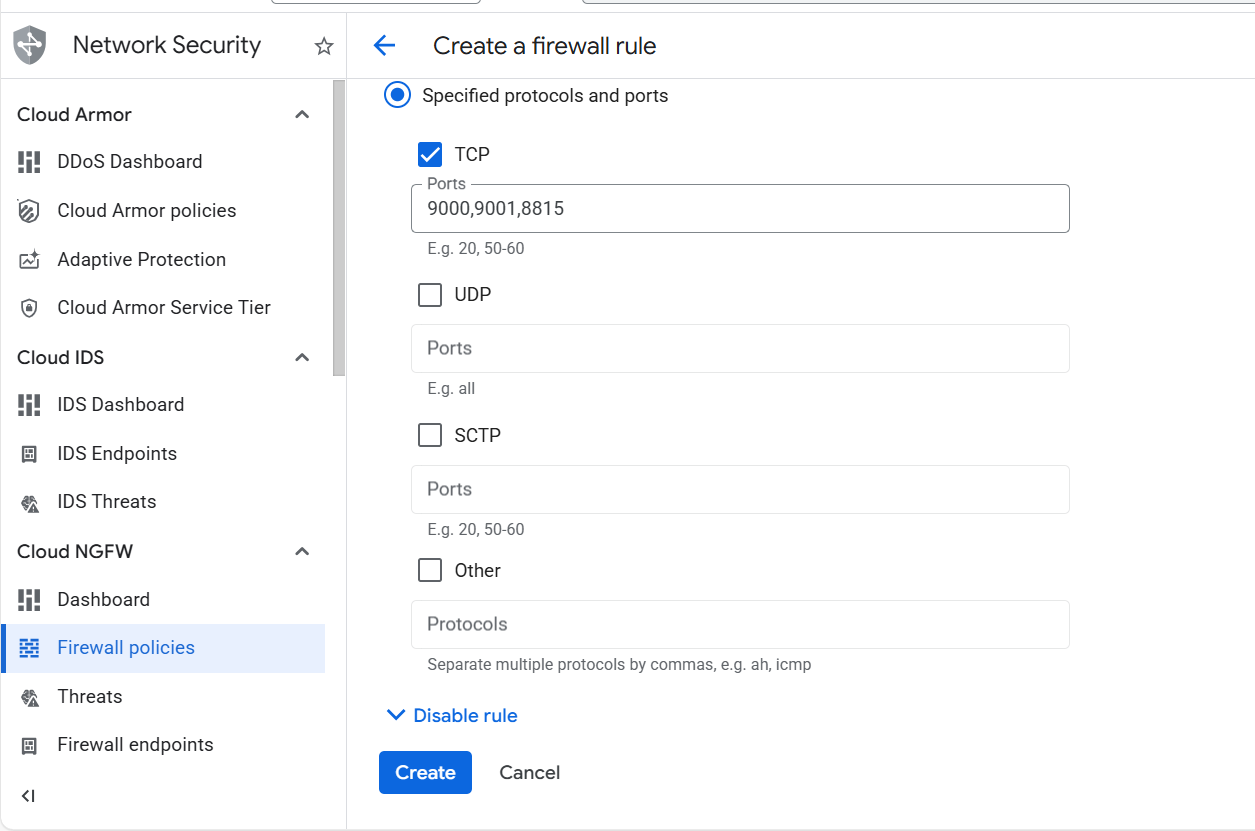 Specifying TCP ports for Apache Arrow and MinIO
What you’ve learned and what’s next
You’ve successfully:
- Created firewall rules in Google Cloud to expose ports for Apache Arrow analytics components
- Enabled external access to MinIO S3 API and Web UI
- Configured network access for Arrow Flight gRPC communication
- Prepared the network for a high-performance analytics stack on Axion (arm64)
Next, you’ll provision a Google Axion C4A Arm virtual machine and deploy Apache Arrow workloads, MinIO object storage, and Arrow Flight services on it.