Deploy Alluxio on Azure Cobalt 100 Arm64 virtual machines for data orchestration and caching
Introduction
Understand Alluxio on Azure Cobalt 100
Create an Azure Cobalt 100 Arm64 virtual machine
Allow access to the Alluxio Web UI on Azure
Deploy Alluxio on Azure Cobalt 100
Integrate Alluxio with Apache Spark and optimize performance
Next Steps
Deploy Alluxio on Azure Cobalt 100 Arm64 virtual machines for data orchestration and caching
Set up the Azure virtual machine
In this section, you’ll launch the Azure portal to create a virtual machine (VM) with the Arm-based Azure Cobalt 100 processor.
This Learning Path focuses on general-purpose virtual machines in the Dpsv6 series. For more information, see the Microsoft Azure guide for the Dpsv6 size series .
While the steps to create this instance are included here for convenience, you can also see Deploy a Cobalt 100 virtual machine on Azure Learning Path .
Create an Arm-based virtual machine in the Azure portal
To create an Azure virtual machine using the Azure portal:
- Launch the Azure portal and navigate to Virtual Machines.
- Select Create, and select Virtual Machine from the drop-down list.
- In the Basic tab, fill in the instance details such as Virtual machine name and Region.
- Select Ubuntu Pro 24.04 LTS as the image for your virtual machine, and select Arm64 as the VM architecture.
- In the Size field, select See all sizes and select the D-Series v6 family of virtual machines.
- Select D4ps_v6 from the list as shown in the diagram below:
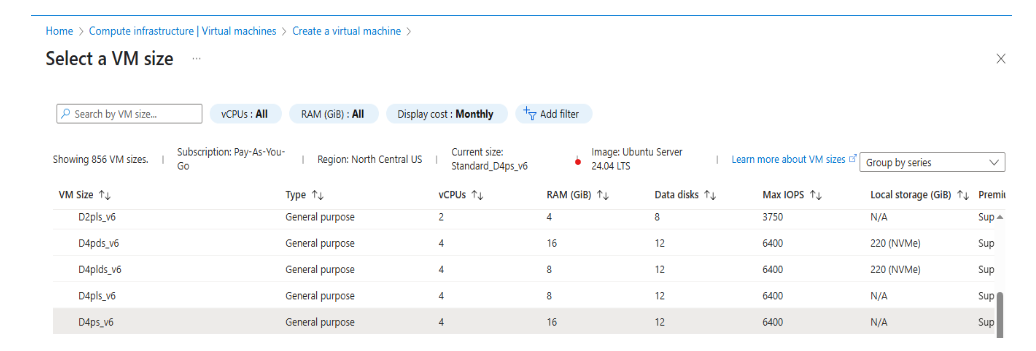 Select D4ps_v6 from the D-Series v6 family
- For Authentication type, select SSH public key.
Azure generates an SSH key pair for you and lets you save it for future use. This method is fast, secure, and easy for connecting to your virtual machine.
- Fill in the Administrator username for your VM.
- Select Generate new key pair, and select RSA SSH Format as the SSH Key Type.
RSA offers better security with keys longer than 3072 bits.
- Give your SSH key a key pair name.
- In the Inbound port rules, select HTTP (80) and SSH (22) as the inbound ports, as shown in the following image:
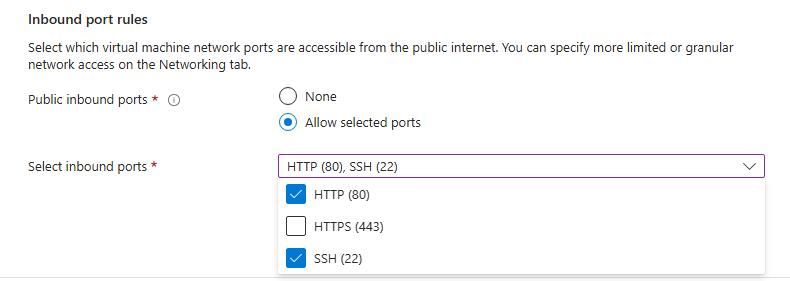 Configure inbound port rules for HTTP and SSH access
- Select the Review + Create tab and review the configuration for your virtual machine. It should look like the following:
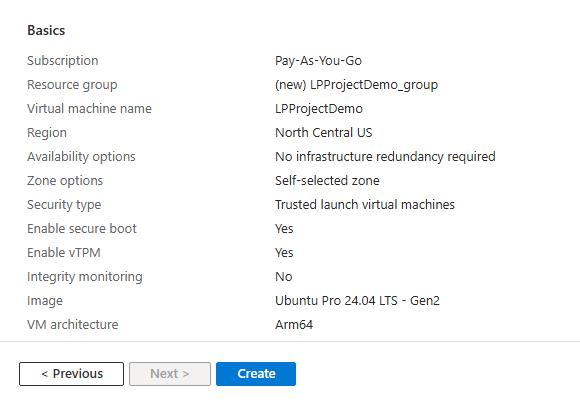 Review VM configuration before creation
- When you’re happy with your selection, select the Create button and then Download Private key and Create Resource.
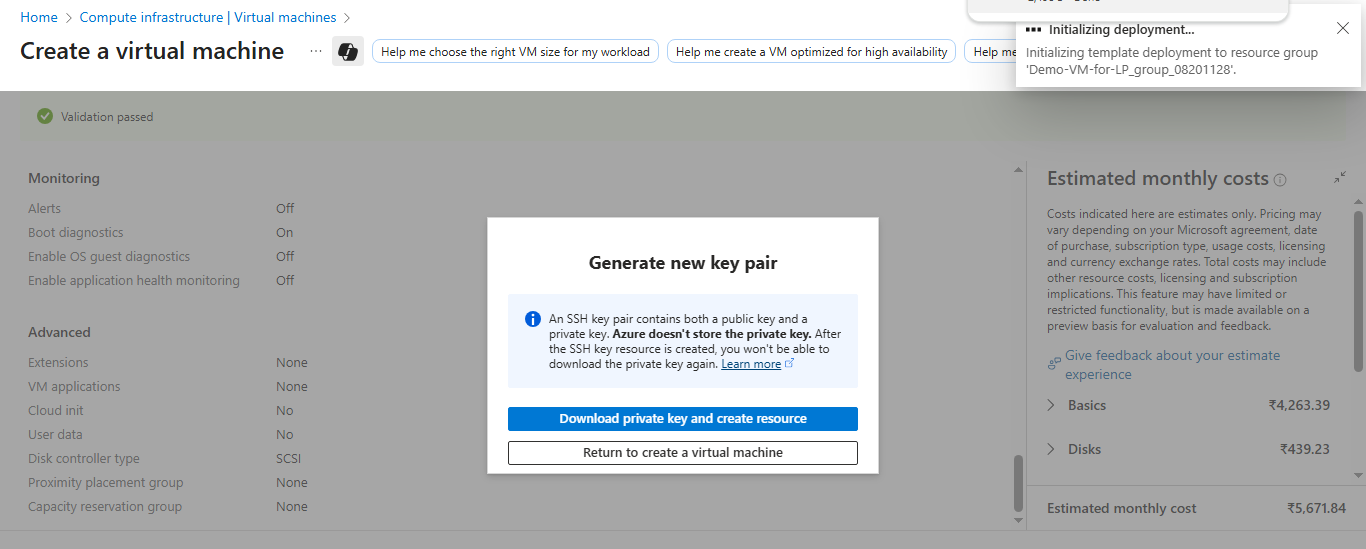 Download SSH key and create the virtual machine
Your virtual machine should be ready and running in a few minutes. You can SSH into the virtual machine using the private key, along with the public IP details.
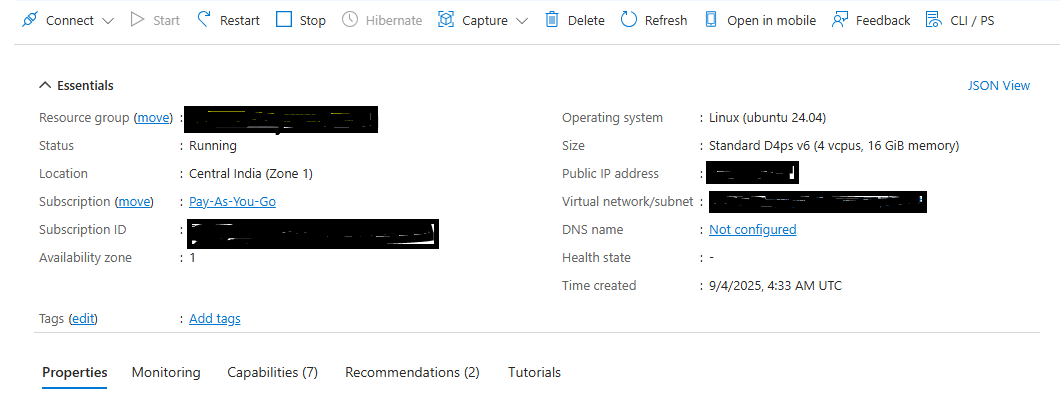 Successful VM deployment confirmation
To learn more about Arm-based virtual machines in Azure, see “Getting Started with Microsoft Azure” in Get started with Arm-based cloud instances .
What you’ve accomplished and what’s next
You’ve created an Azure Cobalt 100 Arm64 virtual machine running Ubuntu 24.04 LTS with SSH authentication configured. The virtual machine is now ready for installing and running Alluxio workloads.
Next, you’ll install Alluxio on the VM and begin building a data orchestration and caching layer to accelerate analytics workloads and improve data access performance.