Deploy Alluxio on Azure Cobalt 100 Arm64 virtual machines for data orchestration and caching
Introduction
Understand Alluxio on Azure Cobalt 100
Create an Azure Cobalt 100 Arm64 virtual machine
Allow access to the Alluxio Web UI on Azure
Deploy Alluxio on Azure Cobalt 100
Integrate Alluxio with Apache Spark and optimize performance
Next Steps
Deploy Alluxio on Azure Cobalt 100 Arm64 virtual machines for data orchestration and caching
Set up Alluxio on the VM
In this section, you’ll learn how to install Alluxio on an Azure Cobalt 100 Arm-based virtual machine (VM) and configure it with local storage.
You’ll set up a unified data orchestration layer that sits between compute frameworks and storage systems.
Update your system
Start by updating the package index and installing the latest available package updates on the virtual machine.
sudo apt update && sudo apt upgrade -y
Install required dependencies
These tools are required for downloading and extracting software:
sudo apt install -y wget curl tar rsync nano
Install Java 11
Alluxio requires Java 8 or Java 11. Java 17 is not supported and causes runtime errors at startup.
wget -qO - https://packages.adoptium.net/artifactory/api/gpg/key/public | \
sudo gpg --dearmor -o /usr/share/keyrings/adoptium.gpg

echo "deb [signed-by=/usr/share/keyrings/adoptium.gpg] https://packages.adoptium.net/artifactory/deb noble main" | \
sudo tee /etc/apt/sources.list.d/adoptium.list

sudo apt update
sudo apt install -y temurin-11-jdk
Run the following command to set Java 11 as the default:
sudo update-alternatives --config java
When prompted, enter the selection number corresponding to the temurin-11 entry in the list.
Verify:
java -version
The output is similar to:
        openjdk version "11.0.30" 2026-01-20
openJDK Runtime Environment Temurin-11.0.30+7 (build 11.0.30+7)
openJDK 64-Bit Server VM Temurin-11.0.30+7 (build 11.0.30+7, mixed mode)
Download and install Alluxio
Download the Alluxio binary release, extract it under /opt, and set ownership to your current user:
cd /opt
sudo wget https://downloads.alluxio.io/downloads/files/2.9.4/alluxio-2.9.4-bin.tar.gz
sudo tar -xvzf alluxio-2.9.4-bin.tar.gz
sudo mv alluxio-2.9.4 alluxio
sudo chown -R $USER:$USER /opt/alluxio
Configure environment variables
Set environment variables to run Alluxio commands globally:
echo 'export ALLUXIO_HOME=/opt/alluxio' >> ~/.bashrc
echo 'export PATH=$PATH:$ALLUXIO_HOME/bin' >> ~/.bashrc
source ~/.bashrc
Configure Alluxio
Navigate to the configuration directory and create working copies of the template files:
cd /opt/alluxio/conf
cp alluxio-env.sh.template alluxio-env.sh
cp alluxio-site.properties.template alluxio-site.properties
Configure RAM-based storage
Alluxio stores cached data in a RAM folder for fast access. /dev/shm is a Linux tmpfs filesystem backed by RAM, giving Alluxio direct access to in-memory storage.
Open alluxio-env.sh and add the following line:
nano alluxio-env.sh
export ALLUXIO_RAM_FOLDER=/dev/shm
Configure core properties
Open alluxio-site.properties and add the following configuration:
nano alluxio-site.properties
alluxio.master.hostname=localhost
alluxio.worker.memory.size=6GB
alluxio.master.mount.table.root.ufs=/mnt/data
master.hostname sets the host where the Alluxio master process runs. worker.memory.size controls how much RAM is reserved as the caching layer. 6 GB is appropriate for the D4ps_v6 VM, which has 16 GB of total memory. root.ufs points to the underlying storage directory that Alluxio manages.
Set up the storage directory
Create the directory that Alluxio will use as its underlying file system (UFS) and set the ownership to your current user:
sudo mkdir -p /mnt/data
sudo chown -R $USER:$USER /mnt/data
Start and verify Alluxio
Start the Alluxio services on the virtual machine, then confirm that the master, worker, and Web UI are all running as expected.
Start Alluxio
Before starting Alluxio for the first time, format the metadata store. This initializes the journal and clears any previous state:
alluxio format
Start all Alluxio services in local mode, where the master, worker, and proxy run on the same VM:
alluxio-start.sh local NoMount
The output is similar to:
        Starting to monitor all local services.
 -----------------------------------------
 --- [ OK ] The master service @ alluxio-arm64.xaxcsurvhrzefjc5ihdpsf2vbc.rx.internal.cloudapp.net is in a healthy state.
 --- [ OK ] The job_master service @ alluxio-arm64.xaxcsurvhrzefjc5ihdpsf2vbc.rx.internal.cloudapp.net is in a healthy state.
 --- [ OK ] The worker service @ alluxio-arm64.xaxcsurvhrzefjc5ihdpsf2vbc.rx.internal.cloudapp.net is in a healthy state.
 --- [ OK ] The job_worker service @ alluxio-arm64.xaxcsurvhrzefjc5ihdpsf2vbc.rx.internal.cloudapp.net is in a healthy state.
 --- [ OK ] The proxy service @ alluxio-arm64.xaxcsurvhrzefjc5ihdpsf2vbc.rx.internal.cloudapp.net is in a healthy state.
Verify Alluxio services
Confirm that the Alluxio services are running before opening the Web UI:
jps
The output is similar to:
        AlluxioJobWorker
AlluxioJobMaster
Jps
AlluxioMaster
AlluxioProxy
AlluxioWorker
Open the Alluxio Web UI in your browser. Replace <VM-IP> with the public IP of your VM:
http://<VM-IP>:19999
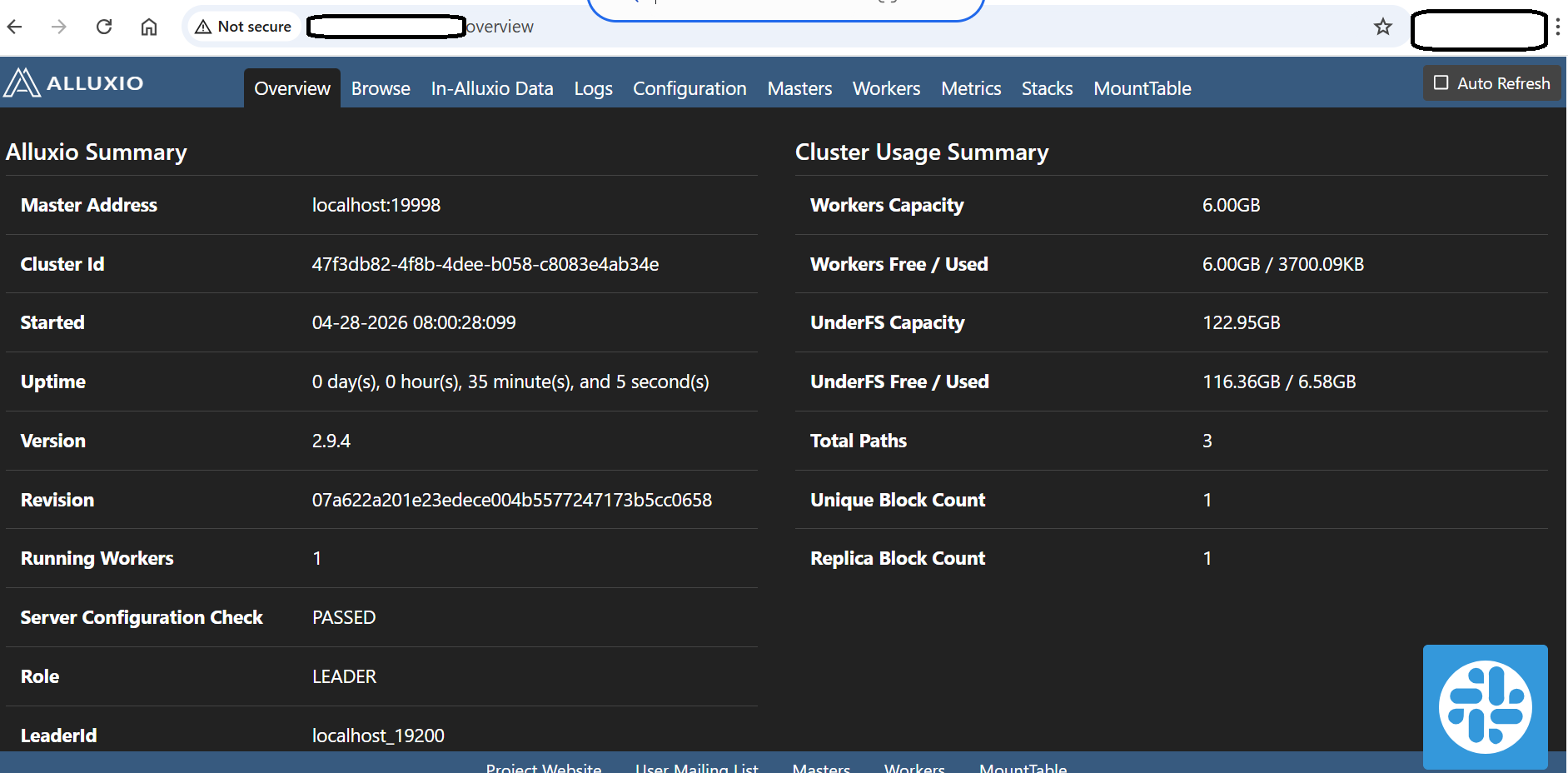 Alluxio Web UI with cluster summary and worker details
In the Alluxio Web UI, you can see the master status for the leader node, worker memory usage, storage capacity, cached data blocks, and overall cluster health.
What you’ve learned and what’s next
You now have Alluxio running on your Azure Cobalt 100 virtual machine with a memory-backed cache layer configured and all services reporting healthy. The Web UI at port 19999 gives you visibility into worker status, storage capacity, and cached data blocks.
Next, you’ll install Apache Spark and integrate it with Alluxio to run analytics workloads against the cache layer.