Profile Arm Neural Technology workloads with the Arm Streamline GUI
Introduction
Understand NX and Project Moku with Streamline
Prepare your device and workload for Streamline
Capture a profile using the Streamline GUI
Analyze NX activity and graph operations
Next Steps
Profile Arm Neural Technology workloads with the Arm Streamline GUI
Install Arm Performance Studio and open Streamline
Install the package for your host using the Arm Performance Studio install guide . Open the Performance Studio Hub and launch Streamline.
Confirm that you’re using Streamline version 9.9 or later. On macOS, select Streamline > About Streamline to check the version. An older installation can support general GPU profiling without supporting the neural accelerator (NX) workflow.
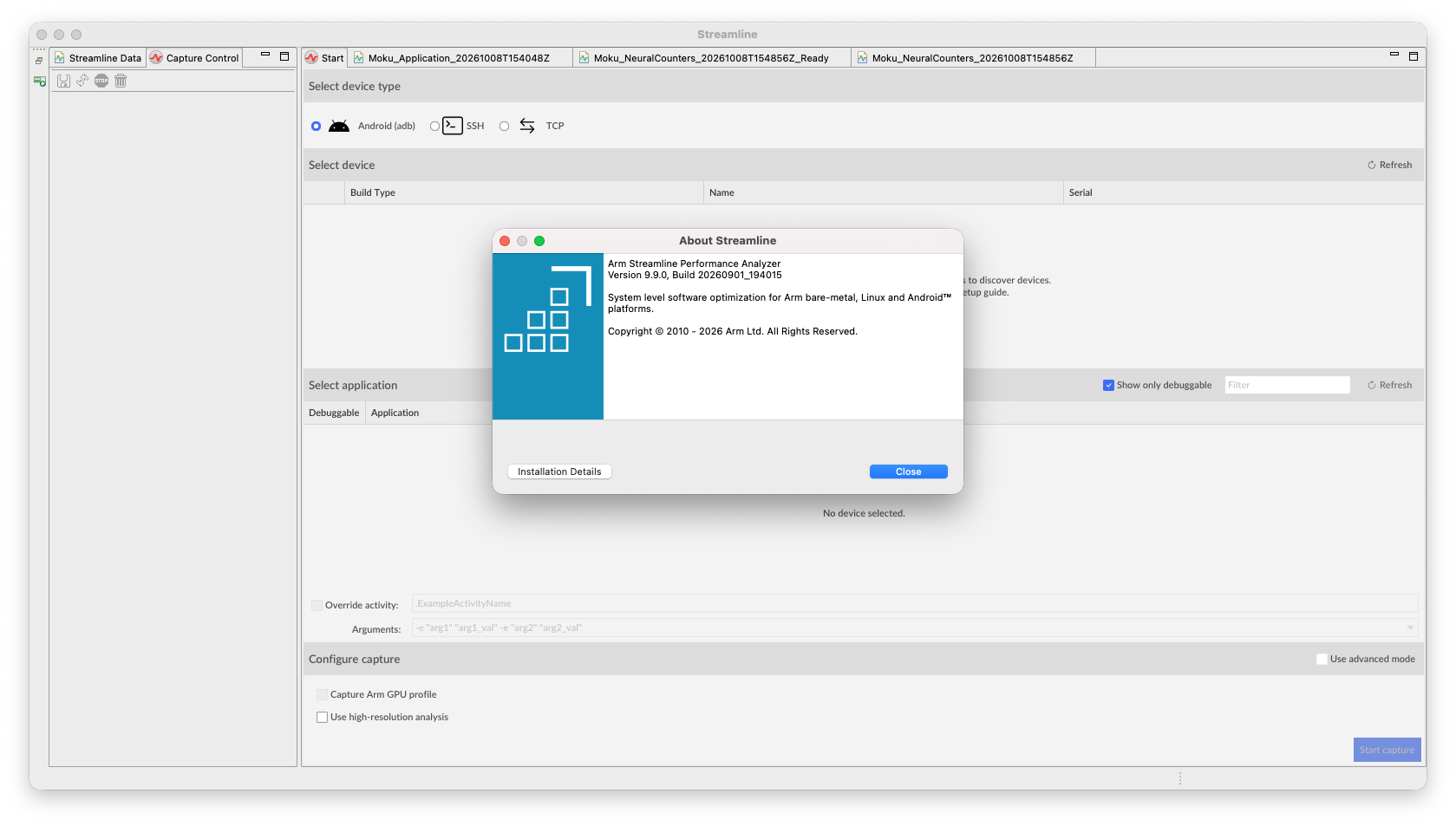 About Streamline reports version 9.9.0, which supports ML for Vulkan profiling.
Connect an Android device with adb
Install the
Android SDK Platform Tools
for your platform and add its directory to your host’s PATH.
Enable Developer options on the Android device, typically by opening Settings > About phone and tapping Build number seven times. Then, enable USB debugging, usually under Settings > System > Developer options. The exact labels and locations vary by manufacturer. For more information, see the Android developer options guidance .
Connect the device with a USB data cable, unlock it, and accept the debugging authorization prompt.
If you’re using a Xiaomi device, enable Developer options > USB debugging (Security settings). The setting allows Streamline to configure the Vulkan Timeline layer for Dispatch Graph profiling.
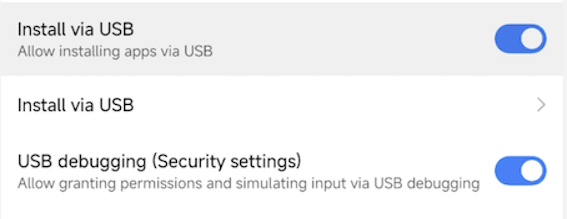 Additional Xiaomi USB debugging permission for Vulkan Timeline setup.
In a terminal, check the host tool and device connection:
adb devices -l
You should see a device serial number and product details for each attached device. A wireless adb connection uses <IP address>:<port number> instead of a USB serial number.
The output is similar to:
List of devices attached
10.72.66.137:33735     device product:lhasa model:2608BPX34C device:lhasa transport_id:3
Your selected device has to appear with status device. If the status is unauthorized, accept the prompt.
If more than one device is listed, add -s YOUR_DEVICE_SERIAL after adb in each subsequent command. Replace YOUR_DEVICE_SERIAL with the serial number of the device that you’re using to complete the Learning Path.
In Streamline’s Start view, select the Android (adb) radio button. Your connected device should appear under Select device. Select it to list its filtered debuggable applications.
Confirm that the Perfetto service is running. The service is required for Mali Timeline events and is separate from USB debugging authorization:
adb shell pidof traced || echo "Perfetto service not running"
The expected output is a process ID.
If no process ID appears, first record the current setting:
adb shell getprop persist.traced.enable
Then, try enabling the service and repeat the process check:
adb shell setprop persist.traced.enable 1
adb shell pidof traced
Don’t continue without a running service. If the service can’t be enabled, consult the Streamline Android target setup guide . If you change this persistent setting, restore its recorded value after profiling.
Check GPU and driver information
For a brief check against the hardware and driver prerequisites, dump the Vulkan properties and filter for the GPU and driver fields:
adb shell cmd gpu vkjson |
  grep -E '"(deviceName|driverName|driverInfo|driverVersion)"'
The Xiaomi 18 Fold used to test this Learning Path returned the following values. Repeated fields are omitted:
        "driverInfo" : "v1.r56p0-15bet0.62068c9e2b6dab93feff4ddf773d9a12",
"driverName" : "Mali-G2-Ultra-NX MC16"
"deviceName" : "Mali-G2-Ultra-NX MC16",
"driverVersion" : 234881024.0,
Confirm your installed workload
Replace YOUR_PACKAGE with the package ID of your application. Check debug access and resolve its launch activity using the
Android activity documentation
:
adb shell run-as YOUR_PACKAGE id
adb shell cmd package resolve-activity --brief YOUR_PACKAGE
The first command should print the UID and group information of the application. If it reports that the package isn’t debuggable, obtain a debuggable build before continuing. The final command should return the package or activity component to select in Streamline. For example, Moku returns:
com.arm.station/com.epicgames.unreal.GameActivity
Unlock the device and launch your app once. Confirm that its intended ML workload runs. Note any navigation or application-specific arguments that are required to reach it. Streamline can launch the app again when capture starts.
The following screenshot shows Moku installed on a Xiaomi 18 Fold.
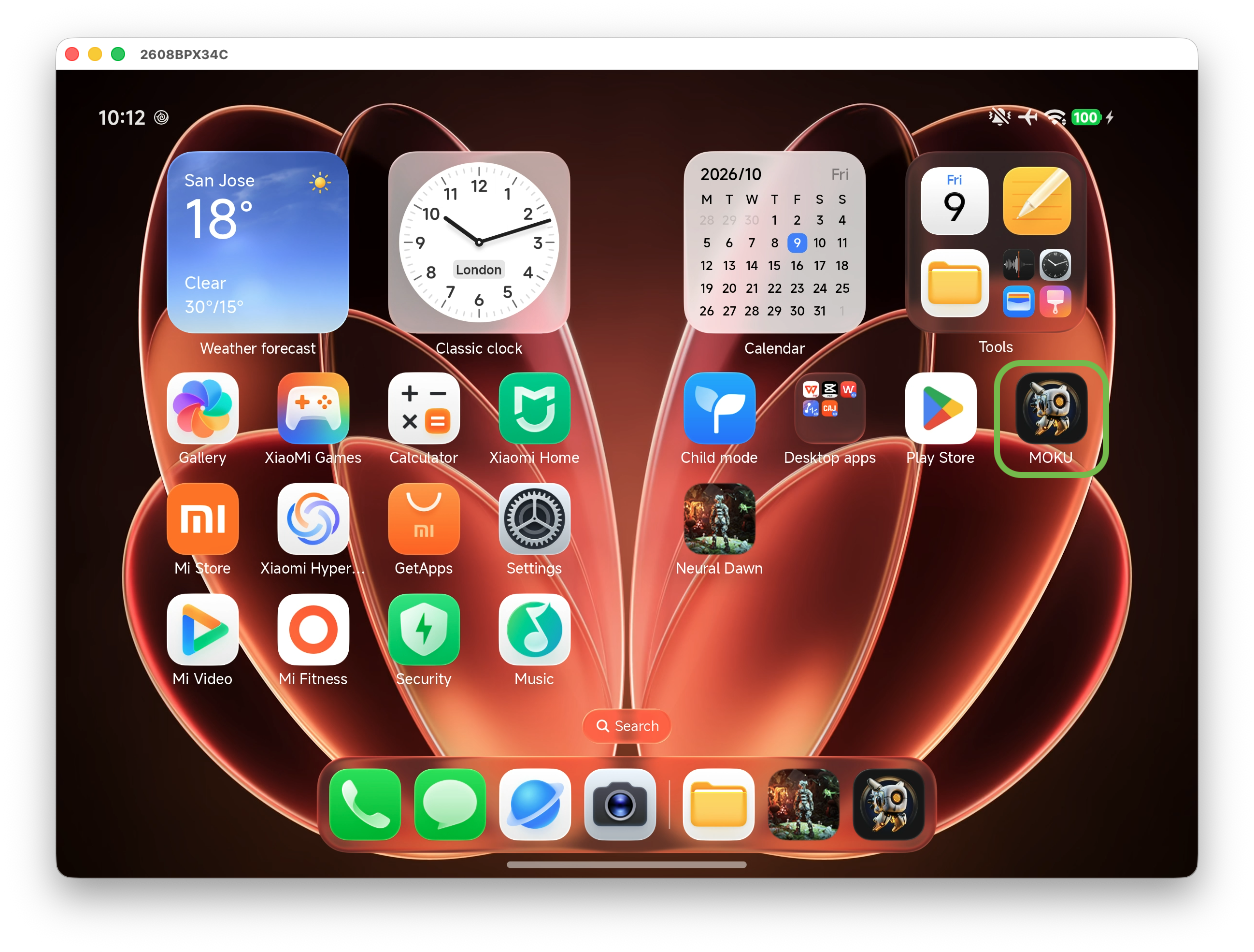 Moku installed and ready to launch on a Xiaomi 18 Fold.
Enable NX statistics collection
NX statistics supplement GPU timeline events with information about neural execution. Record the existing setting, including whether the output is blank, before changing it:
adb shell getprop debug.mali.statistics_mode
Then, enable per-unit statistics and verify the new setting:
adb shell setprop debug.mali.statistics_mode 2
adb shell getprop debug.mali.statistics_mode
The final query should return 2. This property configures statistics collection but doesn’t identify the DDK.
If the property can’t be set, stop and consult the profiling setup documentation for your device. Don’t assume that statistics are enabled.
The following modes are described in the Streamline ML workload setup guide :
| Mode | Collected data |
|---|---|
0 | NX statistics disabled |
1 | Per-section cycle counts |
2 | Per-unit counters; the documented default |
When you capture your workload using the Streamline GUI, the capture automatically deploys and enables the Mali Timeline layer. You don’t need to set debug.vulkan.layers manually.
After analysis, restore any settings that you changed to their recorded values. Don’t unconditionally disable statistics.
What you’ve accomplished and what’s next
You’ve connected the device, checked Perfetto, and prepared your own debuggable workload for NX statistics collection.
Next, you’ll capture your workload using the Streamline GUI.