Profile Arm Neural Technology workloads with the Arm Streamline GUI
Introduction
Understand NX and Project Moku with Streamline
Prepare your device and workload for Streamline
Capture a profile using the Streamline GUI
Analyze NX activity and graph operations
Next Steps
Profile Arm Neural Technology workloads with the Arm Streamline GUI
Understand what a Streamline capture records
Streamline samples hardware performance counters on the CPU and GPU to show how your application uses these resources over time. You’ll focus on GPU counters and machine learning graph execution rather than CPU profiling.
Streamline also supports command-line capture for automation. For more information, see the Streamline 9.9 command-line reference .
Select the application and counters
To select your application and a counter on Streamline:
- In the Start view, select Android (adb) and your device.
- Select your installed application. Compare its listed activity with the component returned by
adb shell cmd package resolve-activity --brief YOUR_PACKAGEduring preparation. - If the listed activity isn’t the one that you need, complete the following steps:
- Select Override activity.
- Enter the activity class, such as
YOUR_ACTIVITY, from that component. The selected application already supplies the package name.
- In Arguments, enter only the arguments that are required by your app. If no arguments are required, leave the field empty.
- Select Use advanced mode, then Select counters and open Add counters from a template.
- Select Mali G2-Ultra - 5th Generation for the example GPU and select Save. Use the corresponding template for your GPU.
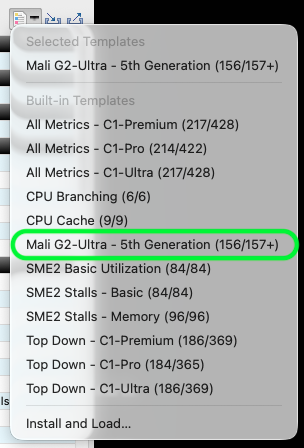 The Mali G2-Ultra template includes neural accelerator counters.
- In Select counters, confirm that Mali Timeline events: Perfetto is in Events to collect, then select Save. The G2-Ultra template includes this event. The template also includes the neural activity, utilization, and L2 traffic counters that you’ll use later.
- In Capture settings, leave GPU Timeline layer driver set to Auto. With the Perfetto event selected, Streamline deploys and enables the layer automatically.
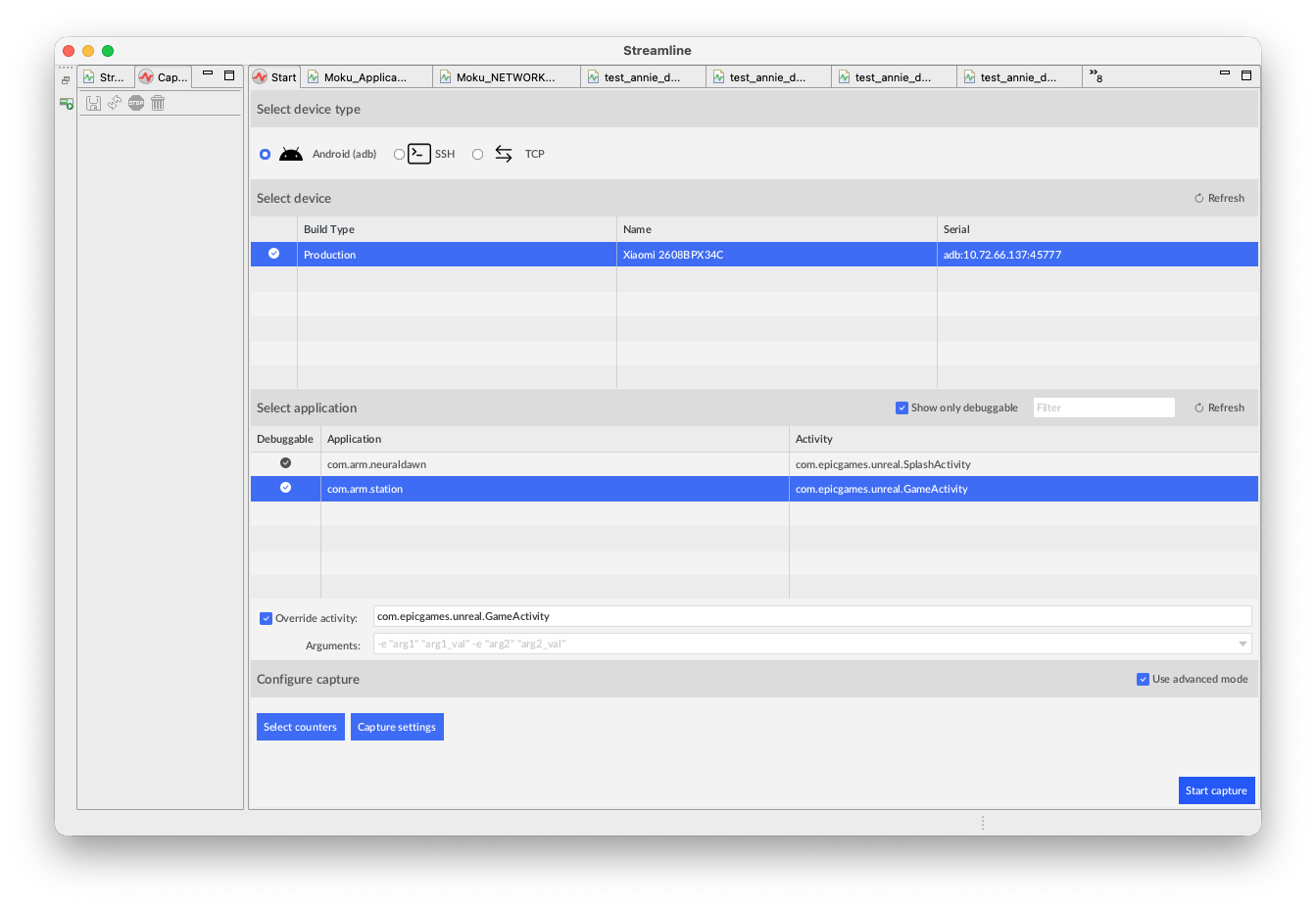 Example capture setup with Override activity enabled and Arguments left empty.
Capture about 30 seconds of data
Unlock the device before starting capture and keep the app visible. If necessary, increase the screen timeout and record its original value so that you can restore it afterwards. Streamline launches the selected activity when capture begins. You don’t need to start the activity separately.
- Select Start capture, choose a capture name and save location, and wait for device setup and application launch.
- Run the intended machine learning workload, using the controls or launch configuration for your app to reach it. Keep loading separate from the interval that you want to inspect.
- After about 30 seconds of capture, select Stop capture and analyze.
Streamline automatically transfers the required utilities, including gatord, and Vulkan profiling layers to the device. If setup fails, check the capture log and debugging permissions.
After capture, you might be prompted to download process images. This optional step copies executables and shared libraries to your computer. Streamline uses this to resolve profiling samples to function names. When debug information and source files are available, Streamline can also resolve profiling samples to source code. This isn’t required to inspect neural accelerator (NX) hardware counters and graph-operation statistics.
Check the saved capture
To check the capture:
- Select Streamline Data, then select your saved capture to open the default Timeline view.
- Confirm that the capture identifies the intended device and application package, and check its duration. Review the capture log, Warnings, and any data-loss bookmarks.
- Expand Mali Neural Accelerator Overview and inspect Neural Accelerator Usage. Nonzero neural accelerator activity in the workload interval shows that the selected counters recorded NX activity. If it’s absent, confirm that the intended workload ran rather than just a loading screen.
- In the details panel menu at the bottom of Timeline, select Mali Timeline and confirm that GPU workload events are present.
What you’ve accomplished and what’s next
You’ve captured about 30 seconds of app operations and checked for NX activity. You’ve confirmed that GPU workload events appear in Mali Timeline.
Next, you’ll inspect NX activity and graph operations to establish where the operations ran.