Profile Arm Neural Technology workloads with the Arm Streamline GUI
Introduction
Understand NX and Project Moku with Streamline
Prepare your device and workload for Streamline
Capture a profile using the Streamline GUI
Analyze NX activity and graph operations
Next Steps
Profile Arm Neural Technology workloads with the Arm Streamline GUI
Inspect neural-related capture data
You’ll focus on neural-related Timeline rows for your capture. The Mali Timeline and Dispatch Graph Workloads views connect these patterns to frames and operation costs. For performance engineering, you should also examine the following data:
- CPU scheduling
- Shader-core workloads and their opportunities for parallel execution
- Traffic involving other GPU units
Available rows depend on the counters that you collected and the chart template that you selected. For metric definitions, see the Mali G2 neural accelerator counter reference . For workload analysis guidance, see the Streamline ML for Vulkan analysis guide .
The following examples use the built-in Mali G2-Ultra - 5th Generation template that you selected during capture. Select the gear icon beside a Timeline row to open its chart configuration. Each series has a Description field explaining what the counter measures. For more information about chart configuration, see the Streamline 9.9 User Guide .
View Mali Neural Accelerator Overview data
Expand Mali Neural Accelerator Overview to see overall neural accelerator (NX) activity and processing utilization. Compare Neural Accelerator Usage with Neural Accelerator Utilization to investigate gaps between queued work and computation. The example Moku capture shows 89.7% data processing utilization during accelerator-active cycles, rather than across the entire frame.
Neural accelerator active counts cycles with work queued. Data processing active counts cycles when at least one processing unit performs computation. These values overlap, so don’t add them.
In the illustrated Accumulate chart, mega-cycles are millions of cycles within a displayed time bin. They’re not the total duration of the capture. To convert cycles to time, you need the relevant clock frequency.
 NX activity and data-processing utilization across the selected interval.
View Mali Neural Accelerator Details data
Expand Mali Neural Accelerator Details to compare individual hardware-unit utilization over time. The Moku example shows 80.6% convolution utilization, alongside lower reader and vector utilization. This highlights the convolution unit as a starting point for investigating operation costs. The Clock Ratio row estimates the neural accelerator clock relative to the top-level GPU clock.
Units can operate concurrently, so their utilization percentages aren’t additive. A busy unit alone doesn’t establish a bottleneck. Compare utilization with the duration and scheduling of the associated graph operations.
 Convolution utilization reaches 80.6% in the illustrated interval.
View Mali Memory System data
Expand Mali Memory System to compare Neural Accelerator L2 Reads with Neural Accelerator L2 Writes. These rows separate input and weight reads from output writes through the L2 memory system. The Moku example shows more input-read traffic than weight reads or output writes. You can use such a finding to identify traffic-heavy intervals.
The values measure transferred bytes over the selected interval. They’re not bandwidth rates.
 Input reads exceed weight reads and output writes in this interval.
Avoid interpreting these charts in isolation. Compare the same interval across utilization, memory traffic, and GPU activity rows to investigate possible bottlenecks.
View Mali Timeline data
Mali Timeline helps you connect frames with GPU scheduling and neural accelerator activity.
To view Mali Timeline data:
- Open your saved capture in Timeline.
- From the details panel menu at the bottom, change Heat Map, or the current mode, to Mali Timeline.
- Zoom or pan to the workload interval. Expand the tracks for your application to inspect frames, queue submissions, and GPU workloads.
- Follow the Neural stream (NX) to inspect idle gaps and overlap with rendering. Select a graph workload to view its properties and Mali NX statistics.
- Compare the selected interval with the neural accelerator charts above. Use the Vulkan debug markers for your application, if present, to identify its work. Not every pipeline exposes detailed NX statistics, as the following optical-flow example shows.
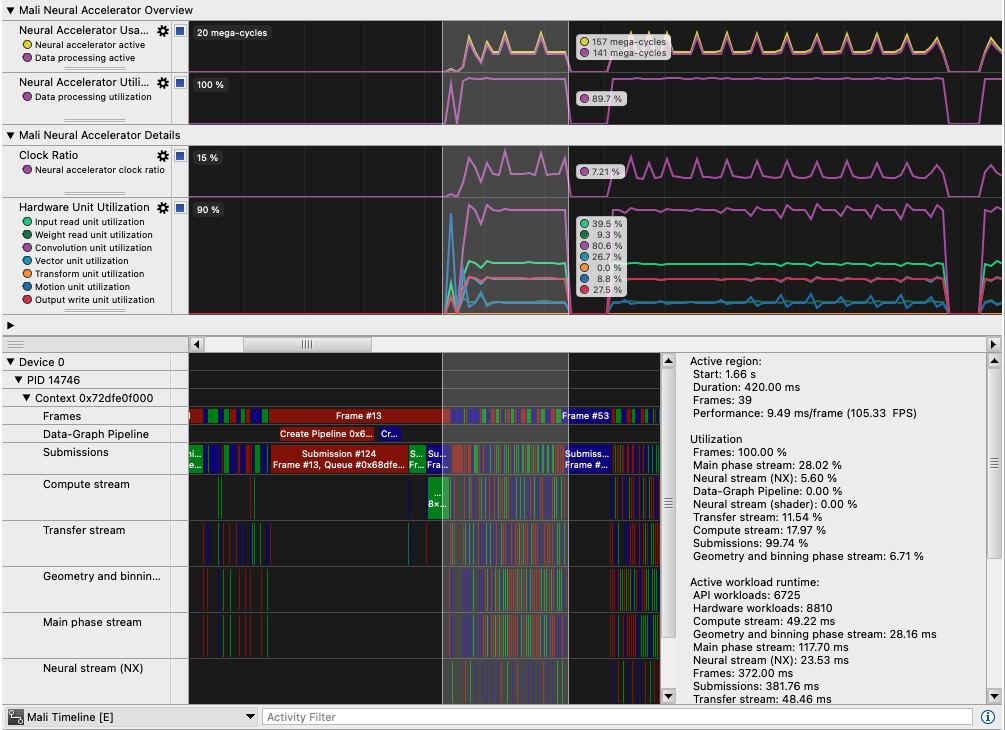 Frames, GPU submissions, and NX workloads aligned with accelerator utilization.
In Streamline 9.9,
optical-flow pipelines using VK_ARM_data_graph_optical_flow don’t provide Mali NX statistics
. Pipeline events and summary information can still appear as follows, but detailed hardware-unit statistics are unavailable.
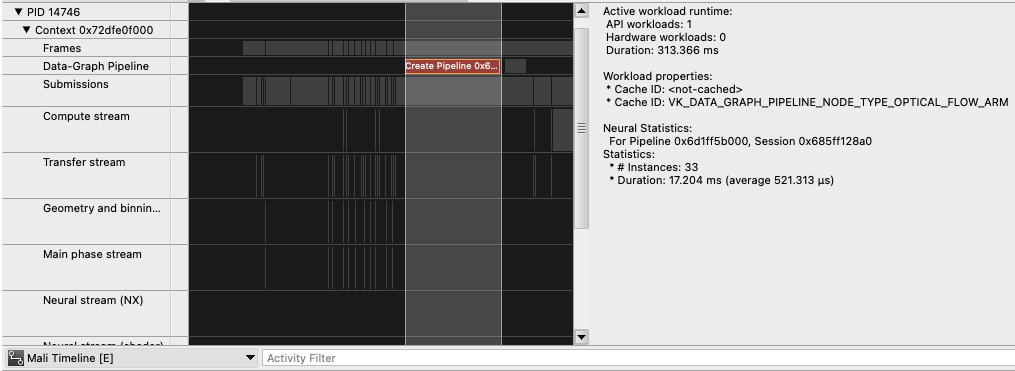 Optical-flow event details appear without unit-level NX statistics.
View Dispatch Graph Workloads data
Dispatch Graph Workloads lets you compare the execution cost of neural workloads at different levels of detail. You can inspect Tensor Operator Set Architecture (TOSA) operations and fused operation chains, comparing their durations and instance counts.
Hardware-unit statistics show how operations use the input and weight readers, convolution unit, and vector unit. You can use these statistics to investigate potential bottlenecks. You can also locate the corresponding workload in Mali Timeline to relate operation costs to frame scheduling.
To view Dispatch Graph Workloads data:
- From the same details panel menu, select Dispatch Graph Workloads: Mali Timeline.
- In the adjacent aggregation menu, select TOSA Operators. Compare Duration and Instances to find operations with a high accumulated cost or frequent execution.
- Check Show averages before comparing values. With the setting off, durations are accumulated totals. With the setting on, you can compare average costs per instance instead. Use the same setting when comparing operations or captures.
- Inspect Type to distinguish NX execution from shader-core execution. For NX operations, compare the hardware-unit activity and utilization columns. This is stronger evidence of where an operation ran than the presence of a graph dispatch alone.
- Select Commands to inspect individual dispatch commands. Use the context menu to navigate to the corresponding item or region in Mali Timeline. You can relate its cost to the surrounding GPU work.
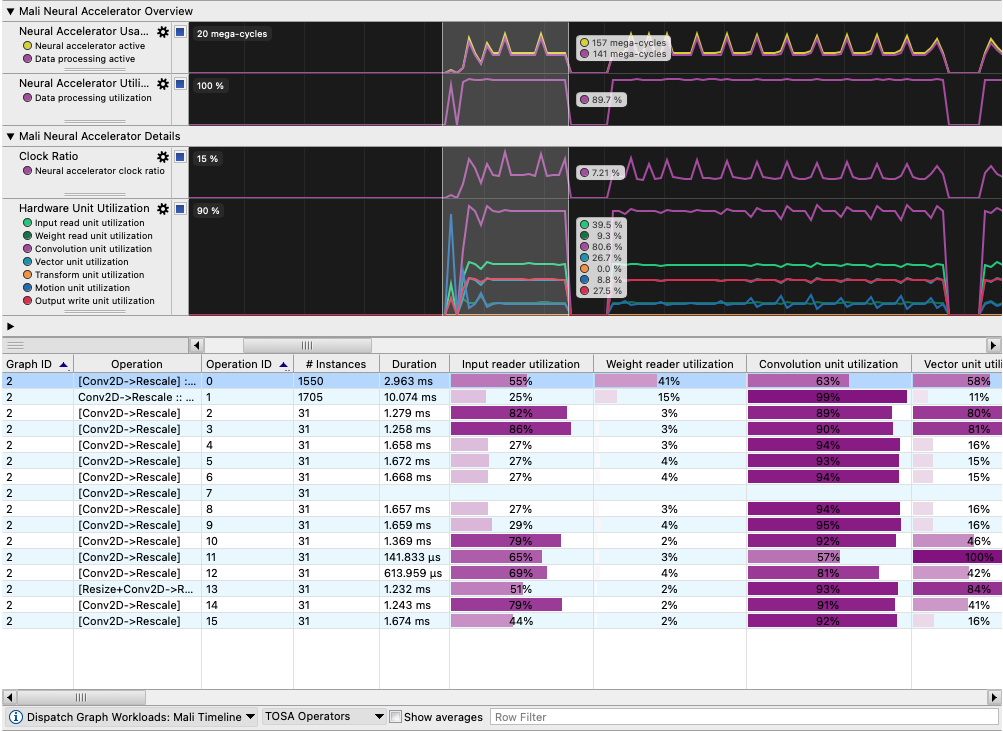 TOSA operation durations and hardware-unit utilization for the selected workload.
Each aggregation groups execution statistics differently. These breakdowns help you move from overall graph costs to individual operations and dispatches:
| Aggregation group | When each group is useful |
|---|---|
| TOSA Operators | Finding operations that repeatedly consume the most time across dispatches |
| Graph | Comparing the total execution cost of different models in one capture |
| Session | Comparing graph sessions and their accumulated execution statistics |
| Instance | Finding individual dispatches that run longer than other instances |
| Commands | Checking hardware or shader execution and mapping commands back to operations |
The graphs, operation counts, and utilization for your application will differ from the Moku example. If the view is empty, ensure that you completed the following tasks before launch:
- Ran the intended graph workload
- Enabled the Timeline layer
- Set per-unit statistics to
2
Restore device settings
After reviewing your captures, restore debug.mali.statistics_mode to the value recorded during preparation by replacing PREVIOUS_VALUE:
adb shell setprop debug.mali.statistics_mode PREVIOUS_VALUE
adb shell getprop debug.mali.statistics_mode
If the original output was blank, use an empty value instead. Keep the quotes as shown so that the empty argument reaches the device shell:
adb shell 'setprop debug.mali.statistics_mode ""'
adb shell getprop debug.mali.statistics_mode
The final query should match the original output. If you changed persist.traced.enable, restore its recorded value in the same way with adb shell setprop persist.traced.enable PREVIOUS_VALUE. For an originally blank value, use adb shell 'setprop persist.traced.enable ""'. Verify with adb shell getprop persist.traced.enable.
Restore the original screen timeout if you changed it. Apply the same -s YOUR_DEVICE_SERIAL selection used during preparation when multiple devices are connected.
What you’ve accomplished
You’ve compared utilization, hardware-unit activity, and memory traffic to identify intervals worth investigating. Mali Timeline connects those intervals to specific frames and GPU scheduling. Dispatch Graph Workloads helps you examine expensive operations and their hardware-unit utilization.
Together, you can use these views to decide whether to investigate scheduling, computation, or data movement.