Profile Unity application performance on Android devices
Introduction
Analyzing the sample application
Preparation
Inside the code
Profiling
Collect performance data
Using the Unity Analyzer
Next Steps
Profile Unity application performance on Android devices
Create a blank project
You’ll need Unity installed with Android build support. Read Get started with Unity on Android for help installing Unity, as well as building and deploying to an Android device.
Although the sample application is itself a project, you will still need to create a blank project to import it into.
Open the Unity Hub
Log in (if you are not already)
Select New Project
Select the 3D (URP) Core template
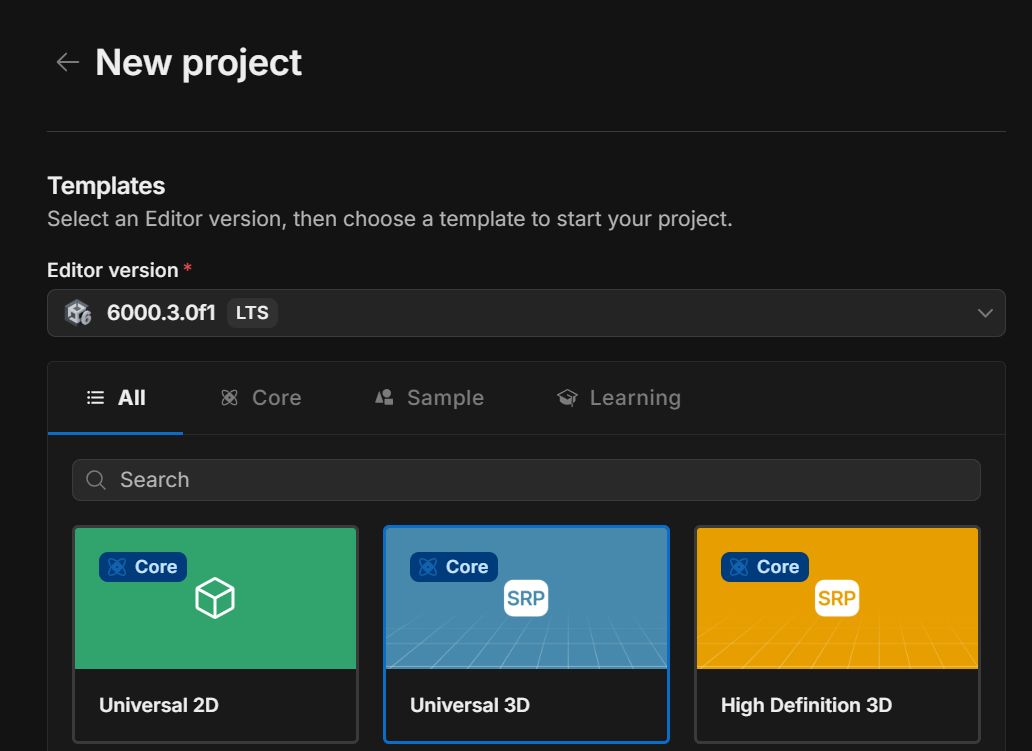 Figure 1. URP 3D template
Enter a project name (this will be used as the name of the project folder)
Enter a location (the path of your project on disk)
Select Create Project
Note that Universal Render Pipeline projects are recommended for mobile applications.
Unity will take a moment to create your new project and build the default assets.
Download and install the sample application
Once Unity has loaded, you will be presented with a template project. You can ignore all of the assets provided by Unity; you only need to focus on the files from the sample project.
Open a web browser
Open the sample project page
You will need to log in (if you haven’t already)
On the asset (Optimizing Collisions with Burst and Neon Intrinsics) page, select the Add to my assets button
The button will change to Open in Unity. Select it.
A pop-up window will ask to open the asset in Unity. Select the Open Unity Editor button.
If Unity fails to open the asset or no pop-up appears, select the My Assets button in the top-right of the page:
a. Your assets should appear in a list
b. Find the entry for Optimizing Collisions with Burst and Neon Intrinsics
c. Select the Open in Unity button
d. A pop-up will appear as in step 6 above
e. Select Open Unity Editor
The Unity Editor will come to the foreground and display the Package Manager
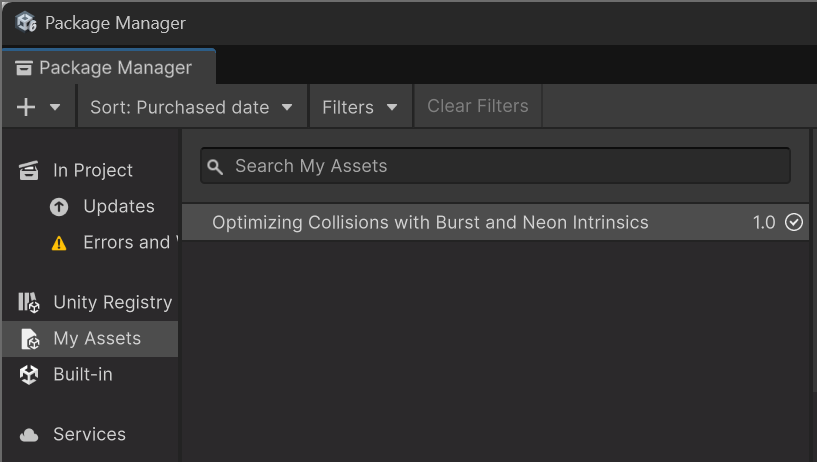 Figure 2. Package Manager with asset showing.
You will see the sample project listed and highlighted. Select Download.
Select Import
A warning message will appear because the sample project will replace the project settings in your current project. Since this is a newly created project, it is fine to overwrite them. Select Import.
A further warning may appear because the sample project has additional dependencies that your blank project hasn’t activated yet. Select Install/Upgrade.
The Import Unity Package window will appear. It allows individual files and folders to be imported or ignored. You will need all of the files in the project. Leave all items ticked and select Next.
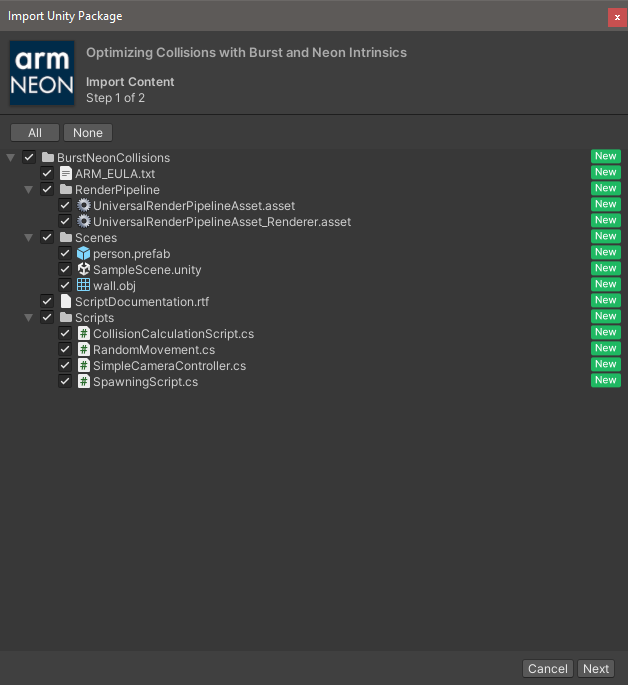 Figure 3. Import the sample project using the Package Manager.
A second window will open listing the project settings that will be overwritten. You want the settings from the sample project, so leave all items ticked and select Import.
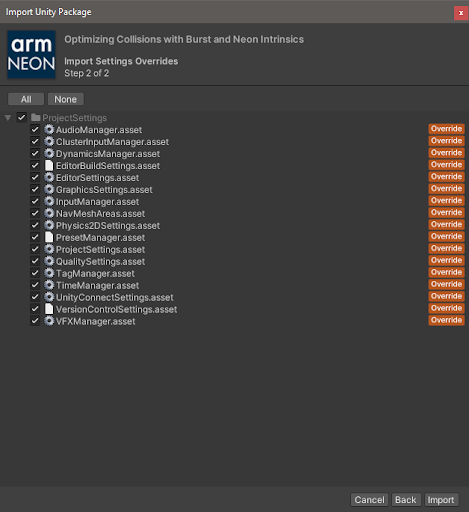 Figure 4. Overwrite project settings with the settings from the imported sample project.
Set up the project
Once the sample project has been imported, you will see some errors and warnings.
Open the File menu and select Build Profiles
Select Android from the Platform list
Select Switch Platform, as you did in the previous Learning Path
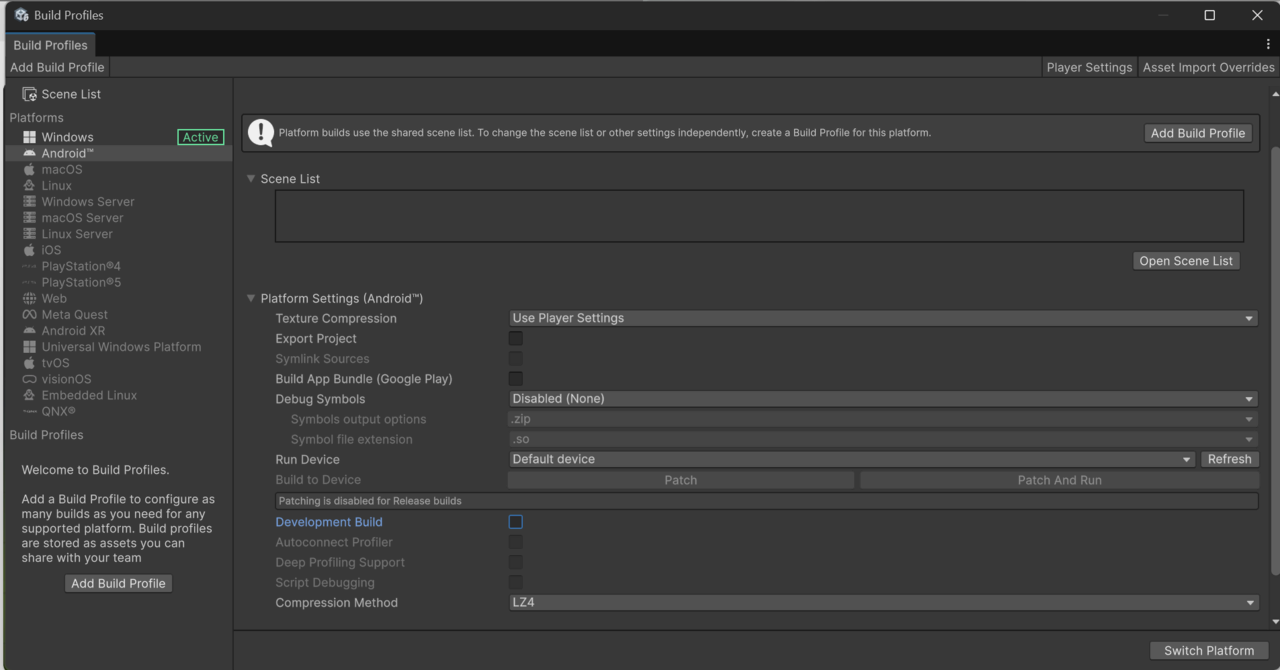 Figure 5. Build Profile menu.
Unity will take a moment to build the assets for the Android platform.
The errors will disappear, but some warnings regarding unreachable code may appear. These will be explained later and can be safely ignored for now.
Your Scene view should look something like this:
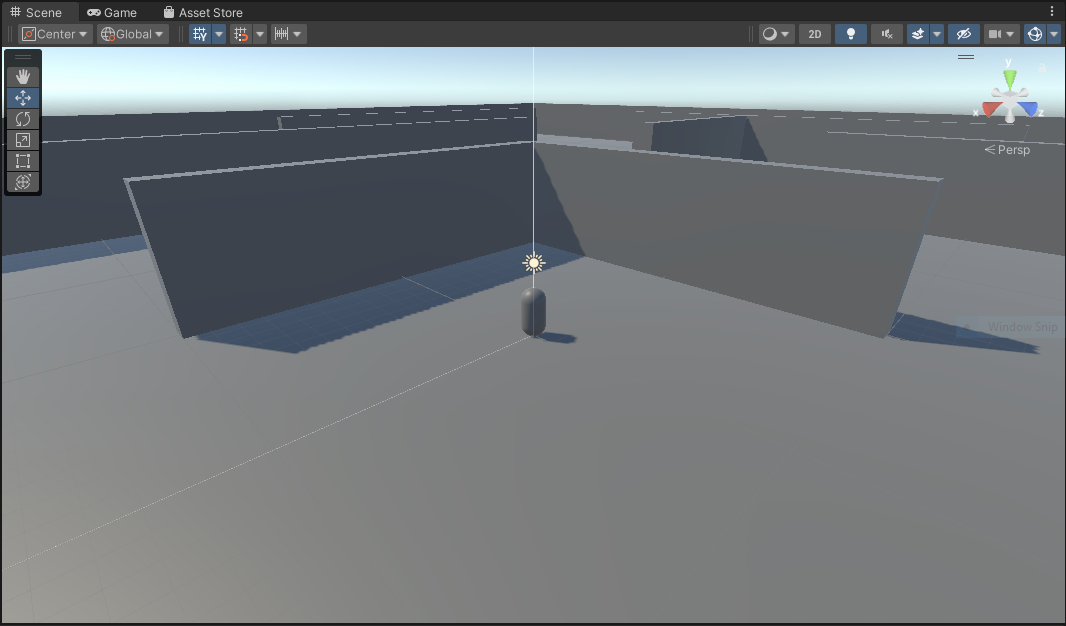 Figure 6. Default scene view of the sample project.
If it does not, the next steps should help identify the issue.
Run the project inside the editor
It is worth checking that everything has been imported and built correctly.
Close the Build Profiles window
In the Project tab (usually at the bottom in the default layout), you will see the list of asset files.
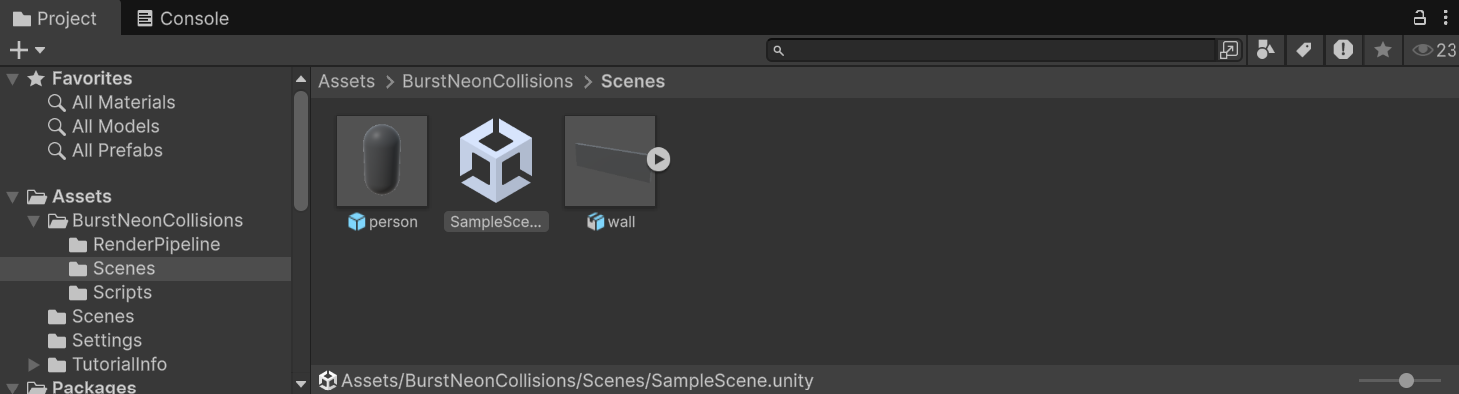 Figure 7. Assets area
Open the BurstNeonCollisions folder
Open the Scenes folder
Open the scene called SampleScene
Select the Play (triangle) button to launch the program.
The game will launch, and you will see an empty environment begin to fill with more and more characters (capsules) over time. It will look something like this:
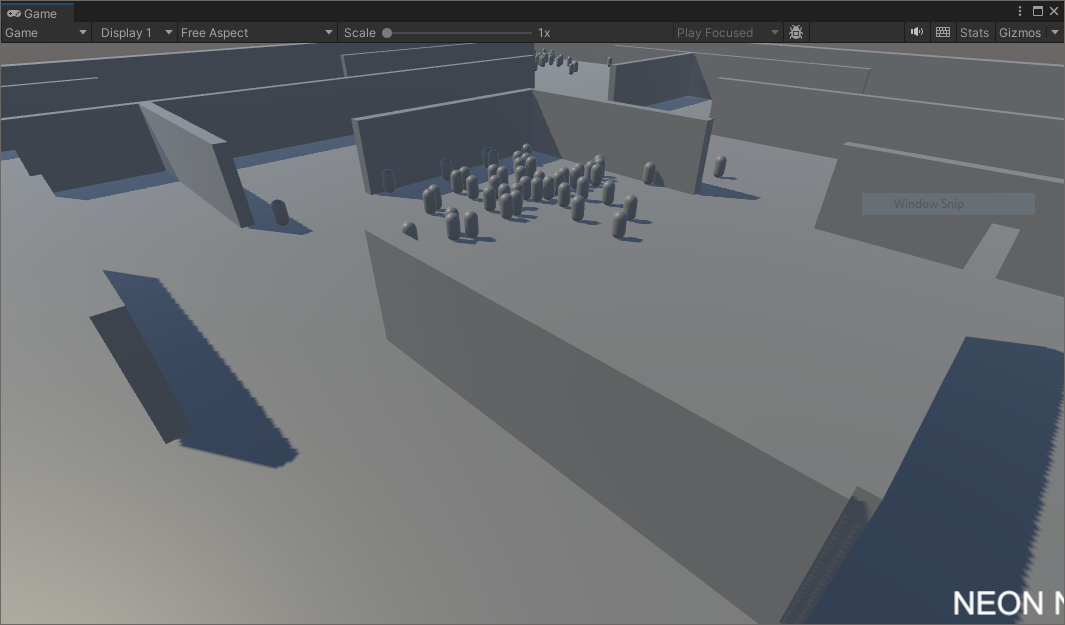 Figure 8. Sample running in Game view.
Deploy to Android
You will now deploy the sample to your Android device. Your device must already be set up for development. For detailed instructions, read the learning path Get started with Unity on Android .
Open Build Profiles from the File menu
Tick the Development Build option
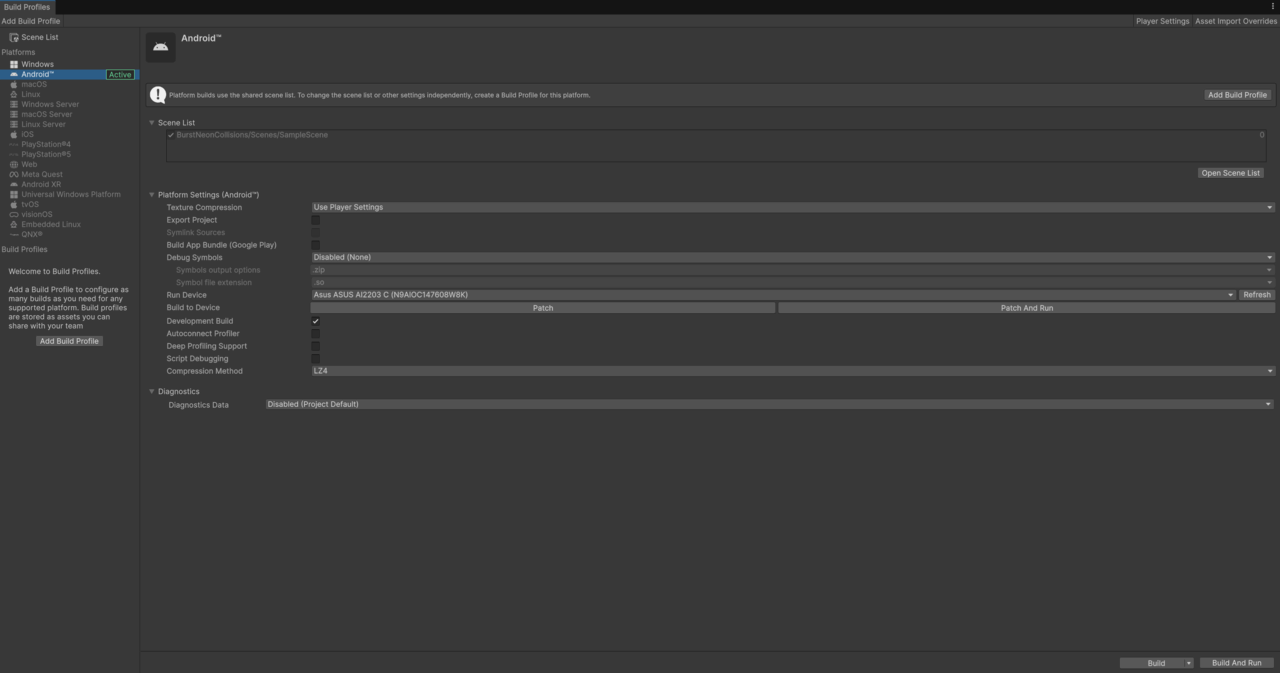 Figure 9. Development Build.
Select Add Open Scenes to add the demo scene to your Scenes in Build list
Plug your Android device into your computer
Once recognized, your device will appear in the drop-down menu next to Run Device
The screenshot above shows the demo device selected as the Run Device. You will see your own device listed here
Select Build and Run
Enter a name for the APK (the Android package) and select Save
Unity will take a moment to build the Android version and then automatically deploy it to your connected Android device. Depending on your setup, the build and deployment process may take several minutes.
This is an example of what the scene could look like on your device:
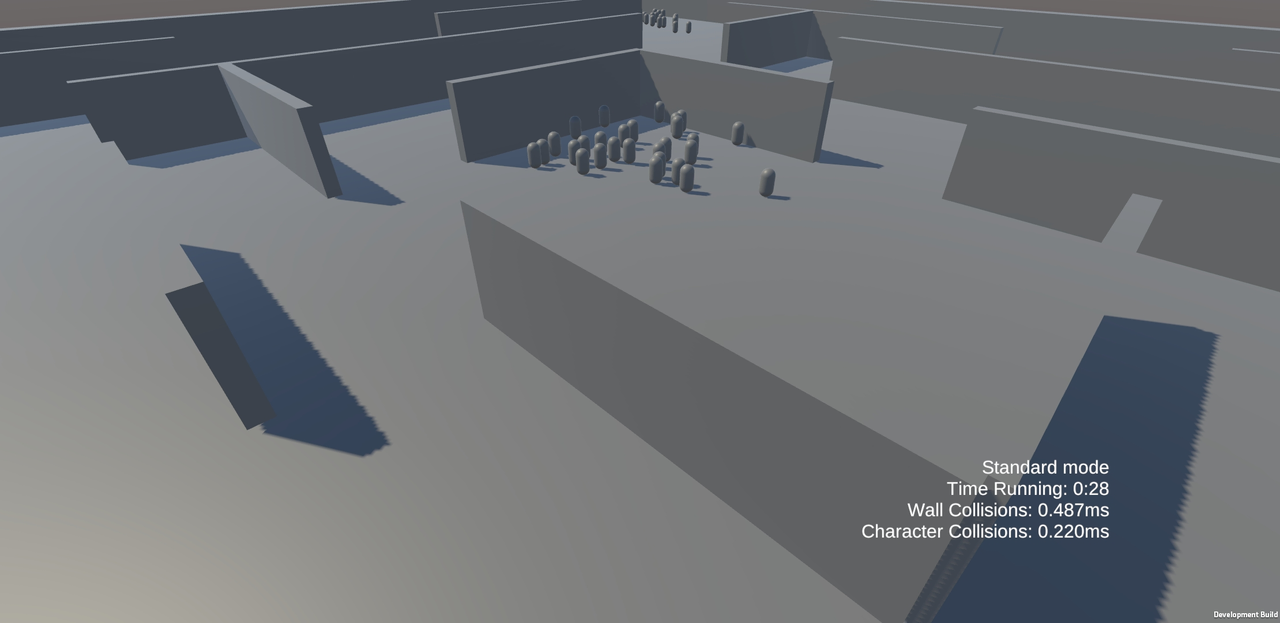 Figure 10. Sample application running on Android.