Profile a model on a neural accelerator with MLIA for VS Code
Introduction
Prepare your model and VS Code workspace
Prepare the Android workload
Capture NX profiling data
Analyze measured performance in VS Code
Next Steps
Profile a model on a neural accelerator with MLIA for VS Code
Select the capture and matching model
Return to the Visual Studio Code (VS Code) window containing your Python model project. Print the Scenario Runner neural accelerator (NX) capture and model paths from the capture terminal:
printf 'Profiling data: %s\nSource model: %s\n' "$CAPTURE_ROOT" "$NX_WORKSPACE/workload/model.vgf"
For an existing-application capture, use its capture directory and matching VGF instead.
In MLIA > New Analysis:
- Select Profiling.
- Add the printed Profiling data directory, which directly contains
capture.json. - Select
nx-profile/workload/model.vgfin Source model. Use the same VGF deployed to the device. - Select
neural-technologyas the target profile. - Enable Performance.
- Select Run Analysis.
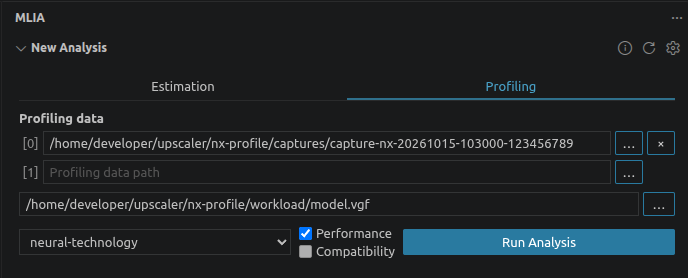 Configure the NX profiling analysis
Model Explorer opens when the analysis completes. For analysis errors, see the Arm ML Inference Advisor (MLIA) analysis troubleshooting guide .
Inspect cascade cycle cost
In Model Explorer, set Left graph to Source Model and Right graph to segment_cascade_chain. The latter groups operations into the segments, cascades, and chains used for running on hardware. Expand a segment to see its cascades.
The total_cycles overlay is selected by default. It shows accelerator cycle counts for the captured dispatch.
Select a cascade with a reported cycle value. In the following screenshot, Cascade 249 has 12,471 cycles for its combined CONV2D and RESCALE work. Selecting the cascade highlights the corresponding operations in Source Model.
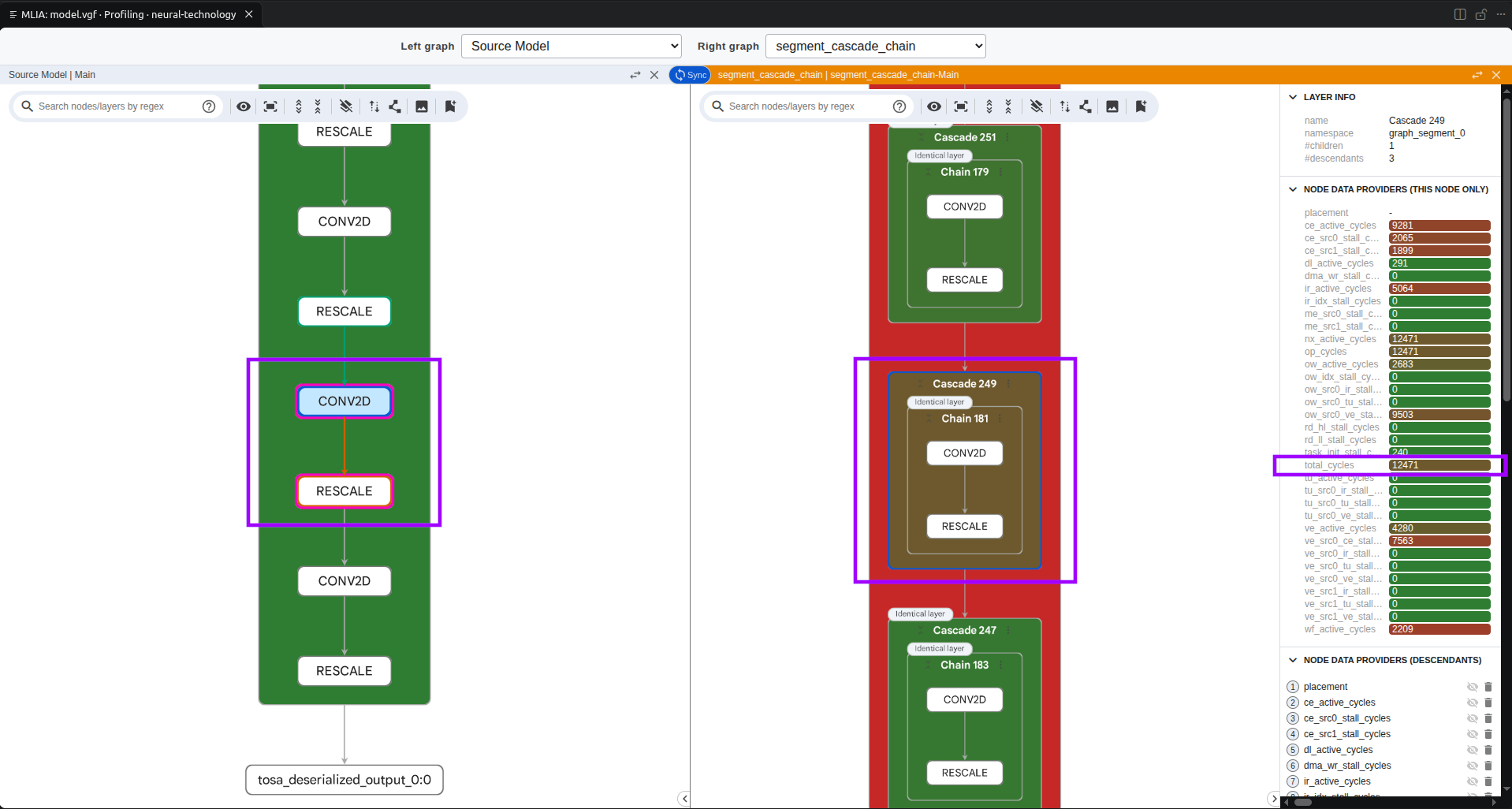 Inspect Cascade 249 and its source operations
Keep the cascade selected. For other graph views, see the MLIA Model Explorer representation guide .
Follow an operation to Python
Keep the completed profiling run selected in Analysis Runs and the total_cycles overlay selected in Model Explorer.
Expand the selected cascade and select a mapped operation node in Source Model. VS Code opens quantize_and_export_vgf.py and highlights the corresponding line. For a convolution in SmallUpscalerModel, this is x = self.net(x), which calls the nn.Sequential block of the model.
When source cycle values are available, VS Code displays them above the mapped lines. In the following screenshot, x = self.net(x) accounts for 22,506 cycles, or 88% of the model total.
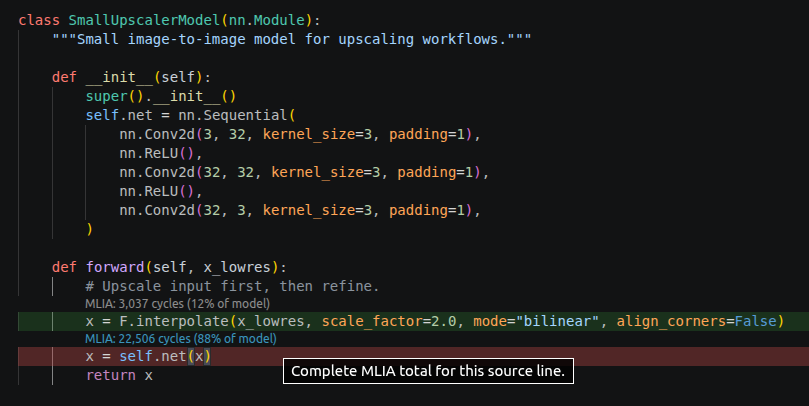 Inspect measured cycles mapped to Python source
Select a displayed cycle count (CodeLens) to highlight the corresponding graph operations. The following screenshot shows Source Model on the left and code_stack on the right.
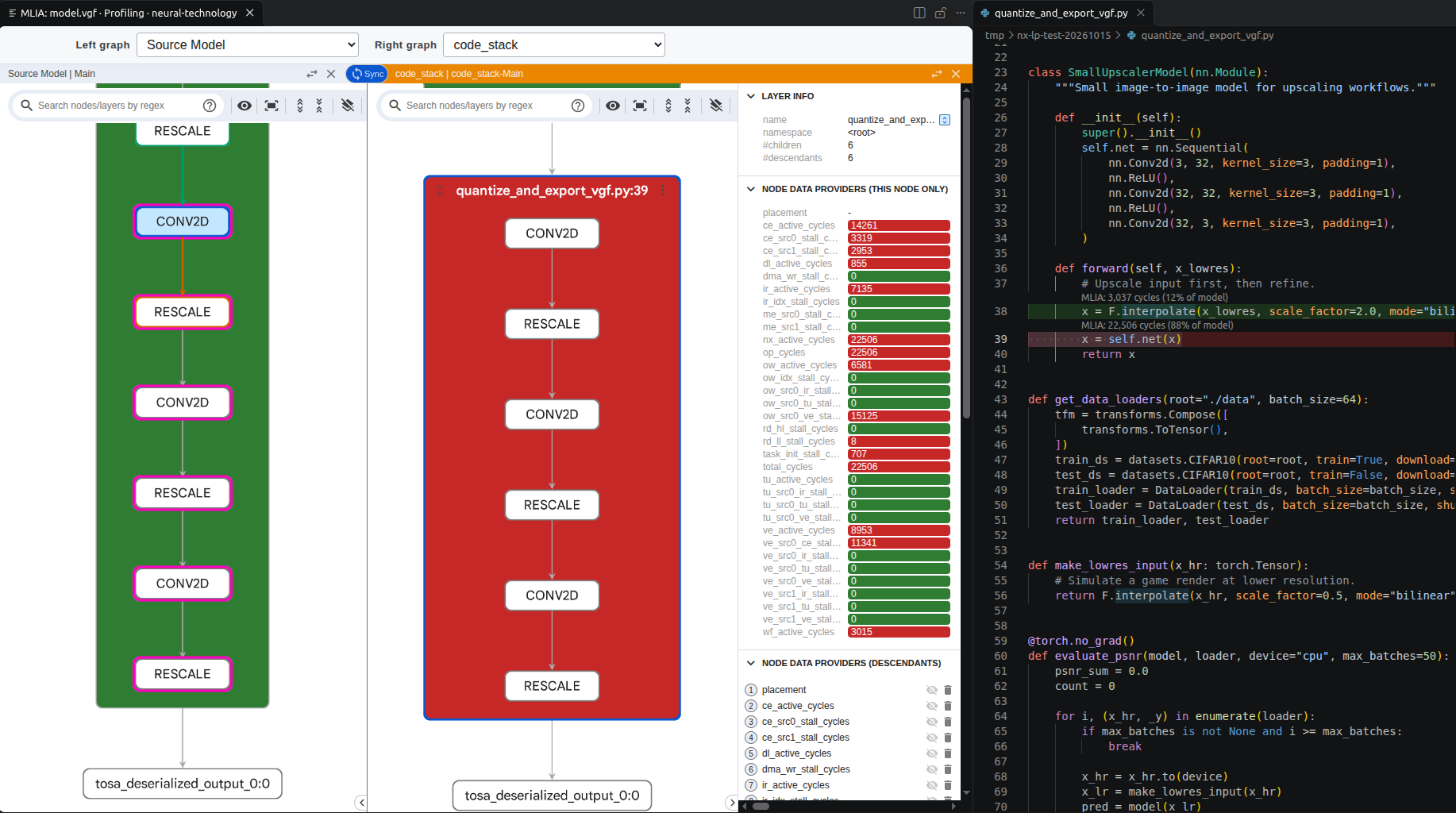 Trace a Python source line to its mapped operations
Source navigation is enabled by default. If the file doesn’t open, see the MLIA source-navigation troubleshooting guide . For a moved source file, use the source-file mapping guide .
What you’ve accomplished
You’ve captured an NX dispatch and inspected the cycle cost of a cascade. You’ve also followed a mapped operation to the Python model.
You can extend the Learning Path steps to capture and analyze performance of a model of your choice on an NX device.