Profile a model on a neural accelerator with MLIA for VS Code
Introduction
Prepare your model and VS Code workspace
Prepare the Android workload
Capture NX profiling data
Analyze measured performance in VS Code
Next Steps
Profile a model on a neural accelerator with MLIA for VS Code
Understand the NX profiling workflow
You’ll run SmallUpscalerModel on an Android device with an Arm neural accelerator (NX) and capture one run with Scenario Runner. Then, you’ll inspect cycle costs and follow an operation to its Python source.
You’ll use the Arm ML Inference Advisor (MLIA) extension for Visual Studio Code (VS Code). The extension presents the results in Model Explorer.
To profile your own Android application, follow the existing-application capture instructions . After you’ve collected a capture, continue with Analyze measured performance in VS Code using your capture and matching VGF model.
Otherwise, continue with the following steps to profile the sample model using Scenario Runner.
Prepare a compatible VGF export
A specific version of ExecuTorch is required for compatibility with MLIA. For compatibility requirements, see the VGF preparation guide .
In a new project directory, create an export environment:
python3.12 -m venv export-venv
source export-venv/bin/activate
python -m pip install \
    'executorch[vgf]==1.5.1' \
    'torch==2.14.0+cpu' \
    'torchvision==0.29.0+cpu' \
    --extra-index-url https://download.pytorch.org/whl/cpu
Keep this environment active while running the model export steps.
Save the complete SmallUpscalerModel post-training quantization (PTQ) example from
Quantize neural upscaling models with ExecuTorch
as quantize_and_export_vgf.py in your project directory. Run it in the export environment:
python quantize_and_export_vgf.py
The script downloads CIFAR-10, trains for one epoch, applies PTQ, and exports output/output_tag0.tosa.vgf.
Create a profiling workspace
Open the directory containing quantize_and_export_vgf.py in VS Code using File > Open Folder. Open Terminal > New Terminal and use Bash for the remaining commands.
Copy the exported model into the profiling workspace:
export NX_WORKSPACE="$PWD/nx-profile"
export MODEL_VGF="$PWD/output/output_tag0.tosa.vgf"
mkdir -p "$NX_WORKSPACE/workload" "$NX_WORKSPACE/captures"
cp "$MODEL_VGF" "$NX_WORKSPACE/workload/model.vgf"
cd "$NX_WORKSPACE"
Your project now contains the following key files and folders:
your-project/
├── quantize_and_export_vgf.py
├── export-venv/
├── output/
│   └── output_tag0.tosa.vgf
└── nx-profile/
    ├── captures/
    └── workload/
        └── model.vgf
Keep this terminal open for the preparation and capture commands. Leave the Python source in the project directory.
Prepare the managed environment for the extension
Download the MLIA for VS Code .vsix package from the
MLIA for VS Code v0.1.1 release
. Then, follow the
VSIX installation instructions
.
In VS Code:
Select MLIA in the Activity Bar.
In New Analysis, select Refresh MLIA Environment and wait for setup to finish.
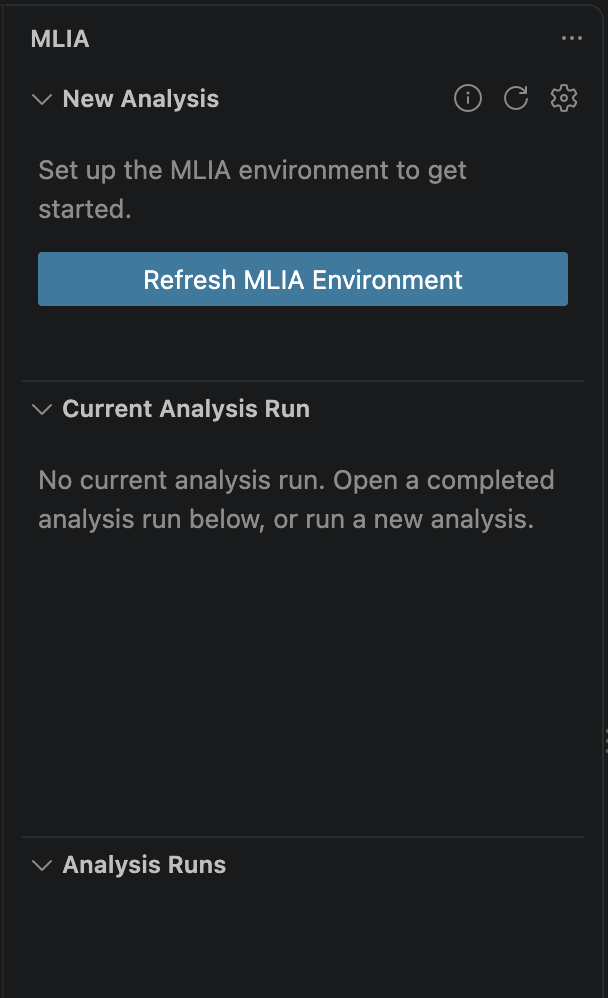 Initialize the managed MLIA environment
The extension manages its own Python and MLIA installation separately from your export environment. For setup problems, see the MLIA environment troubleshooting guide .
What you’ve accomplished and what’s next
You’ve exported the model and initialized MLIA in VS Code.
Next, you’ll prepare the Android workload.