Enable Neural Frame Rate Upscaling in Unreal Engine
Introduction
Understand neural graphics and NFRU
Set up the development environment
Set up the Unreal project with NFRU enabled
Validate NFRU in Unreal Engine
Understand console variables for NFRU
Set up a debug view in Unreal Engine
Use RenderDoc for Arm GPUs with NFRU for debugging and analysis
Next Steps
Enable Neural Frame Rate Upscaling in Unreal Engine
Introduction
Understand neural graphics and NFRU
Set up the development environment
Set up the Unreal project with NFRU enabled
Validate NFRU in Unreal Engine
Understand console variables for NFRU
Set up a debug view in Unreal Engine
Use RenderDoc for Arm GPUs with NFRU for debugging and analysis
Next Steps
Install Arm Neural Graphics Plugin 1.1.0
Open Unreal Engine 5.4 or 5.6 and create a new Third Person template project using the C++ option.
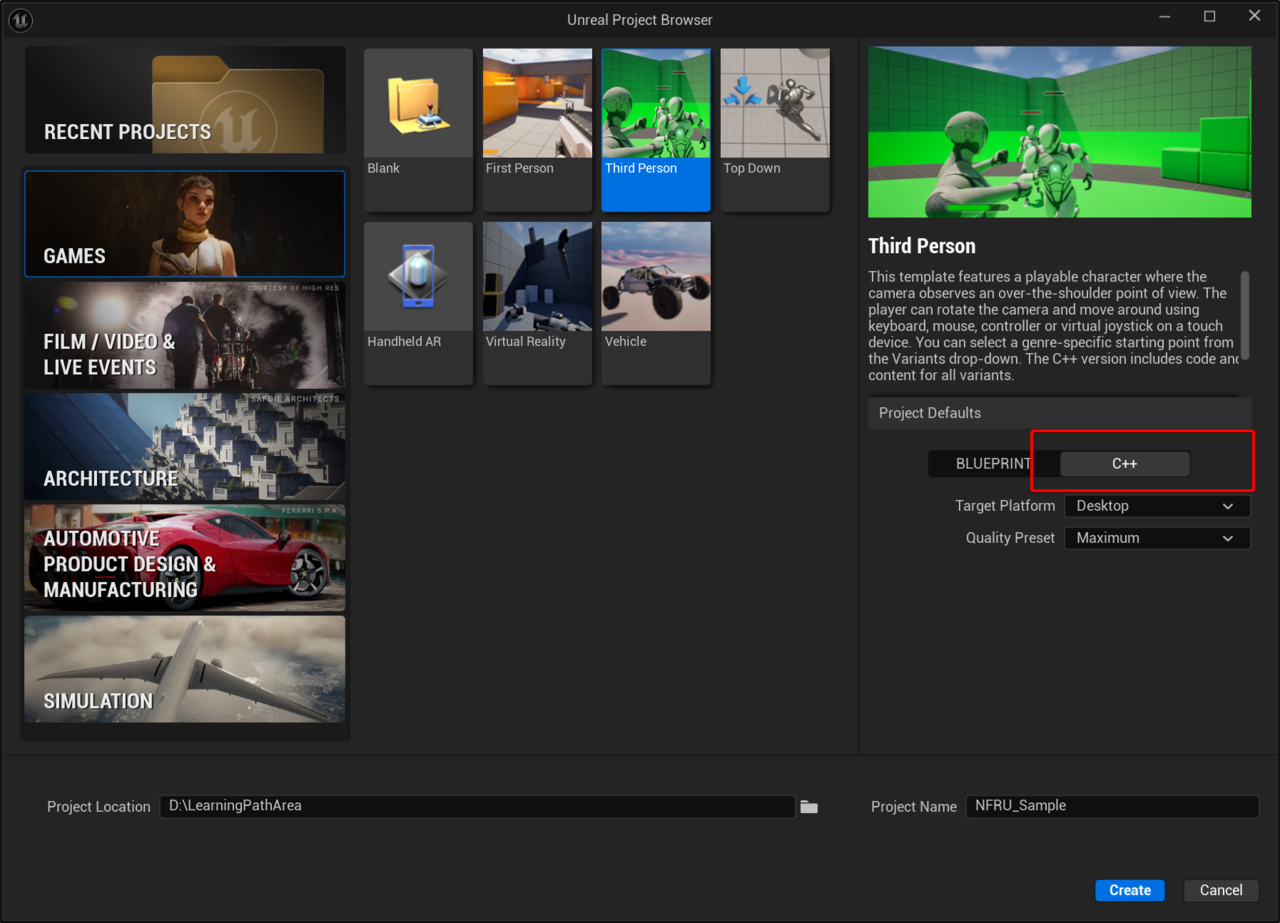 Create a C++ project in a supported Unreal Engine version
Close Unreal Editor.
Create a
Pluginsdirectory in the project root if it does not already exist.Copy the complete
neural-graphics-for-unrealfolder from the extracted Arm Neural Graphics Plugin 1.1.0 release into the project’sPluginsdirectory. Do not copy selected subdirectories or create a symbolic link.The resulting directory structure starts as follows:
<project-root>\
├── <project-name>.uproject
└── Plugins\
    └── neural-graphics-for-unreal\
Right-click the project’s
.uprojectfile and select Generate Visual Studio project files.Open the generated solution in Visual Studio. Select Development Editor and Win64, then build the solution.
Start the project in Unreal Editor. If Unreal Engine prompts you to rebuild missing modules, accept the prompt and wait for the build to finish.
Use Vulkan as the rendering hardware interface
Unreal Engine uses DirectX by default on Windows. NFRU requires Vulkan:
Open Edit > Project Settings.
Go to Platforms > Windows > Targeted RHIs > Default RHI.
Select Vulkan.
Restart Unreal Editor to apply the change.
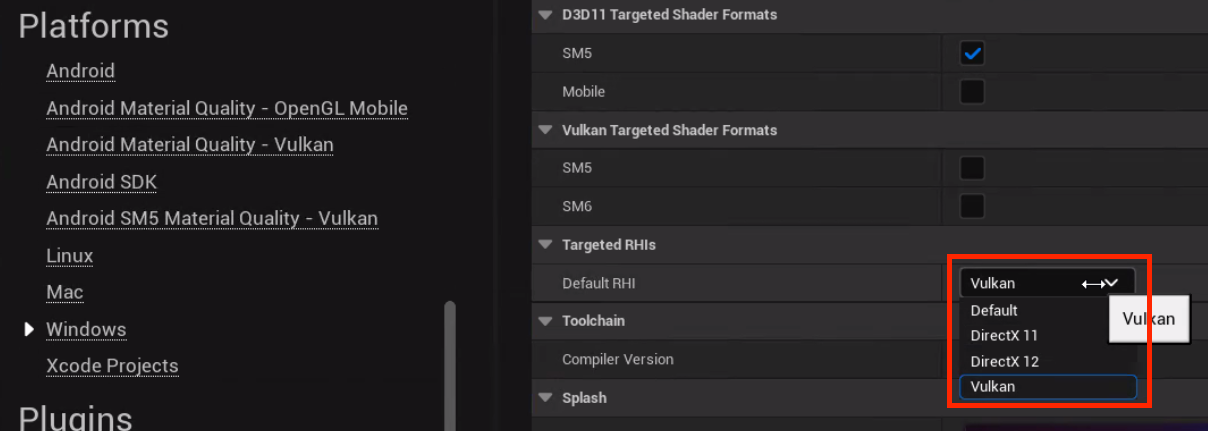 Set Vulkan as the default RHI
Enable Arm Neural Graphics Plugin 1.1.0
To enable the plugin, follow these steps:
- Open Edit > Plugins.
- Search for Arm Neural Graphics Plugin 1.1.0.
- Enable the plugin if it is not already enabled, and restart Unreal Editor if prompted.
 Arm Neural Graphics Plugin enabled in Unreal Engine
Configure NFRU project settings
Open Edit > Project Settings > Plugins > Arm Neural Graphics Plugin 1.1.0 to view and configure the NFRU settings stored with the project.
These project settings provide the persistent configuration. You can use the r.NFRU.* console variables documented later in this Learning Path to inspect or override NFRU behavior while a supported non-editor build is running.
Troubleshoot issues with setup
Use the following guidance to troubleshoot issues with setting up the Unreal project with NFRU.
“Bad Image” error for ngsdk_windows_x64.dll
If Windows reports a “Bad Image” error for ngsdk_windows_x64.dll, check that you copied the complete neural-graphics-for-unreal folder from the Arm Neural Graphics Plugin 1.1.0 release. Do not mix plugin files from different releases or Unreal Engine versions.
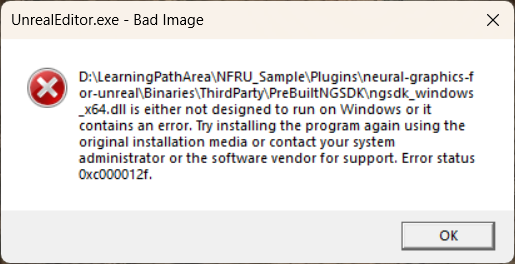 A Bad Image error can indicate missing or incompatible plugin binaries
Replace any incomplete plugin copy with the complete folder from the release archive, regenerate the Visual Studio project files, and rebuild the solution.
Vulkan backend support error
If you see a “Plugin only supports Vulkan backend” error, confirm that Vulkan is selected under Platforms > Windows > Targeted RHIs > Default RHI, then restart Unreal Editor.
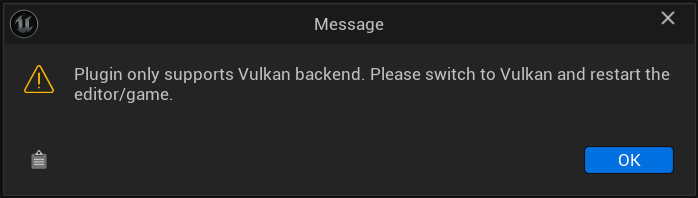 The plugin reports an error when Vulkan is not the active RHI
Missing Vulkan ML extensions
If the project starts but NFRU is unavailable, confirm that you installed version 0.10.0 or later of the standalone
ML Emulation Layer for Vulkan
, Vulkan Configurator is running, the Graph layer is above the Tensor layer, and both emulation layers are active. The Vulkan environment must expose VK_ARM_data_graph_optical_flow for the NFRU optical-flow stage.
You have now installed and configured Arm Neural Graphics Plugin 1.1.0. Next, cook the project and run a Windows non-editor build to validate NFRU.