Generate neural graphics datasets with Neural Graphics Data Capture in Unreal Engine
Introduction
Benefits of Neural Graphics Data Capture for game developers
Install and enable the plugin
Configure Level Blueprint capture controls
Run capture and verify outputs
Capture settings and troubleshooting
Next Steps
Generate neural graphics datasets with Neural Graphics Data Capture in Unreal Engine
Run in Standalone Game mode
Use Standalone Game for capture:
- Open the play mode menu next to the Play button.
- Select Standalone Game.
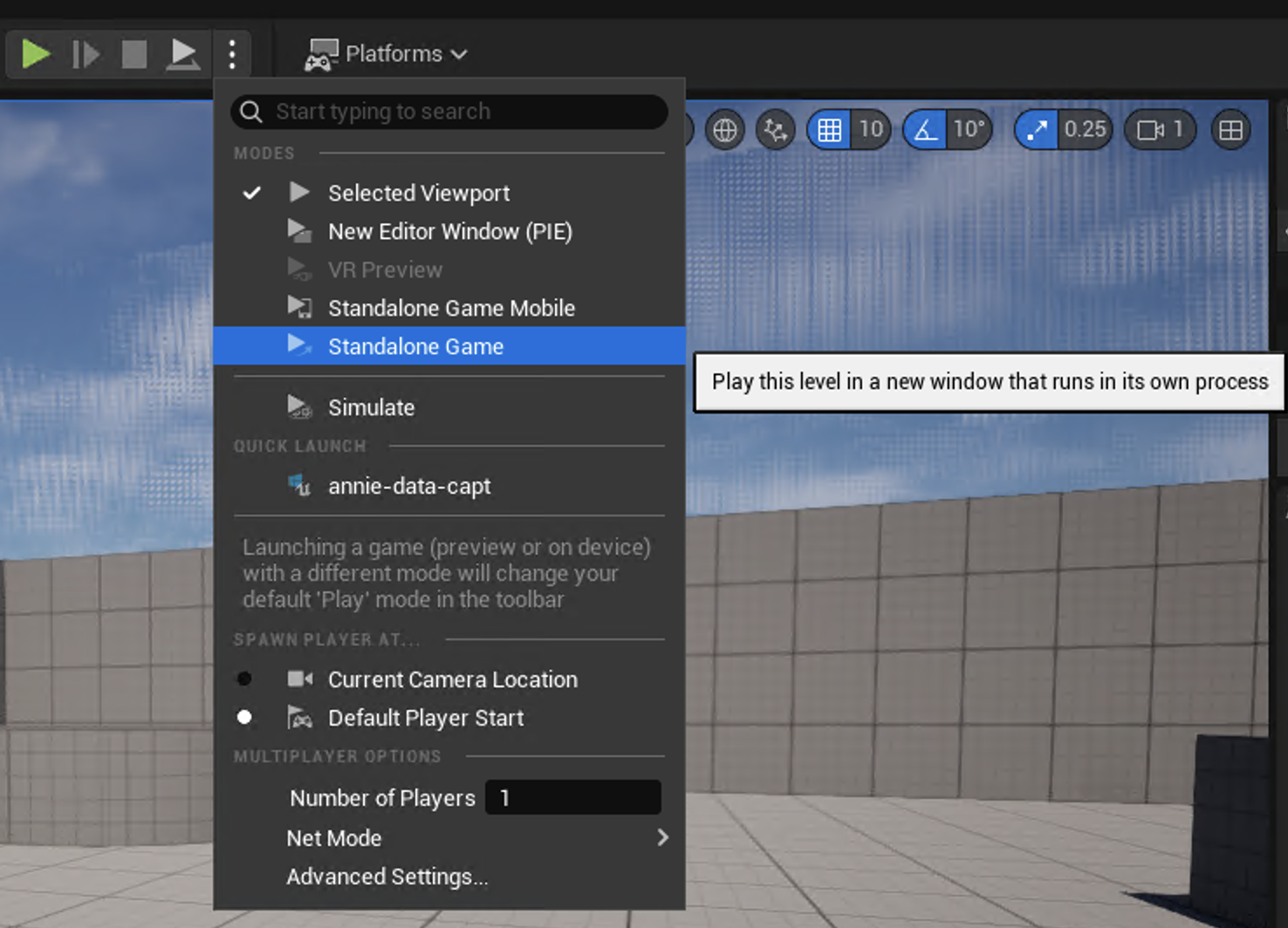 Standalone Game mode selection
If you use New Editor Window (PIE), captured frame dimensions can differ from expected output sizes.
Start and stop capture
- Press Play.
- Press
Cto begin capture. - Move through the level to capture frames.
- Press
Vto stop capture.
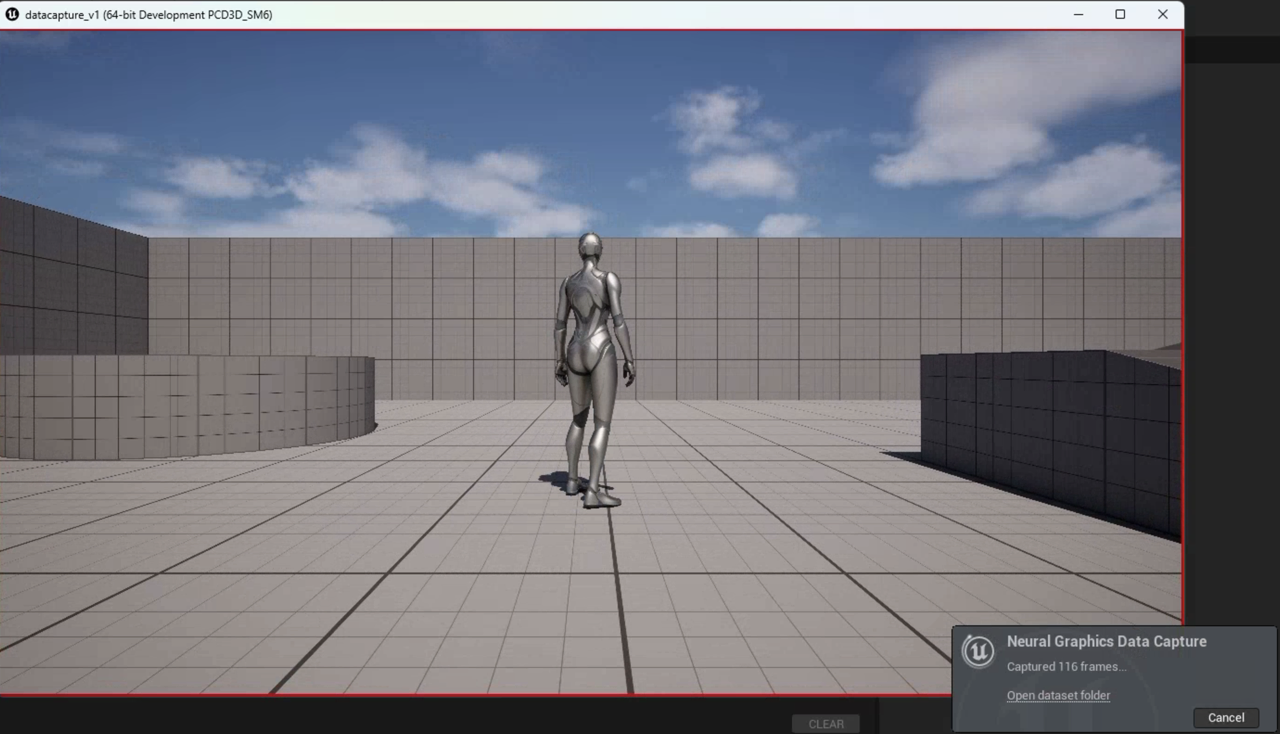 Capture running in Standalone mode
After stopping, you should see a completion notification in the bottom right corner.
Locate the dataset
Captured output is written under:
<YourProject>/Saved/NeuralGraphicsDataset/
With the defaults from this tutorial, see:
<YourProject>/Saved/NeuralGraphicsDataset/0000
Proceed to the next section to tune settings and troubleshoot common issues.