Generate neural graphics datasets with Neural Graphics Data Capture in Unreal Engine
Introduction
Benefits of Neural Graphics Data Capture for game developers
Install and enable the plugin
Configure Level Blueprint capture controls
Run capture and verify outputs
Capture settings and troubleshooting
Next Steps
Generate neural graphics datasets with Neural Graphics Data Capture in Unreal Engine
Open the Level Blueprint
In your level:
- Open the Blueprints drop-down.
- Select Open Level Blueprint.
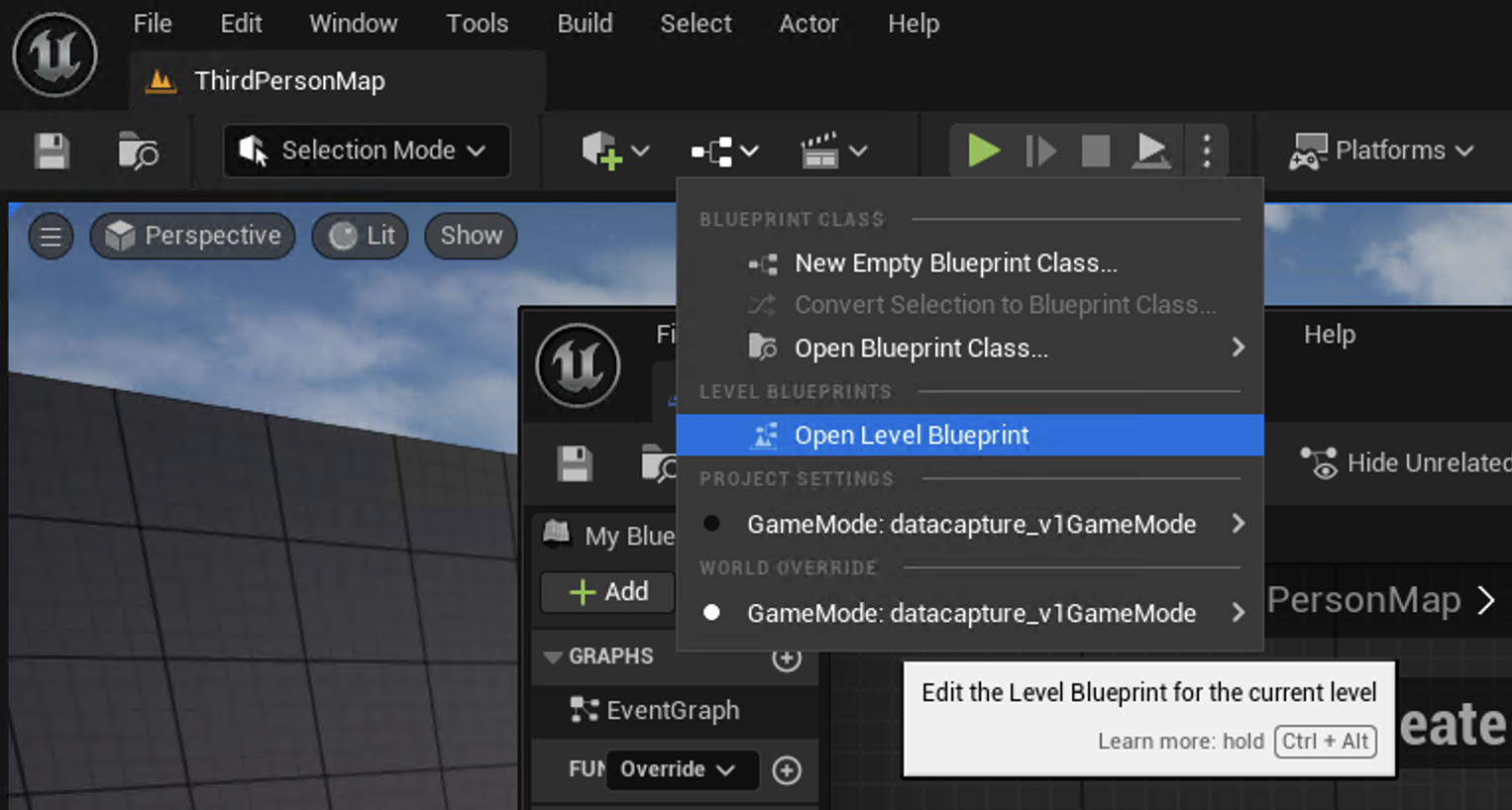 Open Level Blueprint menu
Fast path: download and paste the ready-made blueprint snippet
On Windows, use PowerShell to download the prepared Level Blueprint snippet from this Learning Path repository:
wget "https://raw.githubusercontent.com/ArmDeveloperEcosystem/arm-learning-paths/main/content/learning-paths/mobile-graphics-and-gaming/neural-graphics-data-capture-unreal/assets/level_blueprint.txt" -OutFile ".\level_blueprint.txt"
Then in Unreal Editor:
- Open
level_blueprint.txtin a text editor and copy all text. - Select empty space in the Level Blueprint Event Graph.
- Paste to create the full node graph.
- Select Compile and Save.
If you use Git Bash with GNU wget, use wget -O level_blueprint.txt "https://raw.githubusercontent.com/ArmDeveloperEcosystem/arm-learning-paths/main/content/learning-paths/mobile-graphics-and-gaming/neural-graphics-data-capture-unreal/assets/level_blueprint.txt" instead.
Blueprint capture flow configuration
The snippet wires the following capture flow:
- Gets the Neural Graphics Data Capture Subsystem.
- Builds
NGDCCaptureSettingsfrom:NGDCRenderingSettingsNGDCExportSettings
- Calls Begin Capture on key
C. - Calls End Capture on key
V.
It also sets these export defaults to match this tutorial:
Dataset Dir:NeuralGraphicsDatasetCapture Name:0000
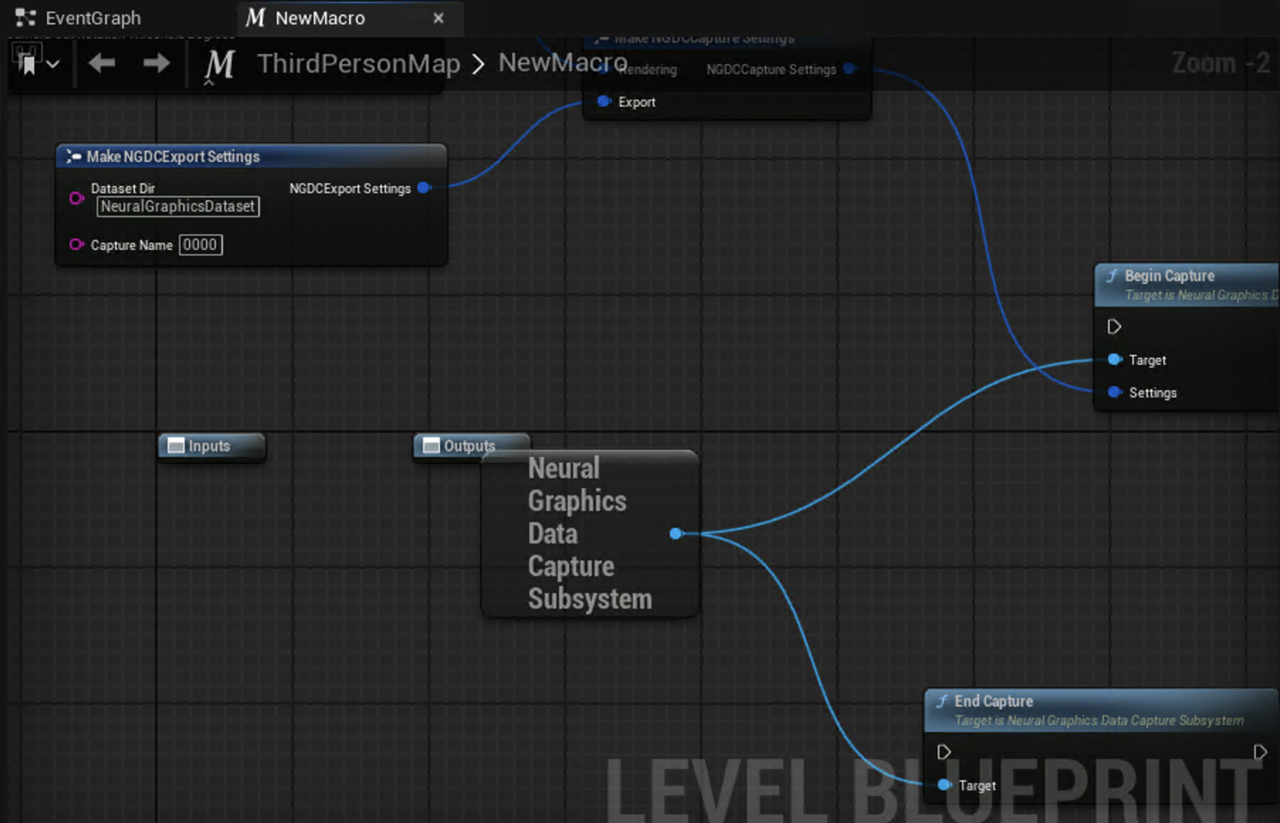 Capture settings and subsystem wiring
The full event graph should look similar to this:
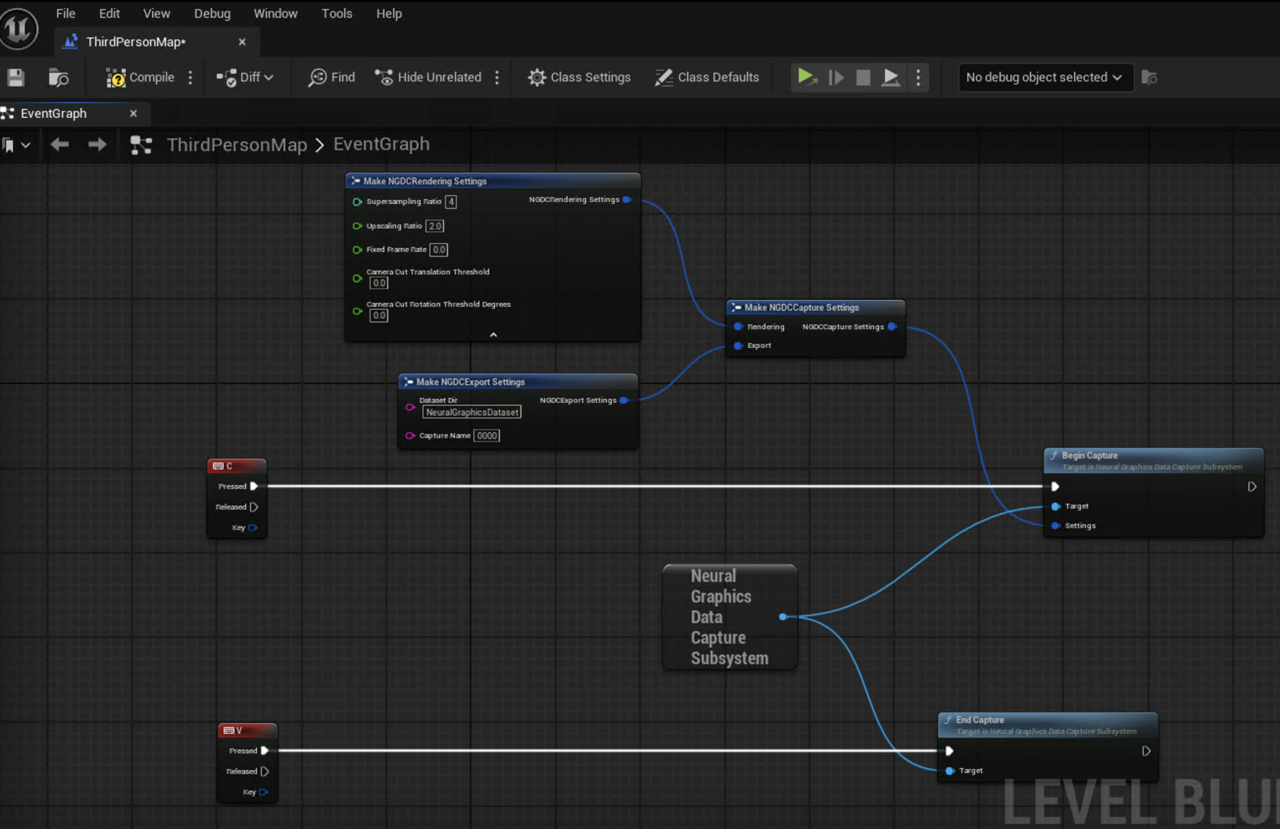 Complete blueprint graph
Continue to run the level in Standalone mode and test capture.