Generate neural graphics datasets with Neural Graphics Data Capture in Unreal Engine
Introduction
Benefits of Neural Graphics Data Capture for game developers
Install and enable the plugin
Configure Level Blueprint capture controls
Run capture and verify outputs
Capture settings and troubleshooting
Next Steps
Generate neural graphics datasets with Neural Graphics Data Capture in Unreal Engine
Before you begin
This plugin currently supports Unreal Engine 5.5.
Use a C++ Unreal project so the plugin module can compile through Visual Studio.
Clone the repository
The plugin lives in a GitHub repository. Start by cloning it:
git clone https://github.com/arm/neural-graphics-data-capture-for-unreal
Add plugin files to your project
- Open your Unreal project folder in File Explorer.
- Create a
Pluginsfolder at the root of the project if it doesn’t already exist. - Copy the
NeuralGraphicsDataCaptureplugin folder from theSourcedirectory into your newPlugins/directory.
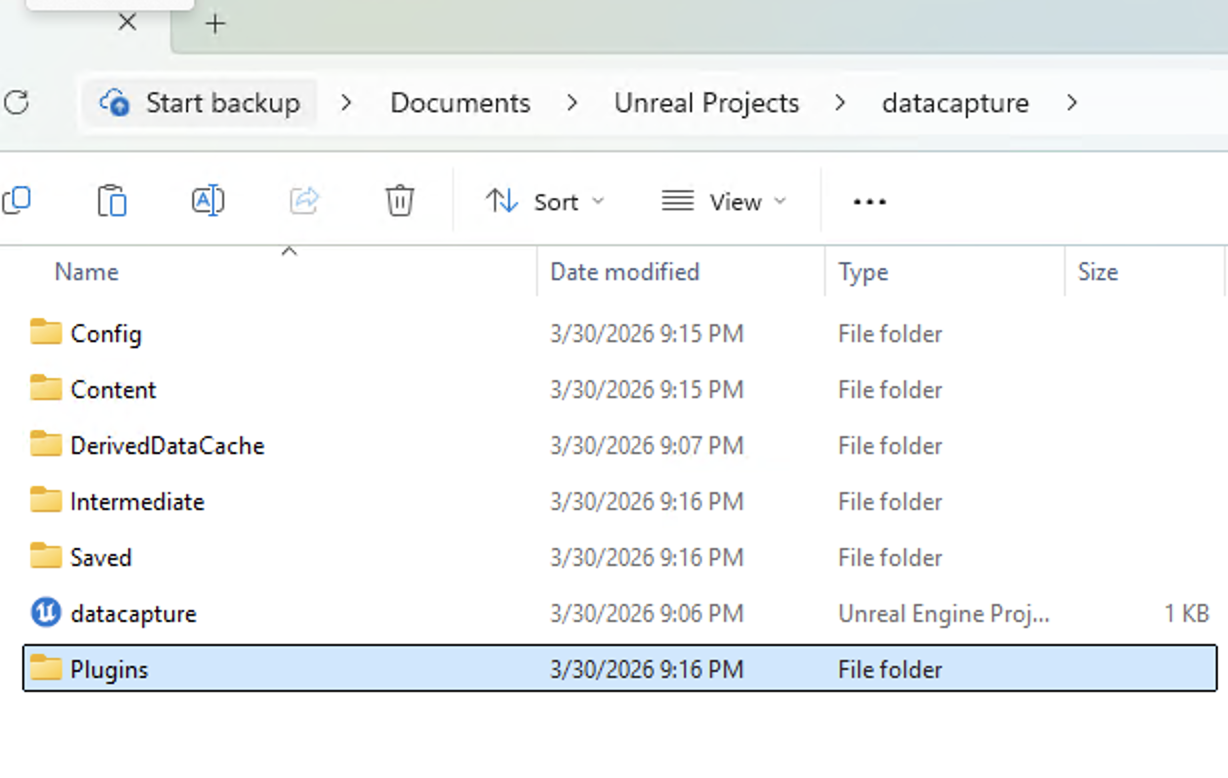 Project root with Plugins directory
Reopen project and build module
- Reopen the
.uprojectfile. - If prompted about missing modules, select Yes to rebuild.
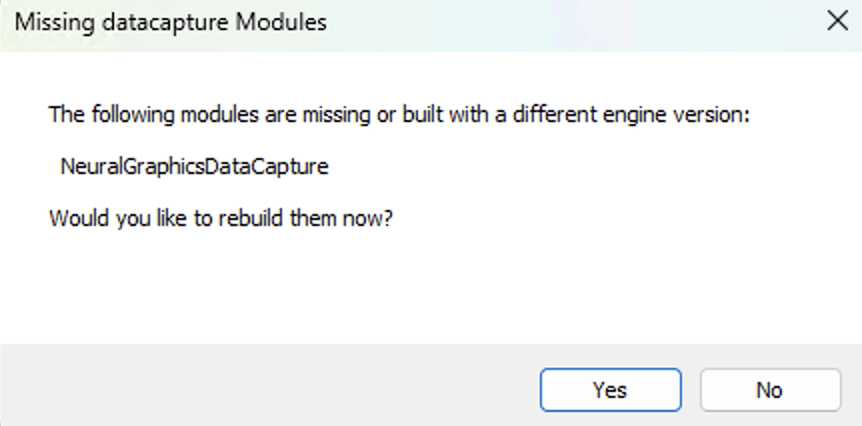 Missing module rebuild prompt
- Build the project in Visual Studio.
Verify plugin is enabled
In Unreal Editor:
- Go to Edit > Plugins.
- Search for
data cap. - Confirm Neural Graphics Data Capture Plugin for Unreal Engine is enabled.
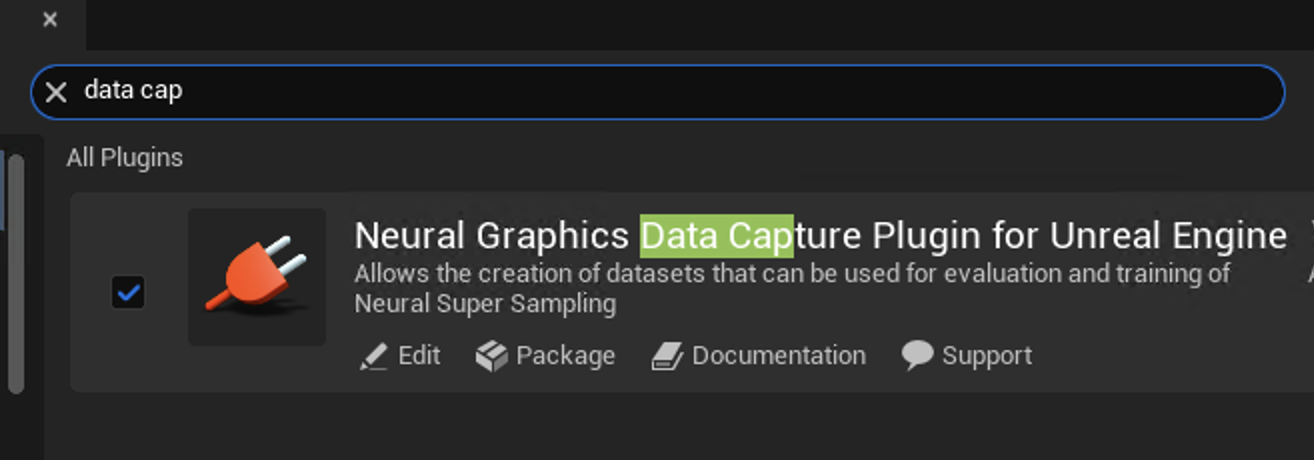 Plugin enabled in Unreal Editor
Next, add the capture graph to your Level Blueprint.