Benchmark TinyStories with Google DDP and an AI agent
Install the DDP agent skill
After reviewing Google Developer Device Platform (DDP) and a suitable Pixel configuration, you can connect to a remote phone.
In the $HOME/ddp-first-device workspace from platform setup, install the skill from the
Google Developer Device Platform (DDP) agent documentation
:
npx skills add https://github.com/google/skills --skill developer-device-platform-basics
Antigravity is included by default when you install the skill. You can also select other coding agents if needed. Choose a project-local installation when prompted.
Start a fresh Antigravity CLI session in this workspace so that it discovers the skill:
agy
Confirm that developer-device-platform-basics is available in your agy session. The skill teaches Antigravity how to find and reserve a device, manage the session, and establish the connection. You can now describe the phone that you want to connect to in natural language.
Ask for a phone and its screen
With your Google Cloud project configured in the workspace environment, enter the following prompt in agy:
Use the DDP skill and my configured Google Cloud project to connect
to a Pixel 11 with the latest stable Android version available.
Keep the session within 60 minutes and US$9, ask me to approve the
cost, and show me the phone's screen with scrcpy. Also, print the commands
I should run in another terminal to connect to the device using adb on my
local computer.
Antigravity looks up the current device configuration, checks availability, and prepares the connection. You don’t need to translate your request into catalog IDs, Android API levels, or connection commands. If the requested phone or Android version isn’t available, Antigravity returns an explanation of the options before reserving an alternative.
As with all prompts, you might need to provide more details depending on the model and settings that you select in agy. The Learning Path was tested with Gemini 4 Argon medium. Other models and reasoning settings haven’t been tested. Describe any missing behavior or error in your agy session so that the agent can investigate.
Approve the reservation
The DDP skill asks for approval before creating a billable session. Review the project, phone, Android version, duration, and estimated cost that Antigravity proposes. Check the
current price for Google DDP
, then answer the approval question in agy. If the proposed session exceeds your budget, ask Antigravity to reduce the duration before approving it.
Keep the approval to one session within the limits of the prompt. Antigravity sets the expiration, connects to the reserved phone, and reports when the session ends. Complete any sign-in or consent steps.
Antigravity handles the reservation and connection using the Google DDP skill. Keep your agy session running while you use the phone.
Try the connected phone
The scrcpy window should show the current screen of the reserved phone. Check that the model and Android version reported by Antigravity match the reservation that you approved.
Click to tap, drag to swipe, and use your keyboard to type into a text field. Try opening the app drawer and returning to the home screen. Antigravity can also save and inspect a screenshot through the same connection:
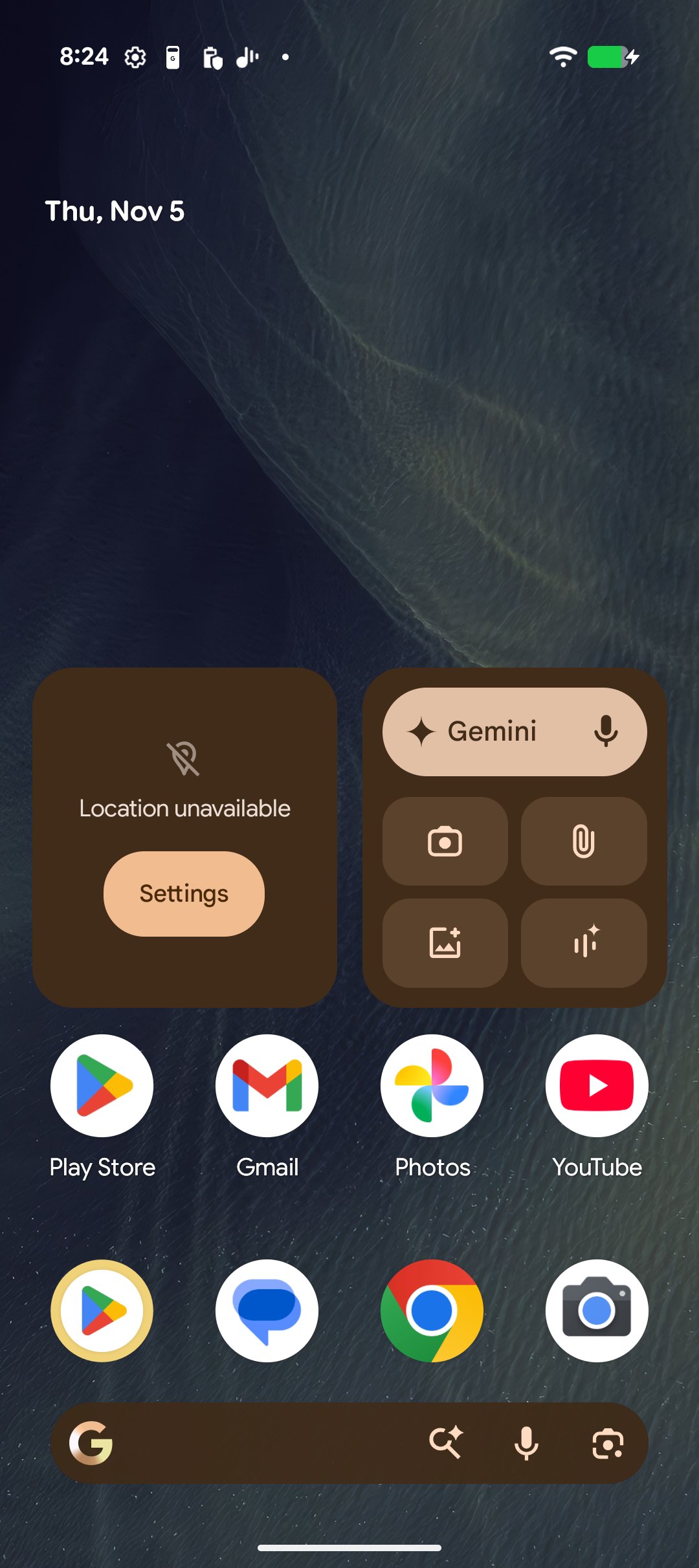 Inspect a real screenshot from the reserved phone
If the screen doesn’t appear or control doesn’t work, describe the issue in agy. Antigravity can inspect the connection, correct the viewer settings, and try again within the existing session.
Antigravity also provides commands that you can run in another terminal to access the phone. Replace 51795 in these commands with the port reported in your agy session.
For an interactive shell, run:
# Verify the device is listed
adb devices -l

# Open an interactive shell on the Pixel 11
adb -s localhost:51795 shell
To run commands on the device:
# Run a single command (e.g., check Android version and Arm ABI)
adb -s localhost:51795 shell getprop ro.build.version.release
adb -s localhost:51795 shell getprop ro.product.cpu.abi
Review what Antigravity handled
Your request gave Antigravity a device, an outcome, and spending limits. Antigravity translated that into device discovery, a reservation, a connection, and a working screen. Its report should include the session expiration and the location of a saved screenshot. The report should also include enough device information to confirm that Antigraviity connected to the phone that you approved.
Keep the same agy session open for the Arm performance experiment that you’ll perform next. Antigravity will use this connection to install the tools, choose compatible Arm optimizations, measure their effect, and release the phone.
What you’ve accomplished and what’s next
You’ve installed the DDP skill, launched agy, and requested a phone in natural language. You’ve approved its cost and interacted with the remote device.
Next, you’ll describe an Arm performance experiment in agy and let Antigravity handle its setup and measurements.