Benchmark TinyStories with Google DDP and an AI agent
Verify Google Cloud access and project setup
After setting up the project, you can verify access to Developer Device Platform (DDP) and identify a suitable Pixel device.
In the workspace terminal, check the active account, project, and Application Default Credentials (ADC):
gcloud auth list --filter=status:ACTIVE --format='value(account)'
gcloud config get-value project
gcloud auth application-default print-access-token >/dev/null
Check that the first two commands show your intended account and project. The final command should exit successfully. Its output is deliberately discarded so that an access token doesn’t appear in your terminal or screenshots. This checks that ADC can obtain a token.
CLI authentication, ADC authentication, and project permissions are separate checks. Successful sign-in doesn’t grant new roles.
Verify the enabled services
Check that the three DDP services are enabled in your project:
gcloud services list --enabled --project="$PROJECT_ID" \
  --format='value(config.name)' | grep -E 'devicerun\.googleapis\.com|devicestreaming\.googleapis\.com|testing\.googleapis\.com'
If all three services appear in the output, you’re ready to continue:
        devicerun.googleapis.com
devicestreaming.googleapis.com
testing.googleapis.com
If any are missing, re-run the gcloud services enable command listed under
Prepare the Google Cloud project
.
Find the Pixel 11 configuration
Query the device catalog and filter the results to Pixel 11. Select a few fields to keep the output readable:
gcloud beta device-run devices list \
  --project="$PROJECT_ID" \
  --filter='displayName~"^Pixel 11$"' \
  --format='table(name.segment(-1):label=ID,displayName:label=NAME,modelCode:label=MODEL,hardwareType:label=HARDWARE_TYPE,products():label=PRODUCTS)'
The output is similar to:
        ID       NAME      MODEL  HARDWARE_TYPE  PRODUCTS
cubs-37  Pixel 11  cubs   PHYSICAL       Automation, Streaming
This example identifies a physical Pixel 11 with model code cubs and streaming support.
Catalog results can change. If no row appears, remove --filter to inspect other configurations. Review an alternative configuration with Antigravity.
Use the
interactive device catalog
to inspect the same information visually. The following example shows Pixel 11, model cubs, and API level 37, with physical hardware and streaming support:
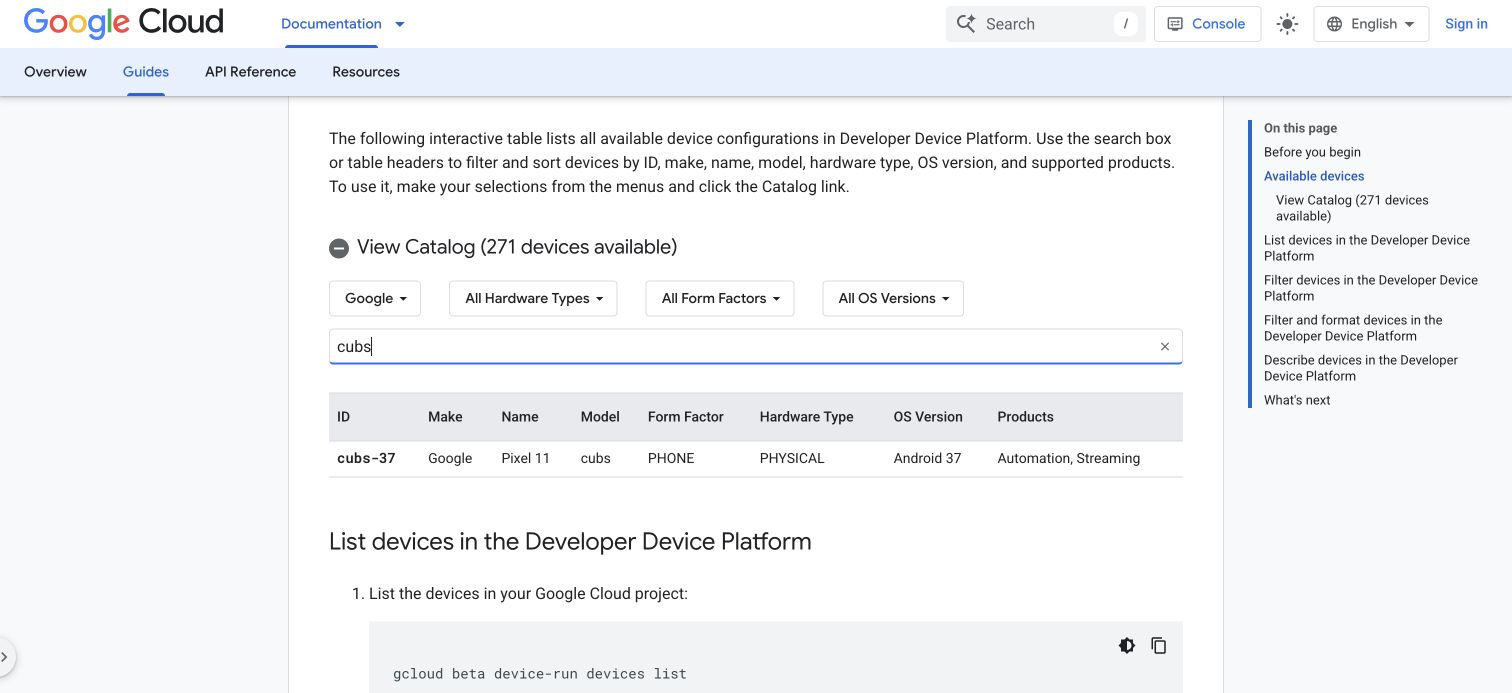 Inspect the model, OS, hardware type, and Streaming support before reservation
Inspect that entry from the CLI if it’s currently available:
gcloud beta device-run devices describe cubs-37 \
  --project="$PROJECT_ID" --format=json > results/device-catalog.json
python3 -m json.tool results/device-catalog.json
The catalog ID is cubs-37. The session request uses model code cubs and API level 37 separately. The CLI description can omit the OS version, so also retain the catalog OS value. Check that the entry includes arm64-v8a and DEVICE_STREAMING. Availability and supported configurations can change.
The catalog helps you select a device and OS configuration. After connecting, Antigravity also checks the Arm features available to applications, including Scalable Vector Extension 2 (SVE2). It then chooses the optimized kernel path for the model. Keep the catalog selection, runtime feature check, and kernel execution check as separate observations in the report.
What you’ve accomplished and what’s next
You’ve checked authentication, project configuration, service activation, and catalog access. You’ve identified the Pixel 11 configuration.
Next, you’ll install the DDP skill and use Antigravity CLI to connect to the chosen phone.