Analyze a frame from an Android application with Frame Advisor
Introduction
Understand Frame Advisor and get support
Capture a trace in Frame Advisor
Analyze draw calls in Frame Advisor
Analyze frame construction with the Render Graph in Frame Advisor
Analyze mesh geometry with Content Metrics on Frame Advisor
Next Steps
Analyze a frame from an Android application with Frame Advisor
Capture a frame for analysis
To capture a frame from your application for analysis, follow these steps:
Open Frame Advisor and select New Trace.
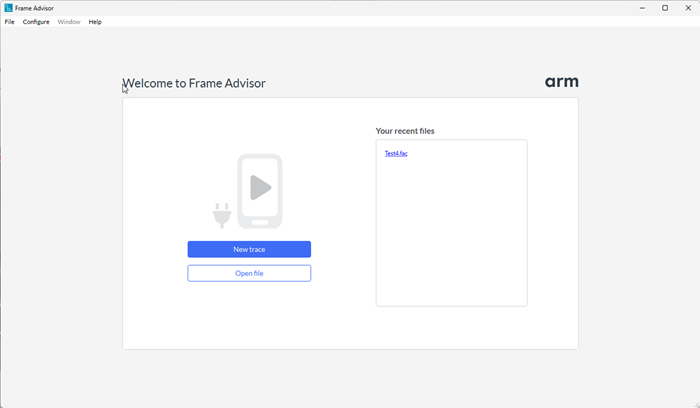 Frame Advisor's launch screen
Frame Advisor lists the connected devices and the applications installed. Select your device and the application containing the frames that you want to capture.
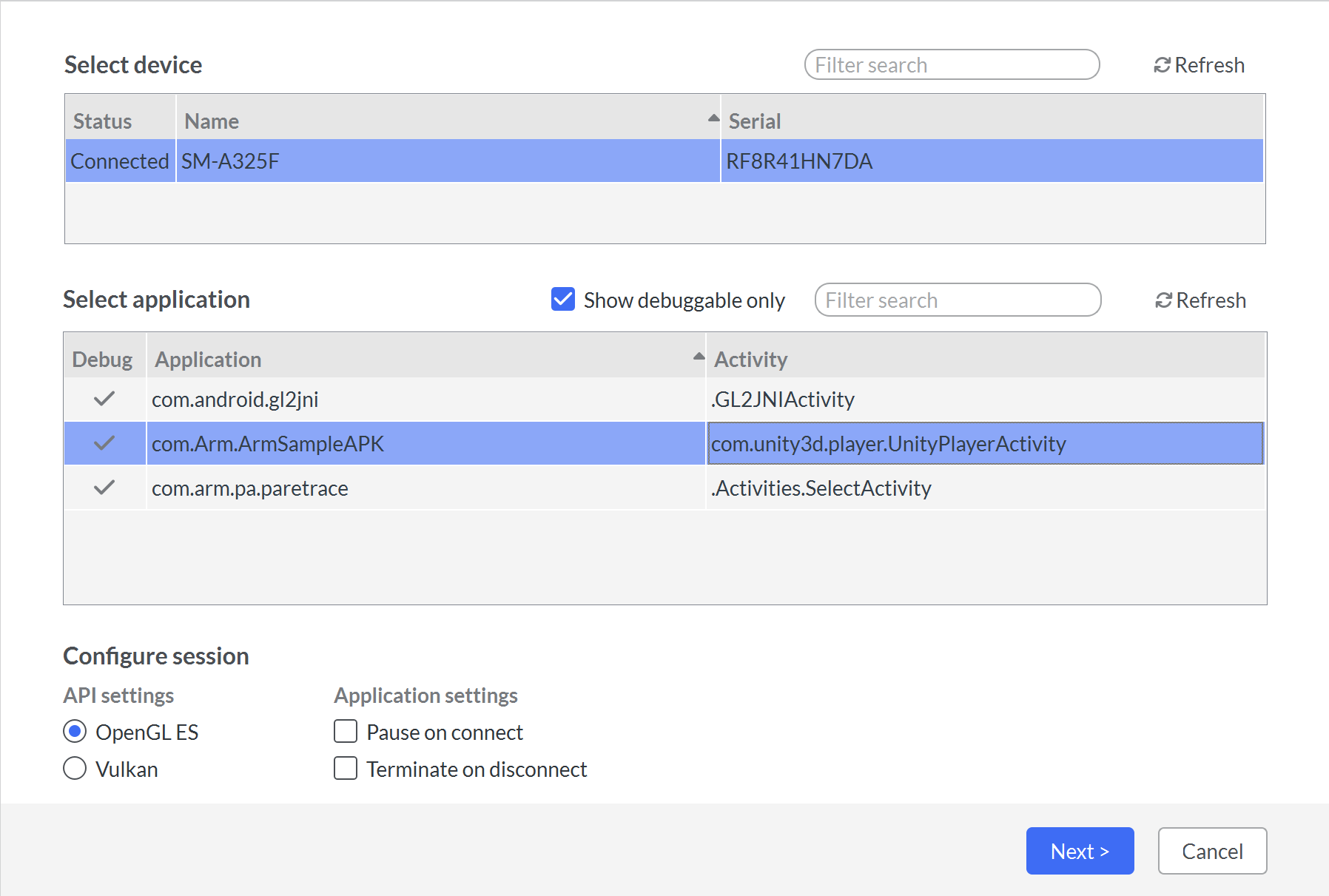 Frame Advisor's connection screen
If your application is Vulkan, change the selection in API settings.
Select Next to start the capture session. The application will start automatically on the device.
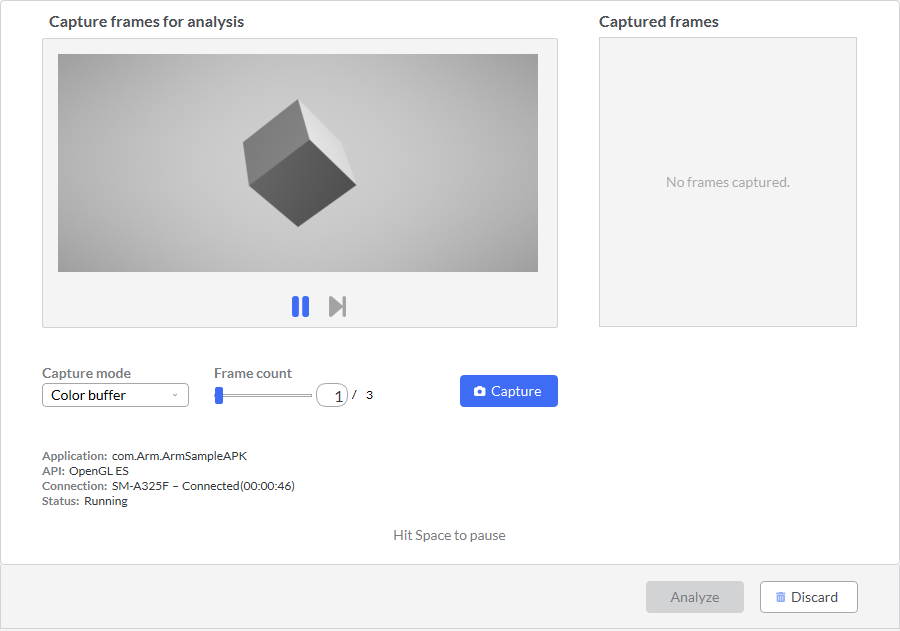 Frame Advisor's capture screen
Play the application until you find your problem area. Before you reach the part of the application where the frame rate drops or the device overheats, select Pause or press the Space bar. Use the Step button to move forward frame by frame.
You can currently capture a frame burst of up to three consecutive frames. For this example, capture one frame. Select Capture, and Frame Advisor captures the next frame.
By default, Frame Advisor captures only the color attachment. Change Capture mode to All attachments to also include any depth and stencil attachments as well as any attachments from multiple render targets. Alternatively, you can capture the overdraw in the scene.
When the capture completes, the frame is shown in the Captured frames list.
Select Analyze to see the results. This might take a few minutes, depending on your content and how many frames you captured.
What you’ve accomplished and what’s next
You’ve captured a representative frame and opened it for analysis.
Next, you’ll inspect its draw calls and framebuffer changes.