Analyze a frame from an Android application with Frame Advisor
Introduction
Understand Frame Advisor and get support
Capture a trace in Frame Advisor
Analyze draw calls in Frame Advisor
Analyze frame construction with the Render Graph in Frame Advisor
Analyze mesh geometry with Content Metrics on Frame Advisor
Next Steps
Analyze a frame from an Android application with Frame Advisor
Inspect the Render Graph
The Render Graph in Frame Advisor shows a visualization of the rendering operations that make up the frame. It shows how data flows between render passes as well as how resources such as textures are produced and consumed. Use the Render Graph to find render passes, input or output attachments that are not used in the final output, and which can be removed.
Render passes flow from left to right. The render pass that outputs to the swapchain is the final render pass that outputs to the screen.
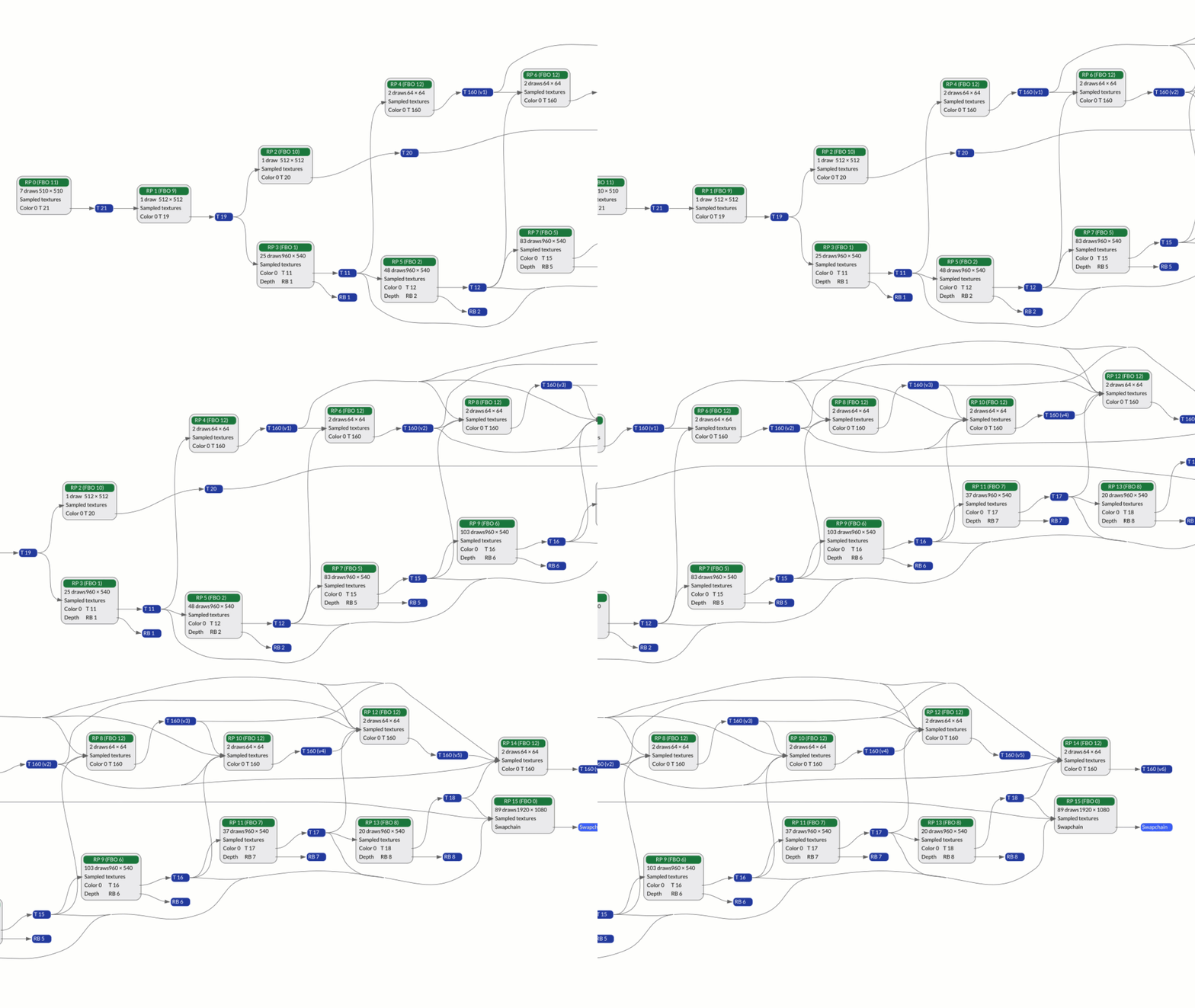 The Render Graph view
In this example, some output attachments aren’t used in a future render pass.
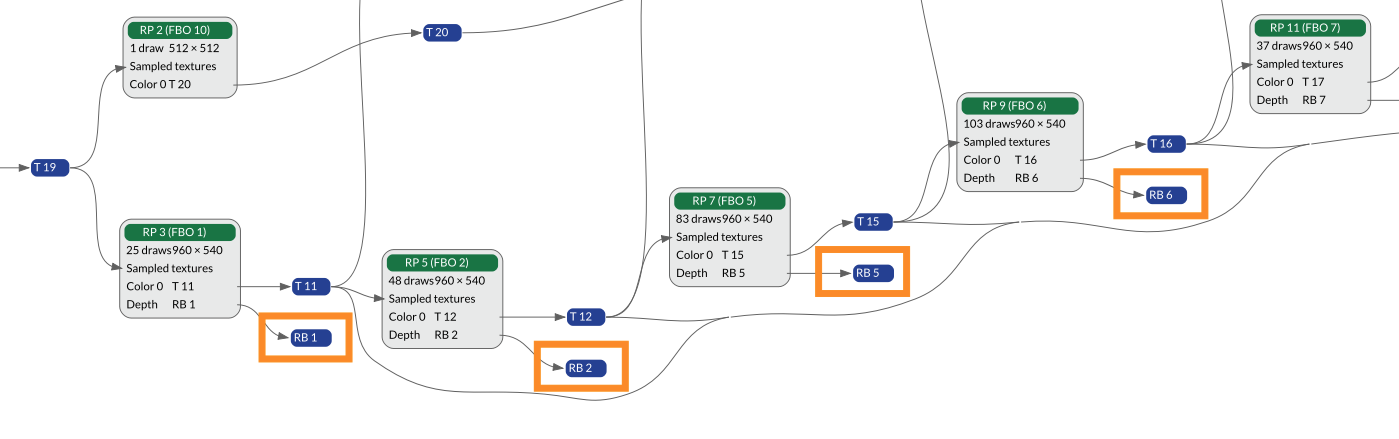 Redundant output attachments
You should clear or invalidate input and output attachments that aren’t used to avoid unnecessary memory accesses. If clear or invalidate calls are present within a render pass, they are shown in the Frame Hierarchy view.
In this example, some render passes have no consumers and don’t contribute to the final rendered output.
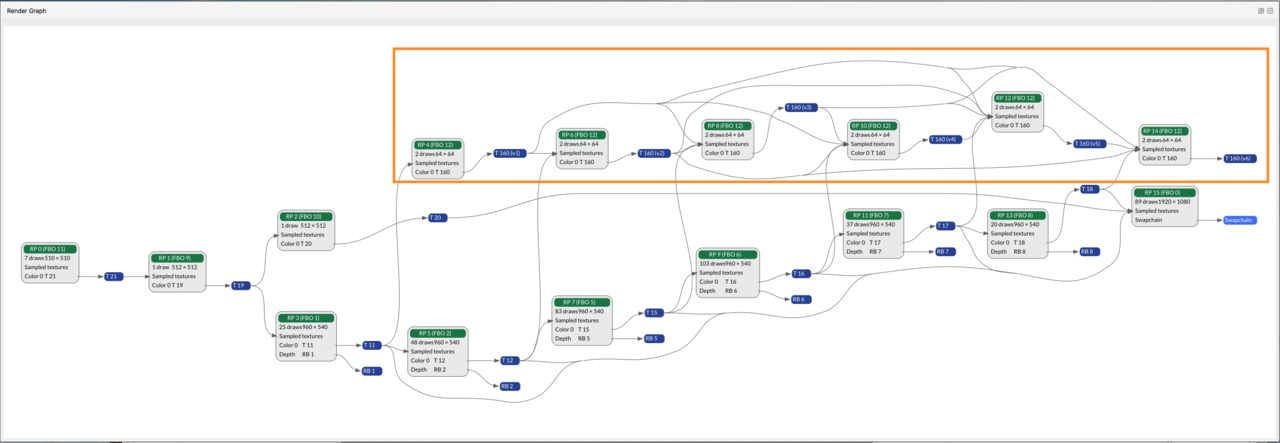 Redundant render passes
These render passes can be removed without affecting the output, saving processing power and bandwidth.
What you’ve accomplished and what’s next
You’ve used the Render Graph to identify attachments and render passes that don’t contribute to the final output.
Next, you’ll use Content Metrics to analyze mesh geometry.