Run an optimized vision-language model from the Arm AI Portal on Android
Introduction
Prepare the Android command-line tools for Vision Chat
Connect an Arm-based Android phone and run Vision Chat
Import and run an Arm AI Portal vision-language model on Android
Understand the Vision Chat Android application
Next Steps
Run an optimized vision-language model from the Arm AI Portal on Android
Vision-language inference in Vision Chat
A vision-language model accepts an image and a text prompt, then generates text. It can describe a scene, read visible text, or answer a question about an image. Unlike an image classifier, a vision-language model isn’t limited to a fixed list of labels.
Vision Chat supports the following model package:
| Model | Runtime | Language model | Vision projector |
|---|---|---|---|
| Qwen3-VL 2B Instruct | llama.cpp | Q4_K_M GGUF | Q8_0 mmproj GGUF |
The ZIP contains the language-model and vision-projector GGUF files. Vision Chat validates and extracts them together. It doesn’t support other model packages.
All inference runs locally on the Android CPU. The application doesn’t upload the selected image or prompt to a server.
Run the commands from the project directory in the same terminal session that you used during setup. Each command calls the Python virtual environment directly.
Arm AI Portal models are hosted on Hugging Face. The download_model.py script uses huggingface_hub and connects to https://huggingface.co by default.
Download Qwen3-VL
Use the application downloader to fetch the supported model package:
.hf-venv/bin/python download_model.py
.\.hf-venv\Scripts\python.exe download_model.py
The downloader fetches both GGUF files, writes them to one uncompressed ZIP,
and removes the separate GGUF files. The models/qwen3-vl-2b directory then
contains the following files:
        Qwen__Qwen3-VL-2B-Instruct_llamacpp_optimized.zip
sample_input.jpg
The ZIP file contains the Q4_K_M language model and the Q8_0 vision encoder and
projector. It also contains a manifest that records their filenames, sizes, and SHA-256
hashes.
Keep the ZIP filename unchanged so that Vision Chat can identify the package.
Copy the model and sample image to Android
Copy the model package and sample image to the phone’s Download directory:
adb push models/qwen3-vl-2b/Qwen__Qwen3-VL-2B-Instruct_llamacpp_optimized.zip /sdcard/Download/
adb push models/qwen3-vl-2b/sample_input.jpg /sdcard/Download/
The model package uses about 1.6 GB. Vision Chat extracts another copy into application-private storage during import, so keep at least 4 GB free while the ZIP also remains in the directory.
Run Qwen3-VL
In Vision Chat:
- Select Add or change model package.
- Open Downloads and select
Qwen__Qwen3-VL-2B-Instruct_llamacpp_optimized.zip. - Select Choose a photo, then choose
sample_input.jpg. - Enter
Describe this image in three sentences.in the prompt field. - Select Ask Qwen3-VL.
The first run loads both GGUF files, encodes the image, evaluates the formatted prompt, and generates up to 128 tokens. Loading and generation can take substantially longer than image classification on the same phone.
The application displays the generated response and model-load time. It also displays image-and-prompt evaluation time, output token count, and decode speed.
The output is similar to:
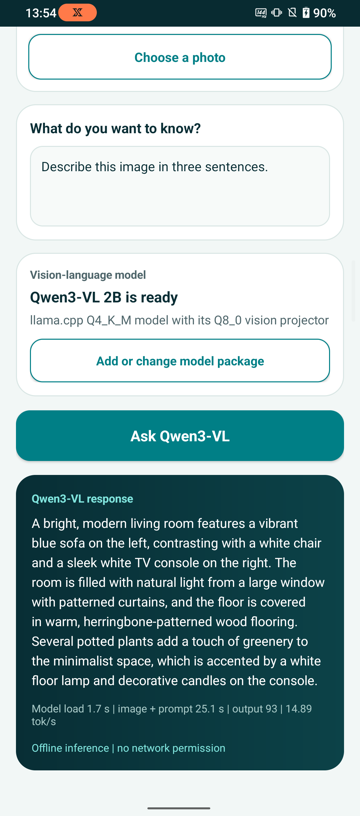 Qwen3-VL response generated locally on Android
The sample output was recorded on an ASUS ROG Phone 6D. It evaluated the image and prompt in 25.1 seconds, then generated 93 tokens at 14.89 tokens per second. The timing is an example rather than a benchmark. Measure performance on your target phone before making deployment choices.
What you’ve accomplished and what’s next
You’ve downloaded the supported Qwen3-VL package from the Arm AI Portal and generated a response from an image and prompt on an Android phone.
Next, you’ll trace how Vision Chat validates and extracts the package and runs local multimodal inference.