Run an optimized vision-language model from the Arm AI Portal on Android
Introduction
Prepare the Android command-line tools for Vision Chat
Connect an Arm-based Android phone and run Vision Chat
Import and run an Arm AI Portal vision-language model on Android
Understand the Vision Chat Android application
Next Steps
Run an optimized vision-language model from the Arm AI Portal on Android
Connect an Android phone
Enable Developer options and USB debugging on the phone. Connect the phone to your development computer with USB, unlock it, and accept the debugging authorization prompt.
Verify that your phone is listed in adb:
adb devices -l
The output lists the authorized phone and its device serial. If the phone reports unauthorized, unlock it and accept the debugging prompt. If the phone doesn’t appear, see
Run apps on a hardware device
.
Check the CPU features of the phone
Vision Chat is built for Armv8.6-A with Dot Product and Int8 Matrix Multiplication instructions. Check that the phone reports the corresponding asimddp and i8mm features:
adb shell cat /proc/cpuinfo
Find the Features line in the output and confirm that it contains both values:
Features : ... asimddp ... i8mm ...
Use a different Arm-based Android phone if either feature is absent.
If the same line also contains sme and sme2, Vision Chat can select the
KleidiAI SME2 kernels included in the APK. SME2 isn’t required. Other phones can use I8MM.
Clone the application repository
Clone the repository with Git, then enter the project directory:
git clone https://github.com/arm-education/ai-portal-android-app-image-text-to-text.git
cd ai-portal-android-app-image-text-to-text
Run the remaining terminal commands from this project directory.
Prepare the Arm AI Portal model downloader
The sample repository includes a downloader for its supported Arm AI Portal model package. The package is published by Arm and hosted in Arm’s Hugging Face repository.
Create a Python virtual environment and install the package used by the downloader:
python3 -m venv .hf-venv
.hf-venv/bin/python -m pip install --upgrade pip huggingface_hub
python -m venv .hf-venv
.\.hf-venv\Scripts\python.exe -m pip install --upgrade pip huggingface_hub
The later commands invoke the environment’s Python executable directly, so the PowerShell script-execution policy doesn’t need to be changed.
If Python reports that venv is unavailable on Debian or Ubuntu, install the python3-venv package and rerun the command.
Fetch the llama.cpp source
Vision Chat pins a llama.cpp revision that includes Qwen3-VL support in libmtmd.
Fetch the pinned source and verify its checksum:
chmod +x scripts/fetch_llama_cpp.sh
./scripts/fetch_llama_cpp.sh
$llamaCommit = "56381e407c0ccfb3a6f71e668a27a901001d22ce"
$llamaSha256 = "7fd19c03e7d7bb02c07e64c47e0539aeabe54f366a59be822f550b5f012a8751"
$llamaArchive = Join-Path $env:TEMP "llama-cpp-$llamaCommit.tar.gz"
$llamaStaging = Join-Path $env:TEMP "llama-cpp-$([guid]::NewGuid())"

Invoke-WebRequest `
    -Uri "https://github.com/ggml-org/llama.cpp/archive/$llamaCommit.tar.gz" `
    -OutFile $llamaArchive

if ((Get-FileHash $llamaArchive -Algorithm SHA256).Hash -ne $llamaSha256) {
    throw "Checksum verification failed for the llama.cpp archive."
}

New-Item -ItemType Directory -Path $llamaStaging | Out-Null
tar -xzf $llamaArchive -C $llamaStaging
New-Item -ItemType Directory -Force -Path third_party | Out-Null
Move-Item `
    "$llamaStaging\llama.cpp-$llamaCommit" `
    "third_party\llama.cpp"
The commands place the source under third_party/llama.cpp. Keep this revision and the application’s Java Native Interface (JNI) code together when updating the project.
Build and run the Vision Chat application
Use the Gradle wrapper to build and lint the debug APK:
chmod +x gradlew
./gradlew :app:assembleDebug :app:lintDebug
.\gradlew.bat :app:assembleDebug :app:lintDebug
You don’t need to install Gradle separately because the repository includes the wrapper.
Install the APK and start Vision Chat with the following commands:
adb install -r app/build/outputs/apk/debug/app-debug.apk
adb shell am start -n org.arm.learningpath.visionchat/.MainActivity
Vision Chat opens without a model. You can choose an image and edit the prompt, but you can’t run inference until you import the Qwen3-VL model package ZIP.
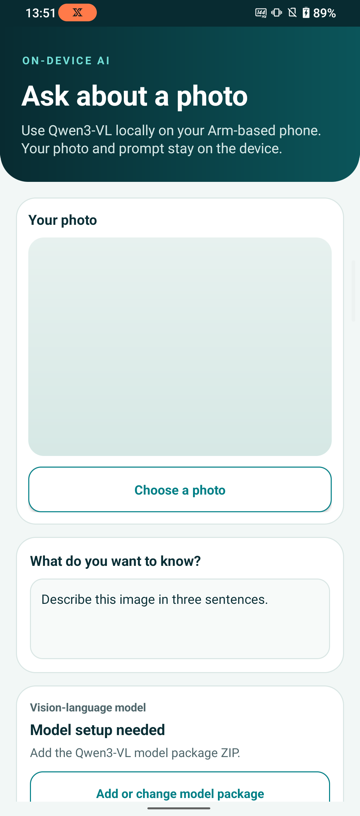 Vision Chat before a model or image is added
What you’ve accomplished and what’s next
You’ve connected an Arm-based Android phone, prepared the model downloader, and confirmed that Vision Chat builds and starts.
Next, you’ll download the optimized Qwen3-VL model package from the Arm AI Portal and ask about an image.