Optimize Windows applications using Arm Performance Libraries
Introduction
Before you begin
Create and Run a Windows on Arm application
Git setup
Build and Profile an Application with Spin the Cube and Visual Studio
Use Arm Performance Libraries to Optimize Performance
Next Steps
Optimize Windows applications using Arm Performance Libraries
Create and configure a project
You are now ready to create a Windows on Arm application. For your first project, you will create a simple console application.
The next steps will guide you through how to create and configure your project.
Begin by going to the Start window, and selecting Create a new project. See Figure 1.
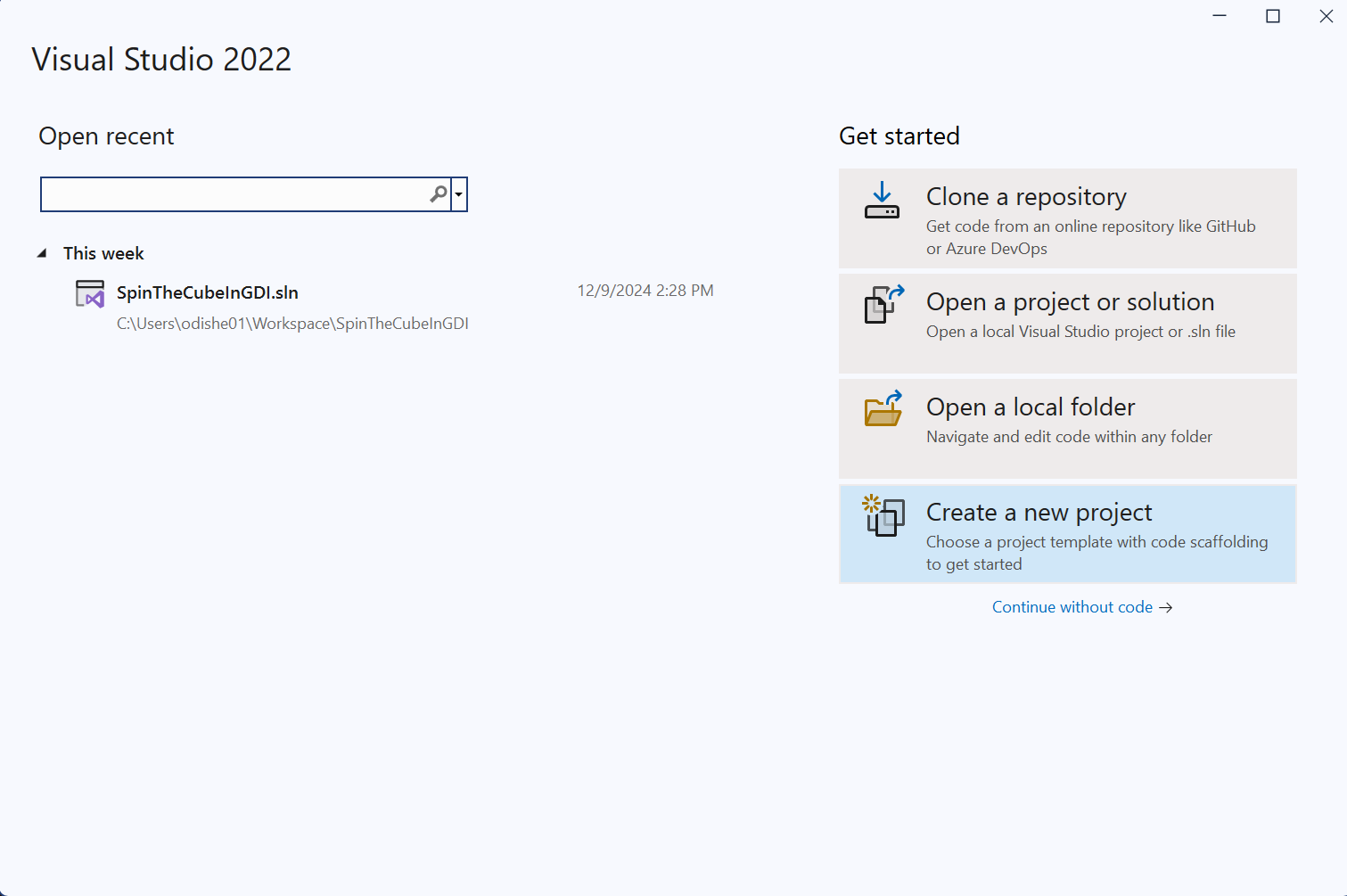 Figure 1: Create a new project.
Then, in Configure your new project, do the following:
- Select Console App.
- Provide a project name, such as
ConsoleApp1, as Figure 2 shows. - Click Create.
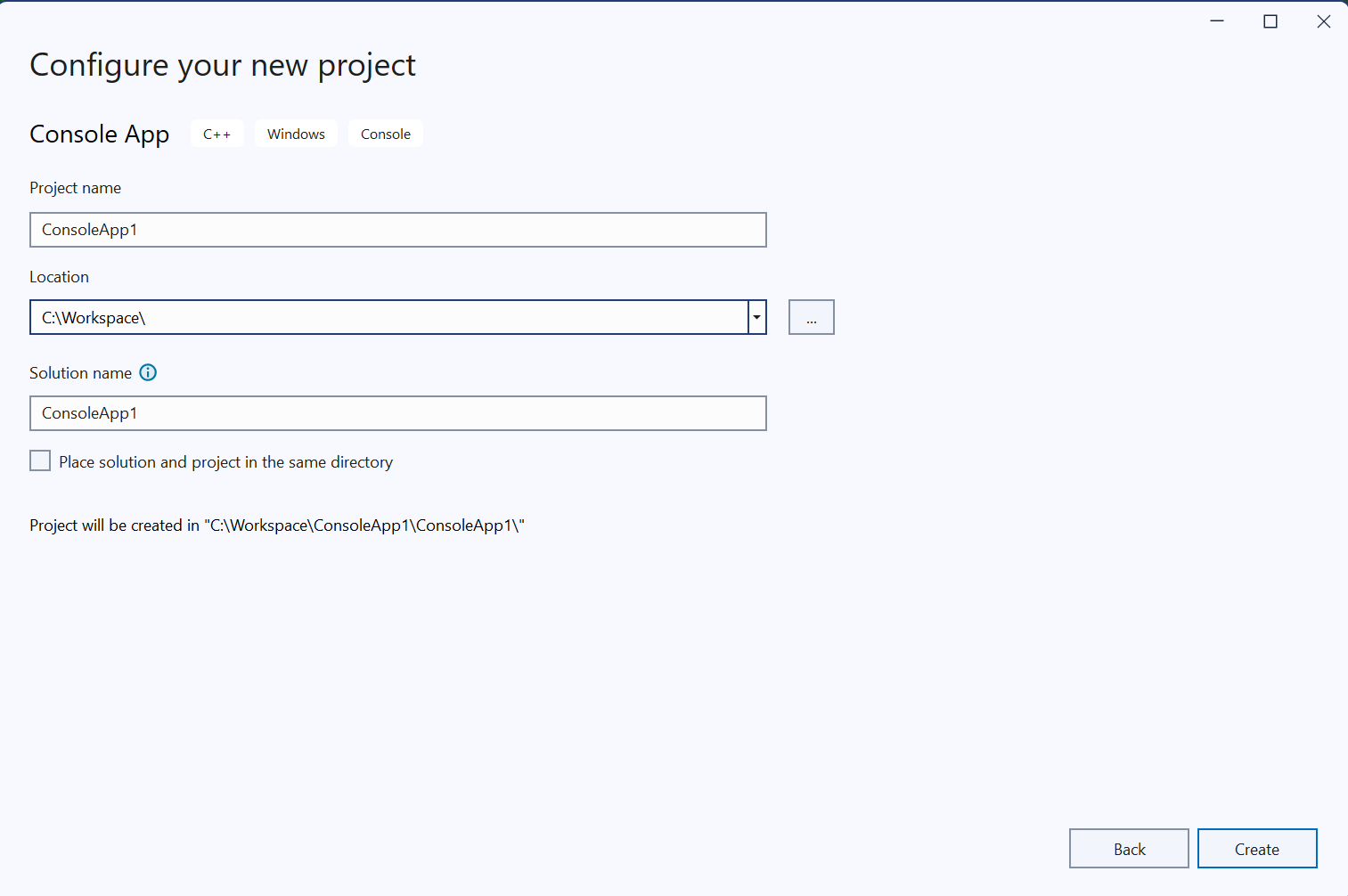 Figure 2: Configure your new project.
After you have created the project, you will see a line of code that says Hello, World! in the newly-created C++ file.
#include <iostream>

int main()
{
    std::cout << "Hello World!\n";
}
Whilst Microsoft Visual Studio automatically configures the build environment for the hardware of the CPU architecture, you still benefit from familiarizing yourself with the relevant configuration settings. So continue to learn more about how to get set up.
ARM64 Configuration Settings
Now click on the Debug drop-down menu, and select Configuration Manager…
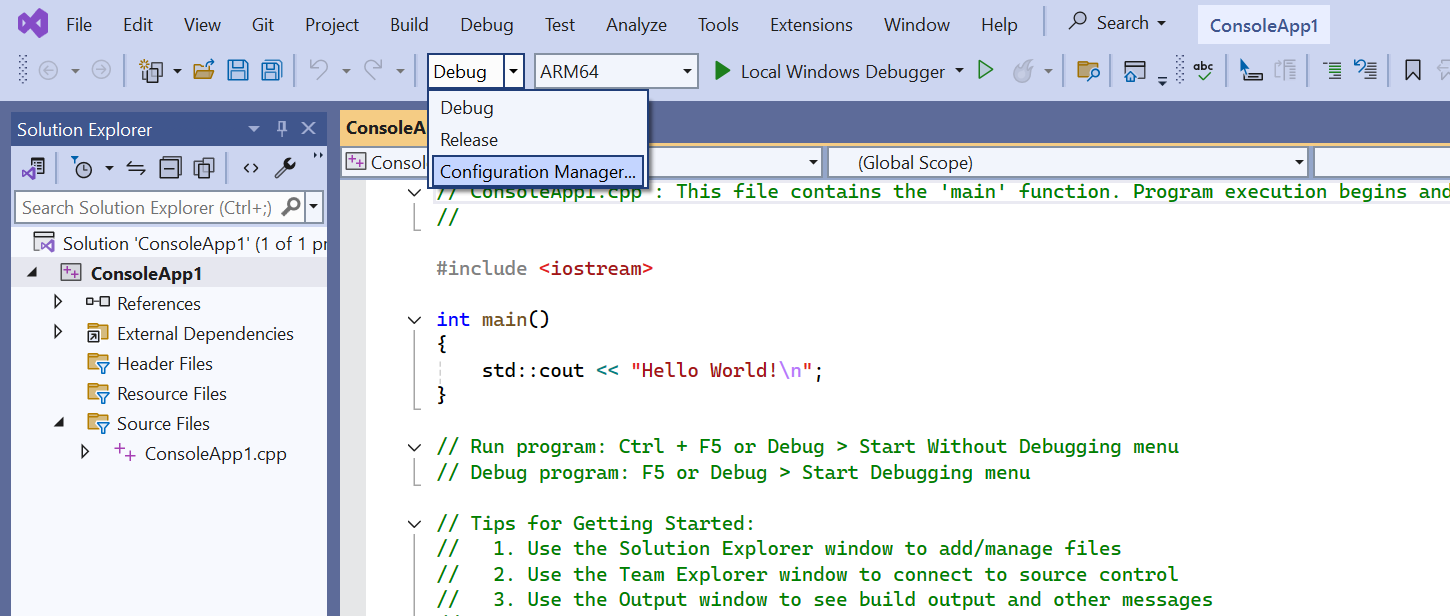 Figure 3: Select Configuration Manager.
In the Project contexts area, you will see the platform set to ARM64, as Figure 4 shows.
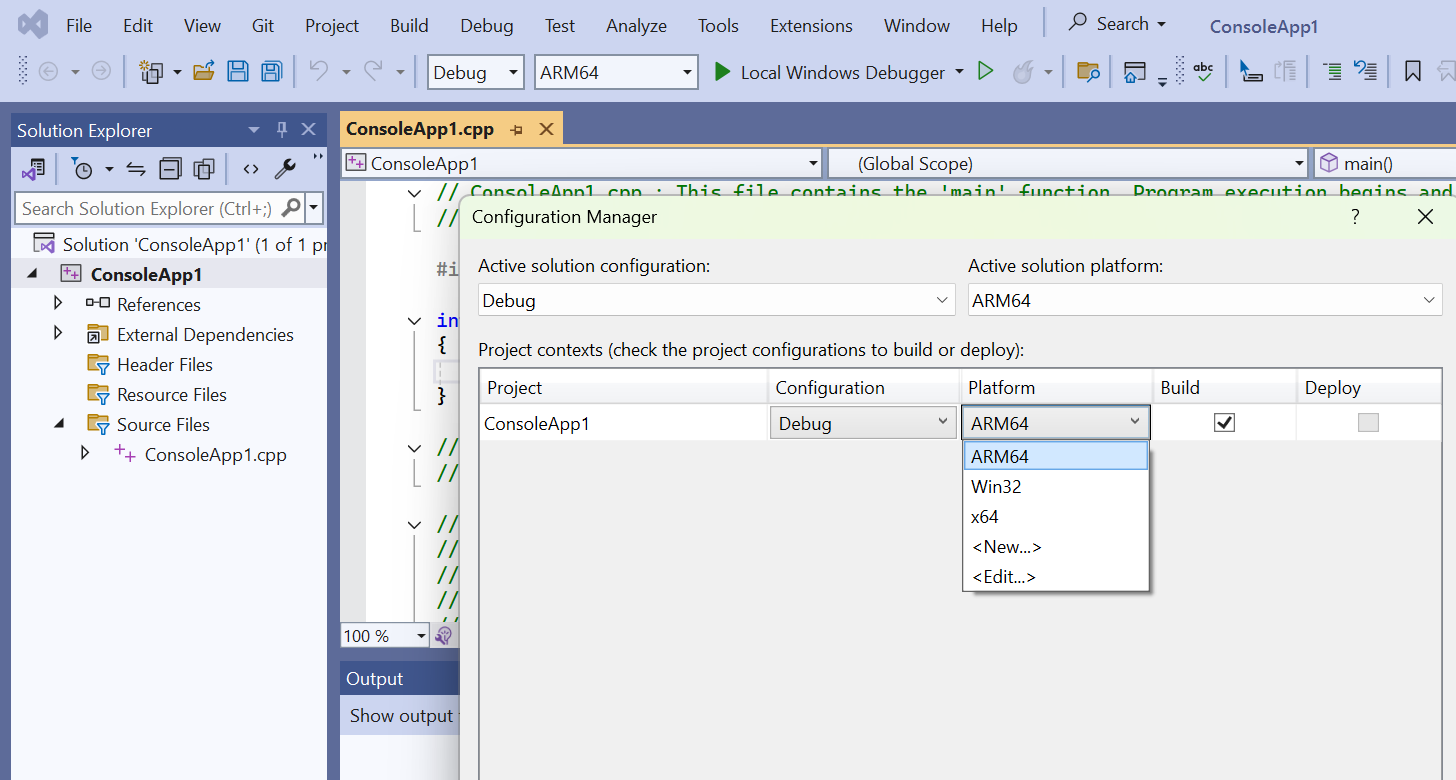 Figure 4: Project Contexts Menu.
Now click Build, then Build Solution, and your application will compile.
Run your first Windows on Arm application
Use the green arrow to run the program you compiled, and you will see the print statement from your code correctly executed in the console.
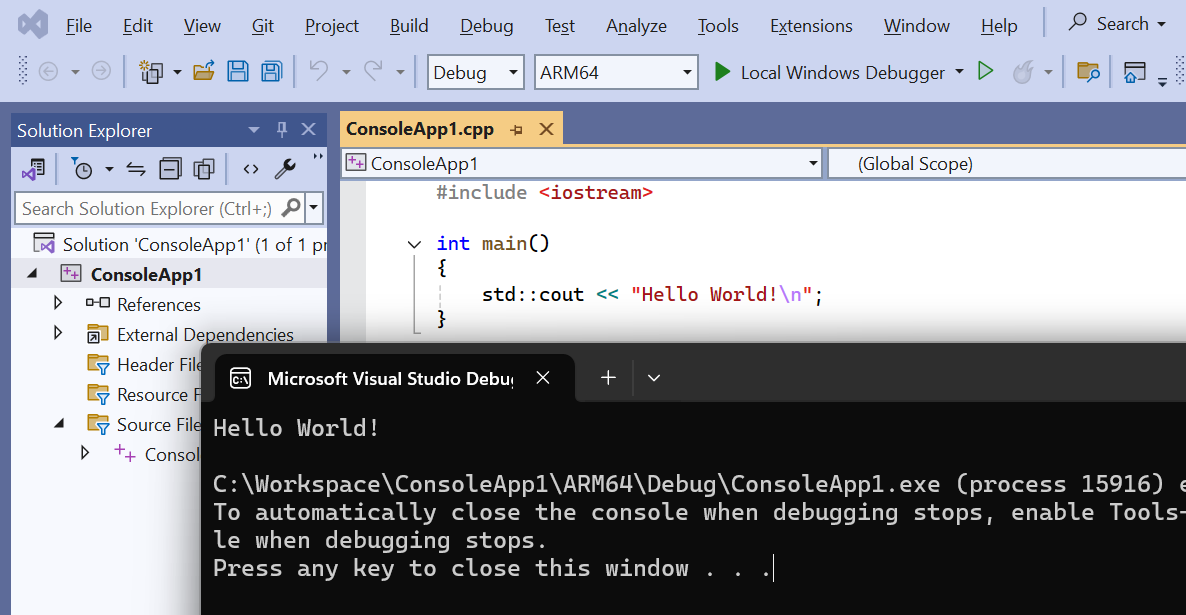 Figure 5: The Console.
You can also use the tools that Visual Studio provides to check the compiled executable.
Visual Studio includes the command-line tool dumpbin , and you can use it to analyze binary files such as:
- Executable files (.exe).
- Object files (.obj).
- Dynamic-link libraries (.dll).
To use dumpbin, open a command prompt with Visual Studio configured by opening Windows search, and then looking for Arm64 Native Tools Command Prompt for VS 2022. Once you have found this application, open it.
A new command prompt opens. It is the same as the regular Windows command prompt, but with the added benefit that you can run Visual Studio tools.
Run the command below, replacing the text with the details of the executable that you created as an argument:
dumpbin /headers <your exe path>\ConsoleApp1.exe
You can see that the file format shows AA64 machine (ARM64) in the file header.
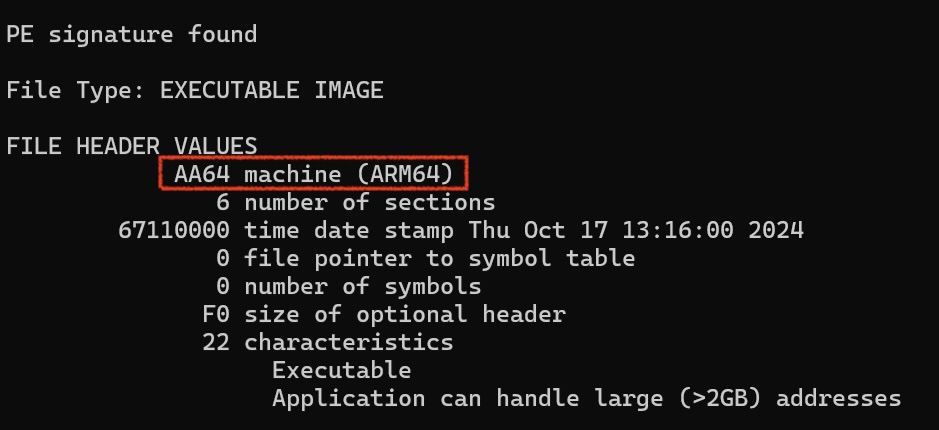 Figure 6: AA64 Machine in File Header.
Continue to the next page to get set up with Git before you move on to build and run a more computationally-intensive application.