Extend OpenClaw for a local-first AI assistant across Arm platforms
Introduction
Understand the architecture and local data boundaries
Prepare the DGX Spark host and local services
Configure and start the OpenClaw runtime on DGX Spark
Validate memory persistence and routing with Telegram and Qdrant
Validate document RAG, web search, and proactive tasks
(Optional) Port the app to a CPU-only Armv9 system
Next Steps
Extend OpenClaw for a local-first AI assistant across Arm platforms
Introduction
Understand the architecture and local data boundaries
Prepare the DGX Spark host and local services
Configure and start the OpenClaw runtime on DGX Spark
Validate memory persistence and routing with Telegram and Qdrant
Validate document RAG, web search, and proactive tasks
(Optional) Port the app to a CPU-only Armv9 system
Next Steps
Ingest and query document RAG
Create a small text file on the device where you use Telegram.
Telegram uploads files from the device running the client, not from DGX Spark, unless Telegram runs there. Common locations are Downloads, Documents, or Desktop on a computer, and Downloads in the Files app on a phone or tablet.
Use the following synthetic tutorial content:
Household heating maintenance notes

Inspect the boiler every October.
Clean the heating filter on the first Saturday of every third month.
Keep the service reference number with the maintenance record.
Save the file as household-maintenance.txt, then upload it to your bot with the following caption:
/knowledge
The document uses the following path:
File on the Telegram client device
    -> Telegram bot upload
    -> DGX Spark workspace/inbox/knowledge/telegram
    -> Memory watcher and Ollama embeddings
    -> Qdrant collection: personal_knowledge_base
The /knowledge caption explicitly routes the file to document indexing. The runtime stores it under workspace/inbox/knowledge/telegram/, creates embeddings, and writes the chunks to personal_knowledge_base.
The bot reports the stored filename with a timestamp prefix, similar to 20260717-180500-household-maintenance.txt. Copy the filename from the response.
Indexing runs in the background. Wait a few seconds, then check the memory watcher:
docker logs --tail 30 openclaw-memory-watcher
In Telegram, ask a question using the returned filename. Replace <returned-file-name> with the filename reported by the bot:
/rag <returned-file-name> When should the heating filter be cleaned?
The filename limits retrieval to this upload, so existing records don’t affect the result. A general /rag query without a filename searches all configured memory and knowledge collections.
The following screenshot shows a general query:
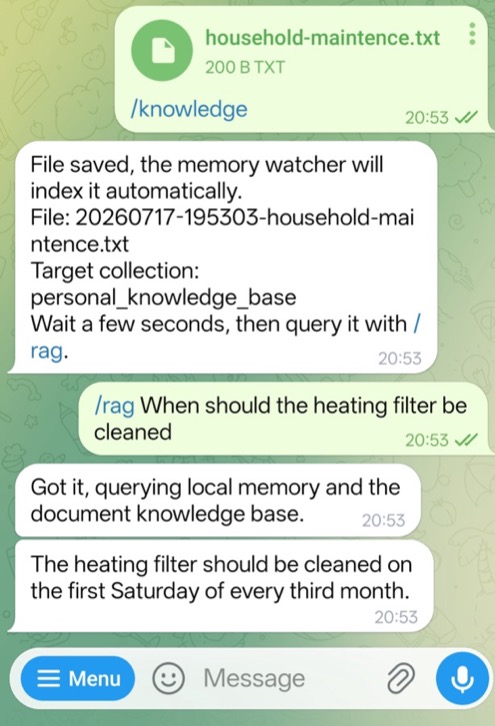 Uploading and querying a household document in Telegram
Use the command with the filename for this test. The answer should mention the first Saturday of every third month.
To verify the stored document directly in Qdrant, filter the collection by the returned filename:
curl -sS -X POST \
  http://127.0.0.1:6333/collections/personal_knowledge_base/points/scroll \
  -H 'Content-Type: application/json' \
  -d '{
    "filter": {
      "must": [
        {
          "key": "file_name",
          "match": {
            "value": "<returned-file-name>"
          }
        }
      ]
    },
    "limit": 5,
    "with_payload": true,
    "with_vector": false
  }'
The payload should contain chunks from household-maintenance.txt, confirming that Qdrant stored and indexed the upload.
Execute deterministic web search
Use the browser agent for current public information. Send the following command to the bot:
/search Arm Learning Paths local AI development
The explicit /search prefix selects the browser-search route deterministically:
Telegram /search command
    -> Browser-search agent
    -> Local Playwright worker
    -> Public search engine and selected pages
    -> Local vLLM summary
    -> Telegram answer
The query and page requests leave the local network. Playwright saves the retrieved content under workspace/inbox/tracker/web/, and local vLLM generates the answer.
Confirm that the browser worker handled the request:
docker logs --tail 20 openclaw-browser-scraper
Look for a successful POST /scrape request. The Telegram response should cite the retrieved sources and include the path to the saved web Markdown file.
Finally, send the following command in Telegram:
/tasks last 5
Confirm that the search task reports browser_search_agent.
Schedule proactive cron tasks
Choose a time a few minutes in the future, using OPENCLAW_CRON_TIMEZONE.
Create a daily reminder, replacing 21:15 with your test time:
/cron add daily 21:15 Heating check :: Remind the household to review the heating maintenance notes.
Then, list the job in Telegram:
/cron list
The bot returns a job ID, and /cron list shows the schedule as [on]:
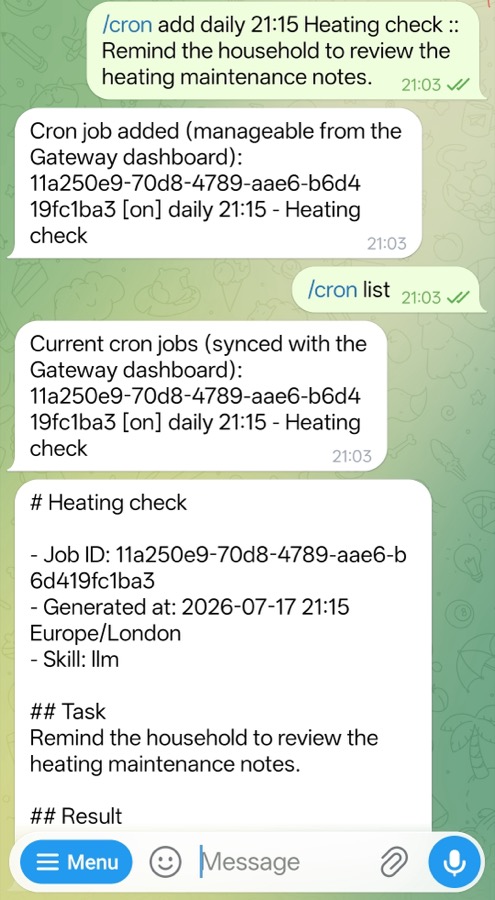 Creating and triggering a scheduled reminder in Telegram
Creating the job doesn’t run it immediately. At the configured time, the bot sends the Heating check message.
After the configured time, verify that the cron worker delivered the scheduled job:
docker logs --tail 30 openclaw-cron
Look for a line containing [cron] dynamic job sent, the job ID, and the path to the locally saved cron report.
To test without waiting, copy the job ID from /cron list and send:
/cron run <job-id>
The result should be delivered as a Telegram push message.
Inspect cron from the gateway dashboard
The Gateway dashboard listens on localhost. If you’re working directly on the DGX Spark desktop, open:
http://127.0.0.1:18789/
If DGX Spark is remote, create an SSH tunnel from your laptop:
ssh -L 18789:127.0.0.1:18789 <user>@<dgx-spark-host>
Replace <user> with your DGX Spark user name and <dgx-spark-host> with its host name or IP address.
Then open http://127.0.0.1:18789/ locally and enter the OPENCLAW_GATEWAY_TOKEN stored in the private .env file.
Confirm that the dashboard and Telegram show the same cron job and run history.
Keep the Gateway and its admin RPC endpoint behind localhost, an SSH tunnel, or a trusted private network. Don’t expose the dashboard directly to the public internet.
You’ve now validated three runtime paths. Document questions use the RAG skill, Qdrant, and the local LLM. Current public queries use the browser-search agent and Playwright. Proactive reminders run through the cron worker and arrive as Telegram messages.
The LLM is one replaceable part of the application. The local memory, tools, schedules, and interaction paths remain available around it.
What you’ve learned and what’s next
You’ve now validated document RAG, explicit browser search, and a proactive reminder for the household assistant.
You can optionally extend the same workflow to a CPU-only Armv9 system. For more information, see (Optional) Port the app to a CPU-only Armv9 system .
You’ve moved beyond a local-model demo and built a self-managed OpenClaw-based runtime that you can adapt to different Arm compute configurations.