Build Muse Glimmer 30B with Hermes and ExecuTorch on DGX Spark
Introduction
Serve Muse Glimmer locally on the GPU
Start Hermes on the CPU with restricted local tools
Use Hermes with Muse Glimmer as a coding agent
Extend your local Hermes and Muse Glimmer agent
Next Steps
Build Muse Glimmer 30B with Hermes and ExecuTorch on DGX Spark
Install and configure Hermes
Now that you’ve started serving the Muse Glimmer model locally, you can start Hermes in a sandbox.
Keep the model server running in the first SSH session. Use the second SSH session, where you checked the endpoint, for Hermes.
Install Hermes using the setup-hermes-cli.sh script that you downloaded earlier:
cd ~/muse-agent
bash setup-hermes-cli.sh
~/muse-agent/bin/hermes chat --help
Expect Hermes installed and the Hermes CLI help output. This confirms that the Hermes CLI launches.
The helper checks Docker access and free disk space. It pulls the pinned Arm64 sandbox image by immutable digest and runs the complete official installer at the pinned revision. The helper then configures the local provider and Docker sandbox.
The script writes ~/muse-agent/hermes-home/config.yaml, defining a custom provider named spark-local at http://127.0.0.1:8000/v1. It selects muse-glimmer-30B as the default model and matches the 65,536-token context of the server. The script then sets agent.image_input_mode: native so that attached images go directly to local Muse Glimmer through the same API.
The generated ~/muse-agent/bin/hermes launcher sets HERMES_HOME to this configuration directory. This allows Hermes to send model requests to the local ExecuTorch server by using its OpenAI-compatible API.
If setup fails, fix the reported error and rerun bash setup-hermes-cli.sh. The helper repeats the upstream installation and image-pull steps. After its first successful configuration, it preserves other settings in hermes-home/config.yaml and ensures that native image input is enabled.
Verify the model connection and sandbox in the checks that follow.
Review the tool setup
A sandbox is a restricted environment that limits what a program can access. Here, Hermes runs agent-generated shell commands inside a Docker container with network access disabled and specific host folders mounted. This limits the damage that a mistaken command can cause. The agent can edit in-scope files without access to unrelated host files or external services.
| Setup | Effect |
|---|---|
| Local provider | Muse Glimmer on http://127.0.0.1:8000/v1, with a 65,536-token context |
| Explicit sampling | Temperature 1.0, top_p 0.95, top_k 64; a null reasoning_effort override avoids an unsupported API setting |
| Image input | agent.image_input_mode: native sends image pixels to the local model, without an auxiliary vision service |
| Python CLI | --cli selects the terminal interface that you’ll use |
| Docker tool backend | Agent shell commands run inside a container on the Spark |
| No tool-container network | docker_network: false prevents outbound access from agent commands |
| Narrow mounts | /demo/input is read-only; /demo/output is writable |
| No secret forwarding | Host environment credentials aren’t forwarded to the tool container |
The configuration lives in ~/muse-agent/hermes-home/config.yaml. Its provider settings configure sampling and tool-call compatibility for the local endpoint.
Enable only the terminal toolset for the Learning Path. Python can read and write the mounted files through that tool. Separate file tools are unnecessary.
Don’t mount your home directory, SSH keys, or Docker socket. Hermes can request approval for flagged commands, including container commands. Approval prompts don’t cover every action. The container and mounts provide isolation. For more information, see Hermes security guidance .
Check the connection and sandbox
Start Hermes:
~/muse-agent/bin/hermes chat --cli --toolsets terminal
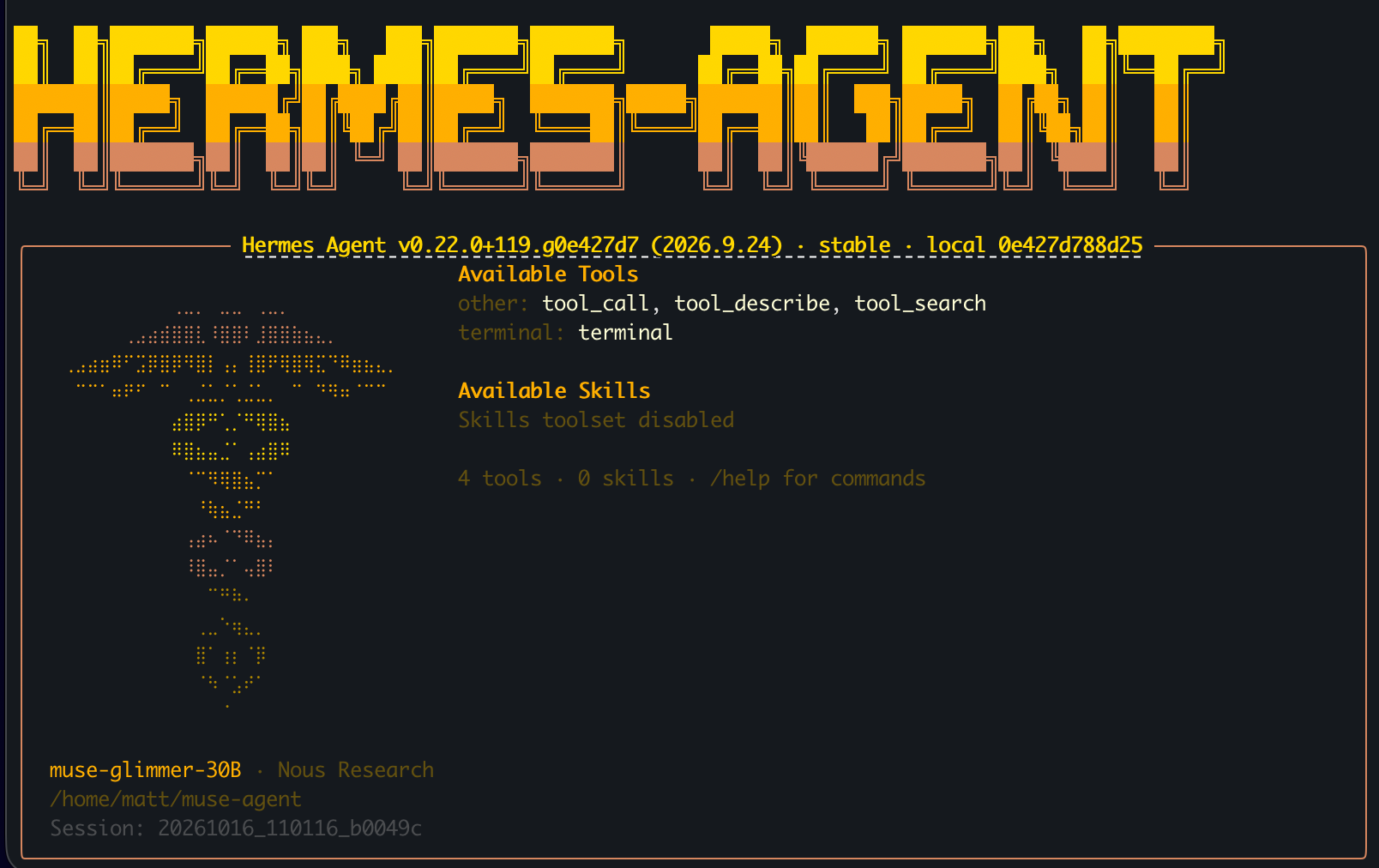 Hermes CLI configured with Muse Glimmer
The following prompt tests network isolation in the sandbox. 1.1.1.1 is the Cloudflare public DNS service address, and port 443 is normally used for HTTPS.
Enter the prompt:
Use the terminal tool to run pwd and print platform.machine() using Python.
Then try opening a socket to 1.1.1.1:443 with a two-second timeout.
Report the actual tool results. Do not change any settings.
Here, 1.1.1.1 is an external TCP destination. The agent isn’t performing a DNS lookup.
Expect the trace to show commands being run in the terminal, an Arm architecture (aarch64), and a failed external connection. The connection should fail because the container has no network access. Hermes itself runs on the host and can still reach the model on localhost.
Confirm the Docker settings next, because a failed connection alone doesn’t prove isolation.
Open another SSH session from your laptop to inspect the container while Hermes remains open. Verify its settings directly:
docker ps --format 'table {{.ID}}\t{{.Image}}\t{{.Names}}'
Find the row with a name starting with hermes-. This container appears after Hermes first uses the terminal tool. Copy its ID from the first column and replace CONTAINER_ID in the following command:
docker inspect CONTAINER_ID --format '{{.HostConfig.NetworkMode}} {{json .Mounts}}'
Expect network mode none. Confirm that the input mount is read-only and the output mount is writable, with no unrelated host directories or sockets. Hermes might create its own workspace mounts. If the settings differ, stop before continuing.
The connection test shows that the agent can run commands but can’t reach the external address. Docker inspection confirms that networking is disabled. File access is limited to the Learning Path task and dedicated Hermes folders. Test inputs are read-only and outputs are writable. Together, these checks verify the behavior and configuration of the sandbox.
What you’ve accomplished and what’s next
You’ve confirmed that Hermes, running on the Arm-based CPU, can call the local Muse Glimmer model running on the NVIDIA Blackwell GPU. Hermes can run commands inside the restricted container.
Next, you’ll give Hermes a broken release checker to diagnose and repair.