Profile the Linux kernel with Arm Streamline
Introduction
Profile Linux kernel modules with Arm Streamline
Set up your environment
Build the out-of-tree kernel module
Profile the out-of-tree kernel module
Integrate a custom character device driver into the Linux kernel
Profile the in-tree kernel driver
Use Streamline with the Statistical Profiling Extension
Summary
Next Steps
Profile the Linux kernel with Arm Streamline
Introduction
Profile Linux kernel modules with Arm Streamline
Set up your environment
Build the out-of-tree kernel module
Profile the out-of-tree kernel module
Integrate a custom character device driver into the Linux kernel
Profile the in-tree kernel driver
Use Streamline with the Statistical Profiling Extension
Summary
Next Steps
Prepare to build a Linux image with Buildroot
Before you build a Linux image with Buildroot , make sure your development environment includes all the required packages. These tools and libraries are essential for compiling, configuring, and assembling embedded Linux images on Arm platforms. Installing them now helps you avoid build errors and ensures a smooth workflow.
Install the required packages for Buildroot
Run the following commands on your AArch64-based Linux system to update your package list and install the necessary dependencies:
sudo apt update
sudo apt install -y which sed make binutils build-essential diffutils gcc g++ bash patch gzip \
bzip2 perl tar cpio unzip rsync file bc findutils gawk libncurses-dev python-is-python3 \
gcc-arm-none-eabi
These packages ensure that Buildroot can configure, compile, and assemble all the components needed for your custom Linux image. If you encounter missing package errors during the build process, check your distribution’s documentation for any additional dependencies specific to your environment.
Build a debuggable kernel image
For this Learning Path you’ll build a Linux image for Raspberry Pi 3B+ with a debuggable Linux kernel. You’ll profile Linux kernel modules built out-of-tree and Linux device drivers built in the Linux source code tree.
If you’re not using a Raspberry Pi 3B+ for this Learning Path, select the default configuration that matches your hardware. Replace raspberrypi3_64_defconfig with the appropriate file from the $(BUILDROOT_HOME)/configs directory. This ensures Buildroot generates an image compatible with your target board.
Start by cloning the Buildroot repository and initialize the build system with the default configurations:
git clone https://github.com/buildroot/buildroot.git
cd buildroot
export BUILDROOT_HOME=$(pwd)
make raspberrypi3_64_defconfig
make menuconfig
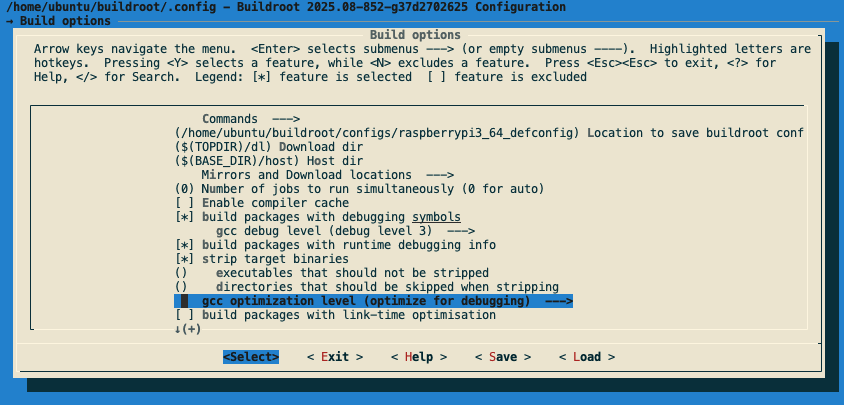 Buildroot menuconfig interface showing configuration options
Now change the Buildroot configuration to enable debugging symbols and SSH access:
Build options  --->
    [*] build packages with debugging symbols
        gcc debug level (debug level 3)
    [*] build packages with runtime debugging info
        gcc optimization level (optimize for debugging)  --->

System configuration  --->
    [*] Enable root login with password
        (****) Root password    # Choose root password here

Kernel  --->
    Linux Kernel Tools  --->
        [*] perf

Target packages  --->
    Networking applications  --->
        [*] openssh
            [*]   server
            [*]   key utilities
You might need to update your default `sshd_config` file to match your network requirements. To do this, set the **Root filesystem overlay directories** option in the **System configuration** menu. Add a directory containing your customized `sshd_config` file. This ensures your SSH server uses the correct settings when the image boots.

By default, Linux kernel images are stripped of debugging information. To make the image debuggable for profiling, you need to adjust the kernel build settings.

Open the kernel configuration menu using the following:

```bash
make linux-menuconfig
In the menu, navigate to Kernel hacking and ensure that debugging options are enabled. Uncheck any option that reduces debugging information. This step preserves the symbols needed for effective kernel debugging and profiling:
Kernel hacking  --->
    -*- Kernel debugging
    Compile-time checks and compiler options  --->
        Debug information (Rely on the toolchain's implicit default DWARF version)
    [ ] Reduce debugging information # un-check
Now you’re ready to build the Linux image and flash it to your SD card for use with the Raspberry Pi.
Run the following command to start the build process:
make -j$(nproc)
This step can take a while, depending on your system’s performance. When the build finishes, you’ll find the generated image at $BUILDROOT_HOME/output/images/sdcard.img.
To confirm that Buildroot created the SD card image, list the contents of the output directory:
ls $BUILDROOT_HOME/output/images/ | grep sdcard.img
The expected output is:
sdcard.img
If you see sdcard.img listed, your image is ready to be flashed to your SD card. You can now flash this image to your SD card and boot your Raspberry Pi with a debuggable Linux kernel.
For details on flashing the SD card image, see the article Writing an SD Card Image Using Ubuntu Disk Image Writer .
What you’ve accomplished and what’s next
You’ve now successfully built a custom Linux image with debugging features enabled and flashed it to your Raspberry Pi. This milestone means your development board is now running a kernel that’s ready for profiling and advanced debugging. Great job! Setting up a debuggable environment is a significant step in embedded Linux development. Next, you’ll write and profile your own kernel module, building on the solid foundation you’ve established.