Deploy ExecuTorch firmware on NXP FRDM i.MX 93 for Ethos-U65 acceleration
Introduction
Understand ExecuTorch deployment on NXP with Ethos-U
Boot the NXP FRDM i.MX 93 board
Set up the ExecuTorch build environment
Build and install ExecuTorch
Build ExecuTorch models for Ethos-U65
Build Cortex-M33 firmware for ExecuTorch
Deploy and test on FRDM-IMX93
Next Steps
Deploy ExecuTorch firmware on NXP FRDM i.MX 93 for Ethos-U65 acceleration
Connect to the board
This section walks through powering on the board and establishing a serial console connection. If your board is already running Linux and you can log in, skip ahead to the next section.
You need a serial terminal to see the boot console and log in.
On macOS as your host, you’ll need the following set up before getting started:
- Install the Silicon Labs USB-to-UART driver
- Install
picocom
brew install picocom
Connect the board’s DEBUG USB-C connector to your host machine.
Find the board’s serial device:
        ls /dev/tty.*
__output__...
__output__/dev/tty.usbmodem<SERIAL_ID_1>
__output__/dev/tty.usbmodem<SERIAL_ID_2>
__output__...
The exact device names vary per board. Look for entries containing usbmodem.
Open a serial connection using the first usbmodem device:
        sudo picocom -b 115200 /dev/tty.usbmodem<SERIAL_ID_1>
__output__picocom v3.1
__output__...
__output__Terminal ready
Connect the board’s POWER USB-C connector to your host machine. You should see a red and a white LED on the board.
Wait for the boot log to scroll past in the picocom window. When it finishes, you’ll see a login prompt:
        NXP i.MX Release Distro 6.6-scarthgap imx93frdm ttyLP0

imx93frdm login:
If you miss the login prompt, hold the board’s power button for two seconds to power off, then press it again to reboot.
Run the built-in NXP demos (optional)
Connect the board to a monitor via HDMI and plug a mouse into the board’s USB-A port. NXP includes several ML demos that run out of the box.
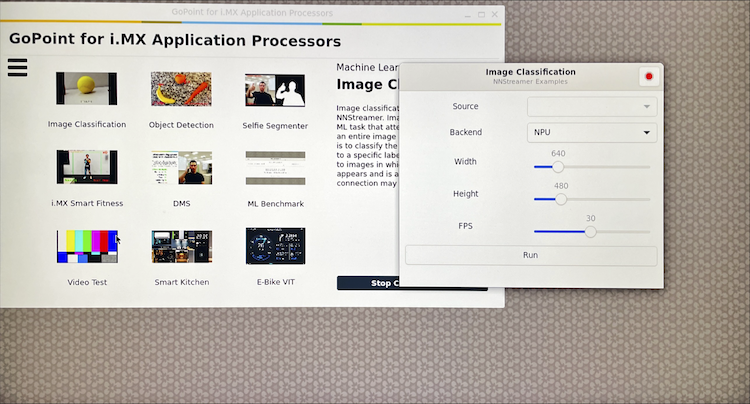 NXP board built-in ML demos
What you’ve learned and what’s next
In this section you’ve:
- Connected to the board via serial console
- Booted the NXP FRDM i.MX 93 board and confirmed Linux is running
- Verified you can access the login prompt
With the board running and Linux accessible, the next step is setting up the build environment for ExecuTorch.