Connect AI agents to edge devices using Device Connect and Strands
Introduction
Learn Device Connect and Strands architecture for edge devices
Set up the Device Connect and Strands developer environment
Run device discovery and agent control examples
Run with full Device Connect infrastructure (optional)
Next Steps
Connect AI agents to edge devices using Device Connect and Strands
Why add infrastructure?
The previous section ran entirely on a local network, with Device Connect handling device-to-device discovery automatically. That approach is fast and requires zero configuration, but it has natural limits: both the robot and the agent must be on the same LAN, device state is ephemeral, and there’s no registry you can query by device type.
This section goes one step further. You’ll run the Zenoh router, an etcd state store, and a registry service on your machine using Docker, then connect a Raspberry Pi on the same network as the remote device. You can use a different device as long as you can access it, but the Raspberry Pi will be used as an example. This device is also referred to as the target.
The agent running on your machine will discover the robot running on the Pi through the infrastructure, as if both were part of the same managed fleet. The Pi doesn’t need to run Docker - it just needs Python and the packages from setup.
Confirm Docker and Docker Compose v2 are available on the host before continuing:
docker --version
docker compose version
Clone and bring up the Docker image
cd ~/strands-device-connect
git clone --depth 1 https://github.com/arm/device-connect.git
Machine and terminal layout
This section involves two machines. Keep track of which commands run where:
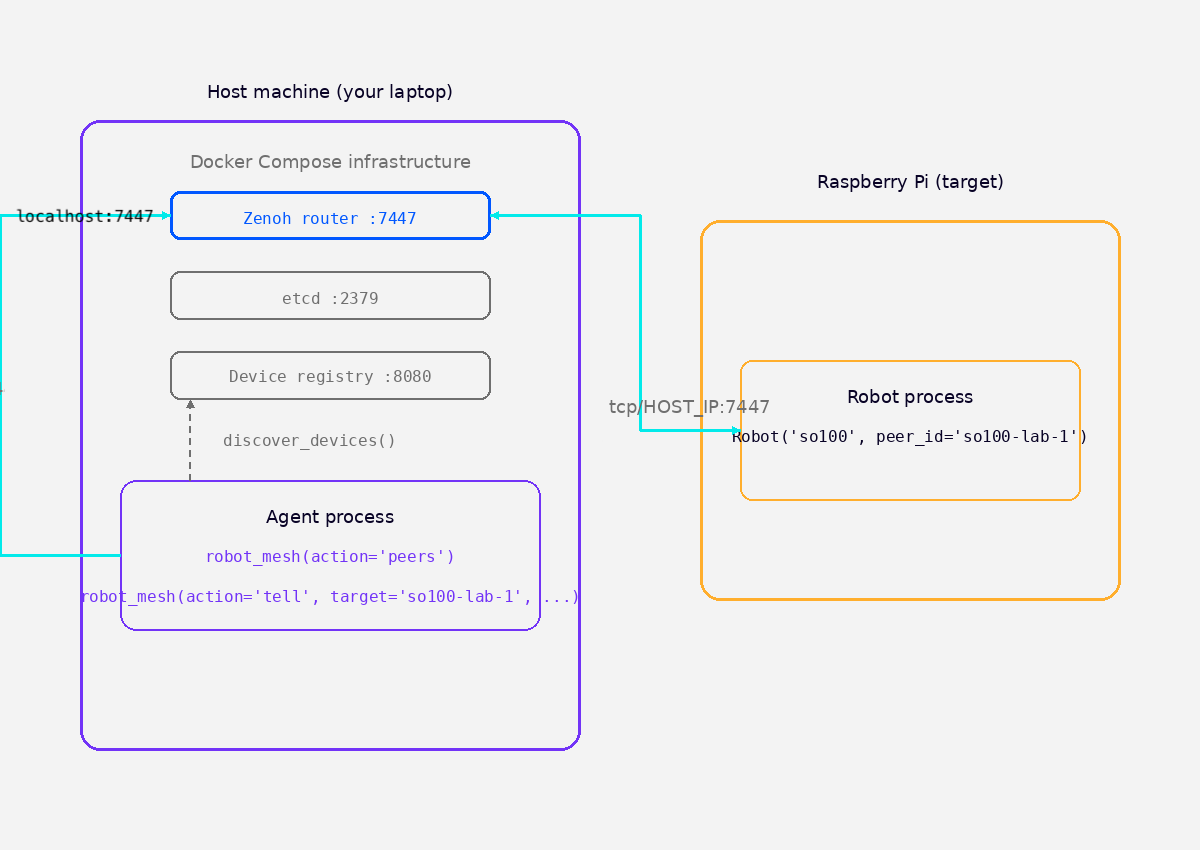 Two-machine topology: host running Device Connect infrastructure and Raspberry Pi robot process connected via Zenoh router
| Machine | Terminal | Purpose |
|---|---|---|
| Host | 1 | Docker Compose infrastructure |
| Host | 2 | Agent tool invocations |
| Target | - | Robot process |
Step 1 - start the infrastructure on your host machine
In host terminal 1, bring up the Device Connect infrastructure stack. The Compose file is inside the device-connect repository you cloned during setup:
cd ~/strands-device-connect/device-connect/packages/device-connect-server
docker compose -f infra/docker-compose-dev.yml up -d
Confirm the services are healthy:
docker compose -f infra/docker-compose-dev.yml ps
The output is similar to:
        NAME                    STATUS     PORTS
zenoh-router            running    0.0.0.0:7447->7447/tcp
etcd                    running    0.0.0.0:2379->2379/tcp
device-registry         running    0.0.0.0:8080->8080/tcp
All three services must show running before you continue. The router on port 7447 is the single rendezvous point for all device traffic. Every device on any machine points at this address to join the mesh.
Step 2 - find your host’s IP address
The Raspberry Pi needs to connect to the Device Connect router on your host by IP address. Find it now:
# macOS
ipconfig getifaddr en0

# Linux
hostname -I | awk '{print $1}'
Note the address returned - for the rest of this section it’s referred to as HOST_IP. For example, if the command returns 192.168.1.42, replace every occurrence of HOST_IP below with that address.
Step 3 - prepare the Raspberry Pi
On the Raspberry Pi, follow the same repository and environment setup from the setup section: clone the robots repository and run setup.sh to install all dependencies.
Once the environment is ready, export the three variables that tell the SDK to route traffic through the Device Connect router on your host rather than using local network discovery:
export MESSAGING_BACKEND=zenoh
export ZENOH_CONNECT=tcp/HOST_IP:7447
export DEVICE_CONNECT_ALLOW_INSECURE=true
Replace HOST_IP with the address you noted in Step 2. DEVICE_CONNECT_ALLOW_INSECURE=true disables mTLS for this local development setup - don’t use this flag in production.
Step 4 - start the robot on the Raspberry Pi
On the Raspberry Pi, with the environment active and the variables set in your robots directory, start the simulated SO-100 robot:
python <<'PY'
import logging
logging.basicConfig(level=logging.INFO)
from strands_robots import Robot
r = Robot('so100', peer_id='so100-abc123')
r.run()
PY
Because ZENOH_CONNECT points at your host, the SDK routes traffic through the Device Connect router instead of using local network discovery. The robot registers with the persistent registry.
The output is similar to:
        INFO:strands_robots.mesh:Zenoh session started
INFO:strands_robots.mesh:Peer ID: so100-abc123
device_connect_sdk.device.so100-abc123 - INFO - Using ZENOH messaging backend
device_connect_sdk.device.so100-abc123 - INFO - Connected to ZENOH broker: ['tcp/192.168.1.42:7447']
device_connect_sdk.device.so100-abc123 - INFO - Device registered: registration_id=ecfff6a7-...
Leave this process running on the Pi.
Discover and invoke using the robot_mesh Strands tool
In host terminal 2 (with the environment variables set), use robot_mesh to confirm the Pi’s robot is visible as a peer:
python <<'PY'
from strands_robots.tools.robot_mesh import robot_mesh
print(robot_mesh(action='peers'))
PY
The output is similar to:
        Discovered 1 device(s):
  [robot] so100-abc123 - idle
    Functions: execute, getFeatures, getState, getStatus, stop
Send an instruction to the robot using the peer ID set in Step 4:
python <<'PY'
from strands_robots.tools.robot_mesh import robot_mesh
print(robot_mesh(
    action='tell',
    target='so100-abc123',
    instruction='pick up the cube',
    policy_provider='mock',
))
PY
The output is similar to:
        -> so100-abc123: pick up the cube
  {"status": "accepted"}
Trigger an emergency stop across every device registered with the infrastructure:
python <<'PY'
from strands_robots.tools.robot_mesh import robot_mesh
print(robot_mesh(action='emergency_stop'))
PY
The output is similar to:
E-STOP: 1/1 devices stopped
The stop broadcast reaches every device in the registry - whether it is running on your host, the Pi on your desk, or a machine in a remote lab.
Shut down cleanly
Stop the robot process on the Pi with Ctrl+C, then bring down the infrastructure on your host:
cd ~/strands-device-connect/device-connect/packages/device-connect-server
docker compose -f infra/docker-compose-dev.yml down
This removes the containers and clears the in-container etcd state. Your virtual environment and cloned repositories remain intact on both machines.
What you’ve learned and what’s next
In this section you’ve:
- Started a persistent Device Connect infrastructure stack on your host - a router, etcd, and a device registry.
- Connected a Raspberry Pi as a remote device by pointing its SDK at the router’s TCP address.
- Discovered the Pi’s robot from your host by querying the persistent registry and sent commands to it across the network.
This two-device setup demonstrates the foundation for larger deployments. Once devices register through a shared infrastructure, adding more is a matter of pointing them at the same router — whether that’s another Raspberry Pi in the same lab or a device on a different network.