Connect AI agents to edge devices using Device Connect and Strands
Introduction
Learn Device Connect and Strands architecture for edge devices
Set up the Device Connect and Strands developer environment
Run device discovery and agent control examples
Run with full Device Connect infrastructure (optional)
Next Steps
Connect AI agents to edge devices using Device Connect and Strands
Run device-to-device discovery and control
This section demonstrates Device Connect’s device-to-device discovery. There are two ways to walk through this setup. Optionally, you can connect an external device.
Option 1: run on a single machine
For a conceptual implementation, follow the steps using two terminal windows on your machine with the virtual environment set up.
Option 2: run with real hardware
If you have access to an external device, you can use it with this setup as well. You’ll need:
- Your machine with the virtual environment set up. This machine will be referred to as the host.
- A Raspberry Pi (or any similar device) connected to the same network as your host machine. This machine is your target.
- An SSH connection or keyboard and monitor attached to the target.
You’ll need two terminal windows open at the same time: one to keep the simulated robot running, and one to invoke it from the agent side. Both terminals need the virtual environment activated.
| Machine | Terminal | Purpose |
|---|---|---|
| Host or Target | 1 | Simulated robot - keep running throughout |
| Host | 2 | Agent tool invocations |
Make sure you are in the repository directory and that your virtual environment is activated:
cd ~/strands-device-connect/robots
source .venv/bin/activate
Start the simulated robot
In terminal 1, run the following command to create and start the simulated SO-100 robot arm:
python <<'PY'
import logging
logging.basicConfig(level=logging.INFO)
from strands_robots import Robot
r = Robot('so100', peer_id='so100-abc123')
r.run()
PY
Two things happen when this script runs.
Robot('so100') calls the factory function, which checks for USB servo hardware and, finding none, creates a MuJoCo Simulation instance. On the first run it downloads the SO-100 MJCF physics model from Hugging Face — this can take up to 20 minutes depending on your connection. Subsequent runs use the local cache and start immediately.
r.run() calls init_device_connect_sync(), which does the following:
- Creates a
SimulationDeviceDriver— a Device ConnectDeviceDriveradapter that wraps the simulation and maps its methods to structured RPCs. - Starts a
DeviceRuntimewith the Zenoh D2D backend. No broker or environment variables are needed; devices discover each other on the LAN via Zenoh multicast scouting. - Subscribes the device to its command topic:
device-connect.default.<PEER_ID>.cmd. - Registers RPC handlers:
execute,getStatus,getFeatures,step,reset, andstop. - Starts a 10Hz background loop that emits
stateUpdateandobservationUpdateevents to any listener on the mesh.
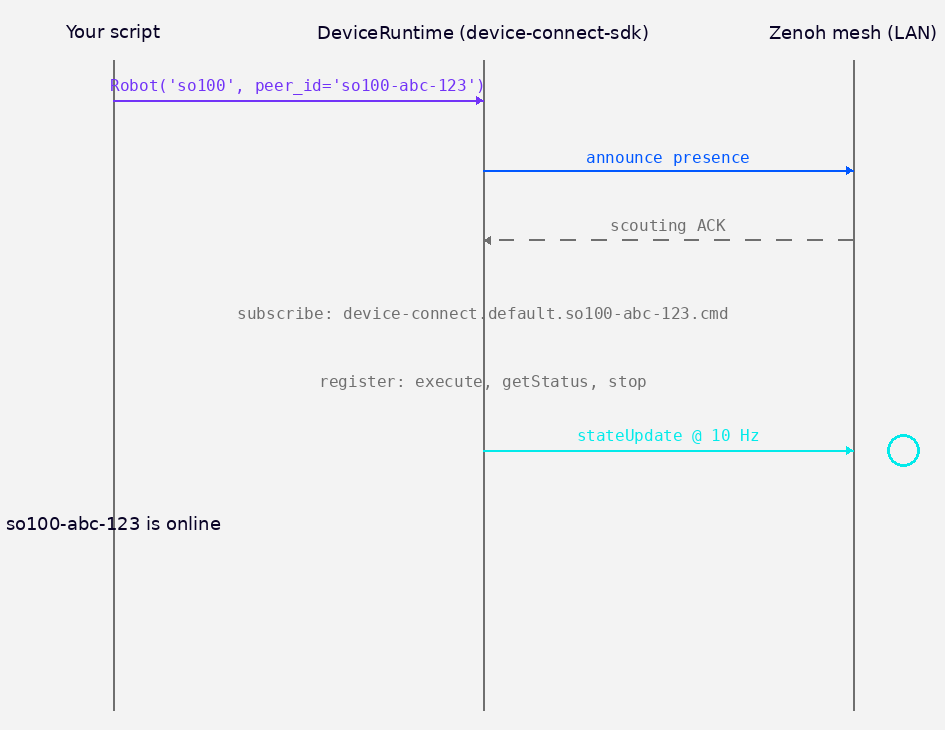 Call flow inside r.run(): device registration and event publishing over Zenoh
The output is similar to:
        device_connect_sdk.device.so100-abc123 - INFO - Using ZENOH messaging backend
device_connect_sdk.device.so100-abc123 - INFO - Connected to ZENOH broker: []
device_connect_sdk.device.so100-abc123 - INFO - Driver connected: strands_sim
device_connect_sdk.device.so100-abc123 - INFO - Subscribed to commands on device-connect.default.so100-abc123.cmd
🤖 so100-abc123 is online. Ctrl+C to stop.
Leave this process running. The simulated robot is only discoverable as long as this process is alive.
Open a second terminal
Leave terminal 1 running with the robot process. Open a new terminal window, navigate to the repository, and activate the virtual environment:
cd ~/strands-device-connect/robots
source .venv/bin/activate
Run all remaining commands in this section from this second terminal.
Control the robot using the robot_mesh Strands tool
The robot_mesh tool wraps the same discovery and invocation primitives as a Strands agent tool. You can call it directly from a Python script or attach it to an LLM agent; the API is identical either way.
Discover available robots on the device mesh
Start by confirming which robots are currently visible on the mesh:
python <<'PY'
from strands_robots.tools.robot_mesh import robot_mesh
print(robot_mesh(action='peers'))
PY
When this runs, robot_mesh calls _ensure_connected(), which sets MESSAGING_BACKEND=zenoh (if the environment variable is not already set) and opens the agent-side Zenoh connection via device_connect_agent_tools. It then calls conn.list_devices(), which queries the Zenoh network for all registered Device Connect devices. Each device registers its device_id, device_type, availability from its DeviceStatus, and the list of RPC functions it exposes. The tool formats this into the human-readable summary below.
The output is similar to:
        Discovered 1 device(s):
  [robot] so100-abc123 - idle
    Functions: execute, getFeatures, getStatus, reset, step, stop
The peer ID (for example so100-abc123) is assigned at startup and changes each run. Note the actual ID shown in your terminal - you’ll need it in the next step.
Execute an instruction
Send a task to one of the discovered robots. Replace so100-abc123 with the peer ID shown in your peers output:
python <<'PY'
from strands_robots.tools.robot_mesh import robot_mesh
print(robot_mesh(
    action='tell',
    target='so100-abc123',
    instruction='pick up the cube',
    policy_provider='mock',
))
PY
Under the hood, robot_mesh calls conn.invoke(target, "execute", params), which serializes the arguments and routes them over Zenoh to the device’s command topic: device-connect.default.<PEER_ID>.cmd. The SimulationDeviceDriver.execute() RPC handler on the robot side receives the call, resolves the robot name inside the simulation world, and calls sim.start_policy(instruction=..., policy_provider='mock', ...). With the mock policy provider, the handler returns immediately with a success result without running real motion — the call is a connectivity and RPC round-trip test. The stateUpdate events you’ll see in terminal 1 are published by the separate 10Hz background loop that was started by r.run().
You will see the following output:
        -> so100-abc123: pick up the cube
  {"status": "success", "content": [...]}
The robot also logs event updates as it processes the task. If you switch back to terminal 1, it logs the execution of the task, similar to:
        ~~~~~~~~~~~~~~~~~~~~~~~~~~~~~~~~~~~~~~~~~~~~~~~~~~~~~~~~~~~~
*** EVENT so100-abc123::stateUpdate [111aaabb]
    payload: sim_time=4.34, step_count=2070, running_policies={'so100': {'steps': 814, 'instruction': 'pick up the cube'}}
~~~~~~~~~~~~~~~~~~~~~~~~~~~~~~~~~~~~~~~~~~~~~~~~~~~~~~~~~~~~
Broadcast emergency stop to all devices
The emergency stop broadcasts a halt command to every device on the mesh simultaneously. This is useful when you want to stop all robots without knowing their individual peer IDs:
python <<'PY'
from strands_robots.tools.robot_mesh import robot_mesh
print(robot_mesh(action='emergency_stop'))
PY
This doesn’t send a single broadcast message. Instead, robot_mesh first calls conn.list_devices() to enumerate every device currently on the mesh, then calls conn.invoke(device_id, "stop", timeout=3.0) on each one in sequence. On the device side, SimulationDeviceDriver.stop() sets policy_running = False for every robot in the simulation world and returns immediately. Failures per device are swallowed so that a single unresponsive device doesn’t block the rest from stopping.
The output is similar to:
E-STOP: 1/1 devices stopped
Optional: discover and invoke the robot using the agent tools
The device-connect-agent-tools package gives you direct programmatic access to the mesh, without involving an LLM. This is useful for testing, scripting, or validating the stack before wiring it up to an agent. Open terminal 2, activate the virtual environment, then run:
python <<'PY'
from device_connect_agent_tools import connect, discover_devices, invoke_device

connect()

devices = discover_devices(device_type='')
print(f'Found {len(devices)} robot(s):')
for d in devices:
    print(f'  {d["device_id"]}')

if devices:
    result = invoke_device(
        devices[0]['device_id'],
        'execute',
        {'instruction': 'pick up the cube', 'policy_provider': 'mock'},
    )
    print(f'Execute result: {result}')

    status = invoke_device(devices[0]['device_id'], 'getStatus')
    print(f'Status: {status}')
PY
When an agent calls execute(instruction="pick up the cup", policy_provider="groot"), Device Connect handles the RPC delivery, and the policy handles the actual arm movement.
discover_devices(device_type='') returns all devices on the mesh regardless of type. If you pass device_type='strands_robot' you can filter to only Robot() instances. invoke_device sends an RPC to the named device; here policy_provider='mock' tells the robot to accept the task without executing real motion, which is appropriate for this connectivity test.
The output is similar to:
        Found 1 robot(s):
  so100-abc123 - idle
Execute result: {'success': True, 'result': {'status': 'success', 'content': [...]}}
Status: {'success': True, 'result': {...}}  # full sim state dict
What you’ve learned and what’s next
In this section you’ve:
- Started a simulated SO-100 robot that registered itself on the Device Connect device mesh.
- Used
device-connect-agent-toolsto discover the robot and invoke an RPC call against it. - Used the
robot_meshStrands tool to list peers, send an instruction, and trigger an emergency stop.
This showcases the ease of setting up a mesh on a local network. In the next section, you can extend the configuration to a Docker-based approach, opening up a new category of possibilities with agent integration.