Create and verify C2PA Content Credentials on Arm
Introduction
Understand C2PA Content Credentials
Check C2PA Tool and prepare the sample image
Create a signed copy of an image with Content Credentials
Inspect Content Credentials
Validate Content Credentials with a web validator
Detect an unauthorized change to the asset
Next Steps
Create and verify C2PA Content Credentials on Arm
Confirm jpegtran is available
After validating the signed image, use jpegtran from libjpeg-turbo to create a grayscale copy and test its content binding. For installation instructions, see the
libjpeg-turbo install guide
.
Run the platform-independent version check:
jpegtran -version
The version and build depend on your installed release. The output is similar to:
libjpeg-turbo version 3.1.4.1 (build 20260327)
Modify the signed asset
Continue in your c2pa-demo directory.
Create a grayscale copy of image-signed.jpg while keeping its embedded Coalition for Content Provenance and Authenticity (C2PA) manifest unchanged:
jpegtran -copy all -grayscale -outfile image-modified.jpg image-signed.jpg
-grayscale removes the color of the image. -copy all preserves the metadata, including the embedded C2PA manifest. -outfile writes the changed image to a separate file without re-signing it.
The command typically prints no output.
Open image-modified.jpg in an image viewer. The image should appear in grayscale. Keep image-signed.jpg unchanged for comparison.
Keep the input and output filenames different. The command overwrites image-modified.jpg if
it already exists.
Preserve the manifest with -copy all. Otherwise, you’ll be testing
missing metadata instead of a change to the image. Removing the manifest can’t turn a failed
binding check into trusted provenance, as described in
Why stripping provenance doesn’t establish trust
.
Inspect the modified image in the web validator
To inspect the modified image in the Content Authenticity Initiative (CAI) web validator:
- Open the CAI web validator .
- Choose Select a file from your device or Select another file from your device.
- Select
image-modified.jpgand wait for validation to finish. - Open the result or Content Credentials panel of the image if needed.
Look for the grayscale preview, the Invalid status, and the red tampering warning. Compare this with the Unrecognized issuer warning that you saw for the original signed image:
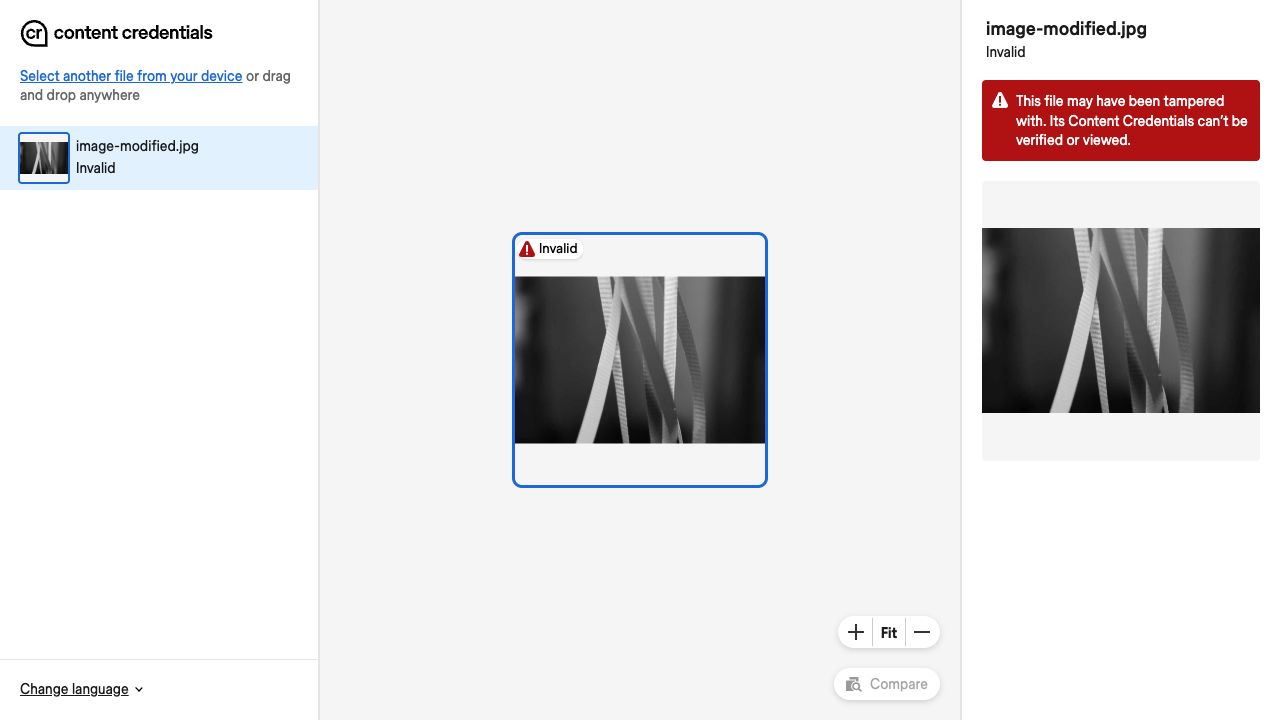 Grayscale asset: invalid Content Credentials
The red warning tells you that the credentials can’t be verified or viewed.
Use C2PA Tool next to identify the failed check.
jpegtran preserves stored thumbnails, so some viewers might still show a color thumbnail.
Check the full image to see the grayscale edit.
Find the content-binding failure
Save a report for the modified image:
c2patool image-modified.jpg > report-modified.json
Open report-modified.json and find validation_state.
The expected output is:
"validation_state": "Invalid"
Under validation_results.activeManifest.failure, find:
"code": "assertion.dataHash.mismatch"
This means that the image hash no longer matches the hard-binding assertion. The unchanged manifest is still present, but it no longer matches the grayscale image.
Under validation_results.activeManifest.success, find claimSignature.validated. The claim
signature still verifies because you changed the image rather than the signed claim.
Compare the original and modified assets
Compare report-modified.json with report.json and the web result for the original signed image:
| Check | Original signed image | Modified copy |
|---|---|---|
| Image appearance | Color | Grayscale |
| Embedded manifest | Present | Present |
| Claim signature | claimSignature.validated | claimSignature.validated |
| Asset binding | assertion.dataHash.match | assertion.dataHash.mismatch |
| Development credential | signingCredential.untrusted | signingCredential.untrusted |
| Local validation state | Valid | Invalid |
| Verify status | Unrecognized | Invalid |
The issuer-trust result stays the same. The new failure concerns the binding between the signed record and the changed image.
Why replacing the hashes doesn’t restore validity
An attacker might try to alter an image and reuse its Content Credential to present it as the unchanged original. Replacing the recorded hashes can’t hide the edit. The data-hash assertion, its reference in the claim, and the claim signature form a chain of integrity checks:
- Changing the data-hash assertion can make its stored image hash match the edited asset,
but changes the assertion itself. The claim still references the original assertion hash,
so the assertion-reference check fails (
assertion.hashedURI.mismatch). - Changing the assertion reference in the claim can make that reference match the modified
assertion, but changes the signed claim. The original signature no longer verifies
(
claimSignature.mismatch).
Hashes can be recalculated without a secret. A replacement signature that verifies under the original signing certificate requires the corresponding private key. Without that key, patching the assertion and claim can’t make the altered content pass these checks under the original credential. The protection comes from the signature, not from preventing access to the manifest.
The development private key bundled with C2PA Tool is publicly available. Anyone with that key can re-sign a modified image using the same test credential. You’ve learned how to detect an edit made without re-signing. Protection against an attacker re-signing under the original credential depends on keeping a production private key secret and secure.
For more information about validation checks, see the C2PA validation rules .
C2PA also supports legitimate edits. A new signed manifest can reference the earlier asset as an ingredient. This links the signer and provenance record of the earlier asset to the edited version.
This provenance chain records the modification rather than concealing it.
What you’ve accomplished
You’ve modified an image while preserving its manifest, and traced the resulting warning to a content-binding mismatch.
You can now distinguish asset integrity, claim-signature validity, and signer trust. You also understand how signed provenance makes changes detectable.
You can extend the Learning Path to assess the recorded origin and history of an asset on Arm with Content Credentials.