Create and verify C2PA Content Credentials on Arm
Introduction
Understand C2PA Content Credentials
Check C2PA Tool and prepare the sample image
Create a signed copy of an image with Content Credentials
Inspect Content Credentials
Validate Content Credentials with a web validator
Detect an unauthorized change to the asset
Next Steps
Create and verify C2PA Content Credentials on Arm
Validate the signed image with the CAI web validator
You’ll open the signed image image-signed.jpg in the
Content Authenticity Initiative (CAI) web validator
. The CAI web validator is
a browser-based tool for inspecting and validating Coalition for Content Provenance and Authenticity (C2PA) Content Credentials.
The site calls this tool Verify. You’ll read the recorded provenance and compare the validation results with your
C2PA Tool report.
According to its open-source project , the validator uses WebAssembly to read and validate C2PA data in your browser. The website can still make network requests, so this doesn’t mean that it operates entirely offline.
To validate the image with the CAI web validator:
Open the CAI web validator in your browser. The start page says Inspect content to dig deeper and lists JPEG among its supported formats.
Select Select a file from your device, as shown in the screenshot.
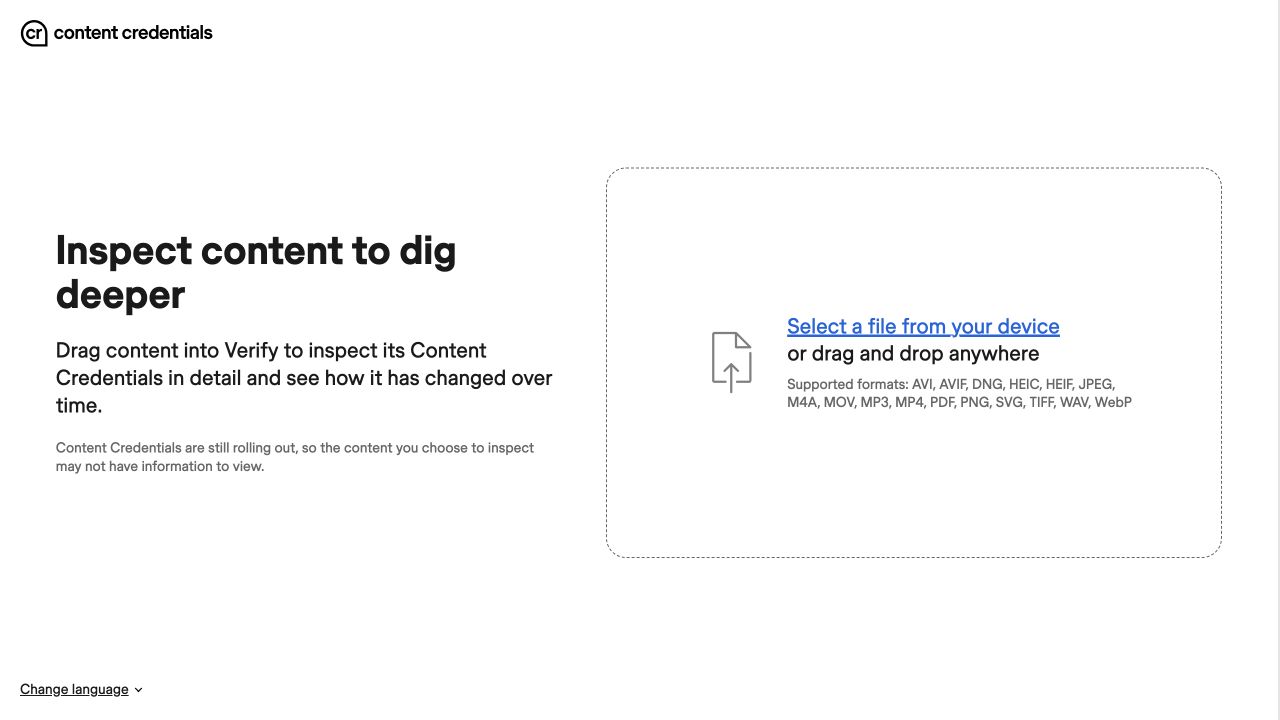 Select the signed JPEG in the CAI web validator
Select
image-signed.jpgfrom yourc2pa-demodirectory and open it. You can also drag the file onto the page.Wait for the image and its Content Credentials panel to appear.
If you use another computer, copy image-signed.jpg without modifying or recompressing it.
Inspect the validation result
In the Content Credentials panel, look for Unrecognized under image-signed.jpg, as shown in
the following screenshot:
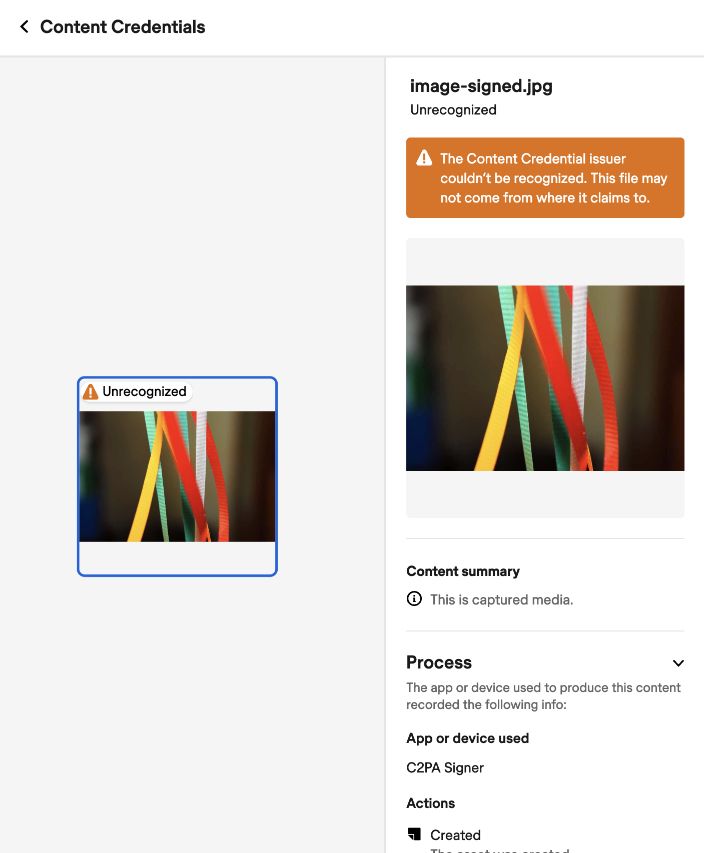 Expected result for the development credential
The orange notice indicates that the CAI web validator doesn’t recognize the issuer of the credential under its trust policy. As described in Understand the development credentials , the built-in signing certificate is for development. It doesn’t establish a production identity.
If no Content Credentials appear, check that you selected image-signed.jpg, not image.jpg.
If you transferred the file, retry with a copy of the original signed output.
Read the recorded provenance
Scroll through the Content Credentials panel. Read Content summary, then expand Process for the recorded action and app or device name. Expand About this Content Credential to find Issued by, as shown in the following screenshot:
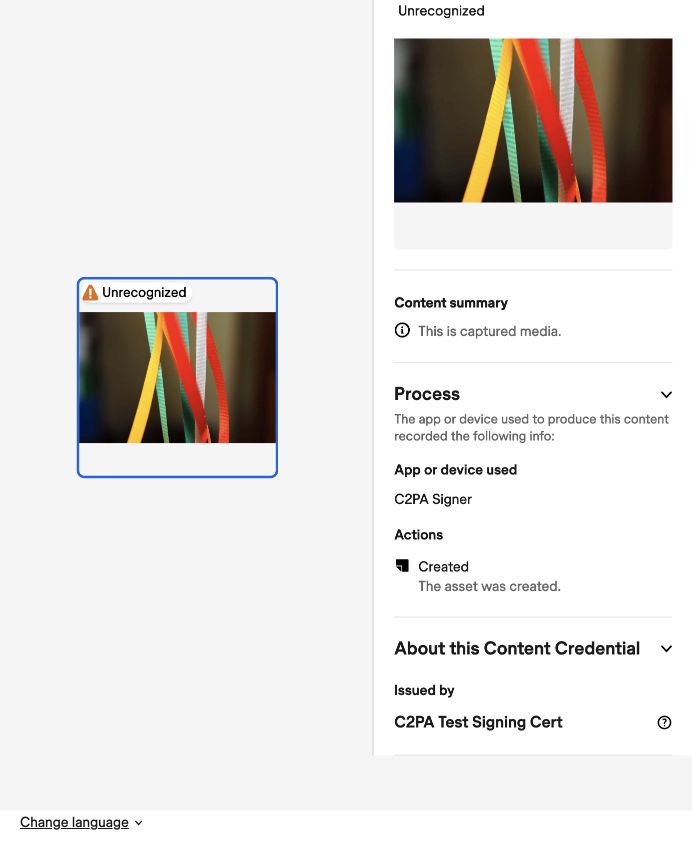 Recorded provenance and test-certificate issuer
Compare the result with your C2PA Tool report
Open report.json and locate the active manifest as described in
Find the active manifest
.
Use its assertions and signature_info fields for the provenance comparison, and
validation_results for signer trust:
| Information | C2PA Tool report | CAI web validator view |
|---|---|---|
| Declared origin | digitalSourceType ending in /digitalCapture | Content summary: This is captured media. |
| Creation action | action: "c2pa.created" | Process → Actions: Created |
| Signing certificate’s common name | signature_info.common_name: "C2PA Signer" | Process → App or device used: C2PA Signer |
| Signing certificate’s issuer | signature_info.issuer: "C2PA Test Signing Cert" | About this Content Credential → Issued by: C2PA Test Signing Cert |
| Signer trust | signingCredential.untrusted | Unrecognized issuer |
The captured-media summary and Created action reflect the declaration that you provided earlier.
App or device used shows C2PA Signer and matches the common name of the development signing certificate. It doesn’t match the custom Arm Learning Path C2PA Example label. This is expected because the C2PA Tool generated the claim. It didn’t capture the photograph.
The web panel displays the provenance of the image without separate signature or binding status codes. As confirmed in Interpret the result , both checks pass for this image. Unrecognized refers to signer trust. You’ll later modify a copy of the image to see how a content-binding failure changes the validation result.
Validating Content Credentials on its own doesn’t establish that the depicted scene or the recorded assertions are true. Successful signature and binding checks show that the signed provenance record is intact and bound to this image. Establishing credential trust also requires the validator to accept the signing credential under its trust policy.
To decide whether to believe the content, consider the following factors:
- The identity and reliability of the signer
- The recorded history
- Any corroborating evidence
What you’ve accomplished and what’s next
You’ve validated the signed image with the CAI web validator and read its provenance summary. You’ve interpreted the validator issuer warning alongside
the detailed C2PA Tool results. Keep image-signed.jpg unchanged.
Next, you’ll modify a separate copy and inspect the resulting content-binding failure.