Deploy IoT applications with Balena Cloud and Arm Virtual Hardware
Introduction
Prepare a custom Balena OS image
Install Balena OS on AVH
Deploy an application to your device
Next Steps
Deploy IoT applications with Balena Cloud and Arm Virtual Hardware
Create a new device
To create a new device, you need a user account for
Arm Virtual Hardware (AVH)
. If you don’t have an account, you can create one using the Create an Arm account link below the LOGIN button. If you create a new account, you’ll be automatically enrolled in a free 30-day trial.
From the AVH dashboard, click on the Create Device button. Select Raspberry Pi 4 from the list of devices.
On the next screen you’ll be asked to configure your device by choosing the firmware to use.
Use the Upload your own firmwware on the right side to drag or browse for the file balenaos_rpi4b.zip.
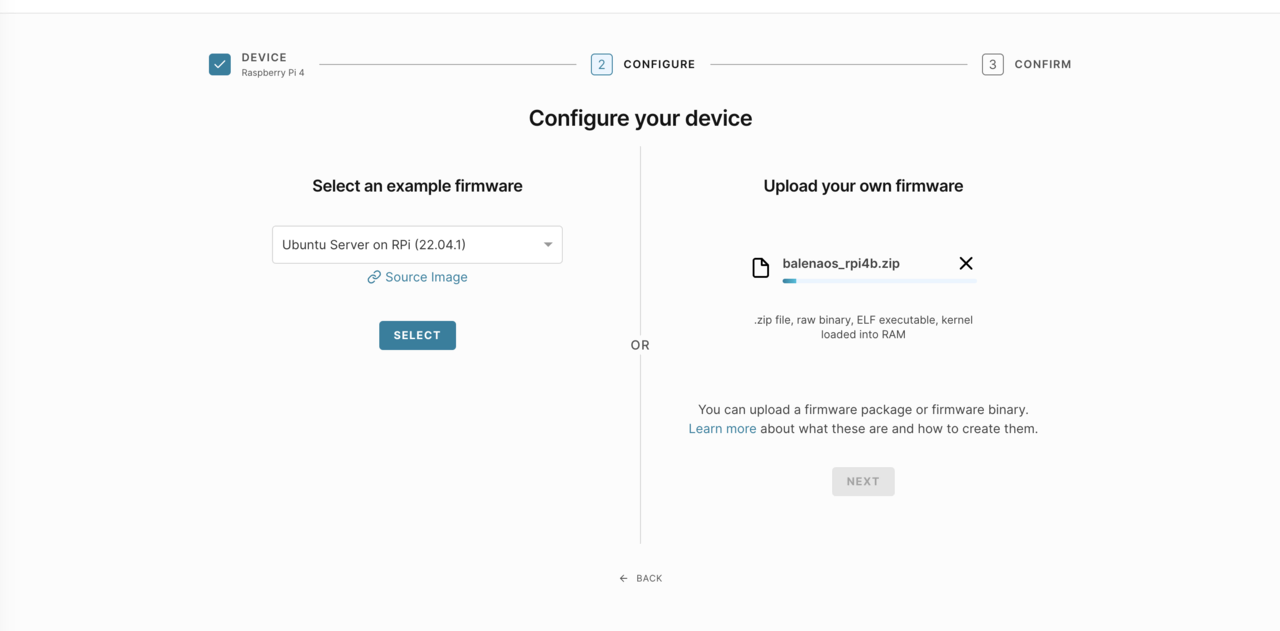 Upload custom firmware screen
Uploading the file takes some time.
After the file is uploaded, click NEXT.
The final step is to name the AVH device. Select your own name or use balena-testing-device.
You don’t need to set any advanced boot options.
Wait for the device to be created. It’s ready to use when you see the ready message:
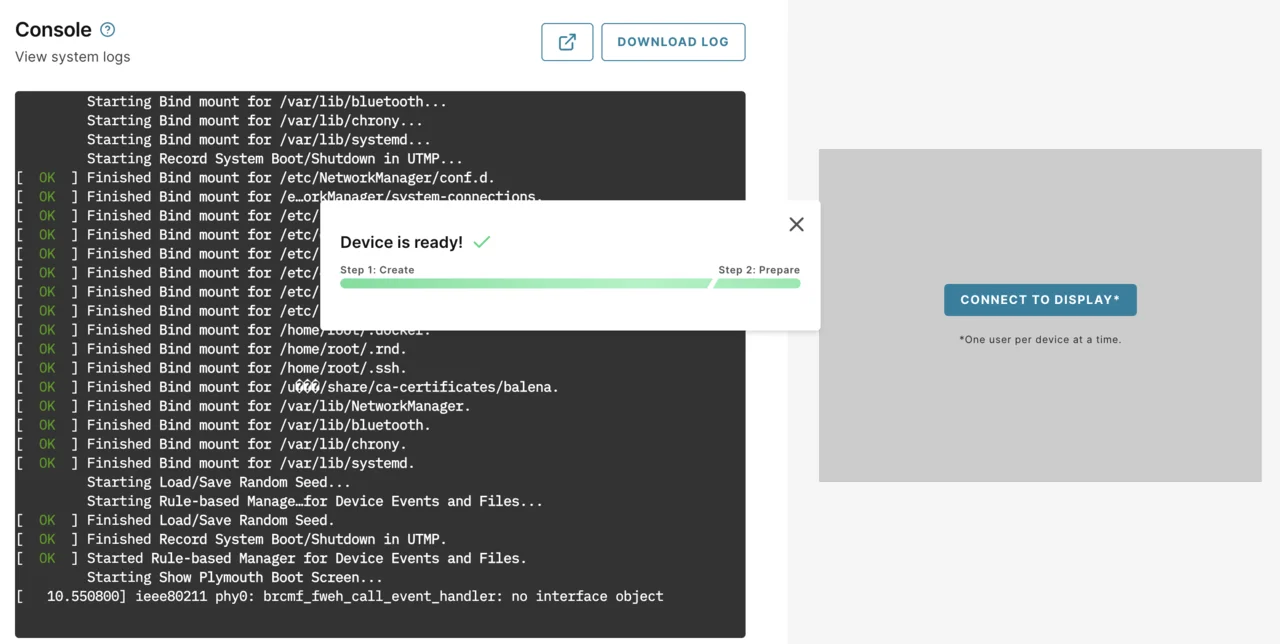 Device ready message
Verify your device is ready
You now have access to the console and are presented with a log in prompt.
Log in with the username root. If a password is required, use balena.
Balena OS uses a container engine to manage applications.
Verify balena available by running:
balena version
You’ll see output similar to:
        Client:
 Version:           v20.10.38
 API version:       1.41
 Go version:        go1.16.2
 Git commit:        8f374c29395adff1f6f7796b06418e593a479a7d
 Built:             Mon Jul  3 14:00:08 2023
 OS/Arch:           linux/arm64
 Context:           default
 Experimental:      true

Server:
 Engine:
  Version:          v20.10.38
  API version:      1.41 (minimum version 1.12)
  Go version:       go1.16.2
  Git commit:       8f374c29395adff1f6f7796b06418e593a479a7d
  Built:            Mon Jul  3 14:00:08 2023
  OS/Arch:          linux/arm64
  Experimental:     true
 containerd:
  Version:          1.6.6+unknown
  GitCommit:
 runc:
  Version:          unknown
  GitCommit:
 balena-engine-init:
  Version:          0.13.0
  GitCommit:        949e6fa-dirty
Return to your Balena Cloud dashboard and refresh the Devices page.
You’ll see your newly deployed device is registered and connected to your fleet. You’re now ready to deploy applications to your device!
 Connected device in Balena Cloud