Run Conformer speech recognition on Alif Ensemble E8 with ExecuTorch
Introduction
Set up Conformer ASR and MLEK resources
Build and run ASR on a Corstone-320 FVP
Prepare the Alif E8 ASR application and model
Build and flash the ASR firmware
Verify live speech recognition and NPU execution
Next Steps
Run Conformer speech recognition on Alif Ensemble E8 with ExecuTorch
Build the E8 application
This build captures pulse-density modulation (PDM) microphone input and shows the transcription on the attached display.
Activate the Python environment created by the setup script:
export ALIF_MLEK_ROOT="$PWD"
source resources_downloaded/env/bin/activate
Configure the firmware from the repository root:
cmake -S . -B build_alif_asr \
  -DTARGET_PLATFORM=alif \
  -DUSE_CASE_BUILD=alif_asr \
  -DTARGET_SUBSYSTEM=RTSS-HP \
  -DTARGET_BOARD=AppKit-e8 \
  -DML_FRAMEWORK=ExecuTorch \
  -DML_FWK_TMP_MEM_SIZE=0x002C0000 \
  -DGLCD_UI=OFF \
  -DETHOS_U_NPU_ID=U85 \
  -DCONSOLE_UART=4 \
  -DTARGET_MICS=PDM
RTSS-HP selects the high-performance Cortex-M55 subsystem. alif_asr selects the Conformer model and vocabulary. If you’re using an E8 DevKit with a display attached, replace -DTARGET_BOARD=AppKit-e8 with -DTARGET_BOARD=DevKit-e8.
Keep GLCD_UI=OFF. It disables the generic Machine Learning Evaluation Kit (MLEK) graphic LCD interface to save memory. This application still uses its own LVGL display interface. The display remains required.
Build the automatic speech recognition (ASR) target:
cmake --build build_alif_asr --target mlek_alif_asr --parallel 4
Confirm that the build generated the executable and both programming images:
ls -lh \
  build_alif_asr/bin/sectors/alif_asr/ext_flash.bin \
  build_alif_asr/bin/sectors/alif_asr/mram.bin
ext_flash.bin contains the model data for external Octal Serial Peripheral Interface (OSPI) flash. mram.bin contains the application firmware. Use these two images from the same build.
Confirm the E8 device and configure SETOOLS
The firmware that you built targets the M55-HP core and Ethos-U85 NPU of the E8 AppKit. Before programming, confirm the full part number and silicon revision of the connected chip so that the programming tools match your hardware.
Set SETOOLS_ROOT to your extracted Security Toolkit directory. Edit the path if your installation is elsewhere:
export SETOOLS_ROOT="$HOME/app-release-exec-linux"
export SETOOLS_ROOT="$HOME/app-release-exec-macos"
Close any serial terminal that’s using the board. Set SW4 to SE, connect PRG USB, and press and release RESET.
Find the board serial device. Compare the list with the board disconnected and connected if you have several devices:
ls -l /dev/ttyACM* /dev/ttyUSB* 2>/dev/null
export ALIF_PORT=/dev/ttyACM0
ls /dev/cu.usb* 2>/dev/null
export ALIF_PORT=/dev/cu.usbmodemXXXX
Replace the example ALIF_PORT with the device that you found. On Linux, your user needs to have permission to open it. If the device belongs to dialout, add your user to that group with sudo usermod -aG dialout "$USER".
After adding your user, sign out and back in before continuing. After signing in, repeat the ALIF_MLEK_ROOT, SETOOLS_ROOT, and ALIF_PORT assignments because these variables don’t survive closing the shell.
Open the read-only device information menu:
cd "$SETOOLS_ROOT"
./maintenance -c "$ALIF_PORT"
On macOS, maintenance and tools-config can each require the separate Privacy & Security > Open Anyway approval. Run the blocked executable again after approving the trusted Alif download.
Select 2 - Device Information, then 5 - Get revision info. Record the full part number (ALIF_PN) and revision information. Press Enter to return through the menus and exit. Toolkit output varies: the reviewed package printed a Version field, while app-write-mram explicitly identified the silicon revision of the device during its preflight check.
Run tools-config and confirm that the selected part number and silicon revision match the detected device.
./tools-config
If these settings already match, leave them unchanged. If app-write-mram later reports a part or revision mismatch, decline the write, correct tools-config, and regenerate the package before retrying. For the reviewed AE822FA0E5597LS0, the detected revision was A0. If the toolkit doesn’t support your detected part or revision, use a compatible toolkit before proceeding.
Install the temporary CPU stubs
The programming sequence is: install CPU stubs in MRAM, program OSPI, then replace the stubs with the ASR application. The stubs keep the existing application from using peripherals while J-Flash runs its external-flash programming algorithm. This preparation follows the Alif MLEK OSPI programming guide .
From the SETOOLS directory, generate and write the stub package:
cd "$SETOOLS_ROOT" && \
./app-gen-toc -f build/config/app-cpu-stubs.json && \
./app-write-mram -c "$ALIF_PORT" -p
The && operators prevent the write if package generation fails. Continue only after both commands succeed and the write reaches 100% followed by Done. The -c option selects the serial port, and -p pads the images to a 16-byte boundary.
Press and release RESET so that the stubs boot.
Program external OSPI flash with J-Flash
Keep the PRG USB cable connected after installing and resetting the CPU stubs. Close any SETOOLS session or serial terminal that’s using the board. The onboard J-Link uses this same cable, so you don’t need a second debugger cable.
For more information, see the Alif MLEK J-Flash guide . The screenshots that follow show J-Flash V9.78 on macOS.
Open J-Flash, select Create new project, then select Start J-Flash.
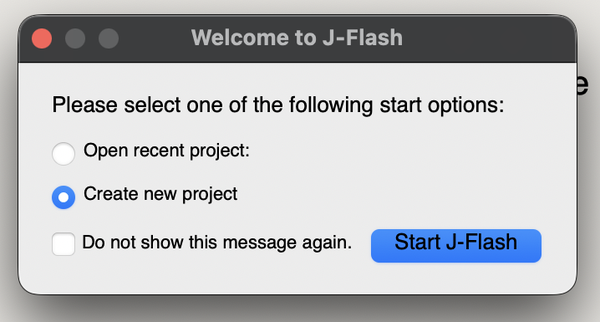 Create a new J-Flash project
Open the Target device selector. For the tested part
AE822FA0E5597LS0, selectAE822FA0E5597LS0_M55_HP. If your detected part differs, confirm the appropriate supported target before proceeding. Don’t select this entry only because it appears in the example.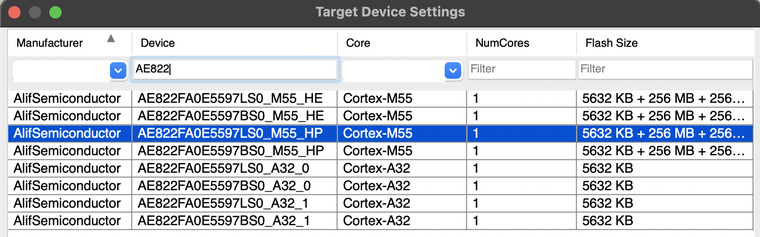 Select the E8 M55-HP target
Set the target interface to SWD and the interface speed to 4000 kHz.
Enable only the external OSPI flash bank starting at
0xC0000000. Disable the MRAM banks, then select OK to create the project.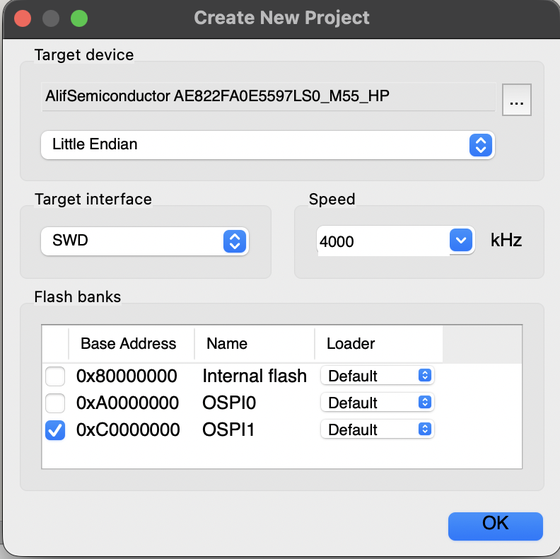 Enable only OSPI1 at 0xC0000000.
Select File > Open data file and open
build_alif_asr/bin/sectors/alif_asr/ext_flash.bin. You can also drag the file into J-Flash. When prompted for the start address, enter0xC0000000.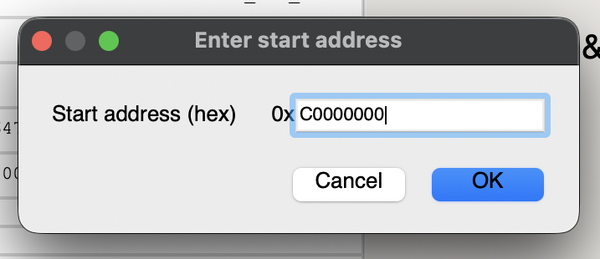 Set the start address to 0xC0000000
Ensure that your USB-C cable is still connected and select Target > Connect. Check that the log reports a successful connection before continuing.
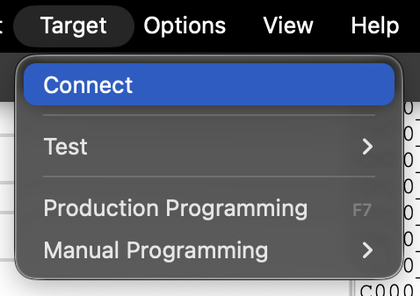 Select Target > Connect
Select Target > Production Programming. J-Flash erases the affected OSPI sectors, writes the model, and verifies the programmed data. Wait for the log to confirm successful programming and verification before continuing.
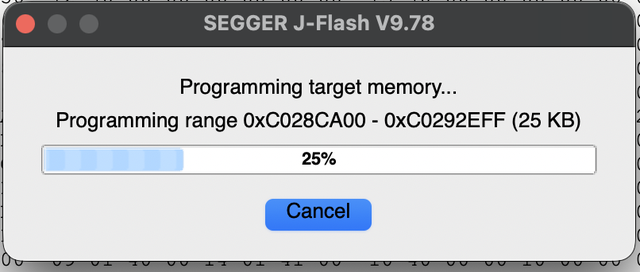 OSPI programming in progress.
Select Target > Disconnect and close J-Flash.
If J-Link connects but reports Failed to perform RAMCode-sided Prepare(), check the selected device and flash bank. Confirm that the CPU-stub write succeeded, and reset the board before retrying. If the error persists, power-cycle the board and reopen J-Flash before retrying. This message isn’t a successful OSPI write.
Package and flash the ASR application into MRAM
Copy the application configuration and freshly built MRAM image into the toolkit:
cp "$ALIF_MLEK_ROOT/alif_asr.json" "$SETOOLS_ROOT/build/config/alif_asr.json"
cp "$ALIF_MLEK_ROOT/build_alif_asr/bin/sectors/alif_asr/mram.bin" "$SETOOLS_ROOT/build/images/mram.bin"
The configuration identifies the HP boot application and includes the board device configuration:
{
    "HP_asr": {
        "binary": "mram.bin",
        "version": "1.0.0",
        "mramAddress": "0x80008000",
        "cpu_id": "M55_HP",
        "flags": ["boot"],
        "signed": false
    },
    "DEVICE": {
        "disabled": false,
        "binary": "app-device-config.json",
        "version": "0.5.00",
        "signed": true
    }
}
The DEVICE entry references app-device-config.json, supplied with SETOOLS at $SETOOLS_ROOT/build/config/app-device-config.json. The toolkit includes this device configuration in the application package, so you don’t need to create it in the MLEK repository.
After both files copy successfully, generate a new application table of contents (ATOC) from alif_asr.json and write the application:
cd "$SETOOLS_ROOT"
./app-gen-toc -f build/config/alif_asr.json
./app-write-mram -c "$ALIF_PORT" -p
Check that the write names build/images/mram.bin and build/AppTocPackage.bin, and completes successfully.
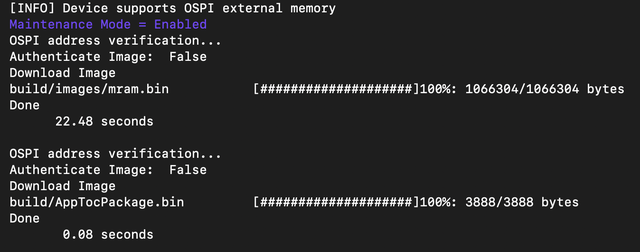 Application firmware and ATOC package written successfully
Troubleshoot programming problems
To troubleshoot programming problems, consider the following guidance:
| Symptom | Check |
|---|---|
SETOOLS opens the serial port but reports Target did not respond | Close other serial programs, select SW4 SE, reset the board, and retry with the current port. |
| A part or revision mismatch appears | Select the detected device in tools-config, regenerate the package, and retry. |
| J-Flash can’t connect to the probe | Check PRG USB, close other debugger programs, and return USB access to the J-Flash host if using WSL. |
| J-Flash can’t prepare the OSPI flash algorithm | Check the part, OSPI bank, and that the CPU stubs were written and booted. |
| The board still boots a previous application | Check the copied mram.bin and regenerate the package with alif_asr.json before writing again. |
What you’ve accomplished and what’s next
You’ve built the E8 firmware and programmed the model into external OSPI flash. You’ve also replaced the temporary CPU stubs with the ASR application in MRAM.
Next, you’ll reset the board, test a spoken phrase, and read the transcription on the display.