Run Conformer speech recognition on Alif Ensemble E8 with ExecuTorch
Introduction
Set up Conformer ASR and MLEK resources
Build and run ASR on a Corstone-320 FVP
Prepare the Alif E8 ASR application and model
Build and flash the ASR firmware
Verify live speech recognition and NPU execution
Next Steps
Run Conformer speech recognition on Alif Ensemble E8 with ExecuTorch
Compare the FVP and the E8 AppKit applications
Your Fixed Virtual Platform (FVP) run verified the Conformer model, audio preprocessing, inference, and token decoding using recorded audio. You’ll now use those same automatic speech recognition (ASR) stages to recognize speech on the Alif Ensemble E8 AppKit.
The board uses a separate application, alif_asr, from the Alif Machine Learning Evaluation Kit (MLEK) repository. You’ll build new firmware for the high-performance Cortex-M55 core of the E8, and capture audio from its pulse-density modulation (PDM) microphones. You’ll then read the transcription on the attached display.
The following table is a comparison between the FVP and E8 applications:
| FVP application | E8 AppKit application |
|---|---|
Arm MLEK asr, built for Corstone-320 | Alif MLEK alif_asr, built for the E8 HP subsystem |
| WAV samples compiled into the firmware | PDM microphone input |
| Simulated UART output in your terminal | Transcription on the attached display |
Application and model loaded through the .axf file | Application in MRAM and model in external Octal Serial Peripheral Interface (OSPI) flash |
Connect the board
Use an
Alif Ensemble E8 AI/ML AppKit
, or an
E8 DevKit
with a supported display attached. The build command defaults to AppKit-e8. For the DevKit, select -DTARGET_BOARD=DevKit-e8. Validation for this Learning Path was done using the DevKit.
To connect to the Alif Ensemble E8 AppKit:
Unplug all USB cables from the AppKit before changing any jumpers.
Verify that the jumpers are in their factory default positions, as shown in the Alif Ensemble E8 AI/ML AppKit (AK-E8-AIML) User Guide .
Connect a USB-C cable from your computer to the PRG USB port on the bottom edge of the AppKit.
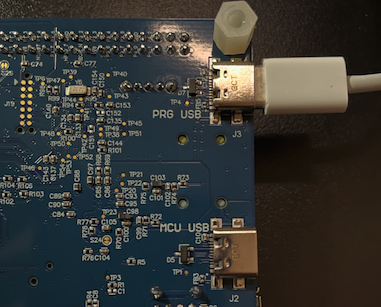 USB-C cable connected to the PRG USB port
Confirm that a green LED illuminates near the E1 device and switch SW4.
Install SETOOLS
Secure Enclave Tools (SETOOLS) is the Alif toolset for flashing firmware to MRAM through the Secure Enclave.
To install SETOOLS:
Download the SETOOLS package for your host operating system from the Alif Ensemble E8 AppKit support page and extract it to your home directory, replacing the archive filename in the command:
 cd "$HOME/Downloads"
 tar xvf "replace_with_your_alif_security_toolkit_download.tar" -C "$HOME"
Verify the installation:
    cd "$HOME/app-release-exec-macos"
    ./app-write-mram -h
    ./app-gen-toc -h
cd "$HOME/app-release-exec-linux" ./app-write-mram -h ./app-gen-toc -hThe extracted folder name can vary by SETOOLS release. The commands assume the package extracts to
app-release-exec-*. Each command should print ausage:message. If either command fails, check that you’re in the extracted SETOOLS directory for your operating system.Important On macOS, the system might block the unsigned binary the first time you run it. If this happens, do the following:
- Open System Settings.
- Navigate to Privacy & Security.
- Select Open Anyway, only if you trust the package downloaded from Alif.
Then, run the command again. Each executable can require separate approval:
app-write-mram,app-gen-toc, and themaintenanceandtools-configutilities that are used during board provisioning.
Install J-Link
The SEGGER J-Link Software and Documentation Pack includes J-Flash, which you’ll use later to program the model into external OSPI flash.
Install J-Link for your host operating system. The DevKit validation was done using version 9.36.
On Linux, run uname -m and download the matching .deb package from
SEGGER J-Link downloads
: x86-64 for x86_64, or ARM64 for aarch64. Replace the filename in the command:
brew install --cask segger-jlink
cd "$HOME/Downloads"
sudo apt install ./replace_with_your_jlink_download.deb
Clone the Alif MLEK repository
Before you begin, use Python 3.12 as configured during host setup. Deactivate any active virtual environment in the shell and check your version:
if type deactivate >/dev/null 2>&1; then deactivate; fi
python3 --version
If needed, install a supported version from the Python downloads page and rerun the version check.
Clone Alif MLEK into your home directory.
cd "$HOME"
git clone https://github.com/alifsemi/alif_ml-embedded-evaluation-kit.git
cd alif_ml-embedded-evaluation-kit
git checkout 0b6ce72c495265501f7a12eaed8e6ea71ef4bf15
git submodule update --init --recursive
Use this pinned revision for the first run. If you already have a clone, keep any local work and use a separate directory for a clean test.
Prepare the ExecuTorch model
Run the resource setup script in the Alif repository. Select only asr to avoid downloading and exporting unrelated examples:
python3 set_up_default_resources.py --ml-frameworks executorch --use-case asr
source resources_downloaded/env/bin/activate
This downloads the trained Conformer checkpoint and generates the Ethos-U85 .pte model. It creates a Python environment and runs resources/asr/models/conformer_pte_gen.py to export the model, calibrate INT8 quantization with the bundled WAV samples, and lower the graph for Ethos-U. The SentencePiece vocabulary is included in the repository. The board build uses these resources when it builds mlek_alif_asr. The first setup can take several minutes.
Confirm that the board model and vocabulary are available:
ls -lh \
  resources_downloaded/asr/conformer_fp32_cln_wer_6_47_arm_delegate_ethos-u85-256.pte \
  resources/asr/labels/librispeech_sp.pieces
The generated model used in the tested build is about 10.4 MB. The application MRAM of the E8 can’t hold that model alongside the firmware, so the build places the model in external flash accessed through the OSPI.
Locate the board application
The application lives in source/app/use_case/alif_asr/. The following files explain the parts that you’ll configure and run:
| File | Role |
|---|---|
usecase.cmake | Selects the model, vocabulary, activation buffer, and generated assets |
src/MainLoop.cc | Initializes the model, labels, profiler, and application context |
src/UseCaseHandlerEt.cc | Handles microphone capture, preprocessing, ExecuTorch inference, decoding, and display updates |
include/UseCaseHandler.hpp | Declares the use-case handler |
alif_asr.json in the repository root | Describes the MRAM application package and HP boot configuration |
src/UseCaseHandlerTflm.cc contains the alternative TensorFlow Lite Micro path. You’ll use UseCaseHandlerEt.cc instead.
Follow the startup and inference flow
For the ExecuTorch build, MainLoop.cc uses ConformerModel as the ASR model wrapper. It creates two memory regions before entering the handler:
modelMempoints to the generated model data.computeMempoints to the activation buffer used while loading and running the model.
The startup code initializes the model, checks tensor dimensions, loads the vocabulary labels, and creates the profiler. It adds the model, labels, profiler, and Conformer window and hop settings to an application context, then calls ClassifyAudioHandler(caseContext). The context lets helpers share these settings without each owning the full application state.
The handler then performs the following tasks:
- Gets the model tensors and creates the Conformer preprocessor and postprocessor.
- Initializes the display layout and the button callback.
- Initializes the PDM microphone path at 16 kHz.
- Waits for a joystick center press and captures audio while you hold it.
- Limits the captured length to fit the model input, generates the Mel spectrogram, runs inference, and decodes the tokens.
- Updates the display with the transcription and processing times.
The Conformer preprocessing, postprocessing, ExecuTorch model wrapper, and SentencePiece vocabulary serve the same purposes as in the FVP application. The board-specific code supplies live audio, display output, and the E8 memory layout.
Understand the model and memory settings
The alif_asr CMake file enables external flash placement by default:
USER_OPTION(${use_case}_MODEL_IN_EXT_FLASH "Run model from external flash"
    ON
    BOOL)
With this option enabled, MLEK places model data in the nn_model_ext_flash section and generates ext_flash.bin separately from mram.bin. You’ll program both files.
The board configuration uses TARGET_SUBSYSTEM=RTSS-HP, TARGET_BOARD=AppKit-e8, and TARGET_MICS=PDM. The configuration has the following ExecuTorch memory pools:
alif_asr_ACTIVATION_BUF_SZ=0x00108000for the method allocator poolML_FWK_TMP_MEM_SIZE=0x002C0000for temporary allocation
Keep these settings for the first run so that model selection, runtime memory, and the physical connections match the tested application.
What you’ve accomplished and what’s next
You’ve connected the board hardware and prepared the Alif MLEK model resources. You’ve also identified how the board application extends the ASR flow that you ran on the FVP.
Next, you’ll build the E8 firmware, program the model into OSPI flash, and install the application in MRAM.