Deploy Tinkerblox UltraEdge HPC-I for AI and mixed workloads on Arm
Introduction
Understand UltraEdge HPC-I architecture for edge AI and mixed workloads
Provision a Google Axion C4A VM for Yocto image builds on Arm
Build and install Yocto images for NXP S32G-VNP-GLDBOX3 with UltraEdge
Install UltraEdge on Debian and Ubuntu for Edge AI workloads
Run and manage UltraEdge HPC-I for AI and mixed workloads on Arm
Next Steps
Deploy Tinkerblox UltraEdge HPC-I for AI and mixed workloads on Arm
Introduction
Understand UltraEdge HPC-I architecture for edge AI and mixed workloads
Provision a Google Axion C4A VM for Yocto image builds on Arm
Build and install Yocto images for NXP S32G-VNP-GLDBOX3 with UltraEdge
Install UltraEdge on Debian and Ubuntu for Edge AI workloads
Run and manage UltraEdge HPC-I for AI and mixed workloads on Arm
Next Steps
System requirements
The requirements below are given as additional information only. The GCP C4A VM instance, running Ubuntu 22.04 with 100GB disk space, will work fine for this Learning Path.
Linux host system (64-bit recommended)
Supported host architectures:
- AArch64 (arm64)
- ARMv7
Supported Linux distributions(Tested):
- Ubuntu 20.04 LTS (AArch64)
- Ubuntu 22.04 LTS (AArch64)
As of this Learning Path’s publication, Ubuntu 24.04 LTS is NOT a supported Yocto build host OS. This may change in the future.
Minimum hardware requirements:
- CPU: Quad-core processor minimum (16 cores or greater recommended)
- RAM: 8 GB minimum (16 GB or greater recommended)
- Disk space: At least 100 GB free (250 GB +recommended for multiple builds)
Required software (will be installed below):
- Git (for fetching Yocto layers)
- Python (Yocto-supported version from host distro)
- GNU build tools (gcc, make, etc.)
Internet access:
- Required for downloading source code, layers, and dependencies
Yocto builds are very resource-intensive and may take several hours depending on hardware and memory capacities
Build a Yocto image for your NXP board
You’ll use the NXP S32G-VNP-GLDBOX3 hardware platform with the BSP 38.0 release from NXP’s auto_yocto_bsp repository to run EdgeBlox Agent. Follow these steps to build a Yocto-based Linux image and prepare it for deployment.
- NXP Auto Linux BSP Repository (BSP 38.0): https://github.com/nxp-auto-linux/auto_yocto_bsp/tree/release/bsp38.0
- NXP GoldBox 3 Design Page: https://www.nxp.com/design/design-center/development-boards-and-designs/GOLDBOX-3
Get the replacement meta-edgeblox layer
Contact the Tinkerblox support team at techsupport@tinkerblox.io to request the meta-edgeblox zip file for your Yocto image. The file you receive will be called “meta-edgeblox.zip” and will be used in the next steps and in the build script below.
Build the Yocto image
If you see an error about updating the /etc/sudoers file, follow the instructions provided. The script needs these permissions to set up properly. If you skip this, the bitbake commands below will fail.
First, copy the following config file and save it as “kernel.cfg”:
CONFIG_NAMESPACES=y
CONFIG_UTS_NS=y
CONFIG_IPC_NS=y
CONFIG_PID_NS=y
CONFIG_NET_NS=y
CONFIG_USER_NS=y
CONFIG_CGROUPS=y
CONFIG_CGROUP_BPF=y
CONFIG_CGROUP_SCHED=y
CONFIG_CPUSETS=y
CONFIG_MEMCG=y
CONFIG_BLK_CGROUP=y
CONFIG_CGROUP_HUGETLB=y
CONFIG_OVERLAY_FS=y
CONFIG_SECCOMP=y
CONFIG_SECCOMP_FILTER=y
CONFIG_VETH=y
CONFIG_BRIDGE=y
CONFIG_IPTABLES=y
CONFIG_NETFILTER=y
CONFIG_NETFILTER_ADVANCED=y
CONFIG_IP_NF_IPTABLES=y
CONFIG_IP_NF_FILTER=y
CONFIG_NF_CONNTRACK=y
CONFIG_IP6_NF_IPTABLES=y
CONFIG_IP6_NF_FILTER=y
Next, copy the following build script and save it as “build.sh”:
#!/bin/bash

export BASE_CWD=`pwd`
export BLOX_MACHINE="s32g399ardb3"
export LANG=en_US.UTF-8
export LC_ALL=en_US.UTF-8
export LC_CTYPE=en_US.UTF-8

echo "Clearing out old build..."
rm -rf fsl-auto-yocto-bsp

echo "Installing prerequisites..."
sudo apt update
sudo apt install -y gawk wget git diffstat unzip texinfo gcc build-essential chrpath socat cpio python3 python3-pip python3-pexpect xz-utils debianutils iputils-ping python3-git python3-jinja2 libegl1-mesa libsdl1.2-dev xterm python3-subunit mesa-common-dev zstd liblz4-tool
sudo apt-get install -y chrpath diffstat gawk lz4 mtools
sudo apt-get install -y curl
sudo apt-get install -y git
sudo apt-get install -y python2

echo "Installing repo..."
mkdir -p ~/bin
curl https://storage.googleapis.com/git-repo-downloads/repo > ~/bin/repo
chmod a+x ~/bin/repo
export PATH=${PATH}:~/bin

echo "Creating build directory..."
mkdir fsl-auto-yocto-bsp
cd fsl-auto-yocto-bsp/

echo "Cloning repo..."
repo init -u https://github.com/nxp-auto-linux/auto_yocto_bsp -b release/bsp38.0
repo sync

echo "Ready to build!"
sudo ./sources/meta-alb/scripts/host-prepare.sh

echo "Setting locale..."
sudo locale-gen en_US.UTF-8
sudo update-locale LANG=en_US.UTF-8

echo "Sourcing build setup... machine: ${BLOX_MACHINE}..."
source ./nxp-setup-alb.sh -m ${BLOX_MACHINE}
CWD=`pwd`
echo "Current working directory: ${CWD}"

# Check if we have our custom layer from Tinkerblox
if [ -f ${BASE_CWD}/meta-edgeblox.zip ]; then
    echo "Replacing meta-edgeblox layer..."
    cd ${BASE_CWD}/fsl-auto-yocto-bsp
    rm -rf ../meta-edgeblox
    unzip -q ${BASE_CWD}/meta-edgeblox.zip
else
    echo "ERROR: Unable to find replacement meta-edgeblox.zip layer. Please contact Tinkerblox team by email **techsupport@tinkerblox.io** for the layer"
    echo "Exiting on ERROR"
    exit 1
fi

echo "Adding updated meta-edgeblox layer..."
cd ${CWD}
# not needed due to zip file? time bitbake-layers create-layer ../meta-edgeblox
time bitbake-layers add-layer ../meta-edgeblox

echo "Updating the yocto local configuration: ./conf/layer.conf"
echo "IMAGE_INSTALL:append = \" dpkg ldd libxcrypt binutils zlib cjson edgeblox-agent cgroup-lite rng-tools procps ca-certificates catatonit openssh htop  python3-cantools  python3-joblib  python3-numpy  python3-pandas python3-can python3-djangorestframework python3-dev python3-pip runit go node-exporter  util-linux \"" >> ./conf/local.conf

echo "Local yocto configuation:"
cat ./conf/local.conf

echo "Building for the machine type: ${BLOX_MACHINE}"
time bitbake fsl-image-base

# Kernel reconfigure and rebuild of image
if [ -f ${BASE_CWD}/kernel.cfg ]; then
    echo "Customizing kernel..."
    # not needed: time bitbake -c menuconfig virtual/kernel
    echo "Updating kernel configuration: ./tmp/work/s32g399ardb3-fsl-linux/linux-s32/5.15.119-r0/build/.config"
    cat ${BASE_CWD}/kernel.cfg >> ./tmp/work/${BLOX_MACHINE}-fsl-linux/linux-*/*r0/build/.config

    echo "Setting config as default kernel config..."
    time bitbake -c savedefconfig virtual/kernel

    echo "Rebuilding kernel..."
    time bitbake virtual/kernel -f -c compile

    echo "Updating final image content..."
    time bitbake fsl-image-base

    echo "All Done! Exiting..."
else
    echo "ERROR: Unable to find kernel config file: ${BASE_CWD}/kernel.cfg. Exiting on error"
    exit 2
fi
exit 0
In your VM SSH window, select “upload” to upload “kernel.cfg”, “meta-edgeblox.zip”, and “build.sh” to the VM instance.
Invoking SSH file upload:
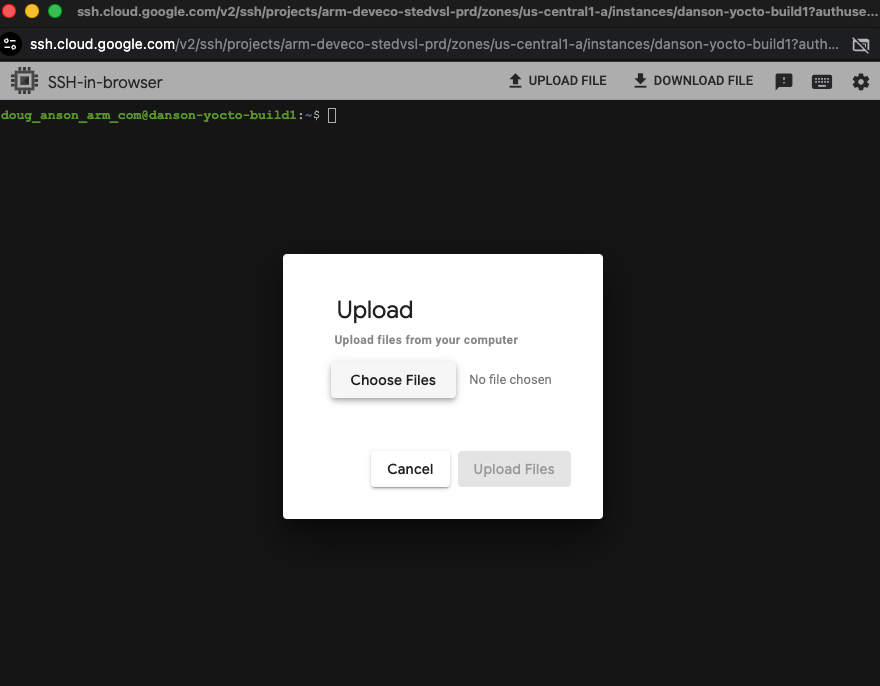 Invoking file upload from the SSH shell
Selecting files to upload through SSH:
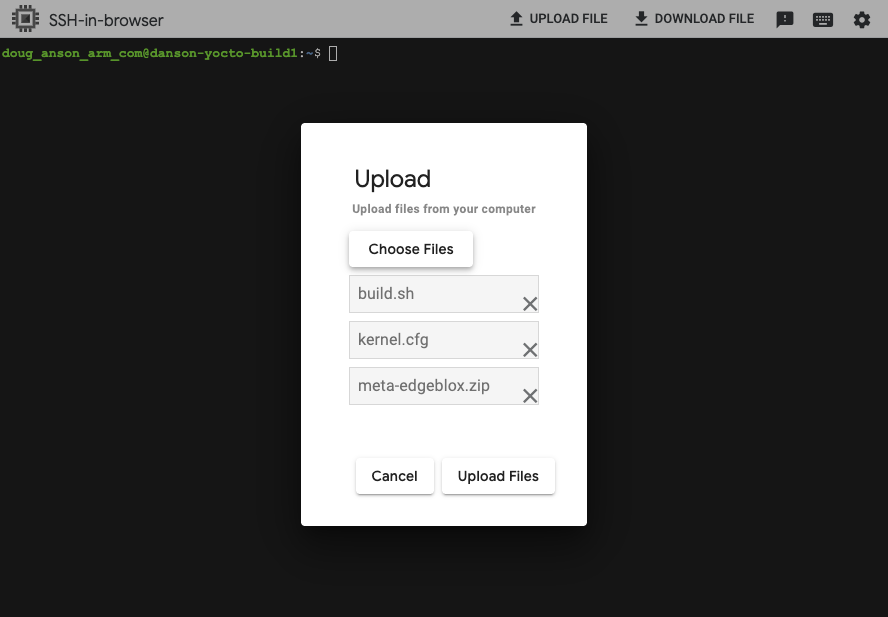 Selecting files to upload
Upload completed:
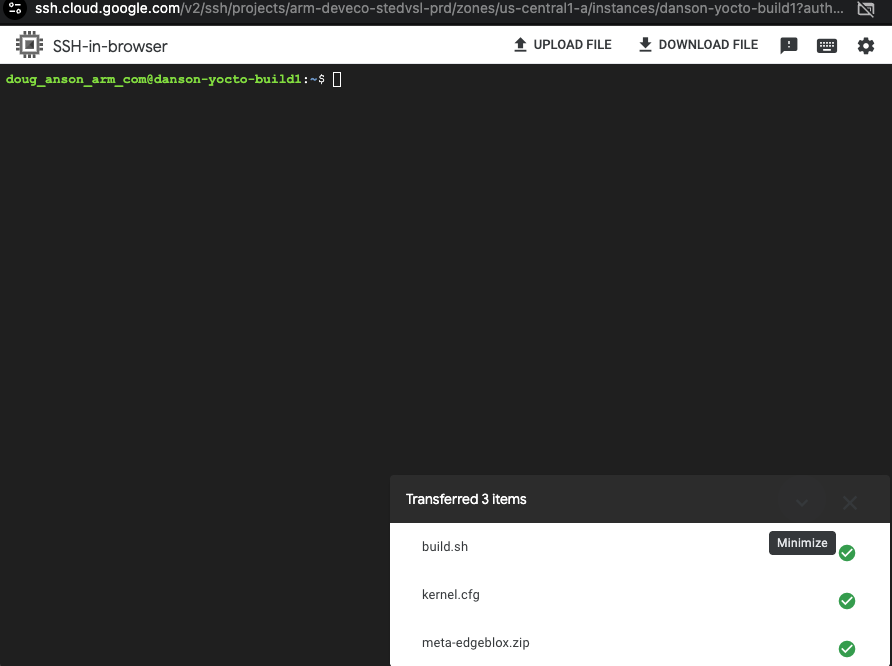 Upload completed
In your VM SSH window, run the following commands to start the build:
chmod 755 ./build.sh
mkdir tinkerblox
mv build.sh kernel.cfg meta-edgeblox.zip tinkerblox
cd ./tinkerblox
./build.sh
- The build takes about 20-40 minutes to complete.
- During the build, you might be prompted to restart some services. Press the “tab” key to select “OK” and then “enter” to continue.
- You will be prompted to accept the NXP BSP license. Type “q” followed by “y” to accept and begin the build.
Download the built Yocto image
After the build completes, archive the image and download it to your local machine. Make sure your local machine has access to the NXP S32G-VNP-GLDBOX3 and its SD card for the next steps.
Flash the SD card
Download the built Yocto image from the VM instance
In the VM SSH shell, perform the following commands:
cd $HOME/tinkerblox/fsl-auto-yocto-bsp/build_s32g399ardb3/tmp/deploy/images
tar czf s32g399ardb3.tar.gz ./s32g399ardb3
mv s32g399ardb3.tar.gz $HOME/tinkerblox
cd $HOME/tinkerblox
ls -al `pwd`/s32g399ardb3.tar.gz
Next, in the VM SSH, press the “Download” button to download the created file:
Select the file to download. Use the fully qualified path for the file in the previous step and paste it into the download dialog to initiate the download:
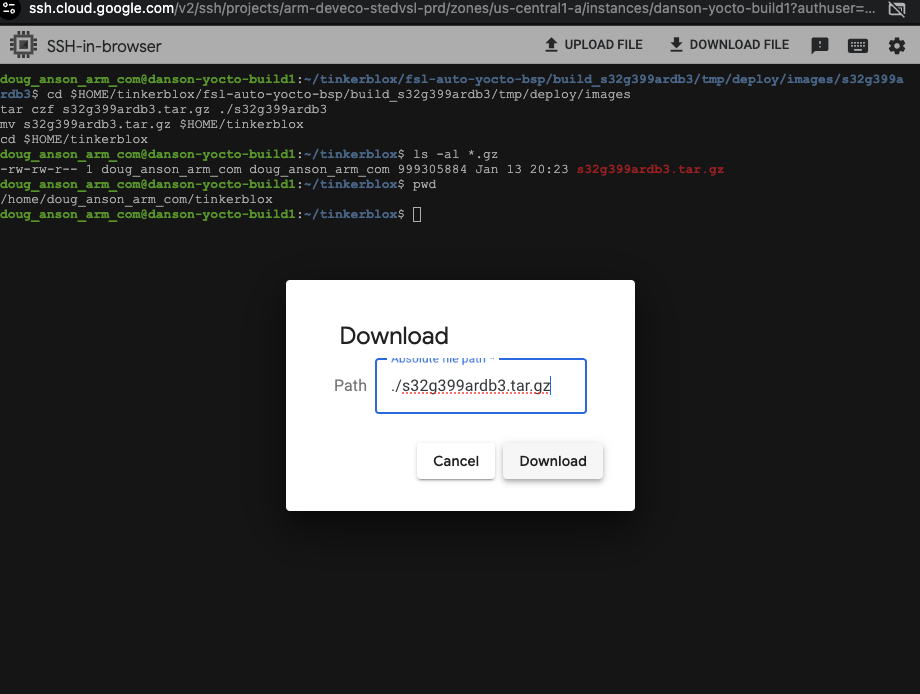 Selecting file to download
Download completed:
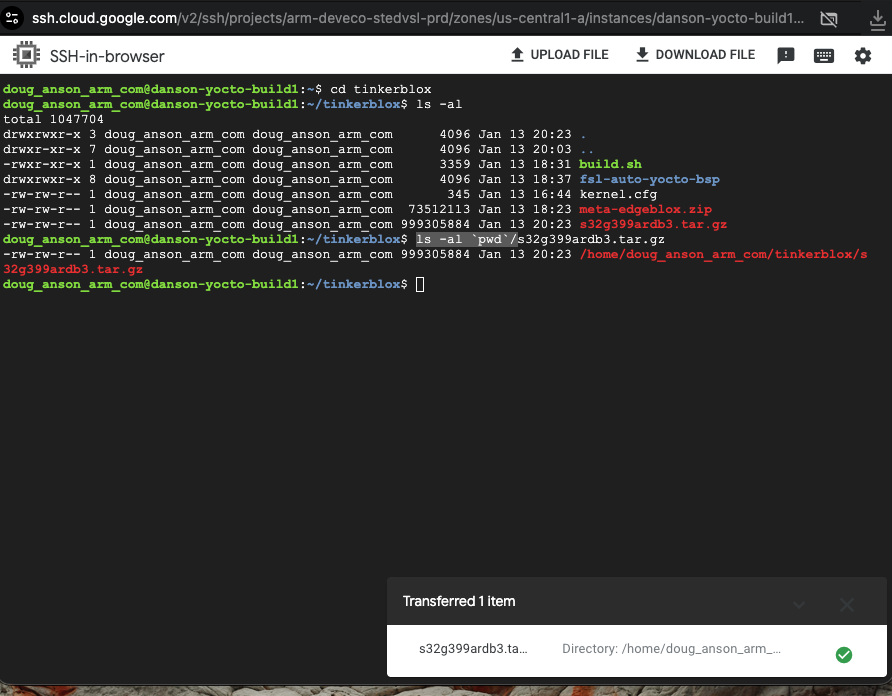 Download completed
Back on your local host (where access to the NXP S32G-VNP-GLDBOX3 SDcard is available for writing), extract the archive:
tar xzpf s32g399ardb3.tar.gz
cd s32g399ardb3
ls -al fsl-image-base-s32g399ardb3.sdcard
Insert the SD card. Your system may expose it as /dev/sdb (Linux/Ubuntu example).
Replace “/dev/sdb” with your system’s device file for the SD card.
Write the image to the SD card:
ls -al fsl-image-base-s32g399ardb3.sdcard
sudo dd if=fsl-image-base-s32g399ardb3.sdcard of=/dev/sdb bs=1M && sync
Activate the agent on your NXP device
On first boot, the agent automatically generates a file named activation_key.json at:
/opt/tinkerblox/activation_key.json
Log in to your NXP S32G-VNP-GLDBOX3 device using SSH. Replace 1.2.3.4 with your device’s IP address:
ssh root@1.2.3.4
In the SSH shell, check for the activation key:
cd /opt/tinkerblox/
ls -al activation_key.json
Send this activation_key.json file to the Tinkerblox team at techsupport@tinkerblox.io
to receive your license key. You will get a new activation_key.json to use in the next steps.
Once you receive the licensed file:
Stop the agent using the following command:
sudo systemctl stop tbx-agent.serviceReplace the existing
activation_key.jsonfile in/opt/tinkerblox/with the licensed one provided by TinkerBlox.
For example, using “1.2.3.4” as the NXP device’s IP address, on your local machine:
scp activation_key.json root@1.2.3.4:/opt/tinkerblox
Start the agent on the NXP device:
sudo systemctl start tbx-agent.service
Run the agent manually
- Binary path:
/bin/tbx-agent - To start:
cd /bin ./tbx-agent - To stop, press Ctrl+C once.
Install and run workloads
You can deploy and manage MicroPac-based workloads on your UltraEdge-enabled device using the MicroBoost CLI. Use the following steps to install, start, stop, and monitor workloads.
This workflow uses the MicroBoost CLI to install, start, stop, and monitor MicroPac-based workloads running on UltraEdge.
Build the workload using mpac builder
To build the .mpac file from a cross-architecture setup using Micropac Builder:
Verify QEMU installation:
qemu-aarch64-static --versionCheck binfmt registration:
ls /proc/sys/fs/binfmt_misc/
Navigate to your project directory and make sure the micropacfile is placed in your project directory (refer to debian_installation.md for more details).
Run below command:
sudo micropac-builder build
After the build completes, the workload file your_service.mpac will be generated in your project directory.
Copy the your_service.mpac file to any root filesystem path of your NXP target to deploy it.
systemctl start runit-supervise
tinkerblox-cli microboost install -f /path/to/your_service.mpac
tinkerblox-cli microboost list
tinkerblox-cli microboost start
Install the workloads on the device
Start the runit supervisor:
systemctl start runit-supervise
Install the workload:
tinkerblox-cli microboost install -f /path/to/your_service.mpac
List installed services:
tinkerblox-cli microboost list
Copy the service ID and use the following commands to manage the service:
Start the service:
tinkerblox-cli microboost start <id>
Stop the service:
tinkerblox-cli microboost stop <id>
Check the service status:
tinkerblox-cli microboost status <id>
Uninstall the workload:
tinkerblox-cli microboost uninstall <id>
Watch video walkthroughs
Watch these videos for additional guidance:
Microservice setup and install:
Yocto setup, build, and install:
What you’ve accomplished and what’s next
In this section, you:
- Built a Yocto image for the NXP S32G-VNP-GLDBOX3 platform
- Activated and managed the UltraEdge agent on your target device
- Built, installed, and managed MicroPac workloads using the mpac builder and CLI
Next, you can further customize your Yocto builds, automate deployment pipelines, or explore integration with other edge and cloud platforms.