Deploy Tinkerblox UltraEdge HPC-I for AI and mixed workloads on Arm
Introduction
Understand UltraEdge HPC-I architecture for edge AI and mixed workloads
Provision a Google Axion C4A VM for Yocto image builds on Arm
Build and install Yocto images for NXP S32G-VNP-GLDBOX3 with UltraEdge
Install UltraEdge on Debian and Ubuntu for Edge AI workloads
Run and manage UltraEdge HPC-I for AI and mixed workloads on Arm
Next Steps
Deploy Tinkerblox UltraEdge HPC-I for AI and mixed workloads on Arm
Introduction
Understand UltraEdge HPC-I architecture for edge AI and mixed workloads
Provision a Google Axion C4A VM for Yocto image builds on Arm
Build and install Yocto images for NXP S32G-VNP-GLDBOX3 with UltraEdge
Install UltraEdge on Debian and Ubuntu for Edge AI workloads
Run and manage UltraEdge HPC-I for AI and mixed workloads on Arm
Next Steps
Overview
In this section, you provision a Google Axion C4A virtual machine on Google Cloud Platform (GCP) using the c4a-standard-32 machine type, which provides 16 vCPUs and 128 GB of memory. This VM size is required for building a Yocto-based image in the next steps.
For general guidance on setting up a Google Cloud account and project, see the Learning Path Getting started with Google Cloud Platform .
Provision a Google Axion C4A VM in Google Cloud Console
To create a virtual machine using the C4A instance type:
- Open the Google Cloud Console .
- Go to Compute Engine > VM instances, and then select Create instance.
- Under Machine configuration:
- Specify an Instance name, Region, and Zone.
- Set Series to C4A.
- Select c4a-standard-32 as the machine type.
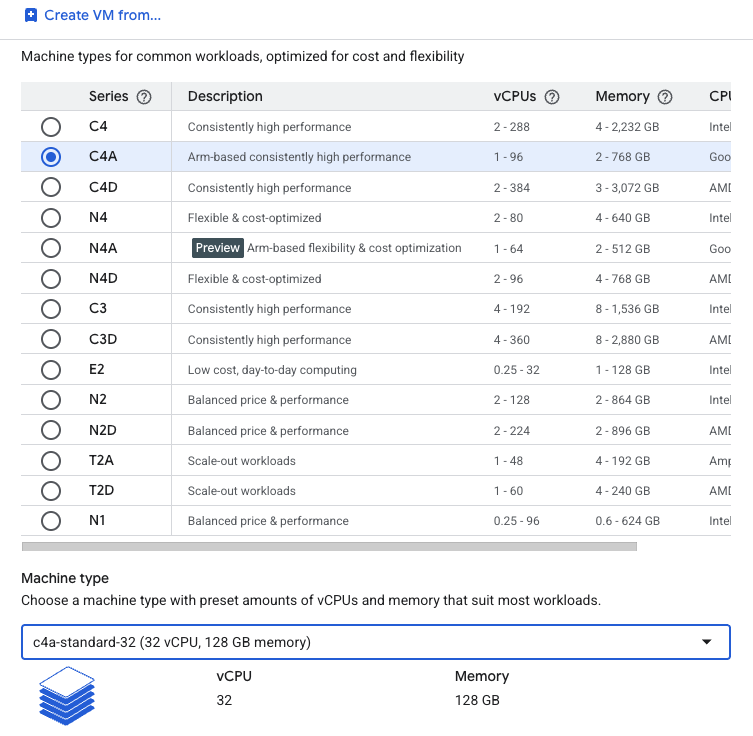 Creating a Google Axion C4A virtual machine in the Google Cloud Console
- Under OS and storage, select Change, and then choose an Arm64-based operating system image.
- For this Learning Path, select Ubuntu 22.04 LTS.
- Increase Size (GB) from 10 to 100 to allocate sufficient disk space.
- Select Choose to apply the changes.
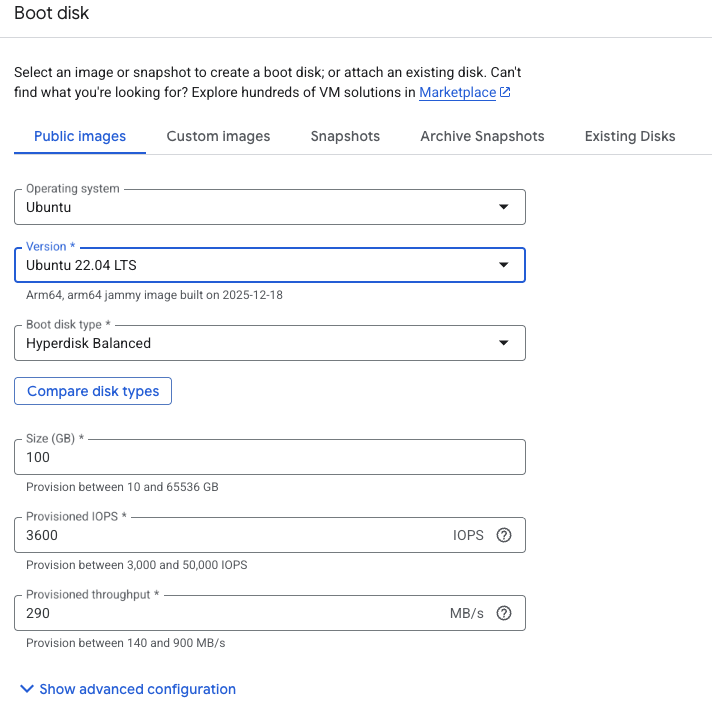 Selecting Ubuntu 22.04 LTS with 100GB disk space
- Under Networking, enable Allow HTTP traffic and Allow HTTPS traffic to simplify access for later Kubernetes testing.
- Select Create to launch the virtual machine.
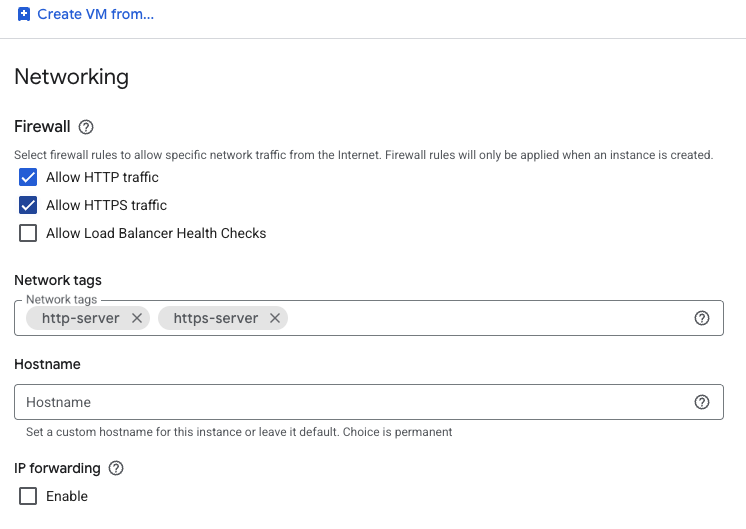 Configuring the VM network
After the instance starts, click SSH next to the VM in the instance list to open a browser-based terminal session.
 Connecting to a running C4A virtual machine using SSH
A new browser window opens with a terminal connected to your virtual machine.
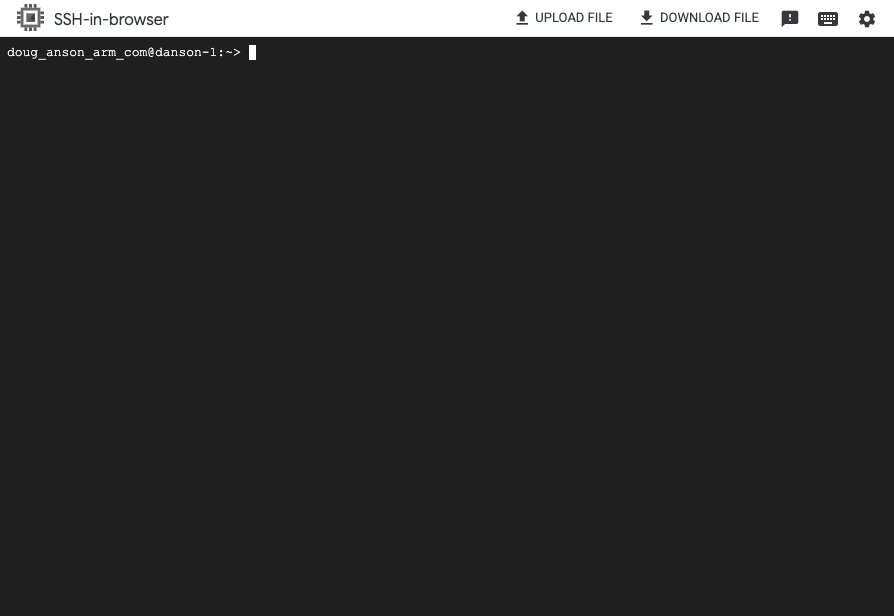 Terminal session connected to the virtual machine
This is a rather expensive VM given its vCPU and memory usage. It is highly recommended to delete this VM once you have completed this learning path!
What you’ve accomplished and what’s next
In this section, you:
- Provisioned a Google Axion C4A VM on Google Cloud Platform
- Configured the VM for Arm64-based Yocto image builds
Next, you’ll use this VM to build a Yocto image for your target hardware. Continue to the Yocto installation section to complete your edge deployment workflow.