Build a ROS 2 and Zenoh simulation environment on an Arm server
Introduction
Start the ROS 2 development containers
Configure Zenoh for ROS 2
Observe Zenoh router discovery behavior
Start the robot simulation and Navigation2
Visualize and navigate the robot with RViz
Control the Neobotix ROX robot with ROS 2
Observe ROS 2 simulation resource usage on an Arm server
Enable Zenoh shared-memory transport
Next Steps
Build a ROS 2 and Zenoh simulation environment on an Arm server
Introduction
Start the ROS 2 development containers
Configure Zenoh for ROS 2
Observe Zenoh router discovery behavior
Start the robot simulation and Navigation2
Visualize and navigate the robot with RViz
Control the Neobotix ROX robot with ROS 2
Observe ROS 2 simulation resource usage on an Arm server
Enable Zenoh shared-memory transport
Next Steps
Understand the container environment
You’ll create and use two Docker containers built from the same image:
- The
robotcontainer runs the ROS 2 simulation, Zenoh router, and Gazebo environment used in this Learning Path - The
controlcontainer acts as a remote operator station for later Learning Paths
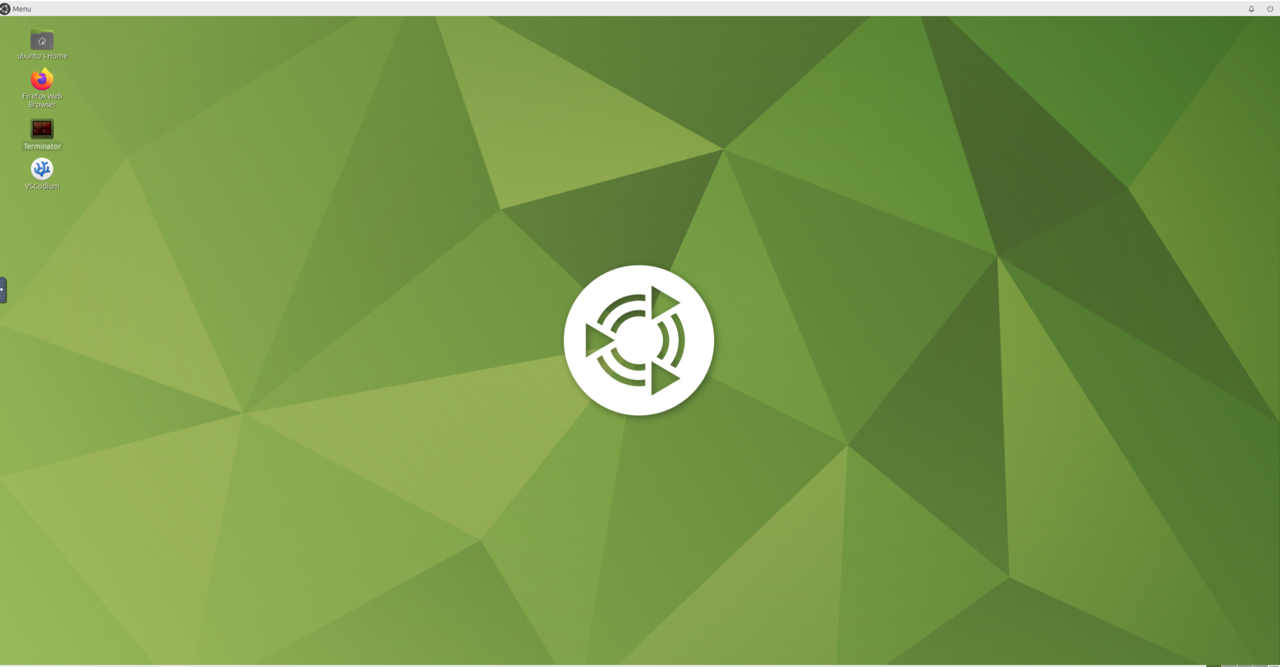
Each container provides an Ubuntu desktop that you can access in a web browser. You’ll use only the robot container to complete this Learning Path, but starting both containers prepares the environment for the rest of the series.
This setup is more than a container exercise. Gazebo, simulated camera and LiDAR data, Navigation2, RViz, and rmw_zenoh run together as a representative Physical AI robotics workload on Arm.
The environment uses official arm64 binaries without architecture-specific modifications.
Run the provided commands on your selected Arm server. After the browser-based VNC desktop opens, run commands with an ubuntu@robot prompt in the robot container.
Download the Docker Compose configuration
Create a working directory:
mkdir -p ros_zenoh
cd ros_zenoh
The Docker Compose configuration used in this Learning Path is available in the ros2-zenoh-arm GitHub repository .
Download the configuration:
curl -L https://raw.githubusercontent.com/odincodeshen/ros2-zenoh-arm/main/docker-compose.yaml \
  -o docker-compose.yaml
The Compose file defines the robot and control containers used throughout this Learning Path.
The configuration includes settings used later in this Learning Path and the wider series:
shm_sizereserves space for Zenoh shared-memory transportmemlockremoves the default memory-lock limit so Zenoh can allocate shared-memory regionsNET_ADMINapplies network shaping inside the containers
Don’t change these settings.
Start and verify the containers
Pull the image, start both containers, and check their status:
docker compose pull
docker compose up -d
docker compose ps
Docker creates the container_volumes/ directories when it first starts the containers. Compose derives the container-name prefix from the ros_zenoh working directory.
The output is similar to:
        NAME                  STATUS
ros_zenoh-control-1   Up
ros_zenoh-robot-1     Up
The status of both containers should be Up.
Open the browser desktops and sign in with the password ubuntu:
robotcontainer:http://<server_ip>:6080/controlcontainer:http://<server_ip>:6081/
Don’t expose ports 6080, 6081, or 7447 directly to the public internet from your Arm server. Use a private network, VPN, SSH tunnel, or restrictive firewall or security-group rules so that only trusted clients can reach these services.
The container network uses the following addresses:
| Container | Purpose in the series | Internal IP | Browser port | Zenoh port 7447 exposed to host |
|---|---|---|---|---|
robot | Simulation and robot services | 172.1.0.2 | 6080 | Yes |
control | Remote operator station | 172.1.0.3 | 6081 | No |
What you’ve accomplished and what’s next
You’ve started the browser-accessible ROS 2 environment and verified that both containers are running.
Next, you’ll configure the router and session files that rmw_zenoh uses inside the robot container.