Create and train a PyTorch model for digit classification using the MNIST dataset
Introduction
Prepare a PyTorch Development Environment
Create a PyTorch model for MNIST
About PyTorch Model Training
Perform Training and Save the Model
Deploy the Model for Inference
Learn about Inference on Android
Create an Android Application
Prepare the Test Data
Run the Application
Optimizing Neural Network Models in PyTorch
Create an optimized PyTorch model for MNIST
Run optimization
Update the Android application
Next Steps
Create and train a PyTorch model for digit classification using the MNIST dataset
Introduction
Prepare a PyTorch Development Environment
Create a PyTorch model for MNIST
About PyTorch Model Training
Perform Training and Save the Model
Deploy the Model for Inference
Learn about Inference on Android
Create an Android Application
Prepare the Test Data
Run the Application
Optimizing Neural Network Models in PyTorch
Create an optimized PyTorch model for MNIST
Run optimization
Update the Android application
Next Steps
You are now ready to run the Android application. The screenshots below show an emulator, but you can also use a physical device.
To run the app in Android Studio using an emulator, follow these steps:
- Configure the Emulator:
- Go to Tools > Device Manager, or click the Device Manager icon on the toolbar.
- Click Create Device to set up a new virtual device, if you haven’t done so already.
- Choose a device model, such as the Pixel 4, and click Next.
- Select a system image, such as Android 11, API level 30, and click Next.
- Review the settings, and click Finish to create the emulator.
- Run the App:
- Make sure the emulator is selected in the device drop-down menu in the toolbar, next to the Run button.
- Click the Run button, which is a green triangle. Android Studio builds the app, installs it on the emulator, and then launches it.
- View the App on the Emulator:
- Once the app is installed, it automatically opens on the emulator screen, allowing you to interact with it as if it were running on a real device.
Once the application starts, click the Load Image button. It loads a randomly-selected image. Then, click Run Inference to recognize the digit. The application displays the predicted label and the inference time as shown below:
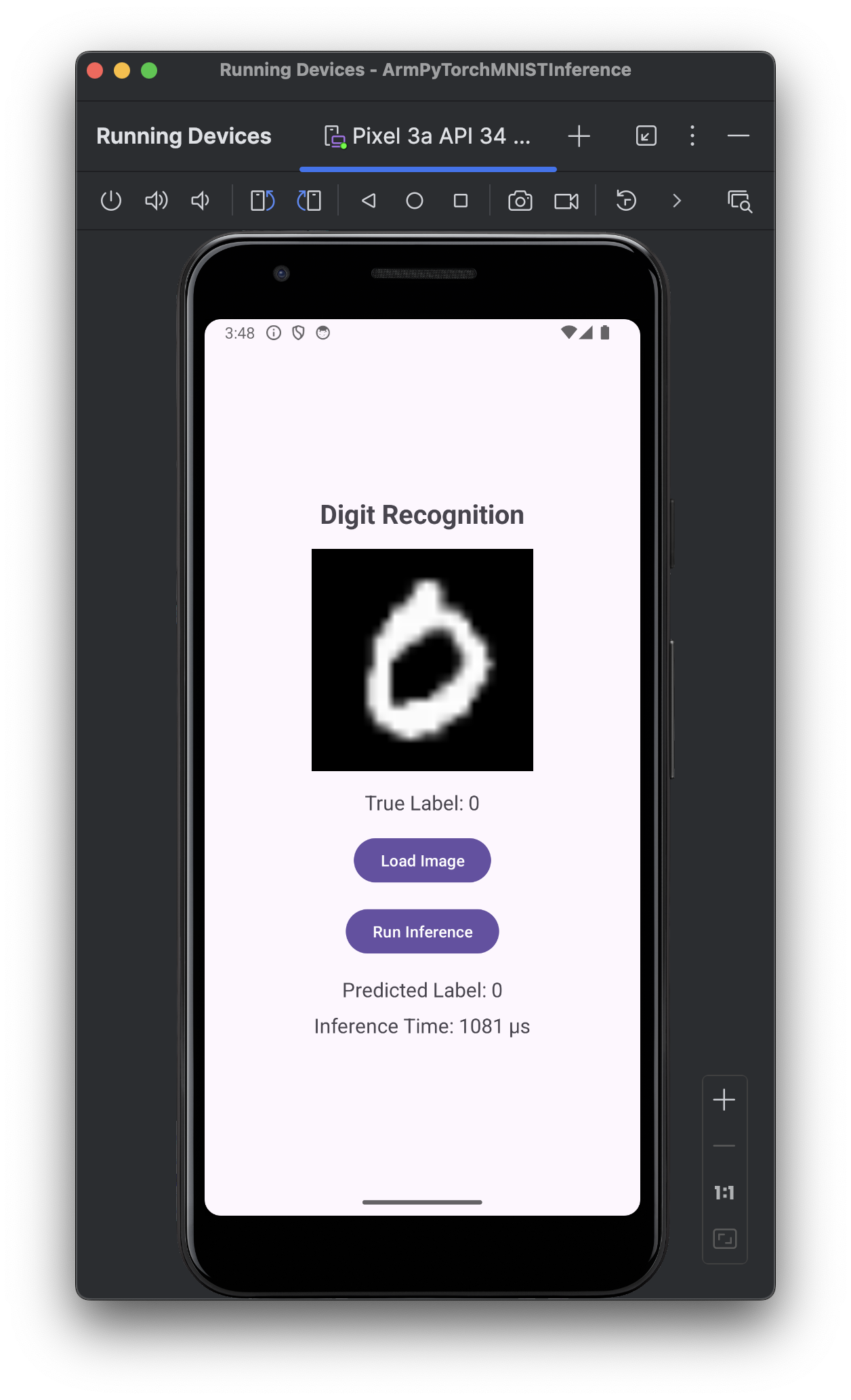 Digit recognition result showing prediction
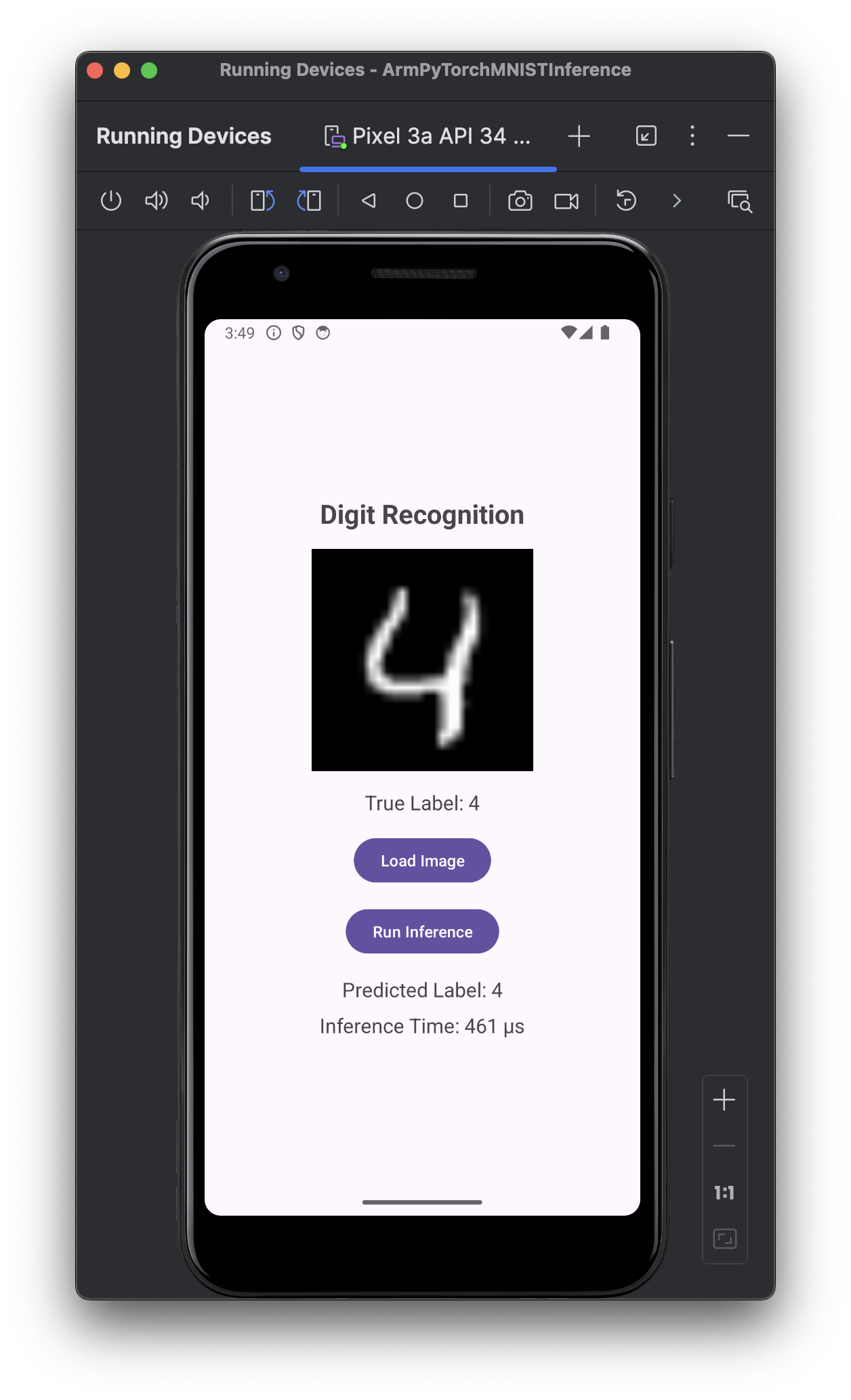 Another digit recognition example with timing
In the next step of this Learning Path, you will learn how to further optimize the model.