Distribute a ROS 2 robotic system across Arm devices with Zenoh
Introduction
Understand the distributed ROS 2 topology
Connect the ROS 2 control container with Zenoh
Connect the Raspberry Pi
Verify cross-device ROS 2 communication
Isolate multiple ROS 2 robots that share a Zenoh router
Next Steps
Distribute a ROS 2 robotic system across Arm devices with Zenoh
Configure the control container as a Zenoh client
Start by configuring the control container.
The control container needs its own session configuration that’s set to client mode and pointed at the robot’s router.
First, get the container ID for the control container. From an SSH session on the Arm server, run:
docker ps
The output is similar to:
        CONTAINER ID   IMAGE                                     COMMAND                  CREATED      STATUS      PORTS                                                                                                                               NAMES
471c961e54d8   odinlmshen/ros2-zenoh-arm:jazzy-desktop   "/bin/bash -c /entry…"   4 days ago   Up 4 days   0.0.0.0:7447->7447/tcp, 0.0.0.0:7447->7447/udp, [::]:7447->7447/tcp, [::]:7447->7447/udp, 0.0.0.0:6080->80/tcp, [::]:6080->80/tcp   ros_zenoh-robot-1
4b574fe60afe   odinlmshen/ros2-zenoh-arm:jazzy-desktop   "/bin/bash -c /entry…"   4 days ago   Up 4 days   0.0.0.0:6081->80/tcp, [::]:6081->80/tcp                                                                                             ros_zenoh-control-1
Copy the container ID for ros_zenoh-control-1, such as 4b574fe60afe.
Next, open a bash shell in the running control container:
docker exec -it 4b574fe60afe /bin/bash
Whenever you need a new container shell, repeat docker ps, copy the appropriate container ID, and run the docker exec command.
Using this bash shell, copy the installed rmw_zenoh session template into the persistent volume:
cp /opt/ros/jazzy/share/rmw_zenoh_cpp/config/DEFAULT_RMW_ZENOH_SESSION_CONFIG.json5 \
  ~/container_data/SESSION_CONFIG.json5
source ~/workshop_env.bash
nano ~/container_data/SESSION_CONFIG.json5
Find the active mode field and change it from peer to client:
mode: "client",
Find the active connect section and change its endpoint from localhost to the robot container IP address 172.1.0.2:
connect: {
  endpoints: ["tcp/172.1.0.2:7447"],
},
The same field names can also appear in comments. Edit only the active JSON5 values that aren’t commented. Save the file and exit Nano with Ctrl+O, Enter, and Ctrl+X.
Restart ROS 2 graph discovery
Confirm that the environment points to the session file you edited:
echo $RMW_IMPLEMENTATION
echo $ZENOH_SESSION_CONFIG_URI
The output includes:
        rmw_zenoh_cpp
/home/ubuntu/container_data/SESSION_CONFIG.json5
The ROS 2 command-line daemon can retain graph information from an earlier middleware configuration. Stop the daemon before testing the new client session:
ros2 daemon stop
ros2 topic list
The command lists topics published in the robot container. The output is similar to:
        /camera/image_raw
/camera/points
/cmd_vel
/map
/scan
Seeing /parameter_events and /rosout alone doesn’t confirm a connection. Those topics are created locally by ROS 2 processes.
Verify that data, rather than only graph information, reaches the control container:
ros2 topic hz /scan
ros2 topic hz /camera/image_raw
Collect several samples and press Ctrl+C. The rate should be close to the rate measured in the robot container because the Docker network isn’t a bottleneck.
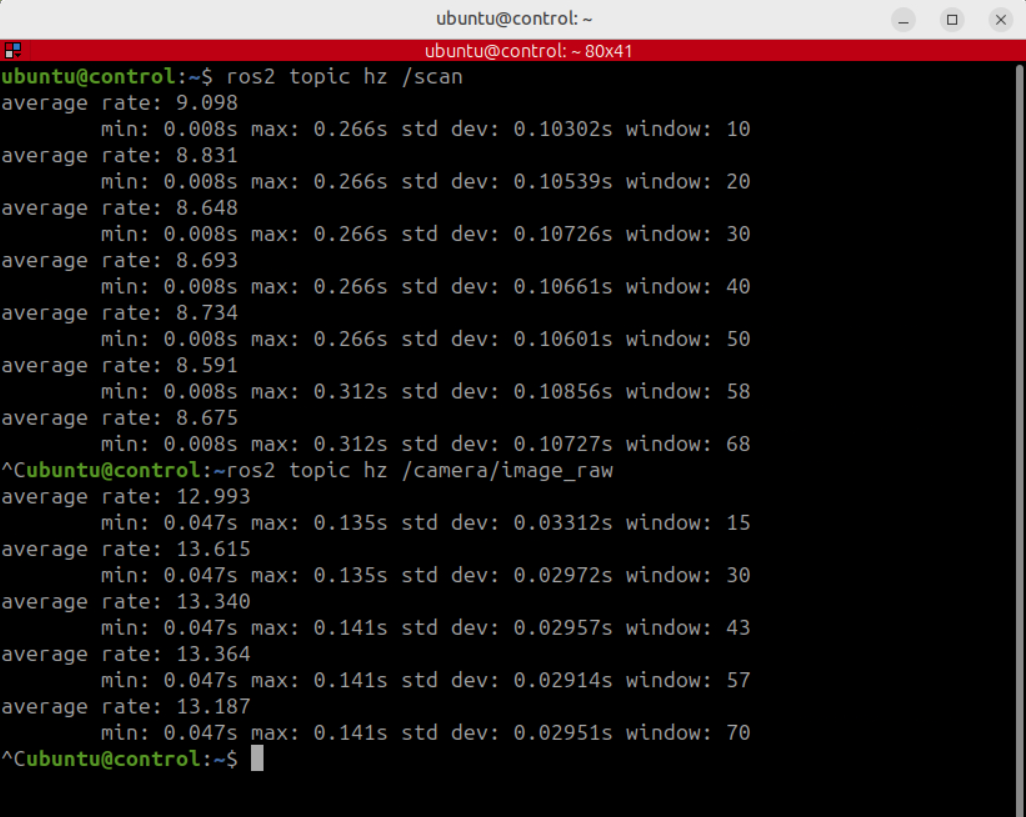 Control terminal showing data transfer rates in Hz
For demonstrative purposes, an NVIDIA DGX Spark was used as the Arm server for both this Learning Path and the prerequisite Learning Path. Topic rates might vary on other Arm servers, such as AWS Graviton-based instances.
Run RViz remotely
Open the control desktop at http://<your_arm_server_ip>:6081/. If prompted, enter the password ubuntu.
Don’t expose ports 6080, 6081, or 7447 directly to the public internet. Use a private network or VPN, access ports 6080 and 6081 through an SSH tunnel, and restrict port 7447 to trusted IP addresses or subnets using firewall rules.
Start RViz in the control container after opening a terminal in the control desktop:
just rviz_nav2
RViz now subscribes to the map, transforms, laser scans, costmaps, and robot state across the client connection. The simulation and Navigation2 remain in the robot container.
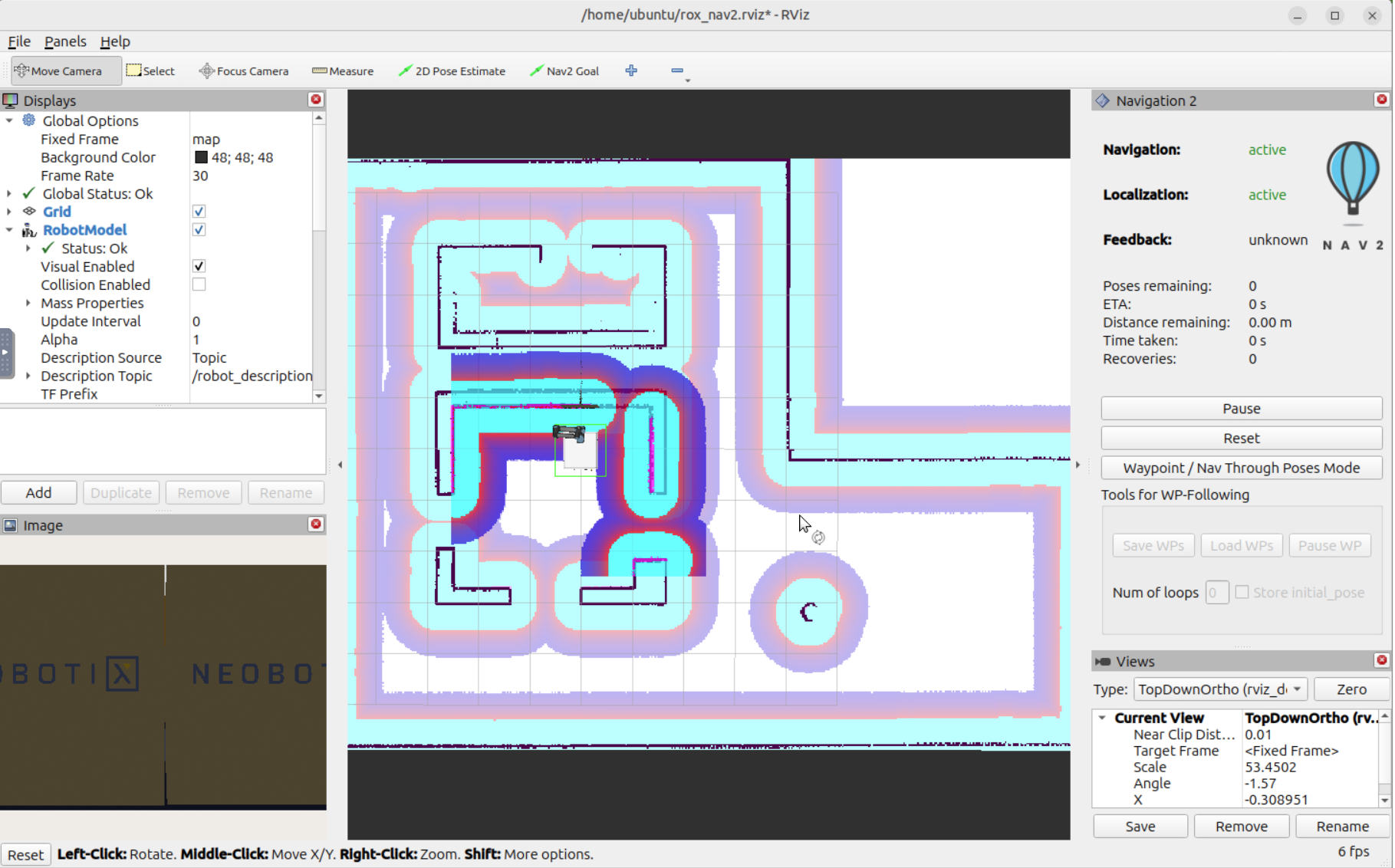 RViz window opened from the control terminal
This demonstrates the first distributed boundary: the visualization process and the simulated robot are in separate container network namespaces, while ROS 2 communication continues through rmw_zenoh.
What you’ve accomplished and what’s next
You’ve configured the control container as a Zenoh client and run RViz remotely.
Next, you’ll connect a Raspberry Pi to the Arm server over a physical network.