Deploy containerized workloads to Arm-based Linux targets with Topo
Introduction
Install Topo on your host machine
Use Topo to assess target compatibility
Deploy a compatible containerized workload with Topo
(Optional) Use the Topo VS Code extension
Next Steps
Deploy containerized workloads to Arm-based Linux targets with Topo
Use Topo from VS Code
You have used the Topo CLI to check your target, list compatible projects, clone a project, deploy the workload, and inspect the running application.
You can also perform the same workflow from Visual Studio Code using the Topo extension . The extension provides a graphical interface for Topo deployment.
Install the extension
Install the Topo extension from the Visual Studio Marketplace using the link above.
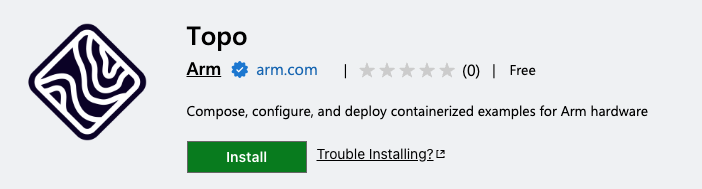 Topo extension install page for Visual Studio Code
A guide is provided on the extension page, but some brief steps are also shown here. If you are familiar with Topo CLI, you should have little trouble using the extension. After installation, open the Topo view from the VS Code activity bar.
Add and inspect a target
The Topo sidebar shows your host by default. Use the sidebar to also add your Arm-based Linux target. The target is the same SSH destination you used with the CLI, for example user@my-target.
The extension shows the host and target state, available Topo actions, and deployed applications, providing similar insights to topo health and topo ps.
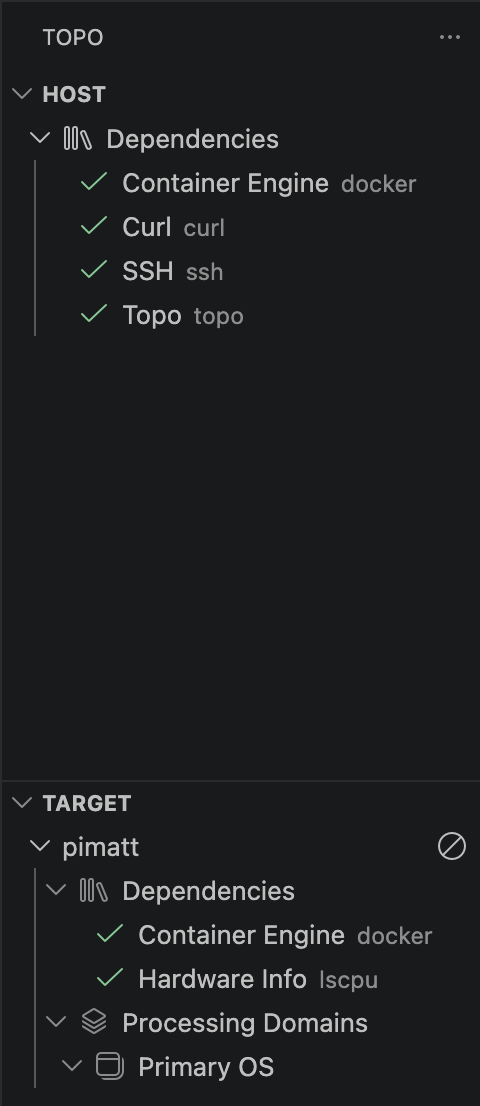 Topo sidebar in Visual Studio Code
Run Topo commands
The command palette exposes the usual Topo commands such as listing compatible projects, cloning projects, and deploying projects.
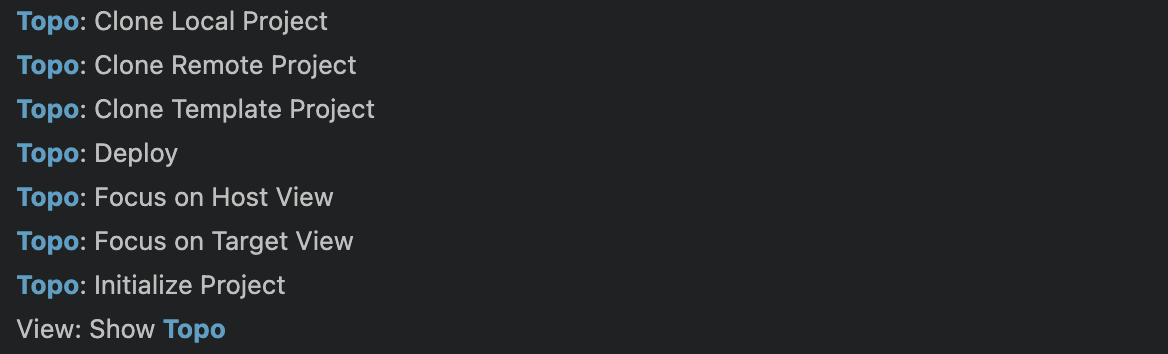 Topo commands in Visual Studio Code
These commands correspond to the CLI commands you used earlier, such as:
topo projects --target user@my-target
topo clone <project-url>
topo deploy --target user@my-target
Deploy from VS Code
After cloning or selecting a Topo Project, you can deploy it. Open or clone the LLM chat example, then deploy it using the VS Code extension.
 Deploy a Topo workload from Visual Studio Code
When deployment completes, you will see the processes running on the target in the Topo sidebar:
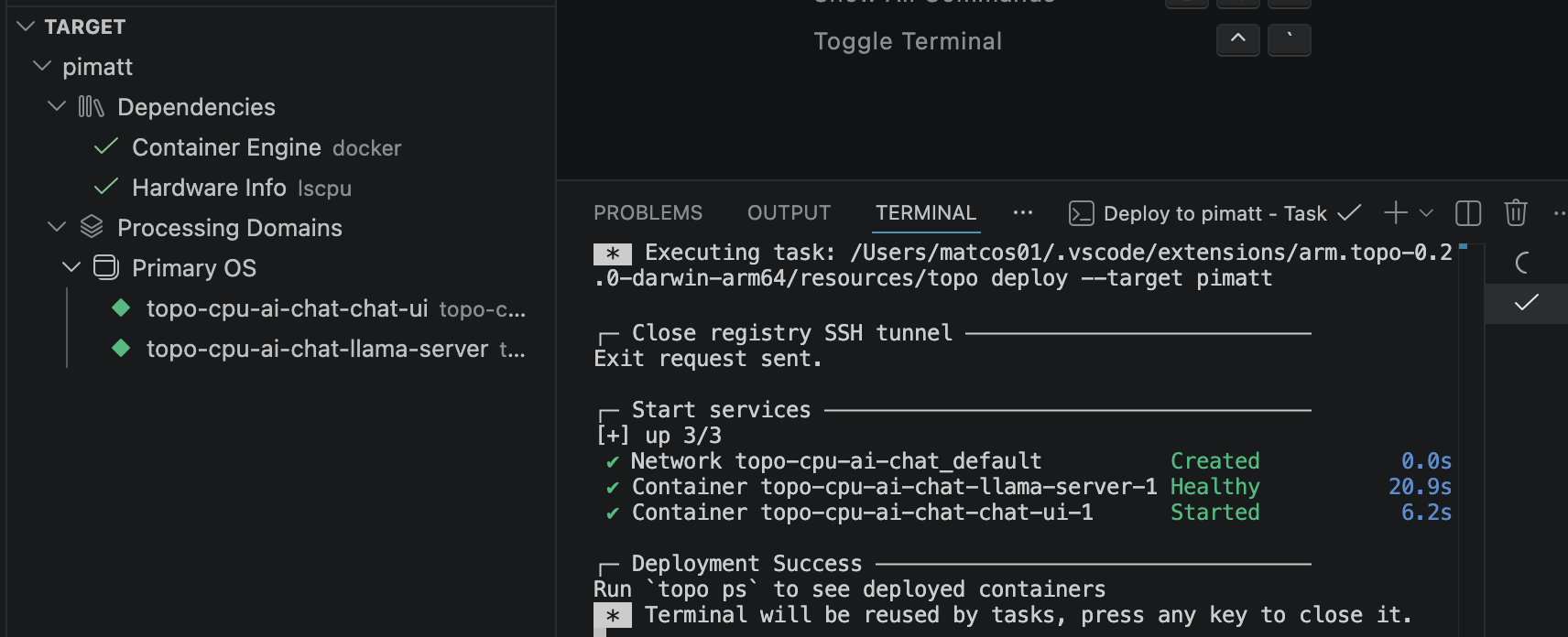 Deployed LLM chatbot processes in the Topo VS Code extension
Open the application in your browser just as you did with the CLI workflow:
http://<target-ip>:8080
What you’ve accomplished
You have now seen two ways to deploy Topo workloads: directly from the command line and from Visual Studio Code. Both approaches use the same target checks, project metadata, and deployment flow, so you can choose the interface that best fits your workflow.