Deploy containerized workloads to Arm-based Linux targets with Topo
Introduction
Install Topo on your host machine
Use Topo to assess target compatibility
Deploy a compatible containerized workload with Topo
(Optional) Use the Topo VS Code extension
Next Steps
Deploy containerized workloads to Arm-based Linux targets with Topo
Choose a starter project and clone it
In this Learning Path, you’ll use the LLM chat project to explore the workflow. The same steps apply to all Topo Projects.
To clone the project onto your host device, run:
topo clone https://github.com/Arm-Examples/topo-llama-web-ui.git
Topo copies the project and configures any project parameters. This project provides defaults, so you can deploy it immediately after cloning.
The output is similar to:
        ┌─ Copy files ──────────────────────────────────────────
Cloning into 'topo-llama-web-ui'...

┌─ Configure project ───────────────────────────────────

┌─ Project ready ───────────────────────────────────────
Created in 'topo-llama-web-ui'

Now run:
  cd topo-llama-web-ui
  topo deploy
This creates a project directory from the Topo Project. The directory contains project source files and compose.yaml.
The following is an example compose.yaml file for the LLM chat application:
services:
  llama-server:
    platform: linux/arm64
    build:
      context: ./llama-inference
      args:
        MODEL: unsloth/SmolLM2-135M-Instruct-GGUF
    ports:
      - "8080:8080"
    healthcheck:
      test: ["CMD", "curl", "-f", "http://localhost:8080/health"]
      interval: 10s
      timeout: 5s
      retries: 3
      start_period: 300s
x-topo:
  name: "Topo llama.cpp WebUI Chat"
  description: |
    LLM chat application with Arm CPU inference provided by llama.cpp.

    This project demonstrates running large language models on CPU
    with inference provided by the llama.cpp server.

    The upstream Linux Arm64 image includes architecture-specific CPU
    backend variants for Armv8.0 baseline, Armv8.2 dot product/FP16/SVE,
    Armv8.6 int8 matrix multiply/SVE2, and Armv9.2 SME-capable CPUs.
  deployment_success_message: |
    Topo llama.cpp WebUI Chat is running.

    Open http://<target-ip>:8080 in your browser to start chatting.
  parameters:
    MODEL:
      description: "Model artifact reference. Use a Hugging Face GGUF repo ID, repo ID plus filename separated by ':', or a direct .gguf URL."
      default: "unsloth/SmolLM2-135M-Instruct-GGUF"
      example: "unsloth/SmolLM2-135M-Instruct-GGUF:SmolLM2-135M-Instruct-Q4_K_M.gguf"
      hints:
        huggingface.task: text-generation
        file.format: gguf
You can edit compose.yaml at any time to adjust build arguments, such as switching to a different GGUF model.
Deploy the app on the target
On your host device, enter the project directory created by the topo clone command:
cd topo-llama-web-ui/
Then, use topo deploy to build the container images on the host, transfer them to the target over SSH, and start the application on the target:
topo deploy --target user@my-target
The output is similar to:
        ┌─ Start services ──────────────────────────────────────
[+] up 2/2
 ✔ Network topo-llama-web-ui_default          Created
 ✔ Container topo-llama-web-ui-llama-server-1 Healthy
After deployment is complete, access the web application by opening a browser and navigating to http://<ip_address_of_target>:<port_number>, where <port_number> matches the port exposed by your project. For this LLM chat project, the port is 8080. You can find the port in the compose.yaml file for your project.
The LLM chat application appears as follows:
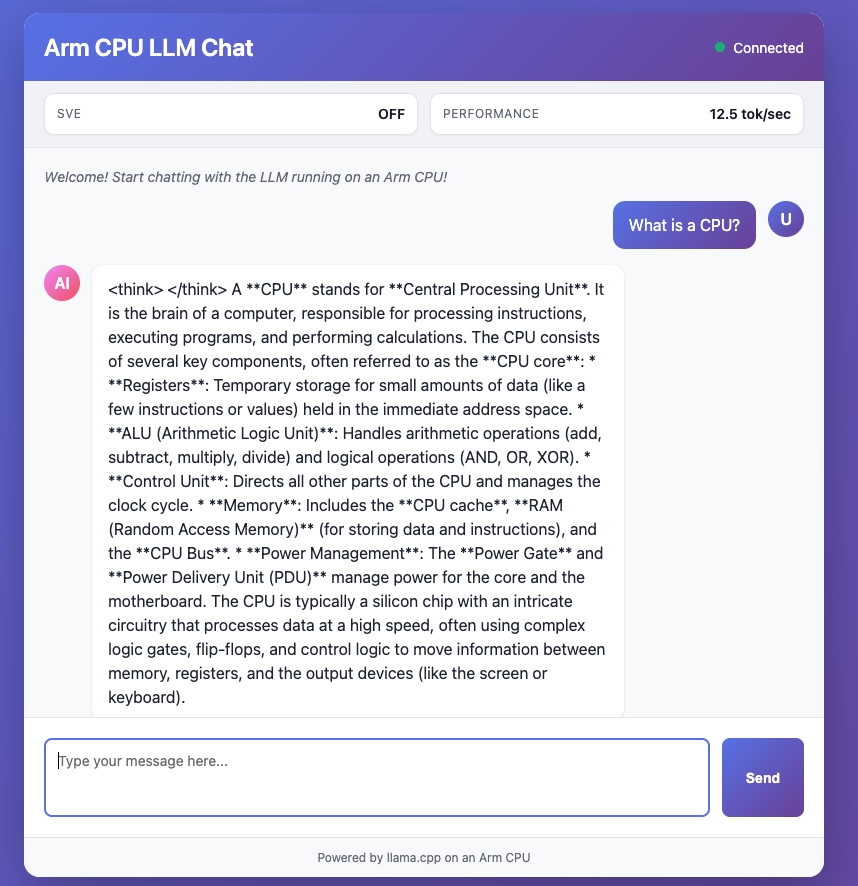 LLM Chatbot web interface on Arm target
If the target is not directly accessible from your browser (for example, if it is behind a NAT or you prefer not to open inbound firewall ports), use SSH port forwarding to tunnel the connection to your local machine:
ssh -L <port_number>:localhost:<port_number> user@my-target
Then, open http://localhost:<port_number> in your browser.
To stop a deployed Topo application on the target, run topo stop on the host:
topo stop --target user@my-target
(Optional) Deploy with a CLI agent
Topo is well-suited for use with CLI agents. It ships as a single executable alongside a README.md that describes all commands and flags. You can also pass --output json to any Topo command for machine-readable output that agents can parse reliably.
Before starting, confirm that your host and target are set up with the required dependencies as described in the previous sections.
If you don’t already have a CLI agent installed, see one of these install guides:
With your agent ready, you can delegate the full workflow using a prompt. For example:
Use Topo to deploy a containerized workload to my Arm target at user@my-target. Run a health check first, list compatible projects, choose a suitable one, clone it, and deploy it.
The agent reads the Topo README.md, runs health checks, selects a project, and deploys it end-to-end with minimal manual input.
What you’ve accomplished and what’s next
You have now deployed a containerized workload to your Arm-based Linux target using Topo. You validated the deployment by accessing the application in a web browser. You also learned how to stop the deployment and forward ports if needed.
Next, you can try the same workflow in Visual Studio Code using the Topo extension, or explore modification and creation of Topo Projects in the follow-up Learning Path: Create and deploy a custom Topo Project .