Make the greeting emoji configurable
In the previous section, you cloned and deployed the “Hello World” Topo Template. In this section, you’ll modify the template so the greeting emoji can be configured when someone clones it.
Add a new template argument
On your host machine, navigate to the “Hello World” Topo Template directory:
cd ~/topo-welcome
Open the compose.yaml file in the text editor of your choice.
Find the args section under x-topo. It currently contains the GREETING_NAME argument:
args:
  GREETING_NAME:
    description: The text to use in the greeting message
    required: true
    default: "World"
    example: "Markus"
Add a new GREETING_EMOJI argument as a second clone-time argument after GREETING_NAME under args:
args:
  GREETING_NAME:
    description: The text to use in the greeting message
    required: true
    default: "World"
    example: "Markus"
  GREETING_EMOJI:
    description: The emoji to show next to the greeting
    required: false
    default: "🐳"
    example: "🚀"
The argument is optional, so users can press Enter to accept the default whale emoji.
Make sure that GREETING_NAME and GREETING_EMOJI are indented under args. If they’re aligned with args, Topo won’t detect them as clone-time arguments and won’t prompt for values.
Pass the emoji to the build
In the same compose.yaml file, find the service build arguments:
services:
  app:
    build:
      context: .
      args:
        GREETING_NAME: World
Add GREETING_EMOJI to the build arguments to make the emoji available to the Dockerfile when Topo builds the application image:
services:
  app:
    build:
      context: .
      args:
        GREETING_NAME: World
        GREETING_EMOJI: "🐳"
Replace the hard-coded emoji in the web application
Open src/index.html, the HTML file used by the web application, in a text editor of your choice.
Find the line with the hard-coded emoji:
<span class="emoji floating">🐳</span>
Replace it with the GREETING_EMOJI variable from the Topo Template:
<span class="emoji floating">{{GREETING_EMOJI}}</span>
Topo replaces {{GREETING_EMOJI}} with the value provided during topo clone.
Update the Dockerfile
Open the Dockerfile, which is inside the topo-welcome directory. It currently defines GREETING_NAME as a build argument and uses sed to replace the {{GREETING_NAME}} placeholder:
ARG GREETING_NAME="World"

RUN sed -i "s|{{GREETING_NAME}}|${GREETING_NAME}|" /usr/share/nginx/html/index.html
Add a GREETING_EMOJI build argument, then add a second sed command to replace the {{GREETING_EMOJI}} placeholder:
FROM nginx:alpine

COPY src/index.html /usr/share/nginx/html/index.html

ARG GREETING_NAME="World"
ARG GREETING_EMOJI="🐳"

RUN sed -i "s|{{GREETING_NAME}}|${GREETING_NAME}|" /usr/share/nginx/html/index.html
RUN sed -i "s|{{GREETING_EMOJI}}|${GREETING_EMOJI}|" /usr/share/nginx/html/index.html
Clone the modified Topo Template
Create a new directory for a fresh clone of your modified local Topo Template:
mkdir -p ~/topo-new-welcome/
Clone the local template into the new directory:
topo clone dir:$(pwd) ~/topo-new-welcome/topo-welcome
Topo prompts for the configured template arguments. You’ll now see prompts for both GREETING_NAME and GREETING_EMOJI. Use the default value for GREETING_NAME and the example value for GREETING_EMOJI:
        ┌─ Copy files ──────────────────────────────────────────

┌─ Input args ──────────────────────────────────────────
Provide: The text to use in the greeting message
Example: Markus
Default: World
GREETING_NAME (required)>

Provide: The emoji to show next to the greeting
Example: 🚀
Default: 🐳
GREETING_EMOJI (optional)> 🚀
When cloning completes, Topo creates the new project in ~/topo-new-welcome/topo-welcome.
Deploy the modified Topo Template
Deploy the updated Topo Template to the target:
cd ~/topo-new-welcome/topo-welcome
topo deploy --target user@my-target
Visualize the application
If the target is reachable on your network, open http://<target-ip-address>:8000/ in your browser. You can also forward the port over SSH:
ssh -L 8000:localhost:8000 user@my-target
Then open http://localhost:8000/ in your browser.
The “Hello World” application appears as follows:
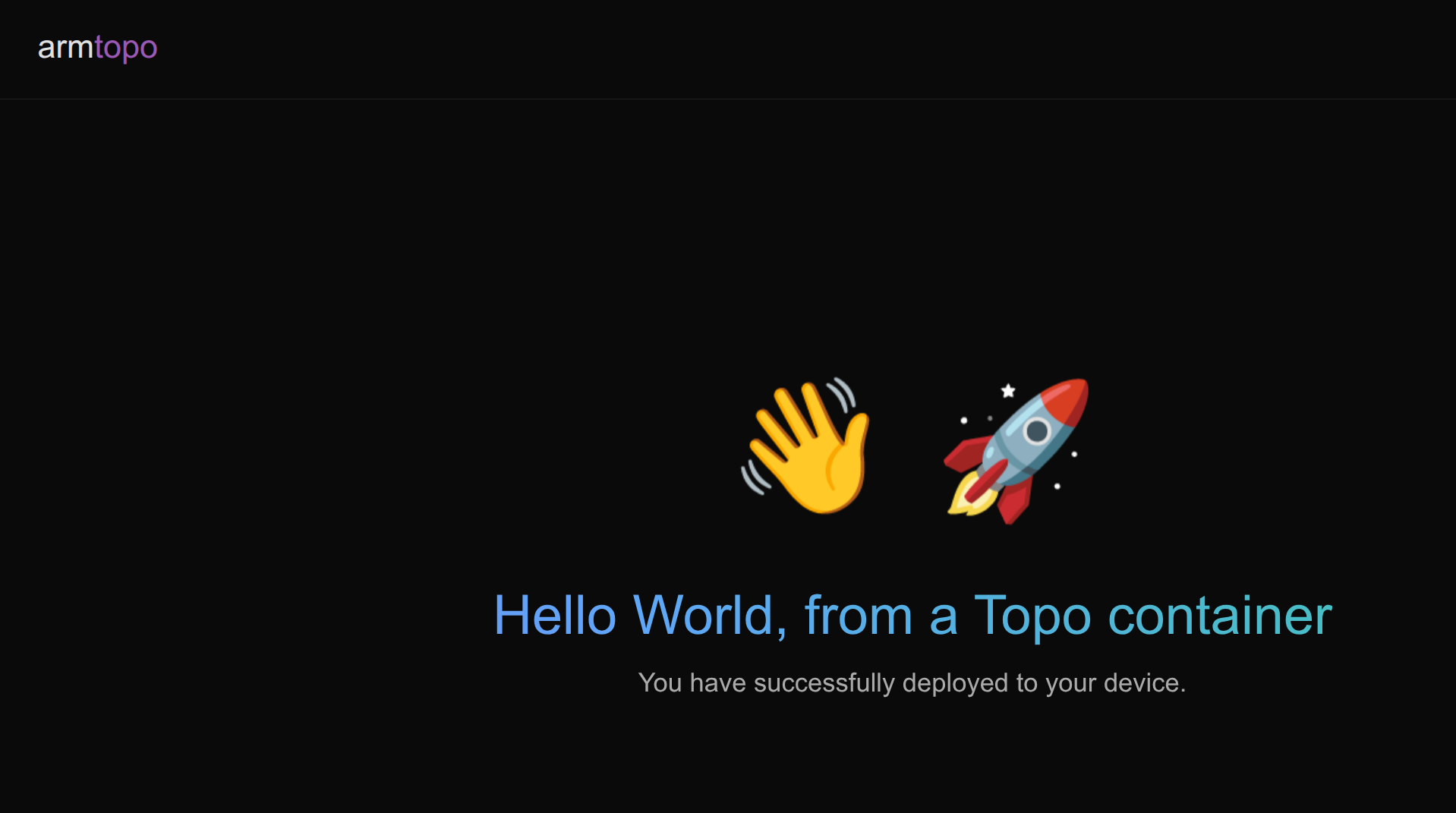 Hello World web interface - with new emoji argument
What you’ve accomplished and what’s next
You’ve now modified the “Hello World” Topo Template to add a new optional clone-time argument, updated the Dockerfile to consume the argument, and deployed the result to your Arm-based Linux target.
Next, you’ll create a new Topo Template from scratch.