Clone the Hello World Topo Template
On your host machine, use the terminal to clone the “Hello World” Topo Template into your home directory to confirm your setup:
topo clone https://github.com/Arm-Examples/topo-welcome.git ~/topo-welcome
The “Hello World” Topo Template follows the same deployment pattern as the “CPU LLM Chat” Topo Template covered in Deploy containerized workloads to Arm-based Linux targets with Topo .
The output is similar to:
        ┌─ Copy files ──────────────────────────────────────────
Cloning into '/home/user/topo-welcome'...
remote: Enumerating objects: 12, done.
remote: Counting objects: 100% (12/12), done.
remote: Compressing objects: 100% (9/9), done.
remote: Total 12 (delta 0), reused 8 (delta 0), pack-reused 0 (from 0)
Receiving objects: 100% (12/12), 62.64 KiB | 2.61 MiB/s, done.

┌─ Input args ──────────────────────────────────────────
Provide: The text to use in the greeting message
Example: Markus
Default: World
GREETING_NAME (required)>
Provide a name for the GREETING_NAME argument, for example, Tomas, and then Press Enter.
The output is similar to:
        ┌─ Project ready ───────────────────────────────────────
Created in '/home/user/topo-welcome'

Now run:
  cd ~/topo-welcome
  topo deploy
Prepare your target
Topo Templates are meant to be deployed to Arm-based Linux targets. In this Learning Path, use the Arm-based Linux target you prepared in the previous Learning Path. The target can be a Raspberry Pi, an Arm-based Amazon EC2 instance, or another Arm-based Linux target accessible over SSH.
Confirm that Topo can inspect your target, and that there are no compatibility issues:
topo health --target user@my-target
If your host machine is a Linux machine and you want to use it as the target, you can use --target localhost.
Deploy the template to your target
You can now deploy the project to your target:
cd ~/topo-welcome
topo deploy --target user@my-target
Wait for the build and deploy to complete.
The output is similar to:
        ┌─ Build images ────────────────────────────────────────
[+] Building 6.4s (11/11) FINISHED
 => [internal] load local bake definitions    0.0s
 => => reading from stdin 654B    0.0s
 => [internal] load build definition from Dockerfile    0.0s
 => => transferring dockerfile: 223B    0.0s
 => [internal] load metadata for docker.io/library/nginx:alpine    1.4s
 => [internal] load .dockerignore    0.1s
 => => transferring context: 2B    0.0s
 => [internal] load build context    0.1s
 => => transferring context: 3.76kB    0.0s
 => [1/3] FROM docker.io/library/
 (...)

 [+] build 1/1
 ✔ Image topo-welcome-app Built    6.4s

┌─ Pull images ─────────────────────────────────────────

┌─ Start services ──────────────────────────────────────
[+] up 2/2
┌─ Deployment Success ──────────────────────────────────  0.1s
Run `topo ps` to see deployed containers    0.2s
Confirm that the container is running correctly:
topo ps --target user@my-target
The topo ps command lists the services that Topo deployed to the target.
The output is similar to:
        Image              Status                  Processing Domain   Address
topo-welcome-app   Up 58 seconds           Linux Host          my-target:8000, [::]:8000
The columns show:
Image: the container image or service that Topo startedStatus: whether the service is running, and how long it has been runningProcessing Domain: where the workload is running, such as the Linux host on the targetAddress: the exposed address and port for the service
View the application
If the target is reachable on your network, open http://<target-ip-address>:8000/ in your browser.
If you prefer to forward the port over SSH, run:
ssh -L 8000:localhost:8000 user@my-target
Then open http://localhost:8000/ in your browser.
The “Hello World” application appears as follows:
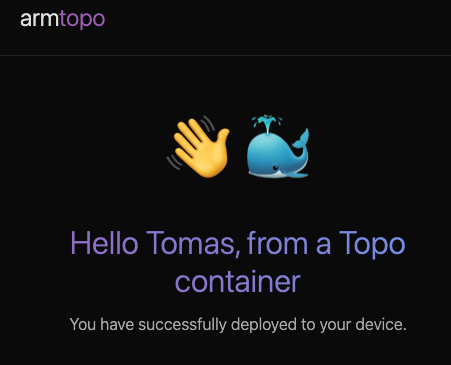 Hello World web interface
What you’ve accomplished and what’s next
You’ve now deployed the “Hello World” Topo Template to an Arm-based Linux target and confirmed the application is accessible in your browser.
Next, you’ll modify the template to add a new configurable clone-time argument.