Build an edge AI Reachy Mini app with Raspberry Pi, MediaPipe, and MuJoCo
Introduction
Learn about Reachy and the Reachy Gladiator application
Start the Reachy simulation on MuJoCo
Set up the Raspberry Pi and run the edge AI app
Use the Reachy Gladiator application
Understand the Reachy Gladiator application code
(Optional) Extend the project
Next Steps
Build an edge AI Reachy Mini app with Raspberry Pi, MediaPipe, and MuJoCo
Open the application dashboard
If you’re connected to the Raspberry Pi with VS Code Remote SSH, VS Code can forward the dashboard port to your laptop. Open the dashboard from your laptop browser:
http://localhost:8042
If you aren’t using Remote SSH port forwarding, use the Pi IP address directly.
Find the Raspberry Pi IP address:
hostname -I
Then open the dashboard from any browser on the same network:
http://<pi-ip-address>:8042
This method works even when the Pi is headless. The browser needs network access only
to the Pi and port 8042.
Control Reachy with thumbs-up and thumbs-down gestures
The app will count down from 10, and then Reachy will start performing moves. Reachy will perform the same move three times, and then await your thumbs-up or thumbs-down verdict. After you give a verdict, Reachy will perform the victory or defeat moves. Reachy will then randomly select another move, and the cycle repeats.
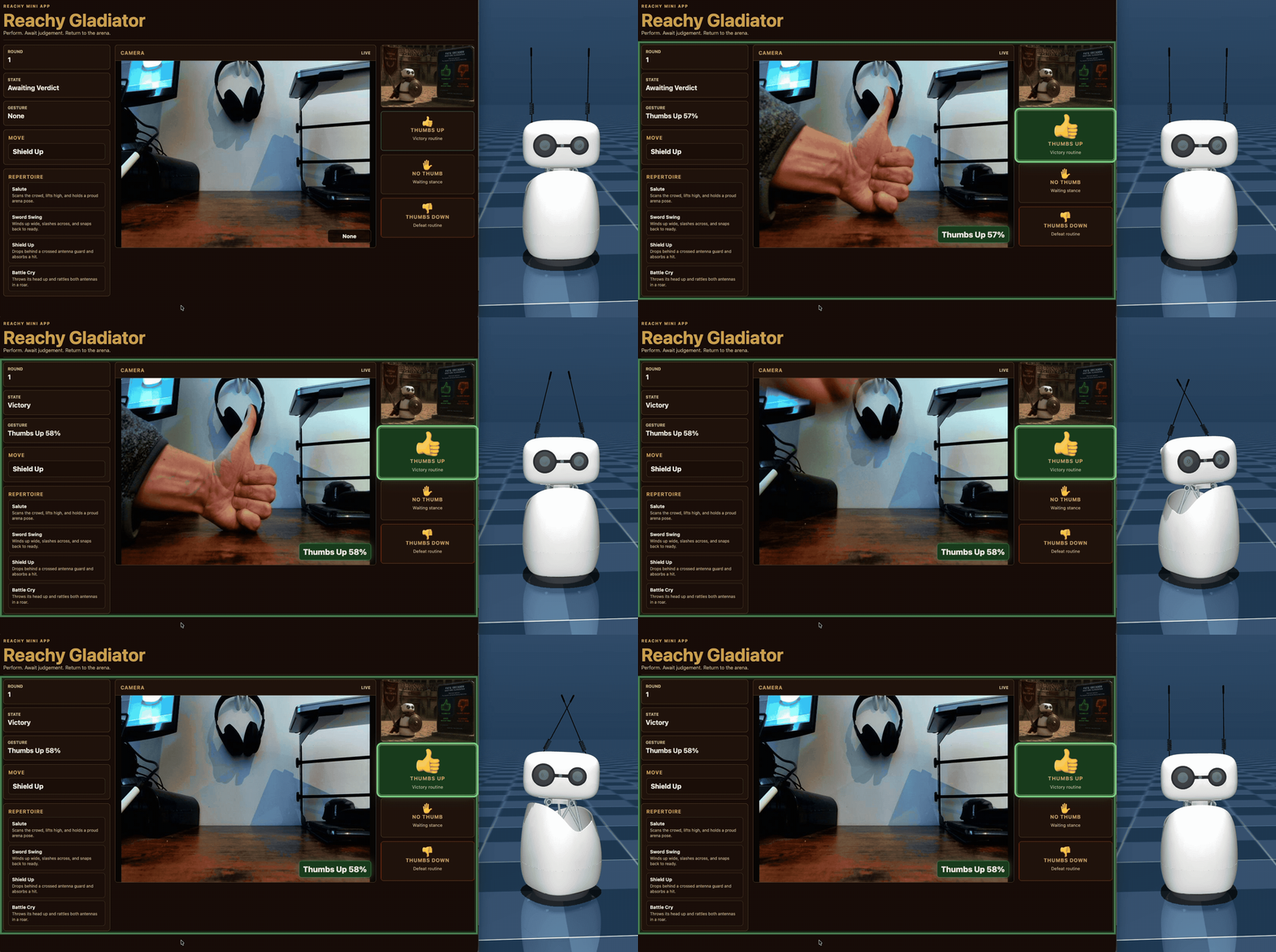 Thumbs up victory
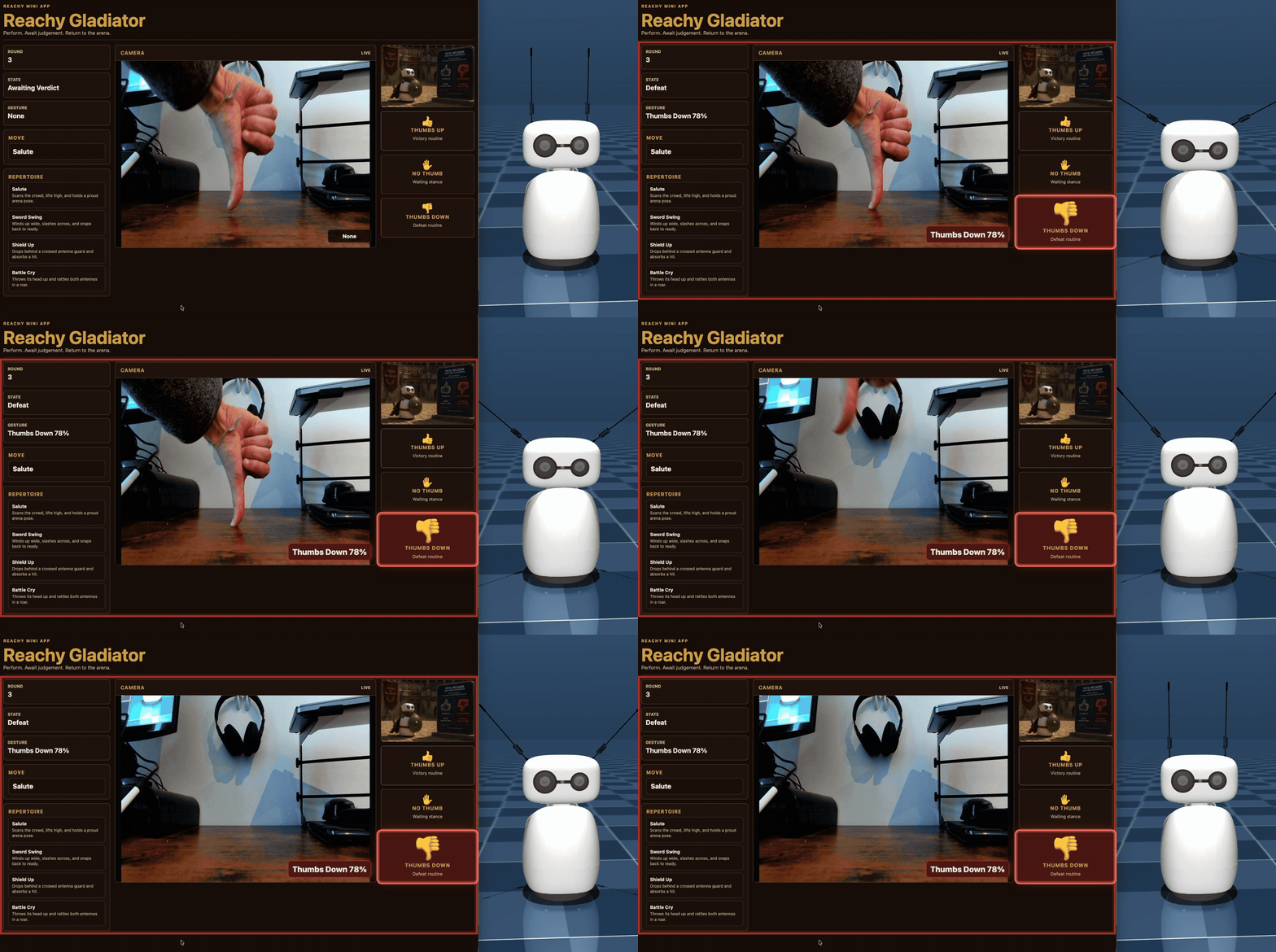 Thumbs down defeat
When you’re finished with the Pi app, you can stop it with Ctrl+C in the terminal that you ran the application from.
What you’ve accomplished and what’s next
You’ve now opened the dashboard, watched the live camera and app state, given thumbs-up and thumbs-down verdicts, and seen how edge AI gesture recognition changes Reachy’s next action. This is a simple application premise using vision to control expressive robot outputs.
Next, you’ll learn how the app works.