Deploy an AWS IoT Greengrass custom component to Arm devices and verify PAC/BTI support
Introduction
Understand AWS IoT Greengrass and Armv9 PAC/BTI security features
Set up a Raspberry Pi 5 as an AWS IoT Greengrass core device
Set up a Jetson Thor as an AWS IoT Greengrass core device
Create an AWS IoT Greengrass custom component
Deploy the AWS IoT Greengrass custom component
Verify PAC/BTI support on your devices using MQTT
Next Steps
Deploy an AWS IoT Greengrass custom component to Arm devices and verify PAC/BTI support
Introduction
Understand AWS IoT Greengrass and Armv9 PAC/BTI security features
Set up a Raspberry Pi 5 as an AWS IoT Greengrass core device
Set up a Jetson Thor as an AWS IoT Greengrass core device
Create an AWS IoT Greengrass custom component
Deploy the AWS IoT Greengrass custom component
Verify PAC/BTI support on your devices using MQTT
Next Steps
Create a custom component to test PAC/BTI
In this section, you’ll create an AWS IoT Greengrass custom component that uses an artifact package to test PAC/BTI support on target Arm devices.
Upload the component artifact to Amazon S3
Create an Amazon S3 bucket and upload the component artifact:
- In the AWS Console, go to S3.
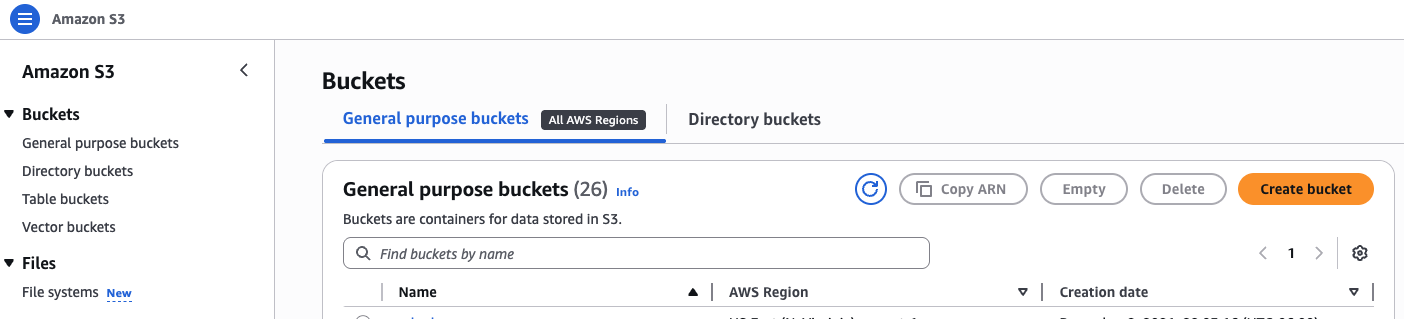 AWS S3 console
- Create a bucket and give it a name. Keep the default settings for this tutorial.
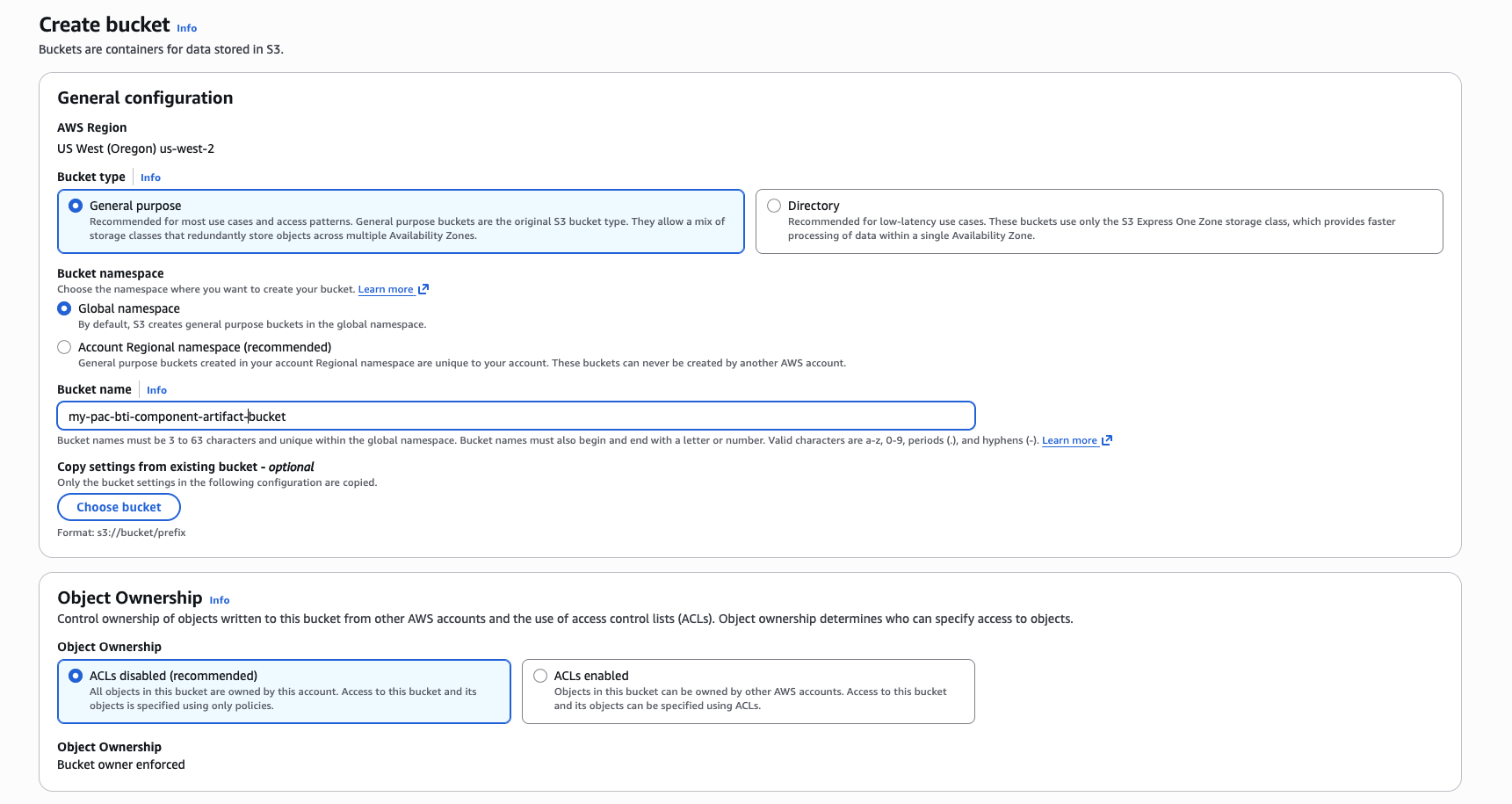 S3 bucket creation form
- Select Create bucket.
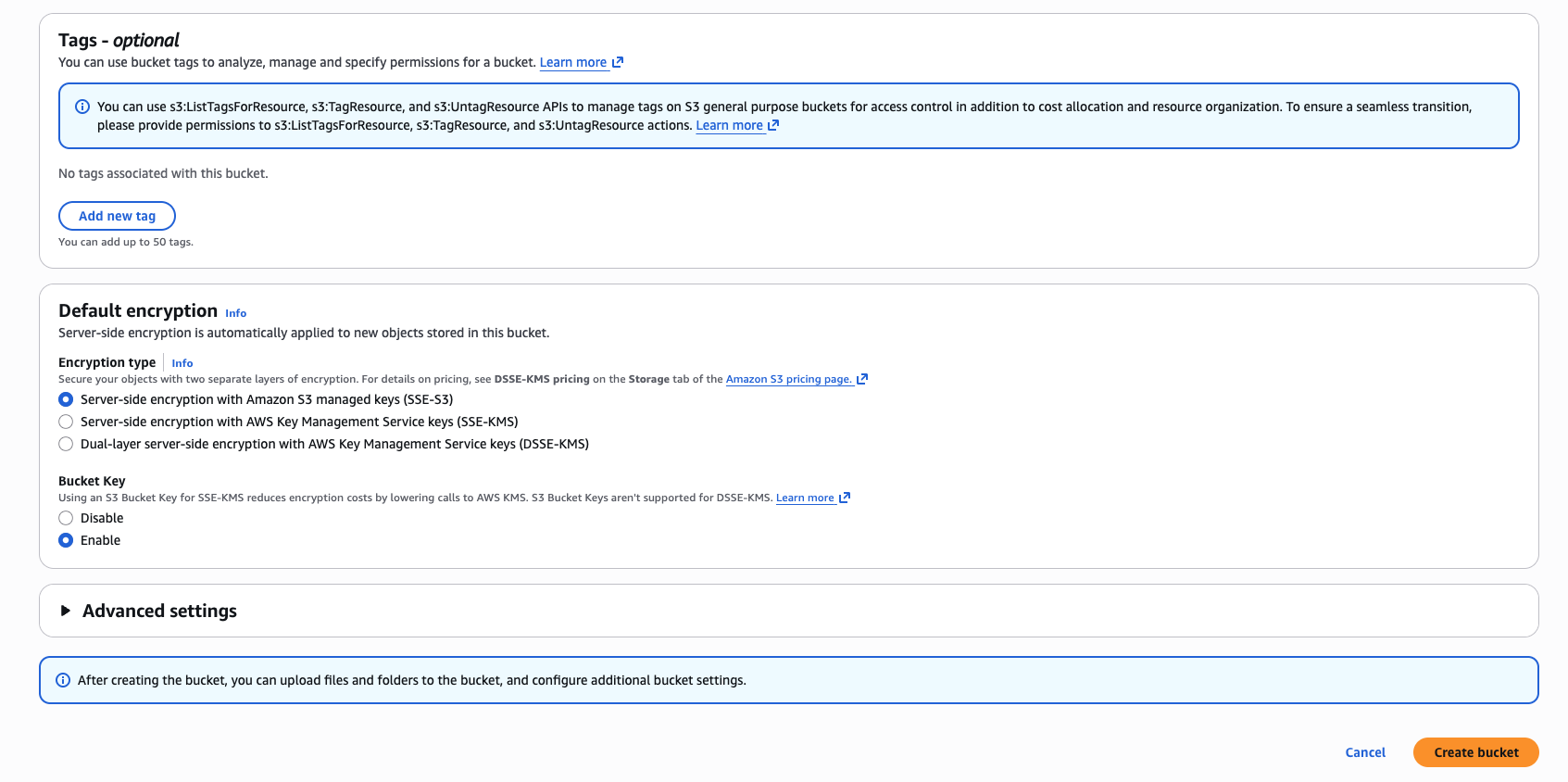 New S3 bucket created
Record the bucket name. You’ll use it in the YAML recipe.
On your local machine, clone the asset repository:
cd $HOME
git clone https://github.com/DougAnsonAustinTx/pac-bti-gg-assets
cd ./pac-bti-gg-assets
In the S3 bucket view, select Upload. Upload the following artifact from the cloned repository:
arm-pac-bti-greengrass-demo-mqtt-trigger.zip
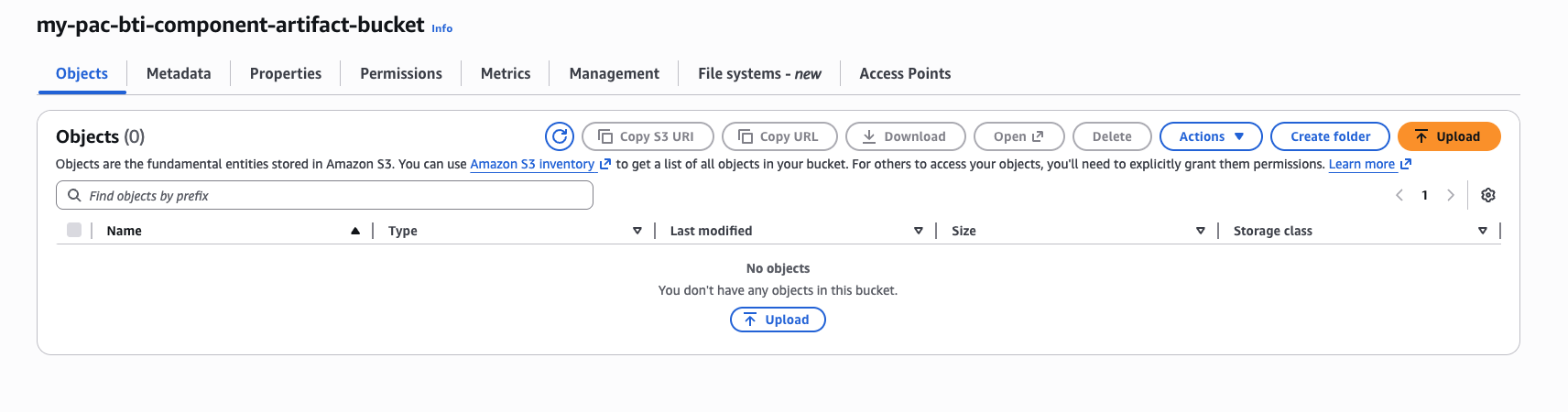 S3 bucket upload view
- Select Add files, choose the artifact, and then select Upload.
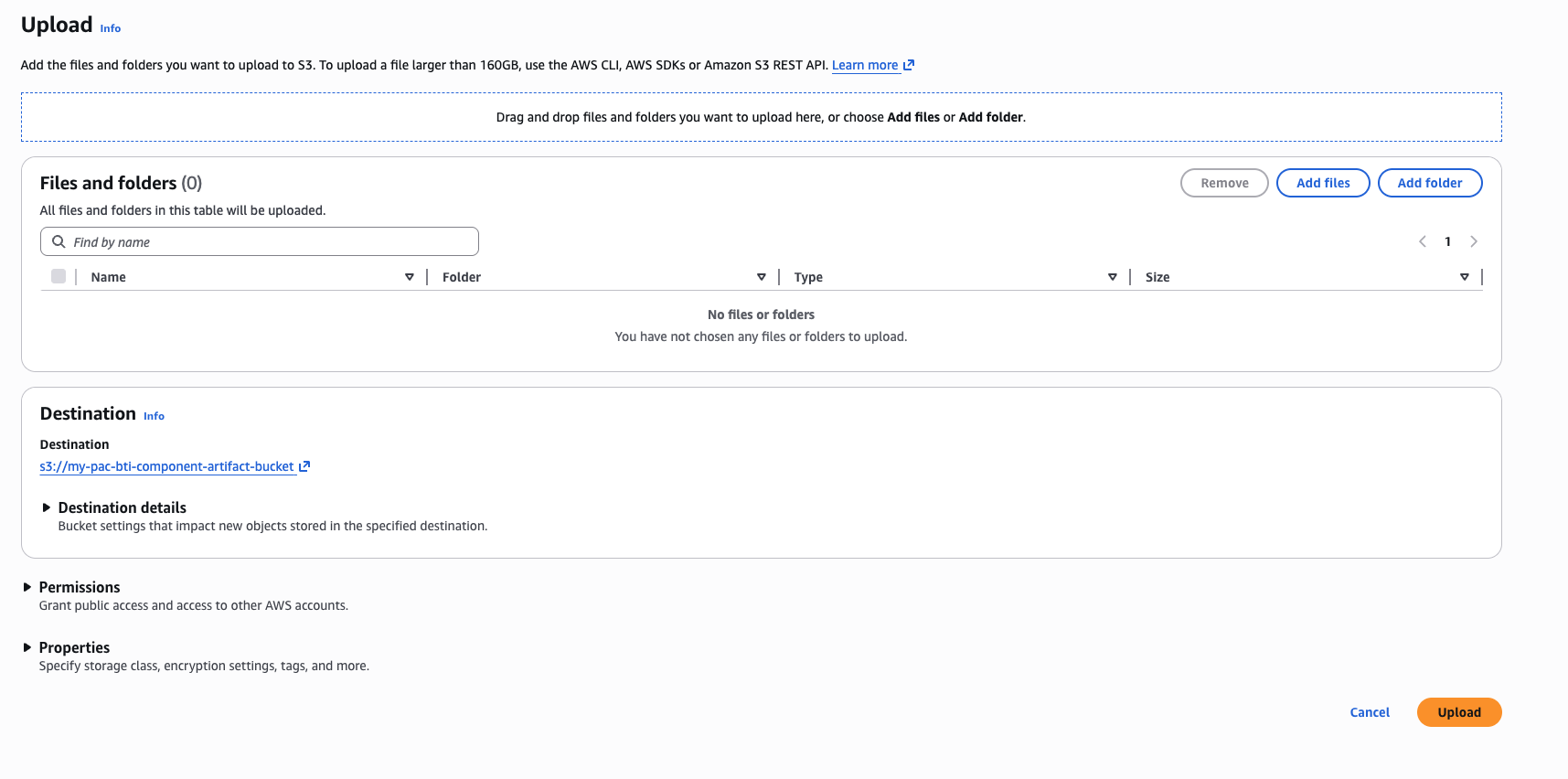 S3 upload dialog with artifact selected
Your artifact is now available in S3. Next, create the custom Greengrass component.
Create the custom component
Create a custom component in AWS IoT Greengrass:
In the AWS Console, go to IoT Core > Greengrass devices and select Components.
Select Create component.
 Greengrass Components page
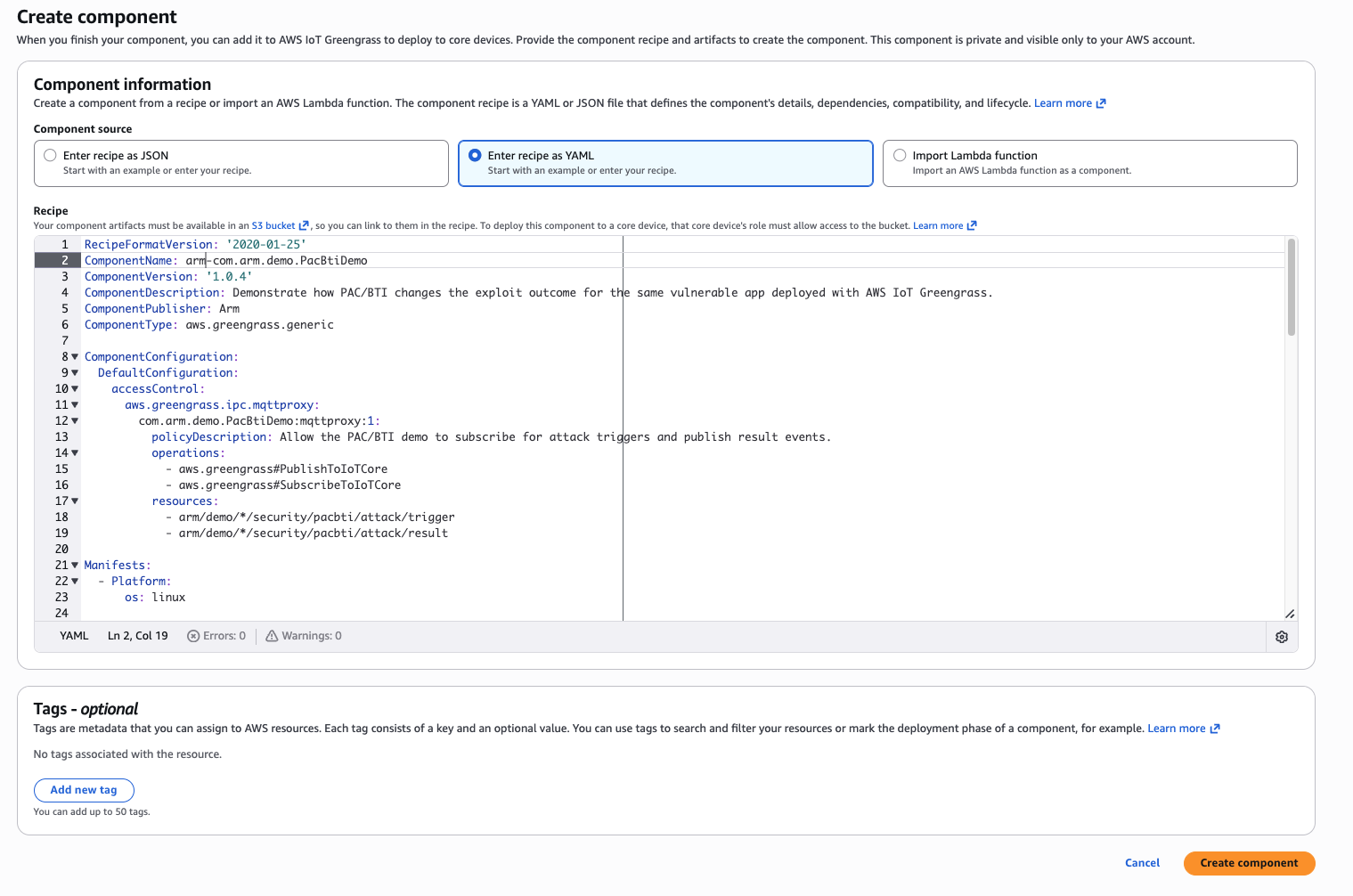
- Select Enter recipe as YAML and clear the default sample content.
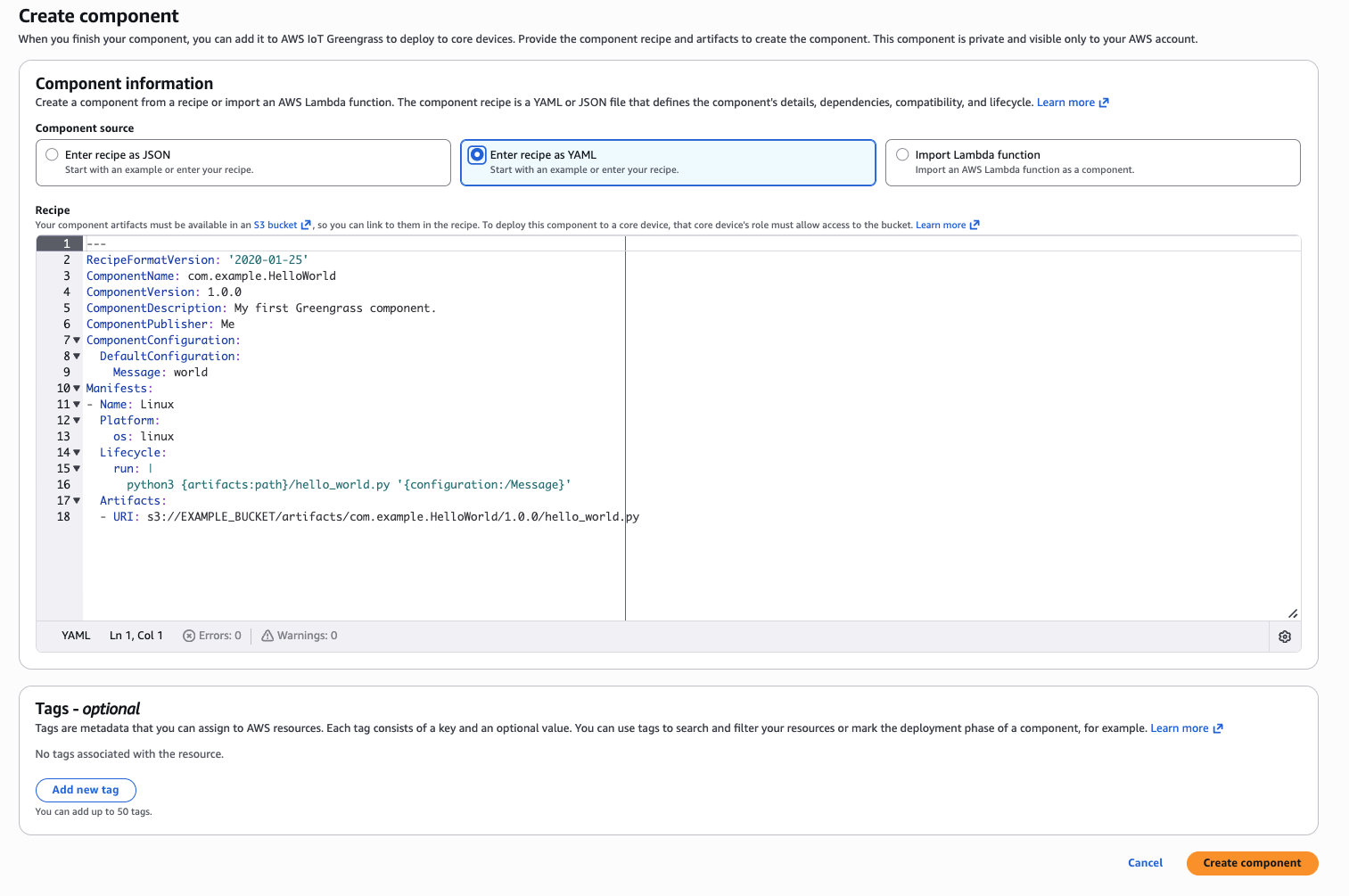 Greengrass YAML recipe editor
- Copy and paste the following YAML recipe into the editor.
In the following YAML code, locate YOUR_S3_BUCKET and replace it with the name of the S3 bucket that you created in the previous step.
RecipeFormatVersion: '2020-01-25'
ComponentName: arm-com.arm.demo.PacBtiDemo
ComponentVersion: '1.0.4'
ComponentDescription: Demonstrate how PAC/BTI changes the exploit outcome for the same vulnerable app deployed with AWS IoT Greengrass.
ComponentPublisher: Arm
ComponentType: aws.greengrass.generic

ComponentConfiguration:
  DefaultConfiguration:
    accessControl:
      aws.greengrass.ipc.mqttproxy:
        com.arm.demo.PacBtiDemo:mqttproxy:1:
          policyDescription: Allow the PAC/BTI demo to subscribe for attack triggers and publish result events.
          operations:
            - aws.greengrass#PublishToIoTCore
            - aws.greengrass#SubscribeToIoTCore
          resources:
            - arm/demo/*/security/pacbti/attack/trigger
            - arm/demo/*/security/pacbti/attack/result

Manifests:
  - Platform:
      os: linux

    Artifacts:
      - Uri: s3://YOUR_S3_BUCKET/arm-pac-bti-greengrass-demo-mqtt-trigger.zip
        Unarchive: ZIP
        Permission:
          Read: OWNER
          Execute: OWNER

    Lifecycle:
      Install:
        RequiresPrivilege: true
        Script: |-
          set -e

          PROJECT_ROOT="{artifacts:decompressedPath}/arm-pac-bti-greengrass-demo-mqtt-trigger/arm-pac-bti-greengrass-demo"
          WORK_DIR="{work:path}"
          VENV_DIR="{work:path}/venv"

          python3 -m venv "${VENV_DIR}"
          "${VENV_DIR}/bin/python" -m pip install --upgrade pip
          "${VENV_DIR}/bin/pip" install --no-cache-dir awsiotsdk

          bash "${PROJECT_ROOT}/greengrass/install.sh" \
            "${PROJECT_ROOT}" \
            "${WORK_DIR}"

      Run:
        Script: |-
          set -e

          PROJECT_ROOT="{artifacts:decompressedPath}/arm-pac-bti-greengrass-demo-mqtt-trigger/arm-pac-bti-greengrass-demo"
          WORK_DIR="{work:path}"
          VENV_DIR="{work:path}/venv"

          BUILD_FLAVOR="$(cat "${WORK_DIR}/state/selected_flavor")"
          BINARY="${WORK_DIR}/build/${BUILD_FLAVOR}/vuln_demo"
          OUTPUT_DIR="${WORK_DIR}/results"
          THING_NAME="{iot:thingName}"
          TRIGGER_TOPIC="arm/demo/${THING_NAME}/security/pacbti/attack/trigger"
          RESULT_TOPIC="arm/demo/${THING_NAME}/security/pacbti/attack/result"


          mkdir -p "${OUTPUT_DIR}"

          echo "THING_NAME=${THING_NAME}"
          echo "TRIGGER_TOPIC=${TRIGGER_TOPIC}"
          echo "RESULT_TOPIC=${RESULT_TOPIC}"

          if [ ! -x "${VENV_DIR}/bin/python" ]; then
            echo "Virtual environment Python not found at ${VENV_DIR}/bin/python"
            exit 1
          fi

          if [ ! -x "${BINARY}" ]; then
            echo "Binary not found or not executable: ${BINARY}"
            exit 1
          fi

          export PYTHONUNBUFFERED=1

          exec "${VENV_DIR}/bin/python" "${PROJECT_ROOT}/tools/demo_runner.py" \
            --project-root "${PROJECT_ROOT}" \
            --binary "${BINARY}" \
            --build-flavor "${BUILD_FLAVOR}" \
            --output-dir "${OUTPUT_DIR}" \
            --trigger-topic "${TRIGGER_TOPIC}" \
            --result-topic "${RESULT_TOPIC}"
- After you update the bucket name in the YAML, select Create component.
 Greengrass component creation confirmation
- Confirm the custom component appears in the component list.
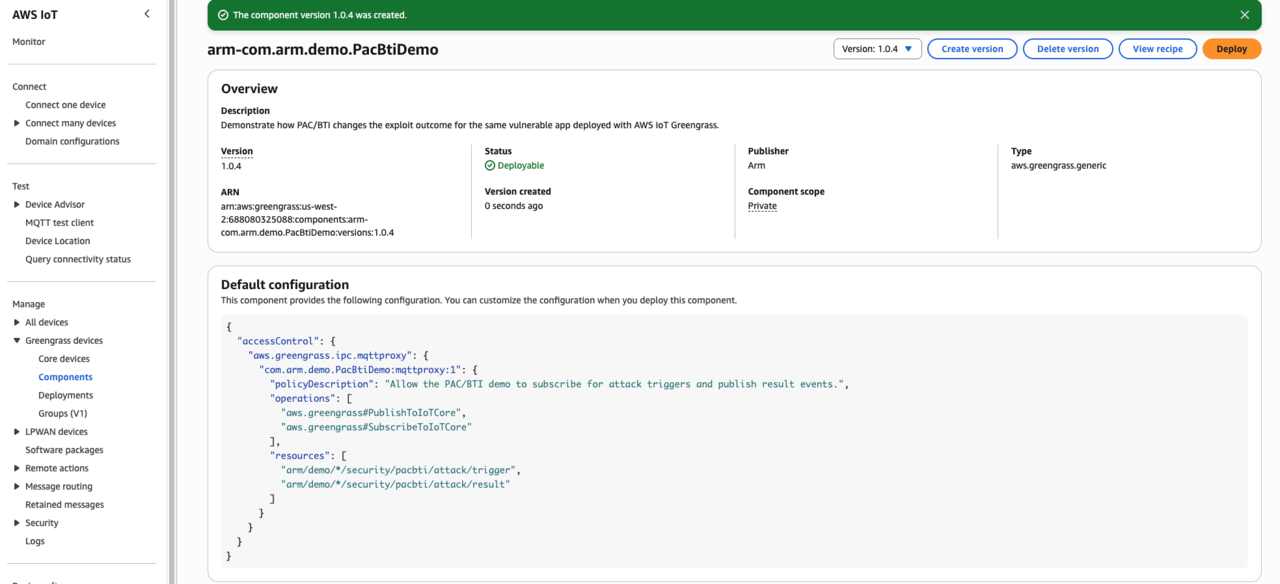 Greengrass component list with new component
Your Greengrass custom component is now ready for deployment.
Explore the PAC/BTI tester artifact
Before deployment, look at some of the details of the PAC/BTI tester artifact that is part of the custom component.
Start by navigating to the cloned repo:
cd $HOME/pac-bti-gg-assets
Next, unzip the PAC/BTI tester artifact to see the files that it contains:
unzip arm-pac-bti-greengrass-demo-mqtt-trigger.zip
cd ./arm-pac-bti-greengrass-demo
Details of the PAC/BTI tester
The PAC/BTI tester is a proof-of-concept that deploys the same vulnerable C application to Armv8 and Armv9 devices through AWS IoT Greengrass. The tester then runs the same exploit attempt and records the outcome.
The intent of the PAC/BTI tester is to demonstrate that:
- an unprotected build can be exploited
- the same source built for Armv9 without branch protection remains exploitable
- the Armv9 build compiled with
-mbranch-protection=standardblocks the exploit from reaching the attacker-controlled function
Invocation and execution model
The component chooses the build flavor at runtime on the target and then waits for an MQTT trigger from AWS IoT Core before it runs the attack.
Selection priority:
armv9-protectedwhen PAC/BTI-related CPU features are detectedarmv9-unprotectedonaarch64when PAC/BTI hints are not detectedarmv8-unprotectedas the fallback
The selector writes its decision into {work:path}/state/ and the Greengrass run step adds that metadata into result.json.
MQTT control plane
Default AWS IoT Core topics:
- test trigger invocation topic:
arm/demo/{iot:thingName}/security/pacbti/attack/trigger - test result topic:
arm/demo/{iot:thingName}/security/pacbti/attack/result
When the component starts, it publishes a ready event on the result topic. A user or test harness then publishes a trigger on the trigger topic. The component then runs the exploit and publishes the JSON result to the result topic.
Example trigger payload:
{
  "action": "run_attack",
  "request_id": "demo-001"
}
PAC/BTI tester directory layout
The PAC/BTI tester project has the following layout:
arm-pac-bti-greengrass-demo/
├── README.md
├── build/
│   ├── build_demo.sh
│   └── detect_capabilities.sh
├── docs/
│   └── deployment_notes.md
├── greengrass/
│   ├── com.arm.demo.PacBtiGreengrassDemo-1.0.0.yaml
│   ├── install.sh
│   ├── run.sh
│   └── select_flavor.sh
├── src/
│   └── vuln_demo.c
└── tools/
    ├── demo_runner.py
    ├── exploit.py
    └── render_results.py
Example result JSON
The result payload includes runtime flavor selection details and the trigger metadata that initiated the attack run.
{
  "runtime_selection": {
    "selected_flavor": "armv9-protected",
    "selection_reason": "PAC/BTI-related CPU features detected",
    "detected_arch": "aarch64",
    "detected_features": ["bti", "paca"]
  },
  "trigger": {
    "source_topic": "arm/demo/myThing/security/pacbti/attack/trigger",
    "payload": {
      "action": "run_attack",
      "request_id": "demo-001"
    }
  }
}
What you’ve accomplished and what’s next
You’ve now created an AWS IoT Greengrass custom component and connected it to the Amazon S3-hosted artifact. You also learned how the PAC/BTI test works.
Next, you’ll deploy the component to both Greengrass core devices.