Locate the ExecuTorch code example on AI Portal
To locate the ExecuTorch image classifier code example in the Arm AI Portal:
- At the top of the AI Portal, next to the menu items AI Portal and Models, select Code.
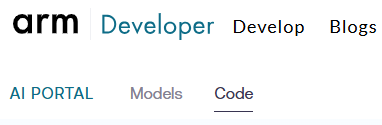 Selecting code examples
You’ll see a mixture of Learning Paths, examples, and documentation.
- In the filters pane, select Containerized examples.
- In the central card area, select Image Classifier (ExecuTorch).
The page includes:
- A description of the code example
- On the right, a Deploy Project box with CLI and VS Code tabs
- A list of build-time parameters
- Build and deploy commands
Install Topo
To deploy using Topo, install Topo on your host using one of the following commands:
curl -fsSL https://raw.githubusercontent.com/arm/topo/refs/heads/main/scripts/install.sh | sh
irm https://raw.githubusercontent.com/arm/topo/refs/heads/main/scripts/install.ps1 | iex
Alternatively, you can find the
latest release of Topo
, download the binary for your platform, and extract it. Topo is a single executable file. Move the file to a directory on your PATH, for example /usr/local/bin/ on Linux and macOS.
Install Docker
To install Docker on Linux, run:
curl -fsSL get.docker.com -o get-docker.sh && sh get-docker.sh
sudo usermod -aG docker $USER ; newgrp docker
For more information, see the Docker install guides .
Test Topo installation
When Topo runs on Windows, macOS, or Linux, it supports deployment only to targets that run Arm Linux. If you deploy to a remote Arm Linux device, you also need to provision keys on the device.
Run one of the following commands to test the Topo installation:
topo health --target localhost
topo setup-keys --target ssh://username@target-ip-address
topo health --target target-ip-address
The output is similar to:
        Host
----
Topo: ✅ (topo)
OpenSSH: ✅ (ssh)
Container Engine: ✅ (docker)
Docker Compose: ✅ (docker-compose)

Target
------
Destination: ssh://localhost
Container Engine: ✅ (docker)
Hardware Info: ✅ (lscpu)
Processing Domain Driver (remoteproc): ℹ️ (no remoteproc devices found)
As of October 2026,
Topo v13.0.0
is the latest stable release. Its topo health command may report Docker Compose as missing because it checks for the legacy docker-compose command, even when the current Docker Compose plugin (docker compose) is installed. If docker compose version reports v2.21.0 or later, you can continue.
(Optional) Install remoteproc
Remoteproc is a Linux kernel framework for managing remote or auxiliary processors in a heterogeneous SoC. If you see the no remoteproc devices found message, install the remoteproc-runtime using Topo. However, you need remoteproc-runtime only if your target is a heterogeneous SoC.
topo install remoteproc-runtime --target username@target-ip-address
Run the health command again to verify installation. Topo uses remoteproc-runtime internally when deploying to heterogeneous devices.
Clone the ExecuTorch image classifier project
On the Image Classifier (ExecuTorch) page, in the Configure Project box, select a model such as ViT-Base INT8 - ExecuTorch + XNNPACK.
The Deploy Project box contains CLI and VS Code tabs customized for your model selection.
Clone the project using VS Code
To clone the project using VS Code, follow these steps:
- Select the VS Code tab.
- Select the Open in VS Code button. Your browser will ask for permission to open VS Code.
- Next, VS Code installs its Arm Topo extension. When prompted, grant VS Code permission to access the clone URL.
- When prompted, specify a directory to contain the project.
Clone the project using the command line
If you’re not using VS Code and prefer to use Topo from the command line, follow these steps to clone from the AI Portal:
- Select the CLI tab.
- Select the copy icon at the top-right of the Clone Project box to copy the provided command.
- Paste the copied into the command line and run it.
Alternatively, you can run the following command:
topo clone https://github.com/Arm-Examples/topo-executorch-image-classifier.git
When prompted with HF_REPO_ID>, paste the model name. For example, Arm/vit-base-int8-xnnpack-executorch.
Deploy the project
Deployment depends on the HF_TOKEN environment variable that you set up earlier.
Run one of the following commands, depending on whether you’re deploying to localhost or a remote target:
cd topo-executorch-image-classifier
topo deploy -t localhost
cd topo-executorch-image-classifier
topo deploy -t target-ip-address
The output includes the following:
        ┌─ Deployment Success ──────────────────────────────────
Image classifier is running. Open http://<target-ip>:7860 to upload an image.
Open http://<target-ip>:7860 in a browser. The web app prompts you to upload an image for classification.
Troubleshoot deployment issues
If deployment is successful on a cloud instance, but you can’t access the image classifier URL, ensure that you’ve enabled access to port 7860.
If deployment fails, check whether you have sufficient disk space to download the model. On a constrained embedded device with limited memory, you might also need to add a swapfile to run large models.
On the target, check whether the Docker container is running with docker container ls. If the container isn’t running, view its logs:
docker container ls --all --filter "status=exited"   # to get the container_id
docker container logs container_id
(Optional) Try other examples
You can try other code examples from the AI Portal by using the topo clone command listed on AI Portal for the example that you want to try. Follow the same deployment steps as earlier.
Some code examples listen on the same port. If you’ve already deployed a code example, stop its Docker container to free the port before launching another example.
The following command stops all containers that use port 7860:
docker container stop $(docker container ls --filter expose=7860 -q)
What you’ve accomplished and what’s next
You’ve now successfully deployed the ExecuTorch image classifier project using Topo.
To continue with MCP-assisted model discovery and deployment, see Discover and deploy AI models with the Arm AI Portal MCP server .