Port and integrate FreeRTOS on the Arm Zena CSS Safety Island
Introduction
Build the Cortex-R82 FreeRTOS demo
Build and validate FreeRTOS on the Cortex-R82AE FVP
Load FreeRTOS directly into Zena CSS Safety Island Cluster 1
Add FreeRTOS to the Zena CSS software stack boot flow
Integrate FreeRTOS into Zena CSS with Yocto
Next Steps
Port and integrate FreeRTOS on the Arm Zena CSS Safety Island
Run FreeRTOS on the Cortex-R82AE
You’ll now build and validate the FreeRTOS symmetric multiprocessing (SMP) application on the standalone Cortex-R82AE Fixed Virtual Platform (FVP). Then, you’ll adapt it to Zena CSS. Use staged progress checks and source-level or Tarmac debugging to diagnose early port failures.
Download and install Arm Development Studio
FVP_BaseR_Cortex-R82AE is part of the Arm Development Studio distribution and is licensed software.
Download and install the UBL Gold edition of Arm Development Studio. For installation steps, see the Arm Development Studio install guide. For more information, see Arm Development Studio download information .
After installing Arm Development Studio, email one of the Arm development-tool distributors to request an evaluation license.
Use the serial number that you receive to generate an authentication code with the Arm user-based licensing instructions .
After generating the authentication code, activate the license on your Ubuntu host:
sudo armlm activate --code <your activation code goes here>
Install xterm so that the FVP can open its terminal window in the Ubuntu desktop:
sudo apt install -y xterm
Start from the Cortex-R82 SMP port
Begin with the partner-supported Cortex-R82 SMP demo. It provides the following components needed for Cortex-R82:
- Armv8-R FreeRTOS port
- Generic Interrupt Controller (GIC) setup
- Memory Protection Unit (MPU) configuration
- SMP scheduler support
The Zena CSS FVP provides a configuration that adds a second cluster containing four Cortex-R82AE cores. You’ll eventually run FreeRTOS on this second R82AE cluster.
Start by running FreeRTOS on the standalone FVP_BaseR_Cortex-R82AE, which was installed with Arm Development Studio. You can configure this FVP to closely match the Cortex-R82AE cluster from the Zena CSS FVP.
The demo includes the board support code for FVP_BaseR_Cortex-R82AE and a four-task command-line application. Each task has a fixed core affinity, which makes scheduler and coherency problems visible during bring-up.
Clone the R82AE-demo branches of the
Cortex-R82AE partner-supported demos
and
FreeRTOS Kernel
repositories into the same parent directory:
git clone --branch R82AE-demo --single-branch \
  https://github.com/JulienJayat-Arm/FreeRTOS-Partner-Supported-Demos.git \
  FreeRTOS-Partner-Supported-Demos
git clone --branch R82AE-demo --single-branch \
  https://github.com/JulienJayat-Arm/FreeRTOS-Kernel.git \
  FreeRTOS-Kernel
The demo repository doesn’t include the kernel as a submodule. The CMake configuration therefore uses KERNEL_DIR_PATH to select the adjacent kernel clone. This kernel branch adds the configurable GICv3 SGI affinity routing required by the Cortex-R82AE topology.
Understand the Cortex-R82AE changes
Adapting the demo for Cortex-R82AE involves changes to the FVP configuration and the code.
FVP configuration
The Zena CSS boot-flow documentation explains that Safety Island Cluster 1 boots from LLRAM.
The
Zephyr board description for Safety Island Cluster 1
defines 8 MiB of SRAM at 0x140000000.
With the configuration file
fvp_R82AE_config.txt
, you can configure FVP_BaseR_Cortex-R82AE to expose the same amount of LLRAM at the same base address. You can configure the reset vector base address register (RVBAR) to boot from this address:
cluster0.memory.has_llram=1
cluster0.memory.llram_base=0x140000000
cluster0.memory.llram_enable_at_reset=1
cluster0.memory.llram_shared=1
cluster0.memory.llram_size=0x00800000
cluster0.cpu0.RVBAR=0x140000000
cluster0.cpu1.RVBAR=0x140000000
cluster0.cpu2.RVBAR=0x140000000
cluster0.cpu3.RVBAR=0x140000000
You can also provide the following additional configuration:
- Use MPU mode for the Cortex-R82AE.
- Configure four cores.
- Start the reference counter automatically.
- Model architectural cache state.
- Disable semihosting.
- Enable UART.
cluster0.VMSA_supported=0
cluster0.NUM_CORES=4
bp.refcounter.non_arch_start_at_default=1
cache_state_modelled=1
semihosting-enable=0
bp.pl011_uart0.uart_enable=1
bp.pl011_uart0.clock_rate=24000000
bp.pl011_uart0.baud_rate=115200
bp.pl011_uart0.untimed_fifos=1
bp.pl011_uart0.unbuffered_output=1
Code adaptation
The generic demo isn’t sufficient for the Cortex-R82AE FVP. Check that the port handles the following platform differences:
- The processors start at Exception Level 2 (EL2), while the FreeRTOS port runs at EL1. The original Cortex-R82 demo boots directly at EL1, which isn’t possible with this Cortex-R82AE configuration.
- The Cortex-R82AE affinity layout differs from the layout that’s assumed by the original interprocessor interrupt code.
- The GIC uses the architectural affinity layout and needs to be configured separately from task affinity.
- MPU programming needs the required data and instruction synchronization barriers.
- The application uses a PL011 UART instead of semihosting.
- The FVP-protected MPU and shared low-latency RAM (LLRAM) need explicit configuration.
- The image entry point needs to be set to the first address of the code section.
- The timer frequency needs to be configured at the highest Exception Level.
The reference FVP configuration uses four cores and an 8 MiB LLRAM window. The address range is divided into separate code and data regions:
| Region | Address | Size |
|---|---|---|
| Code | 0x140000000 | 4 MiB |
| Data | 0x140400000 | 4 MiB |
All four RVBARs point to 0x140000000.
Update the linker description for your selected compiler. For GCC, modify the GNU linker script . For Arm Compiler for Embedded, make the equivalent changes in the scatter file :
MEMORY
{
    ROM (rwx) : ORIGIN = 0x140000000, LENGTH = 4M
    RAM (rwx) : ORIGIN = 0x140400000, LENGTH = 4M
}

/* Sections */
SECTIONS
{
    . = ORIGIN(ROM);  /* Place the reset entry at the LLRAM base. */

    /* Code section */
    . = ALIGN(64);
    .privileged_functions : ALIGN(64)
    {
        __privileged_functions_start__ = .;
        /* RVBAR points here, so the reset entry must be the first ROM bytes. */
        KEEP(*(.boot))
        /* VBAR_EL1 ignores bits [10:0], so vector tables must be 2 KiB aligned. */
        . = ALIGN(0x800);
        KEEP(*(.vectors))  /* Vector table */
        KEEP(*(.init))
        KEEP(*(.fini))
        *(privileged_functions)
        . = ALIGN(64);
        __privileged_functions_end__ = . - 1;
    } > ROM
[...]
}
Both linker descriptions place the reset code first at 0x140000000 and the data sections at 0x140400000.
Compile and run the standalone platform
Enter the Cortex-R82AE demo directory:
cd FreeRTOS-Partner-Supported-Demos/CORTEX_R82AE_SMP_FVP_MPU_GCC_ARMCLANG
Build the application
Configure a debug build with either GCC or Arm Compiler for Embedded. The debug build builds the ELF file and converts it to a raw binary by using the matching toolchain utility. The R82AE_PLATFORM setting selects the standalone Cortex-R82AE FVP memory and peripheral map:
cmake -S . -B build/standalone_R82AE \
  -DCMAKE_TOOLCHAIN_FILE=gnu_toolchain.cmake \
  -DCMAKE_BUILD_TYPE=Debug \
  -DKERNEL_DIR_PATH=../../FreeRTOS-Kernel \
  -DR82AE_PLATFORM=standalone_R82AE_fvp
cmake --build build/standalone_R82AE --parallel
aarch64-none-elf-objcopy -O binary \
  build/standalone_R82AE/r82ae_smp_fvp_gcc_armclang.elf \
  build/standalone_R82AE/r82ae_smp_fvp_gcc_armclang.bin
The build creates r82ae_smp_fvp_gcc_armclang.elf and r82ae_smp_fvp_gcc_armclang.bin in the selected build directory.
Although ELF is a standard format, embedded toolchains encode load and execution addresses differently. Binary conversion needs a converter that understands the memory layout and startup-copy model defined by the linker. A converter from another toolchain can accept the ELF without errors but silently produce an incorrect image. Use aarch64-none-elf-objcopy for the GCC build and fromelf --bincombined for the Arm Compiler build.
Using fromelf --bin can create an output directory containing one file for each load region. Use --bincombined when the FVP requires one binary file.
Run the application
You can load the ELF file directly from within the desktop environment of your Ubuntu host. The FVP will open both xterm and other windows within the Ubuntu desktop. The FVP uses the addresses recorded in the ELF file, and the image retains the symbols required for source-level debugging:
FVP_BaseR_Cortex-R82AE \
  --config fvp_R82AE_config.txt \
  --application build/standalone_R82AE/r82ae_smp_fvp_gcc_armclang.elf
Alternatively, you can load the binary at the Cluster 0 LLRAM base address, 0x140000000:
FVP_BaseR_Cortex-R82AE \
  --config fvp_R82AE_config.txt \
  --data build/standalone_R82AE/r82ae_smp_fvp_gcc_armclang.bin@0x140000000
The Zena CSS will use the raw-binary loading method. Validate the loading method here first, where the standalone FVP provides a simpler environment for troubleshooting.
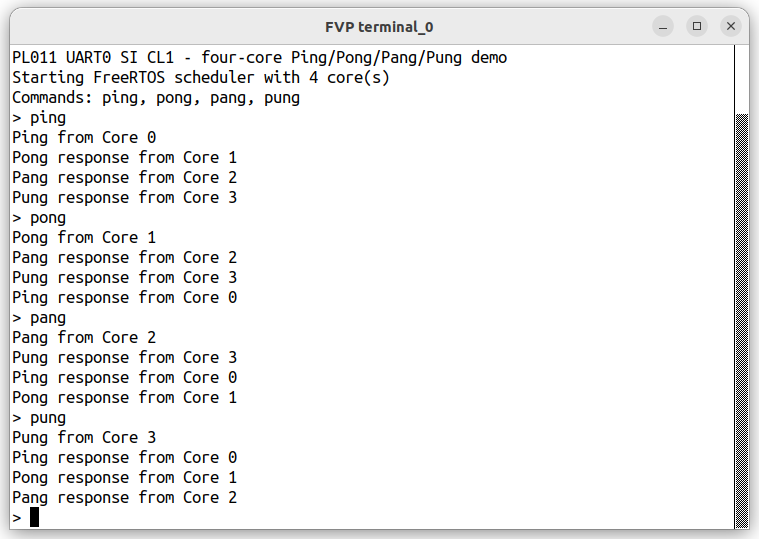
At the application prompt, enter ping. The four tasks exchange a message in a cycle across the four cores, as shown in the terminal output:
 FreeRTOS four-core command output
This output validates UART access, SMP scheduling, and core affinity. It also validates interprocessor interrupts and the visibility of shared task state.
Debug early port failures
You can debug port failures by using either the Arm Development Studio debugger or Tarmac Trace.
Use the Arm Development Studio debugger
Start the FVP with its debug server enabled when the application doesn’t reach the prompt:
FVP_BaseR_Cortex-R82AE \
  --config fvp_R82AE_config.txt \
  --application build/standalone_R82AE/r82ae_smp_fvp_gcc_armclang.elf \
  -I -p
Load the debug image symbols in Arm Development Studio, then set breakpoints on main and FreeRTOS_Abort. Load symbols in the EL1 Secure address space if the debugger doesn’t resolve the running code automatically.
add-symbol-file build/standalone_R82AE/r82ae_smp_fvp_gcc_armclang.elf
add-symbol-file build/standalone_R82AE/r82ae_smp_fvp_gcc_armclang.elf EL1S:0
delete breakpoints
b main
b FreeRTOS_Abort
Use Tarmac Trace
A different debugging approach is to use Tarmac Trace .
Tarmac Trace records software running on an Arm FVP. It can log the following information:
- Instructions executed by each core
- Register updates
- Memory reads and writes
- Interrupts and exceptions
- Changes in processor state
This history is especially useful when the software fails before UART output or when attaching a debugger changes the behavior. Unlike a breakpoint, you can use the trace to inspect what happened immediately before the failure. Arm describes Tarmac as a textual record of CPU instructions and their effects.
Enable the Tarmac Trace plugin and write the trace to tarmac.log:
FVP_BaseR_Cortex-R82AE \
  --config fvp_R82AE_config.txt \
  --application build/standalone_R82AE/r82ae_smp_fvp_gcc_armclang.elf \
  --plugin=/opt/arm/developmentstudio_<version>/sw/models/bin/TarmacTrace.so \
  -C TRACE.TarmacTrace.trace-file=tarmac.log
Tracing generates a large amount of data and slows the FVP, so stop the model soon after the failure occurs.
You can then search the trace for a synchronous exception event:
grep -B 6 -A 4 'CoreEvent_CURRENT_SPx_SYNC' tarmac.log
The output is similar to:
          2368226 clk cpu0 IT (694295) 8000f284 f2a02dc0 O EL1h_s : MOVK     x0,#0x16e,LSL #16
  2368226 clk cpu0 R X0 00000000016E3600
  2368227 clk cpu0 IT (694296) 8000f288 97ffff6e O EL1h_s : BL       0x8000f040
  2368227 clk cpu0 R X30 000000008000F28C
  2368228 clk cpu0 IT (694297) 8000f040 d51be000 O EL1h_s : MSR      CNTFRQ_EL0,x0
  2368228 clk cpu0 E 000000008000f040 00000084 CoreEvent_CURRENT_SPx_SYNC
  2368228 clk cpu0 R cpsr 600003c5
  2368228 clk cpu0 R ELR_EL1 000000008000f040
  2368228 clk cpu0 R SPSR_EL1 00000000600002c5
  2368228 clk cpu0 R ESR_EL1 0000000002000000
The lines before CoreEvent_CURRENT_SPx_SYNC show the run leading to the exception. Identify the core that generated the event and inspect the last instruction that was run. Use the trace alongside the following exception registers:
ELR_EL1contains the address to which the processor returns after handling the exception. For a synchronous exception, it identifies the instruction associated with the failure.ESR_EL1describes the exception class and provides information about its cause. Use ESR.arm64 to interpret the syndrome register.FAR_EL1contains the address associated with an instruction or data access fault, when valid for that exception.SPSR_EL1captures the processor state at the time of the exception.
Together, this information can reveal an incorrect branch target, an invalid memory access, a stack error, or an unexpected exception-level transition. For an SMP failure, compare the trace events from all four cores. The comparison can show whether a core failed to start, didn’t receive an interprocessor interrupt, or accessed shared state in an unexpected order. Arm also provides Tarmac Trace Utilities for indexing and browsing large trace files.
The relevant values from this trace example are:
        X0 = 0x016E3600, or 24 MHz
ELR_EL1 = 0x8000F040, the address of the failing MSR
ESR_EL1 = 0x02000000EC = 0x00: unknown or undefined instruction
IL = 1: the faulting instruction is 32 bits
EL1h_s: the application is executing at Secure EL1
The trace shows that execution stops on MSR CNTFRQ_EL0, x0. ELR_EL1 contains the address of this instruction, while the exception class in ESR_EL1 reports an undefined instruction. The application runs at EL1, but CNTFRQ_EL0 can be written only from the highest implemented Exception Level, which is EL2 on Cortex-R82AE. The timer frequency therefore needs to be initialized at EL2 before entering EL1.
For more advanced analysis, use the open-source Arm Tarmac Trace Utilities .
What you’ve accomplished and what’s next
You’ve built and validated the FreeRTOS SMP port on a standalone Cortex-R82AE FVP. You also have a raw binary for direct memory loading and an ELF image for source-level debugging.
Next, you’ll adapt this known-good port to the Zena CSS Safety Island memory and peripheral map.