Arm Performix
About this Install Guide
| Reading time: | 30 min |
| Last updated: | 24 Mar 2026 |
| Reading time: |
| 30 min |
| Last updated: |
| 24 Mar 2026 |
| Author: | Pareena Verma, Arm
|
| Official docs: | View |
| Tags: |
| Author: |
| Official docs: |
| View |
| Tags: |
This guide shows you how to install and use the tool with the most common configuration. For advanced options and complete reference information, see the official documentation. Some install guides also include optional next steps to help you explore related workflows or integrations.
Arm Performix is a desktop application that provides performance analysis and profiling for Arm-based Linux systems. Arm Performix connects to remote Arm Linux targets via SSH and provides a graphical interface for capturing and analyzing performance data using hardware performance counters and the top-down methodology.
Arm Performix provides capabilities for:
- Performance profiling using hardware performance monitoring counters
- Top-down methodology analysis for identifying performance bottlenecks
- System-wide and per-process profiling
- Command-line interface (CLI) included with the GUI installation
- SSH-based remote target connections with optional jump node support
Arm Performix is available for Windows, macOS, and Linux host machines, and connects to Arm Linux target systems running Amazon Linux 2023, Ubuntu 22.04, or Ubuntu 24.04.
What should I do before installing Arm Performix?
Arm Performix requires different packages depending on your host platform:
- Windows: Windows 10 or later (Arm64 or x64 architecture)
- macOS: macOS on Arm64 (Apple Silicon)
- Linux: Debian-based distribution on Arm64 or x64 architecture
You also need access to an Arm Linux target system for profiling.
How do I download and install Arm Performix?
Arm Performix is distributed as platform-specific installer packages. The installation includes both the GUI and the CLI tool (apx).
How do I install Arm Performix on Windows?
Download the Windows installer package for your architecture from the Arm Performix download page .
Alternatively, download using PowerShell. These commands require PowerShell and do not work in the Windows Command Prompt (CMD):
curl -o ArmPerformix-windows-arm64.exe https://artifacts.tools.arm.com/arm-performix/app/latest/windows/arm64/ArmPerformix-windows-arm64.exe
curl -o ArmPerformix-windows-x64.exe https://artifacts.tools.arm.com/arm-performix/app/latest/windows/x64/ArmPerformix-windows-x64.exe
After downloading the .exe file, locate it in your Downloads folder and double-click it to start the installation wizard.
Review the License Agreement and select I Agree.
Choose whether to install Arm Performix for all users or just yourself, then select Next.
If you choose Anyone who uses this computer (all users), a User Access Control dialog opens. Enter an administrator username and password, then select Yes.
Choose the installation directory. You can accept the default or select Browse to choose a different location.
Select Install.
When the installation finishes, select Finish to close the wizard.
How do I install Arm Performix on Linux?
Download the Linux installer package for your architecture from the Arm Performix download page .
Alternatively, download using wget:
wget -P $HOME https://artifacts.tools.arm.com/arm-performix/app/latest/linux/arm64/ArmPerformix-linux-arm64.deb
wget -P $HOME https://artifacts.tools.arm.com/arm-performix/app/latest/linux/x64/ArmPerformix-linux-amd64.deb
After downloading the .deb file, navigate to the directory where you downloaded it:
cd $HOME
Update the package list:
sudo apt update
Install the package:
sudo dpkg -i ArmPerformix-linux-arm64.deb
The dpkg command may report missing dependency errors. Run the following command to automatically fetch and install any missing dependencies:
sudo apt-get install -f
Navigate to the Arm Performix installation directory:
cd "/opt/Arm Performix/assets/apx/"
Verify the installation by checking the version:
./apx version
The output shows the installed version number:
        Daemon process started; to stop call `apx daemon stop`.
Arm Performix CLI version: 1.0.0
Arm Performix daemon version: 1.0.0
How do I install Arm Performix on macOS?
Download the macOS installer package from the Arm Performix download page .
Alternatively, download using curl:
curl -Lo ArmPerformix-darwin-arm64.pkg https://artifacts.tools.arm.com/arm-performix/app/latest/darwin/arm64/ArmPerformix-darwin-arm64.pkg
After downloading the .pkg file, navigate to the directory where you downloaded it and double-click the file to start the installer.
Review the license agreement and select Agree.
Choose the installation destination. By default, Arm Performix installs on your system drive.
Select Install and enter your macOS administrator password when prompted.
Wait while the installer copies the files.
When the installation finishes, select Close to exit the installer.
How do I prepare my target for Arm Performix connections?
Before connecting to an Arm Linux target, ensure SSH key-based authentication is configured and that passwordless sudo access is enabled. If you already manage your target system via SSH, you likely have most of this setup complete.
Check your existing SSH key
Verify that you can connect to your target using SSH. Replace user with your username and target_host with your target’s hostname or IP address:
ssh user@target_host
If the connection works, you have SSH key authentication configured. Now check if your existing key has a passphrase. Try to display the public key:
ssh-keygen -y -f ~/.ssh/id_ed25519
If you’re prompted for a passphrase, your key is protected with one. Arm Performix doesn’t support SSH keys with passphrases, so you need to create a separate key without a passphrase for Arm Performix.
Create a passphrase-free key for Arm Performix (if needed)
If your existing SSH key has a passphrase, generate a new key specifically for Performix:
ssh-keygen -t ed25519 -f ~/.ssh/apx_key
Press Enter when prompted for a passphrase to leave it empty.
Copy the new public key to your target. If your existing SSH key is at a non-default location (for example, ~/cloud-keys/my-instance.pem), specify it when copying:
ssh-copy-id -i ~/.ssh/apx_key.pub -o "IdentityFile=~/cloud-keys/my-instance.pem" user@target_host
If your existing key is in the default location (~/.ssh/id_ed25519 or ~/.ssh/id_rsa), use:
ssh-copy-id -i ~/.ssh/apx_key.pub user@target_host
You can now use ~/.ssh/apx_key as the private key when configuring the Arm Performix target connection.
Enable passwordless sudo on the target
Performix needs to run commands with elevated privileges on the target system. Because Performix cannot enter sudo passwords interactively, configure passwordless sudo access.
On the target system, edit the sudoers file:
sudo visudo
Add the following line, replacing <username> with your actual username:
<username> ALL=(ALL) NOPASSWD:ALL
Save and exit the editor.
How do I connect Arm Performix to a target?
After installing Arm Performix and preparing your target, you can connect using either the GUI or the CLI.
Connect using the Arm Performix GUI
Use the GUI on Windows and macOS hosts, though you can also run it on Linux.
Open the Arm Performix application.
On the home page, select Connect a target or select Targets in the activity bar to open the Targets view.
Select Add Target.
In the Configure Target form, provide the following details:
- Host: the hostname or IP address of the target machine
- Name: a descriptive name for the target
- Port: the SSH port number (default is 22)
- User: the username for SSH connection
- SSH Private Key: choose Automatically Detect Key or Select Key Manually
- For manual selection, enter the path to your private key (usually
~/.ssh/id_rsaor~/.ssh/id_ed25519)
- For manual selection, enter the path to your private key (usually
- Host Key Verification: Choose Strict (recommended) or Ignore
- Strict mode verifies the server identity using your
~/.ssh/known_hostsfile
- Strict mode verifies the server identity using your
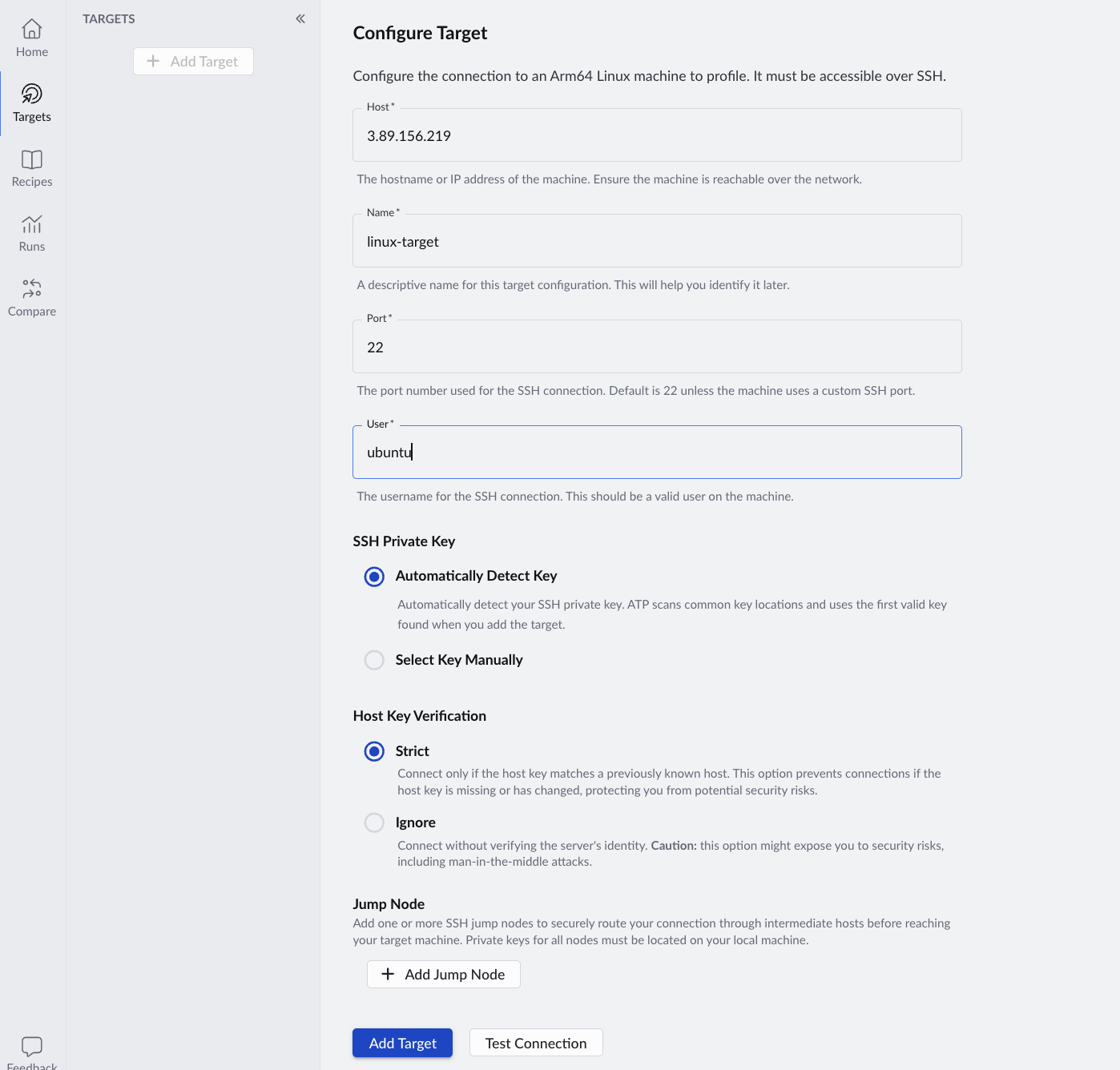 Configure Target form with connection settings
Select Add Target.
The target appears in the targets list and is ready for profiling.
You can select the Test Connection button to verify your connection to the Performix Linux target is successful.
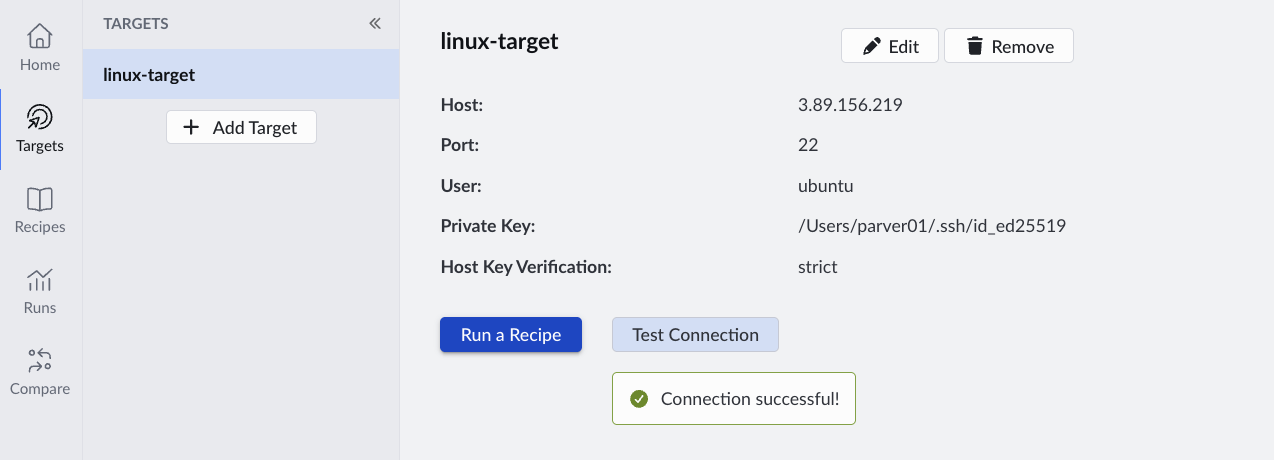 Successful Arm Performix target connection test
Configure jump nodes (optional)
If your target is behind a bastion host or requires intermediate servers for access, add jump nodes in the GUI:
In the Jump Node section, select Add Jump Node.
Provide the jump node details:
- Host: The hostname or IP address of the jump node
- Port: The SSH port (default is 22)
- User: The username for the jump node
- SSH Private Key: The key file path (if using manual selection)
Select Add to save the jump node.
You can add multiple jump nodes. The order matters—your connection uses them in sequence. Use drag and drop to reorder jump nodes.
Connect using the Arm Performix CLI
The CLI is useful for Linux hosts or when you prefer command-line workflows.
The apx command-line tool is installed automatically with the GUI. On Linux, you can find it at:
/opt/Arm\ Performix/assets/apx/apx
For convenience, add it to your PATH or create an alias:
export PATH="/opt/Arm Performix/assets/apx:$PATH"
Use the CLI help for command-line usage:
apx --help
Profile the local machine
If your target is the same machine where you installed Arm Performix (the host machine itself), Arm Performix automatically provides a built-in localhost target. You don’t need to configure authentication, SSH keys, or host verification for local profiling.
Verify the localhost target is available by listing all configured targets:
apx target list
The output is similar to:
        name      default  host_key_policy  value
localhost yes      localhost
1 registered target found
Your local machine is now ready to use as a target. Specify --target=localhost when running Arm Performix commands.
Add a remote target
To profile a workload on a remote machine, add it as a target using the standard syntax. This command registers the remote system with Performix:
apx target add <user>@<host>:<port>:<private_ssh_key_path>
Where:
user: (Optional) SSH username. If not specified, uses your current system usernamehost: (Required) Target hostname or IP addressport: (Optional) SSH port. Default is 22private_ssh_key_path: (Optional) Path to your private SSH key
For example, to connect to a target at 192.168.1.10 using the ubuntu username:
apx target add ubuntu@192.168.1.10
You can also use JSON format to specify the target:
apx target add '{
  "host": "192.168.1.10",
  "port": 22,
  "username": "ubuntu",
  "privateKeyFilename": "~/.ssh/apx_key",
  "hostKeyPolicy": "accept-new"
}'
Authentication options:
Choose one of the following methods to authenticate with your target:
Use an existing SSH key in a non-default location:
If your private key is not in
~/.ssh/id_rsaor~/.ssh/id_ed25519, specify its path in the target command:apx target add user@host:22:/path/to/private_ssh_keyAutomatically detect an existing SSH key:
Arm Performix searches common locations (
~/.ssh/id_rsa,~/.ssh/id_ed25519, etc.) for a usable key:apx target add user@host --find-keysGenerate and configure a new SSH key pair using password authentication:
If your target supports password-based SSH login, Performix can generate a new key pair and configure it automatically:
apx target add user@host --passwordThis option:
- Generates an RSA 4096-bit key pair on your host (without a passphrase)
- Authenticates to the target using the password you provide
- Adds the public key to the target’s
~/.ssh/authorized_keysfile - Records the target’s host key in the known hosts list
- Stores the private key securely for future connections
- Discards the password immediately after use (not stored)
Host key verification:
Specify host key verification with the --host-key-policy flag:
strict: (Default) Fail if the host key is unknown or changedignore: Disable host key verificationaccept-new: Accept unknown keys, but warn if they change later
apx target add user@host --host-key-policy accept-new
Naming and default targets:
Give your target a friendly name using --name:
apx target add ubuntu@192.168.1.10 --name my-target
Make a target the default for future commands with --default:
apx target add ubuntu@192.168.1.10 --name my-target --default
After you run this command, my-target becomes the default target for future commands.
Using jump nodes:
If your target requires jump nodes (bastion hosts), use the --jump flag. Specify jump nodes in connection order:
apx target add user@final-host --jump user@jumphost1 --jump admin@jumphost2
This connects through jumphost1, then jumphost2, then final-host.
Verify and manage targets:
Test the connection to a target:
apx target test my-target
List all configured targets:
apx target list
Remove a target:
apx target remove my-target
How do I uninstall Arm Performix?
To remove Arm Performix from your system, use the appropriate method for your platform:
For Windows, open Settings > Apps, find Arm Performix, and select Uninstall.
For macOS, drag the Arm Performix application from Applications to the Trash.
For Linux, remove the package:
sudo apt remove arm-performix
Give Feedback
How would you rate this tool quick-install guide?
What is the primary reason for your feedback ?
Thank you! We're grateful for your feedback.
- Have more feedback? Log an issue on GitHub.
- Want to collaborate? Join our Discord server.